The best gaming laptop for 3D rendering needs more than high gaming frame rates. GPU rendering benefits from graphics processing power and VRAM, while simulation, modeling, and CPU rendering can demand strong processors and substantial memory. These seven gaming laptops offer different balances of rendering capability, display quality, upgrade potential, and portability.
Quick Verdict
- Best overall for demanding 3D work: ASUS ROG Strix SCAR 18 (2025), configured with the RTX 5090 Laptop GPU.
- Best for high-resolution creative work: MSI Titan 18 HX AI, with its 4K-class Mini LED display option.
- Best for GPU-intensive rendering: Acer Predator Helios 18 AI with the RTX 5090 Laptop GPU.
- Best for a premium desktop replacement: Alienware 18 Area-51.
- Best for creators who value portability: Razer Blade 16, provided the selected configuration has sufficient GPU memory.
- Best alternative for sustained workloads: Lenovo Legion Pro 7i, configured with a high-tier GPU.
- Best for a large screen and upgrade flexibility: MSI Titan 18 HX AI with a configuration suited to the project’s memory and storage requirements.
These are configuration-dependent recommendations rather than claims that one laptop wins every rendering benchmark. GPU renderer support, available VRAM, sustained power, cooling, and project size can change which machine is the better purchase.
Quick Comparison Table
| Gaming laptop | Best for | Key specifications to prioritize | Main advantage | Trade-off |
| ASUS ROG Strix SCAR 18 (2025) | Overall rendering and gaming | Core Ultra 9 275HX; up to RTX 5090 Laptop GPU with 24GB VRAM; up to 64GB RAM | High GPU power ceiling and upgrade access | Large, heavy chassis |
| MSI Titan 18 HX AI | High-resolution creative workflows | Core Ultra 9 285HX; up to RTX 5090 Laptop GPU with 24GB VRAM; up to 96GB RAM in listed configurations | Large display and substantial memory options | Expensive and bulky |
| Acer Predator Helios 18 AI | GPU rendering | Core Ultra 9 275HX; up to RTX 5090 Laptop GPU with 24GB VRAM | Up to 175W maximum graphics power | Portability and fan noise may be concerns |
| Alienware 18 Area-51 | Desktop replacement | Core Ultra 9 290HX Plus; RTX 5090 Laptop GPU with 24GB VRAM in the specified configuration | High-end graphics and a large display | Configuration and power adapter affect mobility |
| Razer Blade 16 | Portable creative work | Select a current configuration with adequate GPU VRAM and RAM | More compact than 18-inch alternatives | Less room for sustained cooling than larger chassis |
| Lenovo Legion Pro 7i | Balanced gaming and creation | Choose the generation and GPU tier according to the workload | Performance-focused design with configuration options | Exact specifications vary by generation and SKU |
| MSI Titan 18 HX AI with RTX 5080 | High-end work with a lower GPU tier | Core Ultra 9 285HX; RTX 5080 Laptop GPU with 16GB VRAM in the listed configuration | Strong alternative to the RTX 5090 version | Less VRAM for demanding scenes |
The listed processors, memory capacities, displays, and graphics options are not universal across every retail listing. Confirm the precise US configuration before purchasing; a shared product-family name does not guarantee identical components.
How We Selected the Best Gaming Laptops for 3D Rendering
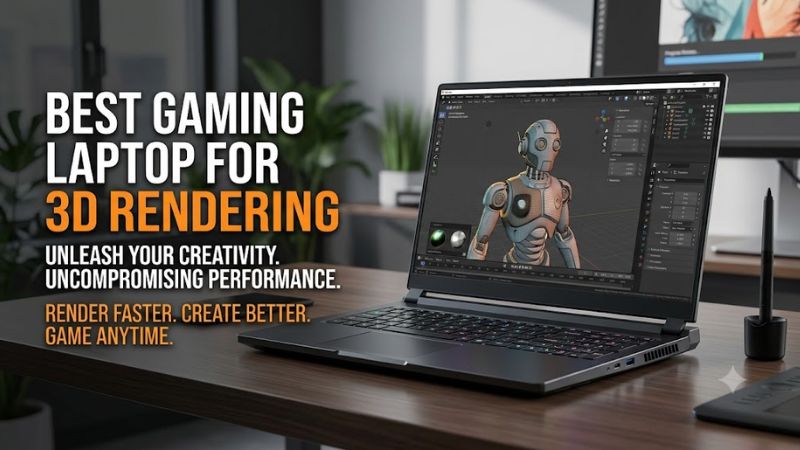
The recommendations prioritize hardware that affects real creative workloads, rather than gaming specifications alone. A laptop with a high-end GPU can be suitable for GPU-accelerated rendering, but its value depends on the renderer, scene complexity, memory requirements, and how well the system sustains power under prolonged workloads.
The selection criteria are:
- GPU capability and VRAM: Graphics performance, supported rendering APIs, and memory capacity for textures, geometry, lighting, and complex scenes.
- CPU performance: Processor capability for CPU rendering, simulation, procedural work, and tasks that depend heavily on single-core or multicore speed.
- System memory: Enough RAM for the 3D application, large scenes, textures, and other software running simultaneously.
- Cooling and power limits: Laptop GPU TGP, manufacturer power settings, and chassis design, which affect sustained performance.
- Display quality: Resolution, color gamut, and calibration features that help with modeling, texturing, and visual review.
- Storage and expansion: SSD capacity for project files, caches, asset libraries, and exported renders.
- Practical usability: Portability, connectivity, upgrade options, and whether the machine makes sense as a desktop replacement.
Blender Open Data provides useful context for GPU rendering. Its published device results distinguish laptop GPUs from desktop GPUs, and its benchmark scores depend on the device, compute backend, and benchmark version. Those results should not be interpreted as direct measurements of complete laptops or as guaranteed rendering times for every project.
Best Gaming Laptops for 3D Rendering
1. ASUS ROG Strix SCAR 18 (2025) — Best Overall
Best For: 3D artists who want high-end GPU rendering, substantial memory capacity, and strong gaming performance in a large laptop.
Why We Picked It: The 2025 ROG Strix SCAR 18 combines an Intel Core Ultra 9 275HX processor with configurations reaching the NVIDIA GeForce RTX 5090 Laptop GPU. ASUS specifies up to 175W maximum graphics power, including Dynamic Boost, and 24GB of GDDR7 VRAM for that GPU configuration. The machine also offers accessible RAM and SSD slots. These characteristics make it a compelling option for demanding GPU-accelerated workflows.
Key Specifications:
- Processor: Intel Core Ultra 9 275HX in the specified high-end configuration.
- Graphics: Up to NVIDIA GeForce RTX 5090 Laptop GPU.
- Graphics memory: 24GB GDDR7 with the RTX 5090 configuration.
- Maximum graphics power: Up to 175W, including Dynamic Boost.
- Display: 18-inch, 2560 × 1600 Mini LED option with a 240Hz refresh rate and 100% DCI-P3 coverage.
- Memory: Up to 64GB DDR5 in the listed configurations.
- Storage: PCIe NVMe SSD, with two M.2 slots.
Features & Benefits: The large display provides room for a 3D viewport, asset panels, and timeline controls. Its wide color gamut is useful for creative applications, although color-critical work still benefits from proper calibration. The accessible memory and storage slots make it easier to adapt the laptop to changing project requirements.
Performance & Practical Use: The RTX 5090 configuration is attractive for supported GPU renderers and other CUDA- or OptiX-accelerated workloads. However, 24GB of VRAM remains a finite resource. Very large scenes can still exceed available graphics memory, and CPU-based simulation performance depends on the workload rather than the GPU alone.
What Makes It Different: Its combination of high GPU power, a large Mini LED display, and accessible internal components makes it a strong all-rounder for people who both create and play games.
Pros:
- Up to 24GB of dedicated graphics memory.
- High graphics power ceiling for a laptop.
- Accessible RAM and SSD expansion.
Cons:
- Large chassis and limited convenience for frequent travel.
- High-end configurations can be expensive.
- GPU power limits do not guarantee a particular rendering speed.
Buy If: You regularly work with GPU rendering, detailed assets, or demanding game-engine scenes and want a large-screen machine.
Skip If: You need a light daily carry, depend on long unplugged rendering sessions, or routinely handle projects requiring more than 24GB of GPU memory.
2. MSI Titan 18 HX AI — Best for High-Resolution Creative Work
Best For: Professionals who want a large workstation-style gaming laptop with a high-resolution display and extensive memory options.
Why We Picked It: MSI’s Titan 18 HX AI lineup includes configurations with an Intel Core Ultra 9 285HX and up to an NVIDIA GeForce RTX 5090 Laptop GPU. Specified RTX 5090 configurations include 24GB of GDDR7 VRAM, a maximum graphics power of 175W with Dynamic Boost, and a 4K-class Mini LED display option.
Key Specifications:
- Processor: Intel Core Ultra 9 285HX in the cited RTX 5090 configuration.
- Graphics: NVIDIA GeForce RTX 5090 Laptop GPU or RTX 5080 Laptop GPU, depending on SKU.
- Graphics memory: 24GB GDDR7 for the RTX 5090; 16GB GDDR7 for the RTX 5080.
- Maximum graphics power: Up to 175W with Dynamic Boost.
- Display: Selected configurations offer an 18-inch 3840 × 2400 Mini LED panel with 120Hz refresh rate and 100% DCI-P3 coverage.
- Memory: Up to 96GB in some listed configurations; supported capacity depends on the exact model.
- Storage: Multiple M.2 SSD slots, with configurations varying by SKU.
Features & Benefits: A high-resolution display can make fine interface details and large images easier to inspect. The broad color gamut can benefit texturing and color-oriented tasks. Generous RAM and storage configurations also help users keep large assets, caches, and multiple applications available without immediately resorting to external drives.
Performance & Practical Use: The RTX 5090 version is the more suitable choice for memory-heavy GPU rendering, while the RTX 5080 variant with 16GB VRAM may be adequate for many medium-to-large projects. The best choice depends on whether the workload is limited by graphics memory, rendering throughput, CPU performance, or system RAM.
What Makes It Different: The Titan emphasizes a premium large-screen experience and extensive internal capacity, making it particularly attractive for users who rarely need to carry their laptop far.
Pros:
- High-resolution Mini LED display option.
- Substantial RAM and SSD configuration options.
- High-end GPU choices with documented power limits.
Cons:
- Large and heavy for a portable computer.
- High-end configurations can command a substantial premium.
- The highest-resolution panel does not automatically improve render speed.
Buy If: You want a large working canvas, extensive local storage, and a powerful system for GPU rendering and gaming.
Skip If: Portability and budget matter more than screen size, or your renderer requires a professional GPU feature that the selected GeForce configuration does not provide.
3. Acer Predator Helios 18 AI — Best for GPU Rendering
Best For: Artists who prioritize a high-powered NVIDIA GPU and a large screen for rendering, modeling, and gaming.
Why We Picked It: Acer’s Predator Helios 18 AI PH18-73 family includes configurations with an Intel Core Ultra 9 275HX and an RTX 5090 Laptop GPU with 24GB of graphics memory. Acer’s published specifications identify a maximum graphics power of 175W for the relevant RTX 5090 configuration, including Dynamic Boost.
Key Specifications:
- Processor: Intel Core Ultra 9 275HX in the specified configuration.
- Graphics: Up to NVIDIA GeForce RTX 5090 Laptop GPU.
- Graphics memory: 24GB GDDR7 with the RTX 5090 configuration.
- Maximum graphics power: Up to 175W, including Dynamic Boost.
- Memory and storage: Depend on the exact retail configuration.
- Display: 18-inch display options, with resolution, refresh rate, and panel technology varying by SKU.
Features & Benefits: The high-end GPU option is relevant for renderers that support NVIDIA’s acceleration technologies. A large display also helps with complex interfaces, node-based materials, and timelines. The exact panel should be checked before purchase, particularly if color accuracy is important to your work.
Performance & Practical Use: The RTX 5090 option has the graphics-memory capacity and power allowance to make it a serious candidate for supported GPU rendering. Actual performance depends on the rendering engine, cooling behavior, power mode, and scene complexity. A laptop with the same GPU name but a different power configuration should not be assumed to perform identically.
What Makes It Different: The Helios 18 AI offers a high-end rendering configuration in Acer’s large gaming-laptop chassis without requiring a move to a specialized mobile workstation.
Pros:
- RTX 5090 option with 24GB GDDR7 VRAM.
- Up to 175W graphics power in the specified configuration.
- Large-screen design for creative workflows.
Cons:
- Less convenient to transport than smaller laptops.
- Configuration differences complicate comparisons between listings.
- Sustained fan noise and temperatures should be assessed using independent reviews of the exact SKU.
Buy If: Your main priority is a high-end NVIDIA GPU for rendering and you prefer a large laptop.
Skip If: You need a compact machine or cannot verify the memory, display, and GPU configuration offered by the retailer.
4. Alienware 18 Area-51 — Best Premium Desktop Replacement
Best For: Users who want a powerful 18-inch gaming laptop for demanding creative work, gaming, and a mostly stationary setup.
Why We Picked It: Dell’s Alienware 18 Area-51 lineup offers configurations with the Intel Core Ultra 9 290HX Plus and NVIDIA GeForce RTX 5090 Laptop GPU with 24GB of GDDR7 memory. Dell specifies up to 175W of GPU power and up to 280W of combined CPU and GPU power for the product family.
Key Specifications:
- Processor: Intel Core Ultra 9 290HX Plus in the specified configuration.
- Graphics: NVIDIA GeForce RTX 5090 Laptop GPU in the high-end configuration.
- Graphics memory: 24GB GDDR7.
- Maximum graphics power: Up to 175W.
- Combined CPU/GPU power: Up to 280W, according to Dell’s product specifications.
- Display: Selected configurations offer an 18-inch, 2560 × 1600 panel with a 300Hz refresh rate and 100% DCI-P3 coverage.
- Memory and storage: Verify the exact configuration; the cited US listing includes 32GB RAM and a 2TB SSD.
Features & Benefits: The high combined power allowance supports the laptop’s desktop-replacement positioning. A large screen is useful for modeling and creative multitasking, while a high refresh rate remains useful for gaming. Neither characteristic substitutes for verifying color accuracy, memory capacity, and compatibility with the rendering software you use.
Performance & Practical Use: The RTX 5090 configuration is appropriate to consider for demanding GPU rendering. Projects that rely heavily on CPU simulation or exceed available GPU memory require a separate assessment. Combined system power is a design limit, not a benchmark result, and does not mean the CPU and GPU always operate at their respective maximums simultaneously.
What Makes It Different: Alienware’s emphasis on combined processor and graphics power makes it a logical choice for users who want one large laptop to handle both intensive gaming and creative work.
Pros:
- High-end RTX 5090 option with 24GB VRAM.
- High combined CPU/GPU power specification.
- Large display for a desktop-replacement setup.
Cons:
- Less practical for regular commuting.
- Configuration and service costs require careful comparison.
- High power consumption makes wall-power operation more suitable for sustained rendering.
Buy If: You want a powerful laptop that will spend most of its time on a desk and can replace a separate gaming system.
Skip If: You need a lightweight travel machine or your work requires workstation-specific certification and support.
5. Razer Blade 16 — Best for Portability
Best For: 3D artists who travel frequently and want a more compact gaming laptop for modeling, lighter rendering workloads, and gaming.
Why We Picked It: The Razer Blade 16 prioritizes a slimmer, more portable chassis than the 18-inch systems in this list. Its suitability for rendering depends heavily on the chosen generation and GPU configuration, so buyers should evaluate the exact SKU rather than assume every Blade 16 offers the same graphics performance or memory capacity.
Key Specifications to Verify:
- Processor: Confirm the CPU generation and model for the selected retail SKU.
- Graphics: Confirm the exact NVIDIA GeForce RTX Laptop GPU.
- Graphics memory: Match VRAM capacity to your rendering engine and scene size.
- GPU power: Check the manufacturer’s stated maximum graphics power for that SKU.
- Memory: Confirm installed RAM and whether it is upgradeable.
- Display: Verify resolution, panel type, color gamut, and refresh rate.
- Storage: Check the installed SSD capacity and supported expansion options.
Features & Benefits: Portability matters for creators who work between studios, offices, and classrooms. A smaller laptop can also serve as a convenient machine for modeling, preview renders, and scene preparation before final rendering on a more powerful desktop or render farm.
Performance & Practical Use: The Blade 16 is worth considering when mobility is important, but its thinner design makes it especially important to read independent reviews of the exact configuration under sustained load. A short rendering burst does not necessarily predict performance during a long animation or complex final render.
What Makes It Different: Its appeal is the balance between a gaming-capable system and a form factor that is easier to travel with than a full-size 18-inch laptop.
Pros:
- More portable design than most 18-inch alternatives.
- Suitable for combining creative tasks with gaming.
- Useful for mobile modeling and project preparation.
Cons:
- Exact GPU power and VRAM depend on configuration.
- Compact cooling systems may behave differently under sustained loads.
- Premium construction does not guarantee the best rendering value.
Buy If: You regularly travel and need a gaming laptop that can also handle your typical 3D workload.
Skip If: Your daily work involves long, GPU-heavy renders or scenes that need the maximum available VRAM and sustained cooling.
6. Lenovo Legion Pro 7i Gen 10 — Best Balanced Rendering Laptop
Best For: 3D artists who want a high-performance laptop with substantial GPU memory, upgradeable RAM, and a chassis smaller than most 18-inch desktop replacements.
Why We Picked It: Lenovo’s Legion Pro 7i Gen 10, model family 16IAX10H, offers configurations with an Intel Core Ultra 9 275HX and an RTX 5090 Laptop GPU. Lenovo’s specifications list 24GB of GDDR7 VRAM and a 175W maximum graphics power for this GPU option.
Key Specifications:
- Processor: Intel Core Ultra 9 275HX in the specified configuration.
- Graphics: Up to NVIDIA GeForce RTX 5090 Laptop GPU.
- Graphics memory: Up to 24GB GDDR7.
- Maximum graphics power: Up to 175W for the RTX 5090 configuration.
- Memory: Up to 64GB DDR5-6400 in Lenovo’s listed offerings.
- Storage: Two M.2 SSD slots, with supported capacities depending on configuration.
- Display: 16-inch panel; verify the exact resolution, color coverage, and refresh rate before purchasing.
Features & Benefits: The 16-inch format offers more workspace than many compact laptops while remaining easier to accommodate on a desk than an 18-inch machine. Two memory slots and two M.2 storage slots provide flexibility for supported upgrades.
Performance & Practical Use: The RTX 5090 option is suitable for demanding GPU-accelerated workflows, while lower GPU configurations may be more economical for modeling and moderate rendering workloads. Check whether your software benefits more from VRAM, GPU throughput, CPU resources, or additional system memory before selecting a configuration.
What Makes It Different: The Legion Pro 7i combines a performance-oriented GPU configuration with a 16-inch chassis and accessible internal expansion.
Pros:
- RTX 5090 option with 24GB VRAM.
- Upgradeable memory and dual M.2 storage support.
- More manageable size than most 18-inch gaming laptops.
Cons:
- High-end configurations can still be expensive.
- The RTX 5090 option does not make every project GPU-bound.
- The display and memory supplied vary by SKU.
Buy If: You want high-end rendering capability without committing to an 18-inch laptop.
Skip If: You require a certified professional workstation or need more than the supported system-memory capacity for large CPU-based workloads.
7. Razer Blade 18 (2025) — Best Large Display for Creative Work
Best For: Creators who want a large, high-resolution screen, a premium chassis, and powerful graphics for rendering and gaming.
Why We Picked It: The 2025 Razer Blade 18 combines an Intel Core Ultra 9 275HX with configurations reaching the NVIDIA GeForce RTX 5090 Laptop GPU. Razer specifies up to 175W GPU power and a dual-mode display offering 3840 × 2400 at 240Hz or 1920 × 1200 at 440Hz.
Key Specifications:
- Processor: Intel Core Ultra 9 275HX.
- Graphics: Up to NVIDIA GeForce RTX 5090 Laptop GPU.
- Graphics memory: Up to 24GB GDDR7 with the RTX 5090 configuration.
- Maximum graphics power: Up to 175W.
- Display: 18-inch dual-mode IPS panel, with UHD+ 240Hz and FHD+ 440Hz modes.
- Memory: Up to 64GB DDR5 in the 2025 model specifications.
- Cooling: Vapor-chamber cooling system.
- Connectivity: Includes Thunderbolt 5.
Features & Benefits: The UHD+ mode offers a high-resolution workspace for inspecting detailed textures, geometry, and rendered images. The dual-mode panel also lets users prioritize resolution for creative work or refresh rate for competitive gaming. Razer’s published specifications identify 100% DCI-P3 coverage for the display.
Performance & Practical Use: The RTX 5090 configuration is a strong candidate for compatible GPU renderers, and the large screen is useful for creative multitasking. Its resolution does not reduce the VRAM required by a scene, and the display’s high refresh rate does not indicate rendering throughput. Long rendering jobs still depend on sustained power, cooling, and software compatibility.
What Makes It Different: The combination of a high-resolution dual-mode display, a high-end GPU option, and a premium design distinguishes the Blade 18 from more conventionally positioned gaming laptops.
Pros:
- High-resolution display option with broad color coverage.
- RTX 5090 option with 24GB VRAM.
- Up to 175W GPU power and vapor-chamber cooling.
Cons:
- Expensive premium positioning.
- Large chassis is less convenient for travel.
- Maximum memory capacity is lower than some larger workstation-oriented systems.
Buy If: You want a large creative workspace and powerful gaming hardware in one laptop.
Skip If: Your projects require more than 64GB of system RAM or you prefer a lighter, less expensive laptop.
Buying Guide: How to Choose a Gaming Laptop for 3D Rendering
1. Choose the GPU Based on Your Rendering Engine
The graphics card is often the most important component for GPU-based rendering, but the right model depends on the software you use.
NVIDIA GPUs are relevant for workflows that support CUDA or OptiX, including Blender Cycles GPU rendering. Other applications may use different APIs or rely more heavily on the CPU. Confirm the software’s supported GPU architecture and rendering backend before paying for a premium graphics configuration.
Laptop GPU names must also be distinguished from their desktop counterparts. An RTX 5090 Laptop GPU is not equivalent to the desktop RTX 5090 simply because both share the same family name.
2. Prioritize VRAM for Large Scenes
Video memory stores resources that the GPU needs during rendering, including textures, geometry, acceleration structures, and other scene data. If a scene exceeds available VRAM, the renderer may have to use system memory, reduce resource demands, or fail to render, depending on the application.
| VRAM capacity | Typical suitability |
| 8GB | Learning, simpler scenes, and lighter GPU workloads |
| 12GB | Intermediate projects with moderate asset complexity |
| 16GB | More demanding scenes, detailed textures, and larger environments |
| 24GB | A stronger starting point for complex scenes and heavier GPU workloads |
These are practical planning categories, not hard limits. Actual requirements vary with scene design, render settings, texture resolution, software, and optimization. A well-managed scene can fit into less memory than a poorly optimized scene with similar visual complexity.
3. Balance CPU Performance and GPU Rendering
A powerful GPU does not eliminate the need for a capable processor. CPU performance matters for simulation, physics, procedural modeling, scene preparation, compilation, and CPU-based rendering.
If most of your work uses GPU rendering, prioritize GPU capability and VRAM after confirming the minimum CPU requirements. If you spend more time on CPU rendering or simulation, evaluate multicore performance and sustained CPU power as well.
A laptop’s advertised maximum CPU wattage is not a guarantee that it can maintain that level alongside a fully loaded GPU. Shared cooling and power budgets can affect both components during demanding work.
4. Buy Enough RAM for Your Projects
System RAM and GPU VRAM serve different purposes. More system memory helps applications handle large scenes, asset libraries, simulations, and multitasking, but it does not directly replace dedicated graphics memory for GPU rendering.
- 32GB RAM: A reasonable starting point for learning, moderate modeling, and many general creative tasks.
- 64GB RAM: A more comfortable target for larger projects, complex scenes, and multitasking.
- 96GB or more: Worth considering for unusually memory-intensive workloads, provided the laptop supports the capacity.
Check the exact laptop’s maximum supported RAM and whether its memory is upgradeable. Some compact laptops use fixed memory, while others provide replaceable modules.
5. Evaluate Cooling and GPU TGP
Total Graphics Power, or TGP, describes the GPU’s configured power allowance. Two laptops equipped with the same named GPU can perform differently because of their power limits, cooling design, firmware, and operating modes.
Look for independent reviews that examine sustained workloads rather than only short benchmark runs. Relevant evidence includes rendering performance, temperatures, fan noise, and whether the machine maintains consistent performance over extended periods.
A high TGP is useful only when the laptop can manage the resulting heat and power demands. Do not assume that the largest power number guarantees the fastest render.
6. Select a Display for Your Creative Work
A high refresh rate is primarily useful for gaming and responsive interaction. For 3D work, resolution, color coverage, calibration, viewing angles, and screen size may be more important.
An 18-inch 4K-class panel provides more workspace for detailed inspection, but it can increase cost and power consumption. A 16-inch 2560 × 1600 display may be a better compromise for users who need to travel.
If you produce work for color-critical delivery, verify color accuracy and calibration performance rather than relying on a manufacturer’s color-gamut claim alone. An external calibrated monitor may be appropriate for a stationary setup.
7. Plan Storage Around Project Size
3D assets, texture libraries, caches, simulations, and animation frames can consume substantial SSD space. A 1TB drive may be sufficient for smaller projects, but 2TB or more offers greater flexibility for large asset collections.
Check the number of M.2 slots, supported drive dimensions, and upgrade procedures before purchasing. Keep a separate backup of important project files; additional internal storage is not a substitute for a backup strategy.
8. Check Software Compatibility Before Buying
Confirm that the laptop meets the operating system, GPU, driver, and memory requirements of your main applications. Professional workflows may also depend on plugins, rendering engines, or features that are not supported equally across every GPU.
For work involving CAD, simulation, or industry-specific software, check whether certified workstation drivers or vendor-supported hardware are required. A gaming laptop can be powerful without satisfying every professional certification requirement.
9. Compare the Total Cost of Ownership
The initial purchase price is only part of the cost. Consider memory upgrades, extra SSD storage, external displays, backup drives, and any additional cooling or workspace equipment required for your workflow.
A high-end RTX 5090 laptop may make sense for frequent GPU rendering, but it can be unnecessary for simple modeling, low-complexity scenes, or occasional rendering. Compare the complete system’s capabilities with the actual workload before choosing the highest GPU tier.
Frequently Asked Questions
Is a gaming laptop good for 3D rendering?
Yes, a gaming laptop can be very capable for 3D rendering when its GPU, VRAM, CPU, and memory meet the application’s requirements. Models with high-end NVIDIA Laptop GPUs can handle many GPU-accelerated workflows, although professional certification and specialized workstation features may still matter for certain applications.
How much VRAM do I need for 3D rendering?
The required VRAM depends on scene complexity, textures, render settings, and the rendering engine. Eight to 12GB may be sufficient for lighter work, while 16GB or 24GB provides more headroom for demanding GPU-rendered scenes. Larger projects can exceed even 24GB.
Is an RTX 5090 Laptop GPU worth it for 3D rendering?
An RTX 5090 Laptop GPU can be worthwhile if your rendering software supports its capabilities and your workload benefits from its graphics performance and 24GB of VRAM. For lighter scenes or CPU-focused applications, a less expensive GPU may offer better overall value.
Is 32GB RAM enough for Blender?
Yes, 32GB RAM is enough for learning Blender and many moderate projects, but complex scenes, large simulations, and multitasking can require more. A laptop that supports 64GB or greater provides more room to grow as project demands increase.
Should I choose a gaming laptop or a mobile workstation?
Choose a gaming laptop if you prioritize GPU performance, gaming capability, and general creative flexibility. A mobile workstation may be preferable when your workflow requires certified drivers, specialized professional support, or vendor-validated hardware. Compare the actual application requirements rather than relying on the product category alone.
Conclusion
The ASUS ROG Strix SCAR 18 (2025) with the RTX 5090 Laptop GPU is the strongest overall starting point in this roundup for demanding 3D rendering and gaming, thanks to its 24GB VRAM configuration, high graphics power allowance, and upgrade access. The MSI Titan 18 HX AI is a compelling alternative for users who prioritize a high-resolution display and extensive memory options, while the Lenovo Legion Pro 7i Gen 10 offers a smaller form factor with high-end GPU choices. Before buying, confirm the exact US SKU, rendering-software compatibility, VRAM, RAM capacity, and sustained performance characteristics that match your workload.