The best docking station for a Windows laptop is the one your laptop’s USB-C port can actually drive, and among the eight listings here the Anker Nano 13-in-1 and the Acer 13-in-1 look like the cleanest matches for a three-monitor Windows desk, while the Anker Prime suits laptops with heavier power appetites. Before you compare brands, spend five minutes confirming what your host port supports. A great dock on a data-only port is a very expensive paperweight.
The picture below is built from published specifications, manufacturer documentation and buyer reviews. Nobody on the team used or measured these units. When a title leaves something out, the text says to check the listing.
Our Top Picks
 Plugable USB 3.0 Universal Laptop Docking StationDual Display6.4 x 3.2 x 4 inches0.8 PoundsCheck on Amazon
Specification comparison

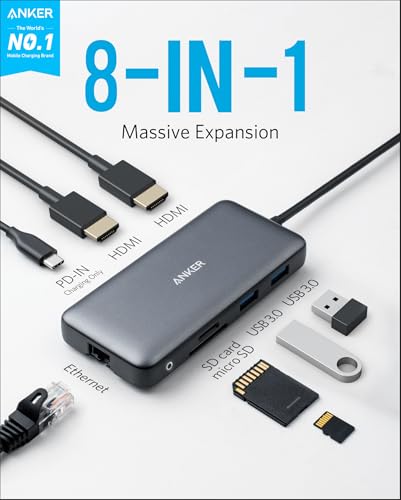
Anker Laptop Docking Station Dual Monitor, 8-in-1 USB C Hub with 4K HDMI | Dual HDMI USB C Dock, 1Gbps Ethernet, 85W Max PD, SD/TF Card Reader, for USB C Laptops, XPS and More (Charger Not Included)
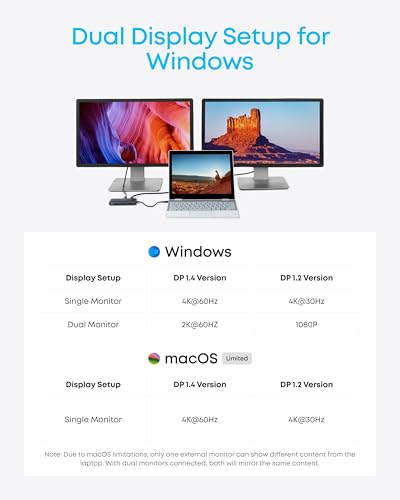


As an Amazon Associate we earn from qualifying purchases. Product prices and availability are accurate as of the date/time indicated.

Anker Nano Laptop Docking Station, 13in1 Dock with Detachable 6in1 USBC Hub | 3 Display USB C Dock (2 HDMI+1 DP), 10 Gbps USBC, 3 USBA, Audio, SD/TF, Ethernet, 100W Max PD for Dell/Lenovo/HP Home Office


As an Amazon Associate we earn from qualifying purchases. Product prices and availability are accurate as of the date/time indicated.

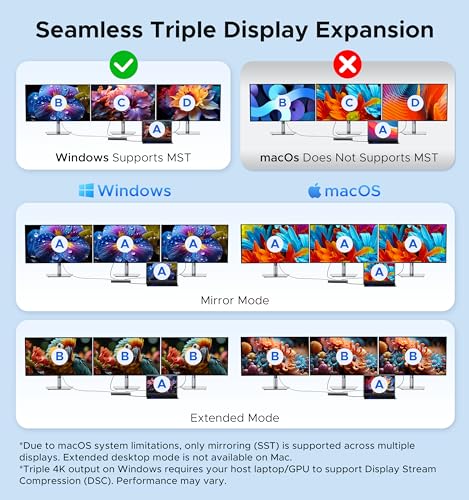
Acer 13-in-1 Laptop Docking Station, USB-C 3 Display Docking (2 HDMI+1 DP) | 100W Laptop Charging, 5Gbps USB-A/C, 1Gbps LAN, Requires Full-Featured USB-C Port, Windows Compatible,macOS Supports Only SST



As an Amazon Associate we earn from qualifying purchases. Product prices and availability are accurate as of the date/time indicated.

Anker Prime Docking Station, 14-in-1 Laptop Docking Station Dual Monitor | Dual 4K HDMI, 160W Max Output, 10Gbps Data Transfer, Smart Interface, Audio and Ethernet Ports for Dell, HP, Lenovo and More

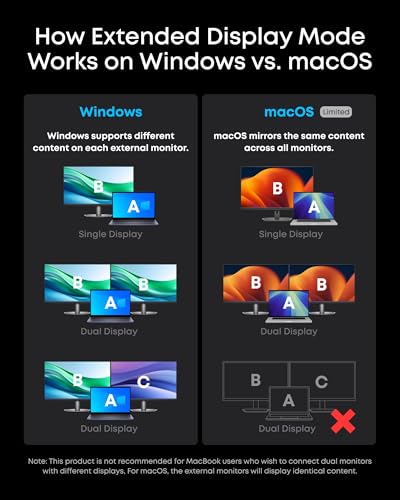


As an Amazon Associate we earn from qualifying purchases. Product prices and availability are accurate as of the date/time indicated.

Selore USB C Docking Station Dual Monitor, 14-in-1 Laptop Docking Station | Docking Station 3 Monitors with 2 HDMI, VGA, 10G USB A/C, 100W PD, 6 USB A/C Ports, USB C Hub Multiport Adapter for Windows


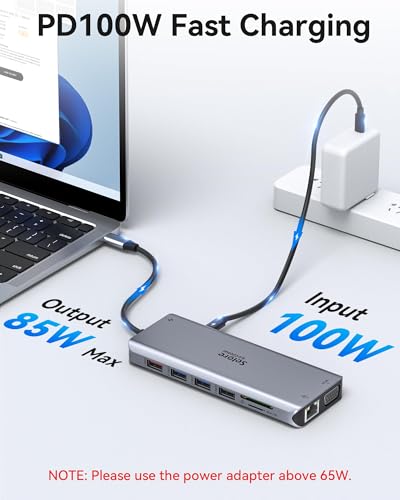


As an Amazon Associate we earn from qualifying purchases. Product prices and availability are accurate as of the date/time indicated.
Plugable USB 3.0 Universal Laptop Docking Station, Dual HDMI Monitor | for Windows and Mac (Driver Required), USB 3.0 or USB-C, 2x HDMI, Gigabit Ethernet, Audio, 6 USB Ports UD-3900


As an Amazon Associate we earn from qualifying purchases. Product prices and availability are accurate as of the date/time indicated.

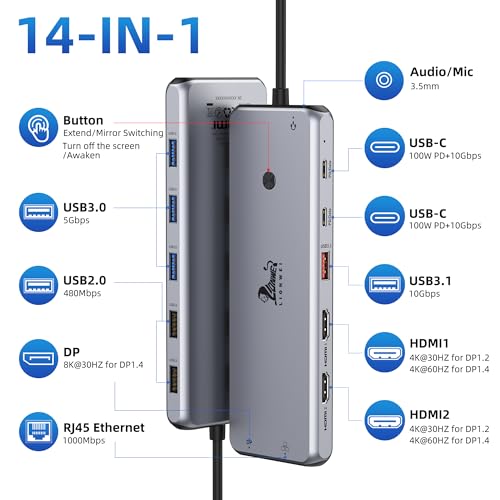
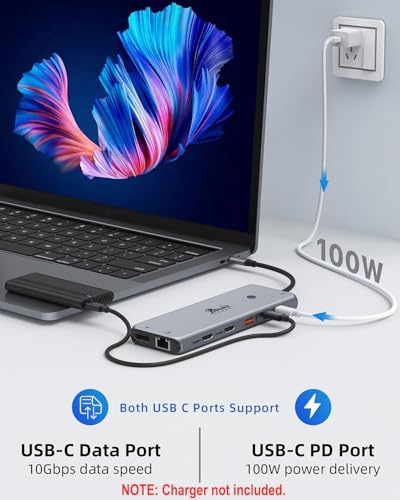
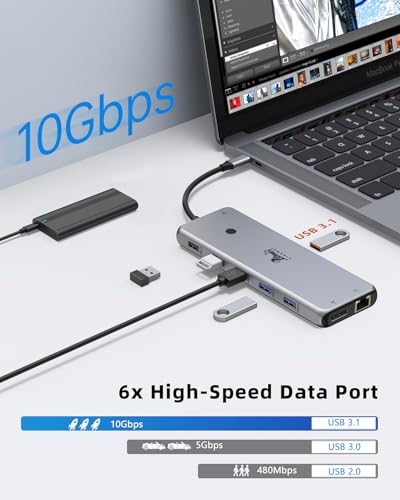
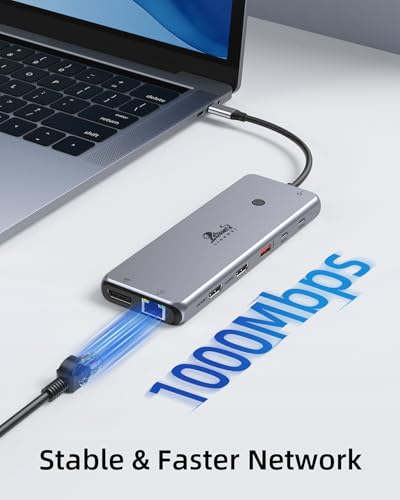
Docking Station Dual Monitor 4K HDMI 13-in-1 USB C Hub for Laptop MacBook | LIONWEI Triple 4K, Dual HDMI+DP, 10Gbps, 100W PD, Ethernet, 8 USB C/A Ports, Switching Mode Botton, Audio, for Dell,HP,Lenovo


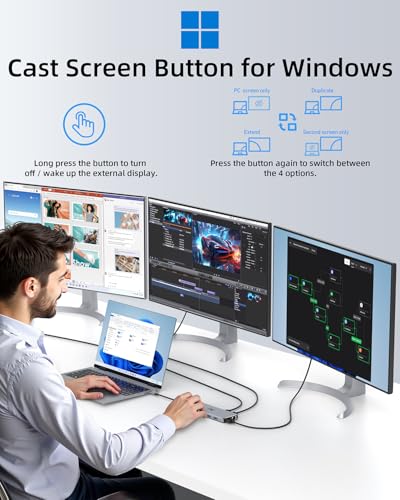

As an Amazon Associate we earn from qualifying purchases. Product prices and availability are accurate as of the date/time indicated.

Anker Laptop Docking Station, 13-in-1 USB C Docking Station, Triple Display | 2 HDMI and 1 DP, 10Gbps USB-C and 5Gbps USB-A Data Ports, Ethernet, Audio, SD/TF, 85W Charging for Dell, HP, Lenovo and More


As an Amazon Associate we earn from qualifying purchases. Product prices and availability are accurate as of the date/time indicated.
| Dock | Displays named | Charging named | Data and network | Price tier |
|---|---|---|---|---|
| Anker Nano 13-in-1 | 3 (2 HDMI, 1 DP) | 100W max | 10Gbps USB-C, 3 USB-A, Ethernet | Mid |
| Acer 13-in-1 | 3 (2 HDMI, 1 DP) | 100W | 5Gbps USB, 1Gbps LAN | Mid |
| Anker Prime 14-in-1 | Dual 4K HDMI | 160W max | 10Gbps, Ethernet | Premium |
| Anker 13-in-1 | Triple (2 HDMI, 1 DP) | 85W | 10Gbps USB-C, 5Gbps USB-A, Ethernet | Mid |
| LIONWEI 13-in-1 | Triple 4K (2 HDMI, 1 DP) | 100W | 10Gbps, Ethernet, 8 USB ports | Budget |
| Selore 14-in-1 | 3 monitors (2 HDMI, VGA) | 100W | 10G USB A/C, 6 USB ports | Budget |
| Plugable UD-3900 | Dual HDMI | Not stated | USB 3.0 or USB-C, Ethernet, 6 USB | Mid |
| Anker 8-in-1 | Dual HDMI | 85W max | 1Gbps Ethernet, card slots | Budget |
Treat the table as titles read aloud, not measured results. Dollar amounts change often, so confirm the current figure on each listing.
Five-minute host port check
Do this before you open the box, and again if a dock refuses to light up a screen. The steps cost nothing and cut most returns.
| Check | Where to look | What a good answer looks like |
|---|---|---|
| Port capabilities | Laptop manual or maker’s spec page | Lists DisplayPort output and power delivery on the USB-C port |
| Port symbols | Next to the connector | DisplayPort, lightning bolt or USB4 mark |
| Charger wattage | Label on your original adapter | A number you can compare with the dock |
| Graphics driver | Device Manager, Display adapters | A current vendor driver, not a basic adapter |
| Display mode | Windows key plus P | Extend selected, not Duplicate |
| Cable | Packaging and printed markings | The cable from the box, not an old charge-only lead |
If a port passes every check and a screen stays black, the weak link is usually a cable or a monitor input source. Swap those first. When your laptop is a gaming model, it is also worth confirming how much graphics wattage it is allowed to use, and our walkthrough on checking laptop GPU wattage in Windows shows where to find it.
How the shortlist was built
We read every title for connection type, display outputs, charging wattage, Ethernet speed, USB speeds and stated compatibility notes. We separated true features from adjectives, noted where a title lists more video ports than screens it can run at once, and flagged the single listing that requires a driver. We then weighed each against well-known Windows behavior: how USB-C video modes work, and how multi-monitor docks usually split a single link.
The eight docks in detail
Anker Nano Laptop Docking Station 13-in-1
A dock with a removable 6-in-1 hub, three display outputs (two HDMI, one DisplayPort), a 10Gbps USB-C port, three USB-A ports, audio, SD and TF card slots, Ethernet and up to 100W of charging. The detachable hub is the story: leave the full dock on the desk and carry the small piece to a meeting. Windows users get the benefit of a built-in DisplayPort for a third screen.
Three displays from one USB-C cable depends on your host. Some laptops support the needed multi-stream mode, others limit you to two. Confirm the host spec.
Ask before buying: which ports remain when the hub is detached?
Pros
- Desk dock and travel hub in one purchase
- Three displays and 10Gbps USB-C stated
- Ethernet and card readers included
Cons
- 100W cap for high-draw laptops
- Third display depends on host capability
- Mid price tier
Acer 13-in-1 Laptop Docking Station
The title is blunt about its conditions. It names three displays (two HDMI and one DisplayPort), 100W charging, 5Gbps USB-A and USB-C, 1Gbps LAN, a requirement for a full-featured USB-C port, Windows compatibility, and a note that macOS supports only SST. For a Windows buyer that is nearly the ideal profile, because the Mac caveat does not apply.
The “full-featured USB-C port” line is the thing to verify with the host port check above. Without video output from the port, the dock will not light a screen.
Ask before buying: does my port carry video and power at once?
Pros
- Windows named as compatible, with honest limits stated
- Triple display claim and 100W charging
- Gigabit LAN
Cons
- 5Gbps data ports only
- Strict port requirement
- Mid price tier
Anker Prime Docking Station 14-in-1
This listing advertises 160W maximum output, 10Gbps data transfer, dual 4K HDMI, audio and Ethernet. It is the one to shortlist if your Windows laptop is a gaming or workstation model with a large factory charger. Two 4K HDMI outputs suit a typical two-monitor desk.
The premium tier is the trade-off. Check that your laptop accepts the higher USB-C power profiles; some laptops cap the wattage they will take through USB-C regardless of what the dock offers. The maker’s page will say.
Ask before buying: what is the highest USB-C charging wattage my laptop accepts?
Pros
- 160W maximum output stated
- Dual 4K HDMI and 10Gbps data
- Broad port selection
Cons
- Highest price tier
- Only two displays named
- Smart interface wording is vague
Anker Laptop Docking Station 13-in-1, Triple Display
A familiar triple-screen layout: two HDMI, one DisplayPort, 10Gbps USB-C, 5Gbps USB-A, Ethernet, audio, SD and TF, with 85W charging aimed at Dell, HP and Lenovo laptops. Those brand names point to business machines, which usually need less power than a gaming laptop.
At 85W, expect good results for ultrabooks and mainstream notebooks and a slower charge for hungry ones. As with other triple-screen docks, ask how resolution and refresh rate change when all three outputs are active.
Ask before buying: does the maker publish a table of supported display combinations?
Pros
- Triple display claim with mixed 10Gbps and 5Gbps ports
- Established accessory brand
- Mid price tier
Cons
- 85W may be short for powerful laptops
- Resolution and refresh may drop at three displays
- Older design than the Nano and Prime listings
LIONWEI 13-in-1 Docking Station, Triple 4K
A budget dock claiming triple 4K via dual HDMI plus DisplayPort, 10Gbps data, 100W PD, Ethernet, eight USB-C and USB-A ports, audio, and a switching mode button (the title spells it “Botton”). The mode button is intriguing: some docks use a switch to change between display modes for different host types, but the title does not say what it does. Check the listing images.
The title also names MacBook, which suggests it targets Mac and Windows alike. For a Windows buyer, the switch may matter. Treat the triple 4K claim cautiously, since real support depends on the refresh rate and the host.
Ask before buying: what does the mode switch change, and what are the default settings?
Pros
- Low price for a triple display claim
- Eight USB ports and Ethernet
- 100W PD named
Cons
- Typo and unclear switch description in the title
- Triple 4K needs verification
- Limited brand support history
Selore USB C Docking Station, 14-in-1
The title lists three monitors through two HDMI ports and a VGA port, 10G USB A and C, 100W PD, six USB-A and USB-C ports, and Windows as the target. The VGA output is the notable part. VGA is analog and limited in resolution, so it makes sense for an old projector or a spare office monitor, not for a modern gaming display.
That makes this one a pragmatic pick for a mixed bag of legacy screens. If your monitors are all HDMI or DisplayPort, the VGA port adds nothing.
Ask before buying: what resolution does the VGA output top out at, and can all three screens run together?
Pros
- Handles older VGA displays
- Windows named in the title
- Budget price tier with 100W PD
Cons
- VGA is a low-resolution analog output
- Brand name is unusual; check support and warranty
- No DisplayPort listed
Plugable USB 3.0 Universal Laptop Docking Station UD-3900
The standout for hosts without USB-C video. It says USB 3.0 or USB-C, dual HDMI, gigabit Ethernet, audio and six USB ports, for Windows and Mac, and, most importantly, driver required. That requirement means the video is handled by software across the USB link instead of DisplayPort passthrough. On Windows the driver installs from the maker.
It is a good fit for older Windows laptops with only USB-A ports, or for corporate machines where USB-C video is disabled. The title says nothing about laptop charging, so assume you will need to keep your original adapter plugged in.
Ask before buying: which Windows versions does the driver support, and how will I power the laptop?
Pros
- Works on plain USB 3.0 hosts
- Dual HDMI with Ethernet and six USB ports
- Windows named explicitly
Cons
- Driver required, per the title
- No charging mentioned
- Software-based video is a weaker path for fast motion
Anker Laptop Docking Station 8-in-1 Dual Monitor
The plain option: dual HDMI with 4K, 1Gbps Ethernet, 85W max power delivery, SD and TF slots, and a note that the charger is not included. It targets USB-C laptops including the Dell XPS. Windows users get the simplest version of a two-screen desk.
The missing charger means you must bring your own power brick for pass-through. Dual HDMI on a hub can also behave as a mirrored output on some hosts, so verify.
Ask before buying: does my own charger provide enough wattage to feed the laptop and the dock together?
Pros
- Lowest price tier from a known brand
- 1Gbps Ethernet and dual HDMI
- Simple layout for a two-monitor desk
Cons
- Charger not included
- Fewer ports than the 13-in-1 models
- Possible mirror behavior on some hosts
MST and display bandwidth on Windows
Windows can drive several monitors from one DisplayPort link when the dock and graphics driver support multi-stream transport. Think of MST as a hub inside the cable: one physical link, several independent video streams. Docks that advertise two or three outputs from a single USB-C cable typically use it, or use compression, or use a software display path like the Plugable. Each method has its own limits.
| Method | How it works | Strength | Watch for |
|---|---|---|---|
| Native DisplayPort passthrough | Video flows over the USB-C port’s DisplayPort mode | Low overhead, uses built-in drivers | Needs a host port with video |
| MST inside the dock | One link split into multiple streams | Independent extended screens on Windows | Refresh and resolution shrink as screens are added |
| Software display over USB | Driver compresses and sends frames | Works on hosts without USB-C video | Driver upkeep, weaker for fast motion |
| Analog VGA output | Converted from the digital stream | Supports legacy monitors | Low resolution |
A rough rule: every extra screen on one link lowers what each can run at. Two 1080p monitors at 60Hz leave plenty of room. Three 4K monitors at 60Hz on one cable ask for a lot more than most USB-C links can carry uncompressed, so expect a lower refresh, lower resolution or compression for the third screen. If you want one fast gaming display, plug that screen directly into the laptop and give the dock the others.
Decision flow
Walk down these questions in order and stop at the first match.
- Does the laptop’s USB-C port show video support? If no, shortlist the Plugable UD-3900 and plan to keep your original charger.
- Does your original charger exceed 100W? If yes, shortlist the Anker Prime and read its power notes before ordering.
- Do you want three screens? If yes, compare the Acer 13-in-1, the Anker Nano and the Anker 13-in-1, and confirm the combinations on the maker’s page.
- Do you own a VGA display? If yes, the Selore is the only listing here that names VGA.
- Do you just need two screens and Ethernet on a budget? Choose the Anker 8-in-1, and check that you have a charger for it.
After you pick, follow the cabling and settings sequence in our guide to setting up a laptop docking station at home.
Reading a Windows dock title without being fooled
Dock titles stack abbreviations, and a few of them change what you can do on Windows. The list below decodes the ones that appear across these eight listings.
- PD and “max” wattage: power delivery is the charging path to the laptop. The word max means a ceiling reached only when the wall adapter, the dock and the laptop all agree. Real output is shared with every device plugged into the dock.
- 10Gbps versus 5Gbps: the number describes the port’s top link speed, not what a drive will achieve. Put external SSDs on the faster port and leave keyboards and receivers on the slower ones.
- Ports versus screens: a title can list two HDMI, a DisplayPort and a VGA output and still limit you to three active screens. Look for the phrase describing the maximum simultaneous displays.
- Gigabit Ethernet: 1Gbps LAN is enough for any home connection under that speed. A faster internet plan would need a faster port, which none of these titles name.
- Compatible with Dell, HP and Lenovo: this is a hint at business laptops using standard USB-C power profiles. It is not a certification, and it does not mean a particular model will charge at full speed.
After the dock arrives: a sensible Windows order of operations
Connect the dock’s power adapter first if one is included, then attach monitors and peripherals, and plug the USB-C cable into the laptop last. This order lets Windows detect everything at one time instead of re-enumerating devices one by one. If the monitors stay dark, open Display settings, choose Detect, then try Windows key plus P and select Extend.
Next, update the graphics driver from the laptop or GPU maker, since new drivers often fix multi-monitor quirks. Check for dock firmware only through the maker’s official tool or page. If you notice stuttering or lower frame rates after docking, our guide to gaming laptop stuttering with high FPS goes through the usual causes, starting with power plans and which GPU drives the external screens.
Which dock for which user
| User | Best fit | Reason |
|---|---|---|
| Gaming or workstation laptop | Anker Prime 14-in-1 | 160W ceiling |
| Student with a bag and a desk | Anker Nano 13-in-1 | Detachable hub |
| Office worker with three screens | Acer 13-in-1 | Windows named, clear limits |
| Older laptop without USB-C video | Plugable UD-3900 | USB 3.0 option |
| Legacy VGA monitor owner | Selore 14-in-1 | VGA output |
| Budget two-screen setup | Anker 8-in-1 | Low tier |
Worked example: three screens, one laptop
These assumptions are for illustration only. A Windows laptop ships with a 100W USB-C charger, has one full-featured USB-C port, and you want two 1080p monitors at 60Hz plus one 1440p monitor at 144Hz.
| Item | Raw pixel rate (approx.) | Comment |
|---|---|---|
| Two 1080p at 60Hz | About 6.0 Gbps combined | Light load on a shared link |
| One 1440p at 144Hz | About 12.7 Gbps | Heavy; best sent straight from the laptop |
| Total on the dock if all three go through it | About 18.7 Gbps | Pushes the limits of a shared USB-C link with data |
| Suggested split | Two 1080p via dock, 1440p direct | Keeps fast refresh on a native port |
The arithmetic ignores blanking intervals and compression, so real figures are higher. The practical result holds: the fast monitor goes on a native port, and the dock handles the slower ones.
Mistakes and fixes
| Mistake | Symptom | Fix |
|---|---|---|
| Buying before checking the port | Dock powers but no video | Confirm DisplayPort output on the USB-C port |
| Using a charge-only cable | Monitors flicker or stay black | Use the cable from the box |
| Skipping graphics driver updates | Second screen not detected | Update from the laptop or GPU maker |
| Ignoring the power budget | Battery slowly drains while docked | Match dock wattage to your original adapter |
| Expecting full speed on every port | Slow external drive | Use the listed 10Gbps port for storage |
If the dock’s wattage is your main worry, our wattage size guide for dock and creator laptop pairings works through the maths.
Verdict
For most Windows desks, the Acer 13-in-1 and the Anker Nano are the sensible starting points for three screens, with the Anker Prime reserved for power-hungry machines. The Plugable UD-3900 earns its place only when USB-C video is missing. Budget buyers can look at the LIONWEI or the Anker 8-in-1, accepting vague wording or a missing charger. Whatever you choose, run the host port check first.
Frequently asked questions
How do I know if my Windows laptop supports a USB-C dock with video?
Look at the USB-C port markings and the laptop’s spec page. A port labeled with a DisplayPort symbol, a lightning bolt for Thunderbolt, or the words USB4 usually carries video. If the port has only a USB symbol or a battery icon, it may be data or charging only. When in doubt, the maker’s support page lists each port’s capabilities.
What does MST mean for a Windows docking station?
MST, or multi-stream transport, lets one DisplayPort connection carry several independent video streams so a dock can drive more than one monitor. Windows generally supports it on DisplayPort-based docks. If a listing offers multiple monitors without a driver, it likely uses MST or a similar method, but check the maker’s page for the supported display combinations.
Do I need to install a driver for my dock on Windows?
Docks that pass video straight through DisplayPort Alt Mode usually work with built-in Windows drivers, though firmware or Ethernet drivers sometimes help. Docks that rely on USB display technology, like the Plugable UD-3900 listing, state that a driver is required. Install the maker’s driver package before connecting monitors, and keep it updated with Windows.
Why does Windows detect my dock but show no second monitor?
Common causes are a host port without video output, a cable limited to charging, a monitor input set to the wrong source, or an out-of-date graphics driver. Press the Windows key plus P and choose Extend, then use Detect in Display settings. Try another cable and port before blaming the dock itself.
Can a dock charge a Windows laptop and also power several USB devices?
Yes, but the dock’s total power budget is shared. A 100W dock may pass less than 100W to the laptop once external drives and phones draw power, and some docks need an included or separate power adapter. Check the listing for the wall adapter and for how the maker splits wattage.
Is a Thunderbolt dock necessary for Windows?
Not for most users. Every listing here uses USB-C, and a Thunderbolt dock mainly adds bandwidth for several high-resolution displays and fast storage. If you only need two monitors and Ethernet, a USB-C dock with DisplayPort mode is usually enough. Check the listing and your laptop to confirm.