Two terabytes is the capacity where an NVMe drive stops feeling like a compromise. A modern game library, a few creative projects, and an operating system fit comfortably, and the extra room gives the controller space to work with, which helps keep speeds steady as the drive fills. The keyword also hides the choice that matters more than capacity: whether you want the fastest PCIe 5.0 hardware, a mainstream PCIe 4.0 drive with excellent real-world feel, or an older Gen 3 model that costs less but moves slower.
This guide is for desktop and laptop owners picking one 2TB M.2 2280 drive for a gaming PC, a creative workstation, or a straightforward upgrade. It covers seven listings and judges them only on the facts in each title: interface generation, quoted read speeds, memory type where it is named, and the use case the maker highlights. Quoted speeds are best-case sequential figures, so treat them as a ceiling and not a promise for everyday use in 2026.
Our Top Picks


Top 3 picks at a glance
Quick Picks
As an Amazon Associate we earn from qualifying purchases at no extra cost to you.


| Product | Best for | Key spec from the title |
|---|---|---|
| Samsung 990 PRO 2TB | High-end PCIe 4.0 performance | PCIe 4.0 M.2 2280, up to 7,450 MB/s |
| Samsung 9100 PRO 2TB | Top speed on a PCIe 5.0 board | PCIe 5.0 x4 M.2 2280, up to 14,700MB/s |
| Crucial P310 2TB | Laptops, desktops, and handheld consoles | PCIe Gen4 NVMe, up to 7,100MB/s, recovery software |
| Samsung 990 EVO Plus 2TB | Balanced upgrade for PC or laptop | PCIe Gen 4×4 or 5×2, up to 7,250 MB/s, HMB |
| Kingston NV3 2TB | Entry-level Gen 4 on a tight plan | PCIe 4.0 Gen 4×4, up to 6000 MB/s |
| WD Green SN350 2TB | Basic bulk storage on a low tier | Gen3 PCIe, QLC, up to 3,200 MB/s |
| WD Blue SN5100 2TB | Mainstream Gen 4 for PC or laptop | PCIe Gen 4.0, up to 7,100MB/s |
The 7 Best Options
Samsung 990 PRO 2TB
The 990 PRO is the high-end PCIe 4.0 option in this group and a long-standing reference point for fast Gen 4 drives. The title shows a 2TB capacity, a PCIe 4.0 M.2 2280 format, quoted speeds of up to 7,450 MB/s, and a pitch toward high-end computing, gaming, and heavy-duty workstations. It is the drive to consider when you want near-top Gen 4 speed without needing a PCIe 5.0 motherboard, and it fits both a gaming PC and a laptop with a standard 2280 slot.
- Up to 7,450 MB/s, the highest quoted speed among the Gen 4 drives in this guide.
- Standard M.2 2280 format fits most desktop boards and many laptops.
- Positioned by the maker for demanding gaming and workstation use.
- It sits at the premium end of the Gen 4 group, so the cost per terabyte is higher than a mainstream drive.
- Real-world gains over a good mainstream Gen 4 drive are small for typical gaming.
Skip it if your needs are mostly games and general use, because the speed advantage rarely shows up outside large file transfers and heavy editing. Compared with the 9100 PRO that follows, it gives up peak speed in exchange for compatibility with far more boards, and most buyers who read the listing carefully will find the Gen 4 drive the easier one to cool, install, and live with. If you edit large video files or move whole project folders around daily, the extra speed is still useful, but only if the rest of the system keeps up.
Samsung 9100 PRO 2TB
The 9100 PRO is the speed leader. The title lists a 2TB drive on PCIe 5.0 x4 in M.2 2280 format with quoted speeds of up to 14,700MB/s, and it is pitched for AI computing, gaming, and heavy-duty workstation work. The figure is double what the Gen 4 drives quote, which makes it the choice for someone with a PCIe 5.0 slot who regularly moves very large files, such as raw video or big datasets, and wants the shortest copy times available.
- Up to 14,700MB/s, the highest quoted speed in this group by a wide margin.
- PCIe 5.0 x4 future-proofs the drive for upcoming platforms.
- Targeted at AI, gaming, and workstation workloads by the maker.
- It needs a PCIe 5.0 M.2 slot to reach its quoted speed; in a Gen 4 slot it will run slower.
- Fast drives tend to run warm, so cooling and case airflow deserve attention.
Skip it if your motherboard lacks a PCIe 5.0 M.2 slot or if your work is mostly games and web use, where the extra speed is hard to notice. Against the Crucial P310 next, it is the speed-first option and the P310 is the value-first one, so the choice is about whether you will actually use the speed. A useful test is to ask how often you copy files larger than twenty gigabytes; if the answer is rarely, the money is better spent on capacity, a better graphics card, or a second drive for backups.
Crucial P310 2TB
The P310 aims at the broad middle. The title shows a 2TB PCIe Gen4 NVMe M.2 2280 drive with quoted speeds of up to 7,100MB/s, aimed at laptops, desktops, and handheld gaming consoles, and it mentions bundled data recovery software. Its pitch is breadth: the same drive works in a desktop, a laptop, and a handheld that accepts 2280 drives, making it a good pick for someone who upgrades more than one device, or who wants a single model to buy for a family.
- Up to 7,100MB/s on PCIe Gen4, close to the top of the Gen 4 range.
- Explicitly aimed at laptops, desktops, and handheld consoles.
- Bundled recovery software is mentioned in the title.
- It does not name memory type or heatsink details in the visible title.
- Handheld compatibility depends on whether the device accepts a 2280 drive, which must be checked.
Skip it if you want the absolute fastest drive or need the premium positioning of the Samsung models. Compared with the 990 EVO Plus that follows, the P310 gives up a small amount of quoted speed in exchange for a broader device-focused pitch, so it suits a buyer who values flexibility over the headline number. For a handheld, in particular, the practical limits are physical fit and heat, and the drive’s quoted peak matters far less than whether the device accepts a 2280 module at all.
Samsung 990 EVO Plus 2TB
The 990 EVO Plus is the balanced upgrade. The title lists a 2TB drive that is PCIe Gen 4×4 and 5×2, M.2 2280, with quoted speeds of up to 7,250 MB/s and HMB technology, and it is described as an upgrade for PCs and laptops. The dual-interface wording means it can use either four Gen 4 lanes or two Gen 5 lanes, which can help on boards that split lanes between slots. The HMB mention points to a design that borrows system memory rather than carrying its own cache.
- Up to 7,250 MB/s sits between the Crucial and WD Gen 4 figures and the 990 PRO.
- Supports Gen 4×4 or Gen 5×2 connections, giving flexibility on lane-limited boards.
- Marketed as a straightforward upgrade for PCs and laptops.
- HMB drives rely on system memory for mapping data, which may matter for sustained heavy workloads.
- The title does not state heatsink information.
Skip it if your workload involves long sustained writes, such as moving huge video projects all day, where a drive with its own cache may behave more consistently. Against the Kingston NV3 next in the list, it is a clear step up in quoted speed and a more flexible connection, which is why it suits a buyer who wants an easy upgrade without paying for a flagship. It is also the Samsung model to look at if you want the brand’s software and support experience but do not need the cache and headroom that come with the PRO name.
Kingston NV3 2TB
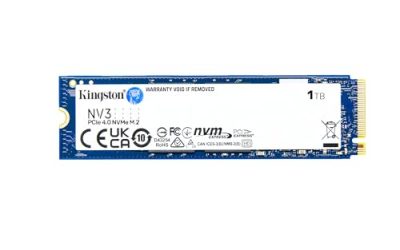
The NV3 is the entry-level Gen 4 choice. The title lists a 2TB M.2 2280 NVMe drive, PCIe 4.0 Gen 4×4, with quoted speeds of up to 6000 MB/s. That is lower than the 7,000-class drives above, but it is still far faster than any SATA drive and more than enough for loading games and general work. The NV3 is for people who want a Gen 4 drive on a lower tier, and who value a plain, no-frills storage upgrade.
- PCIe 4.0 Gen 4×4 support, so it is a genuine Gen 4 drive.
- Up to 6000 MB/s is plenty for games and everyday tasks.
- Standard M.2 2280 format for easy installation.
- Quoted speed is below the 7,000-class drives in this group.
- The title gives no detail on memory type or cooling, so long-term behavior is unclear.
Skip it if you do heavy video work or large transfers, where the faster drives will save time, or if you want a recognizable high-end brand. Compared with the WD Green that follows, it is a major speed upgrade and a better fit for a gaming PC, while the Green is aimed at plain storage. If your budget is tight, the NV3 is the lowest tier at which this guide would still call a drive a gaming-ready main disk, and the speed gap to the Green is large enough to feel in load times and installs.
WD Green SN350 2TB
The SN350 is the cost-minded Gen 3 option. The title describes a 2TB NVMe drive on Gen3 PCIe in M.2 2280 format, built with QLC memory and quoted at up to 3,200 MB/s. QLC stores more data per cell, which tends to lower cost but can slow down sustained writes once any cache fills. It is aimed at buyers who want to replace a hard drive or an old SATA drive with a faster, quieter option and who do not run heavy workloads.
- A 2TB NVMe drive at the low end of the group, suited to a bulk storage purpose.
- Up to 3,200 MB/s is much faster than a hard drive or a typical SATA drive.
- Standard M.2 2280 fits common desktop and laptop slots.
- QLC memory can slow sustained writes, so large transfers may drop in speed.
- Gen3 speeds are well below the Gen 4 and Gen 5 drives in this guide.
Skip it if you want a primary gaming or editing drive, because the other models offer much better speed for a modest step up. Against the WD Blue SN5100 that closes the list, it is a very different class: a bulk storage drive instead of a mainstream performance one. Use it for photo libraries, media collections, or a secondary game folder, where reads dominate and writes are occasional, and keep a faster drive for the operating system.
WD Blue SN5100 2TB
The SN5100 is a mainstream Gen 4 choice. The title lists a 2TB NVMe drive in M.2 2280 format, PCIe Gen 4.0, with read speeds of up to 7,100MB/s, described as an upgrade for PC and laptops. Its speed figure matches the Crucial P310, and its positioning is the same: a sensible Gen 4 drive for a desktop or laptop upgrade without premium cost. It suits a buyer who wants a well-known brand and a simple drive for gaming and daily work.
- PCIe Gen 4.0 with reads up to 7,100MB/s, near the top of the Gen 4 range.
- Marketed for PC and laptop upgrades.
- Comes from a widely known storage brand.
- The title does not name memory type or write speed, so sustained behavior is unknown.
- No heatsink is mentioned, which matters in a hot laptop or small case.
Skip it if you want the highest quoted speed or a PCIe 5.0 drive. Compared with the Samsung 990 EVO Plus, it quotes slightly lower speed but uses the same simple approach, so the choice may come down to brand preference and the cost on the day. If both are available at similar levels, read each maker’s warranty and endurance figures on the product page, because those details are not in the titles and are the best tiebreaker between two otherwise matched drives.
Who Needs a 2TB NVMe SSD
Gamers with large libraries
Modern games often take dozens or even a hundred gigabytes each. A 2TB drive holds a rotating set of titles without constant uninstalling. Fast load times matter, but the difference between a mainstream Gen 4 drive and a flagship is small in games, so spend on capacity first. A 2TB drive also leaves enough free space for patches and shader caches, which grow quietly over time, and it spares you the chore of deciding which game to delete before installing the next one.
Creators and editors
Video, photo, and audio projects generate large files quickly. A 2TB drive gives space for active projects plus caches. For heavy transfers, the faster Samsung drives save time, though a second drive for archives is often more useful than chasing the fastest one. Editors who work with proxy files and render caches also benefit from keeping the active project on the fastest drive and moving finished work to a cheaper disk, a workflow that makes a single 2TB drive go a long way.
Anyone replacing a hard drive or SATA drive
Moving to NVMe makes boot, app launch, and file copying noticeably quicker. Even the slowest NVMe drive here is far quicker than a hard drive, so a low-tier model is a legitimate upgrade for an older machine. The improvement shows up in boot time, application launches, and the feel of the whole system, and it often makes an aging laptop feel newer than a processor upgrade would. That is why a modest drive still counts as a worthwhile purchase for family computers.
How to Choose
Match the interface to your motherboard
PCIe 5.0 drives like the 9100 PRO need a Gen 5 M.2 slot to reach their quoted speed. In a Gen 4 slot they run at Gen 4 speeds. Check your board manual to see which slot supports what, because many boards give Gen 5 only to the slot closest to the processor. A practical threshold: if your board has no Gen 5 M.2 slot at all, treat PCIe 4.0 as your ceiling and shop in that group. Gen 3 boards still run a Gen 4 drive, but they cap it at Gen 3 speeds, so a Gen 3 machine gains nothing from paying for a faster model.
Treat quoted speed as a ceiling
Figures like 7,450 MB/s and 14,700MB/s are sequential read maximums. Everyday tasks such as booting and game loading rely more on random performance and latency than on peak sequential speed. Differences between 6,000 and 7,000 are barely visible in daily use, which makes mid-tier Gen 4 drives very good value. A sensible rule is to treat anything around 5,000 MB/s or faster as fast enough for gaming and general work, and to pay for more only when you handle files in the tens of gigabytes. Also watch the write speed, which the titles usually leave out but which decides how long a large copy takes once the cache is used up.
Understand QLC, HMB, and cache behavior
QLC memory, named on the WD Green, is dense and cost-effective but can slow when written heavily. HMB, named on the 990 EVO Plus, uses system memory for mapping instead of onboard DRAM. Both are fine for typical use, but heavy sustained writes favor drives with more robust caching. If you plan to use the drive as a scratch disk, a render target, or a place to unpack huge archives, prefer a model whose page states its cache design and endurance. If you mostly read, as with a games library, those details matter much less, and the lower-tier drives behave perfectly well.
Plan for heat
Fast drives warm up under load and may throttle without airflow or a heatsink. Many motherboards include M.2 heatsinks, and laptops rely on their own design. For a PCIe 5.0 drive, a heatsink is close to essential, so check the slot cover before you buy. A drive that throttles will still work, but it can slow down in the middle of a long copy, so give it airflow, avoid placing it directly under a hot graphics card, and use a slim heatsink in a laptop only if the manual allows the extra height.
Check the format and device fit
All seven drives are M.2 2280, the most common size. Confirm that your laptop, handheld, or console accepts a 2280 drive and that it does not require a specific height or a pre-installed heatsink. Some devices use shorter formats, and a wrong choice means a return. Double-sided versus single-sided modules can also matter in thin laptops, because a 2TB drive may use chips on both faces of the board. Read the clearance notes in the device manual before ordering, and keep a small screwdriver ready for the standoff.
Know where budget drives cut corners
Low-cost drives often use QLC memory, smaller caches, or older interfaces, and they may slow sharply on long writes. They also tend to leave details out of the title. Read the maker’s page for endurance and warranty terms, which are the clearest signs of how long the drive is expected to last. As a rough threshold, look for a multi-year warranty and a stated write endurance in hundreds of terabytes written for a 2TB drive. A page that gives neither is worth treating as a lower-confidence purchase, however attractive the headline speed looks.
PCIe 4.0 vs PCIe 5.0 for a 2TB Drive
| Factor | PCIe 4.0 drives here | PCIe 5.0 drive here |
|---|---|---|
| Quoted speed | 6000 to 7,450 MB/s | Up to 14,700MB/s |
| Board requirement | Gen 4 or Gen 5 slot | Gen 5 slot for full speed |
| Heat | Moderate | Higher, heatsink advised |
| Cost tier | Budget to premium | Premium |
| Everyday feel | Excellent | Similar for most tasks |
Choose PCIe 4.0 for most buyers
Gen 4 drives deliver excellent real-world performance, run cooler, and cost less. For gaming and general use, the difference from Gen 5 is hard to notice, which is why the 990 EVO Plus, P310, and SN5100 are the sensible mainstream picks. A Gen 4 drive also leaves your options open: it will move to a future platform without trouble, and it keeps the cost of the build low enough to put money into the graphics card.
Choose PCIe 5.0 for heavy transfers on a compatible board
If you move large files all day and own a Gen 5 slot, the 9100 PRO shortens copy times. It is a specialist purchase, so be sure your board and cooling can support it before spending the extra. The drive also makes the most sense alongside a fast processor and plenty of memory, since a slow link elsewhere in the workflow will hide the benefit. Buyers who simply want the newest standard for its own sake should accept that they are paying early for headroom they may not use for years.
One more factor is lane sharing. On some boards a Gen 5 slot takes lanes from the graphics slot or from a second M.2 slot, which can lower speeds elsewhere. Read the board manual for the lane map before you commit to either group. A board that splits lanes may favor a Gen 4 drive in the second slot while the Gen 5 drive sits in the first.
Setup, Compatibility and Upgrade Tips
What to check before buying
Find your motherboard or laptop manual and confirm the M.2 slot type, its interface speed, and its maximum size. Note whether the slot has a heatsink and whether it shares lanes with SATA ports, and write down the free space you need today plus a margin of at least thirty percent for growth. For laptops and handhelds, check clearance for any heatsink that comes with the drive. It also helps to back up your data first and make sure you have a way to boot installation media, since swapping the main drive often means reinstalling the operating system or cloning the old one.
What to upgrade first
If your system runs from a hard drive, moving the operating system to NVMe is the biggest speed gain you can make. If you already have a Gen 3 NVMe drive, a Gen 4 model is a modest improvement, so consider capacity before speed. Keep the old drive for backups or extra storage. After that, add a heatsink if the drive runs hot, and consider a second NVMe drive for games so that the system drive stays uncluttered and easier to image or restore when something goes wrong.
Common compatibility traps
A frequent trap is installing a drive in a slot that shares lanes with SATA ports and losing those ports. Another is buying a PCIe 5.0 drive and placing it in a Gen 4 slot without realizing the speed will drop. Clone or reinstall carefully, and update the drive firmware if the maker provides a tool. Enable the BIOS setting for NVMe boot if the board does not detect the drive, and format it with the partition style your operating system expects. If a drive does not appear, reseat it fully and check that the retention screw is placed in the 2280 standoff.
Which One Fits Your Situation
You own a PCIe 5.0 board and move huge files
The Samsung 9100 PRO 2TB is the match, since its quoted 14,700MB/s only appears in a Gen 5 slot. Make sure the heatsink and case airflow are in place, and keep the drive away from the hot zone under the graphics card so it can hold its speed during long copies.
You want a strong all-round gaming drive
The Samsung 990 PRO 2TB offers up to 7,450 MB/s on PCIe 4.0 and a premium brand, and it fits most boards. The 990 EVO Plus is the more moderate alternative, and the WD Blue SN5100 is a close match for buyers who prefer that brand. Any of the three suits a gaming build that needs capacity and good load times.
You are upgrading a laptop or handheld
The Crucial P310 2TB is aimed at laptops, desktops, and handheld consoles, with bundled recovery software mentioned. Check the device slot size first.
You are replacing a slow hard drive on a low plan
The Kingston NV3 2TB gives Gen 4 speeds at a lower tier, while the WD Green SN350 is the cheapest step up from a hard drive. Pick the NV3 if the machine will be used for games.
Common Mistakes
- Paying for PCIe 5.0 speed without a Gen 5 slot to use it.
- Treating peak sequential speed as the measure of everyday performance.
- Ignoring heat and skipping a heatsink on a fast drive.
- Choosing a QLC drive as a primary editing or scratch disk.
- Forgetting to check the device accepts an M.2 2280 drive.
- Losing SATA ports by placing the drive in a lane-sharing slot.
Frequently Asked Questions
Is 2TB enough for gaming?
For most players, yes. It holds a large rotating library alongside the operating system and applications. Players with many large titles may want a second drive.
Do I need PCIe 5.0?
Not for most uses. Gen 4 drives feel just as quick in games and daily work. Gen 5 helps mainly with very large file transfers on a compatible board.
What does QLC mean on a listing?
It is a type of memory that stores more data per cell, lowering cost. It can slow down on long writes once the fast cache fills, so it suits storage more than heavy editing.
Will an NVMe drive work in my laptop?
Only if the laptop has an M.2 slot of the right size and interface. Check the manual for the supported format, and confirm clearance for any heatsink.
What is HMB?
It stands for host memory buffer. The drive borrows a small slice of system memory for its mapping table instead of carrying its own DRAM, which keeps cost down.
Why are only seven drives covered?
Three other 2TB listings in the same set were left out to keep this guide focused, since they sit in tiers already represented by the drives above.
Final Words
The best 2TB NVMe drive is the one that matches your slot, your workload, and your tolerance for heat. The 990 PRO and 990 EVO Plus cover most Gen 4 needs, the 9100 PRO is for Gen 5 boards and heavy transfers, the P310 and SN5100 are sound mainstream picks, the NV3 is the entry-level Gen 4 drive, and the WD Green is a bulk storage option. Pick for your slot first and speed second. Look at the warranty and endurance figures on the maker’s page, confirm the drive fits your device, and plan some cooling. Followed in that order, the checklist narrows seven listings to one or two sensible choices, and the drive you end up with will serve through several upgrades of everything else.