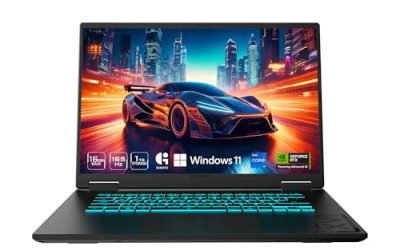
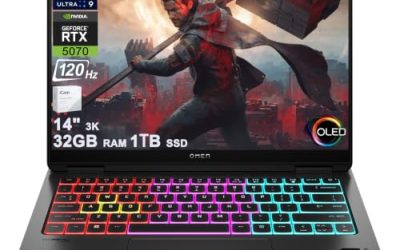
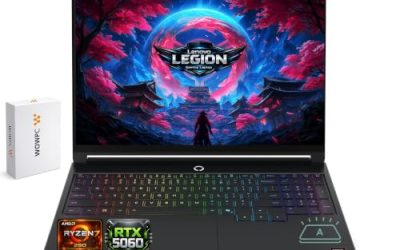
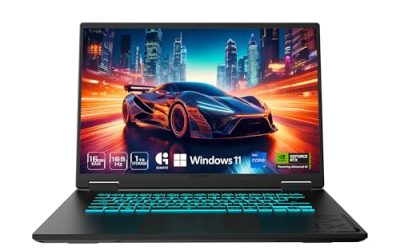
Choosing the best gaming laptop with upgradeable storage means finding a machine that lets you add a second SSD or replace the original drive without buying an entirely new computer. The right choice depends on available M.2 slots, SSD compatibility, gaming performance, cooling, and the cost of future upgrades.
How to Choose a Gaming Laptop With Upgradeable Storage
Before comparing laptops, determine whether you want to add storage while keeping your existing Windows installation or replace the original SSD with a larger one. A second M.2 slot is generally more convenient because it can expand capacity without requiring an operating-system migration. However, the exact laptop configuration matters more than the product family’s name.
1. Check the number of M.2 SSD slots
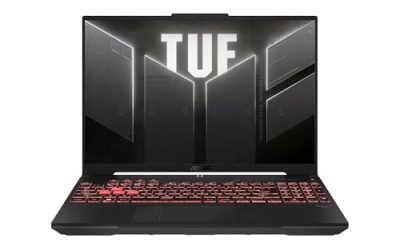
Two M.2 slots are preferable if you want to retain the factory SSD and add another drive. For example, ASUS lists two M.2 PCIe slots on several TUF Gaming A15 configurations, although specifications vary by generation and model number. Check whether both slots are physically available or whether one already contains the supplied SSD.
A laptop with one slot can still offer upgradeable storage, but expanding capacity usually means replacing the existing drive. That may require cloning the old SSD, reinstalling Windows, or restoring files from a backup. Confirm the exact configuration before ordering a replacement drive.
2. Verify SSD size and interface compatibility
Most current gaming laptops use M.2 NVMe SSDs, but you should verify the supported physical length, interface, and installation requirements in the manufacturer’s documentation. PCIe 4.0 SSDs are common, while compatibility with newer drives depends on the laptop’s specifications rather than the SSD’s marketing label alone.
Also check whether the secondary slot has restrictions involving drive thickness, single-sided versus double-sided modules, or thermal pads. These details can matter when installing a high-capacity SSD. A drive that physically fits the connector may still be unsuitable if it exceeds the laptop’s clearance or documented compatibility limits.
3. Balance storage capacity against gaming performance
A larger SSD lets you keep more games installed, capture footage, and store large creative projects. It does not automatically increase frame rates, however. Once a game is loaded, graphics performance depends much more on the GPU, CPU, memory, power limits, and cooling than on whether the SSD is 1TB or 2TB.
For a new purchase, prioritize a capable GPU and an adequate factory SSD before paying extra for premium storage. If a laptop has a suitable spare M.2 slot, you can often add capacity later. Compare the full configuration, not just the advertised GPU or storage number.
4. Consider access, warranty, and upgrade costs
An internal SSD upgrade normally requires removing the laptop’s bottom cover, using the correct screwdriver, and handling components carefully. Before opening the chassis, shut down the system, disconnect power and peripherals, and follow the manufacturer’s service instructions. Avoid forcing clips or touching exposed contacts.
Check warranty terms and service guidance for your particular model and region. An upgrade is not automatically a reason for warranty cancellation, but damage caused during installation may not be covered. Budget for the SSD and any required tools or thermal materials, and keep a backup before migrating or modifying your storage.
Top Picks: Best Gaming Laptops With Expandable Storage
These four options have manufacturer-documented storage expansion capabilities, making them useful starting points for buyers who want room for a growing game library. The key distinction is whether a model provides a spare M.2 slot, what type of SSD it supports, and whether the particular configuration is still a sensible purchase in the US market.
Comparison table
| Product | Best For | Key Spec | Compatibility | Watch Out For |
| Lenovo LOQ 15IRH8 | Budget-conscious buyers | Two SSD slots; PCIe Gen 4 storage | Verify the exact configuration | Older-generation platform |
| ASUS TUF Gaming A15 (2024) | Best overall flexibility | Two M.2 PCIe slots | NVMe M.2; single-sided SSD restriction | Specifications vary by SKU |
| MSI Katana 15 B13V | Adding a second SSD | Two M.2 PCIe Gen 4 slots | NVMe PCIe Gen 4 | MSI recommends service-center upgrades |
| Acer Nitro 16 AMD | Larger-screen gaming | M.2 NVMe PCIe storage | Check the exact model’s service documentation | Slot count must be confirmed for the SKU |
1. Lenovo LOQ 15IRH8 — Best Budget-Oriented Choice
The Lenovo LOQ 15IRH8 is worth considering if storage expansion matters more than owning the latest laptop generation. Lenovo’s official product information explicitly identifies two SSD slots and an open M.2 slot for adding another drive. That makes this particular model a useful candidate for buyers who want to retain their existing SSD.
Lenovo US
Its older platform means you should compare its price and graphics configuration against newer alternatives before purchasing. The exact CPU, GPU, installed storage, and warranty terms depend on the configuration. Buy it when the price is attractive and the documented expansion options meet your needs; choose a newer model if the performance difference justifies the extra cost.
2. ASUS TUF Gaming A15 (2024) — Best Overall Flexibility
The 2024 ASUS TUF Gaming A15 is a strong candidate for buyers who want a balance of gaming hardware and future storage expansion. ASUS lists two M.2 PCIe slots, DDR5 SO-DIMM memory, and configurations using PCIe 4.0 NVMe SSDs. The official specification also warns that only single-sided SSDs are supported because of nearby surface-mounted components.
Tech Specs|Laptops For Gaming|ASUS Global
The model family includes different processors, GPUs, and factory SSD capacities, so check the complete model number before buying. Its main advantage is the documented second slot, which can let you expand storage without replacing the original drive. Skip a particular configuration if its GPU, display, or price is less competitive than alternatives with similar upgrade options.
3. MSI Katana 15 B13V — Best for Adding a Second SSD
The MSI Katana 15 B13V series lists two M.2 SSD slots supporting NVMe PCIe Gen 4 storage. Depending on the exact configuration, it can also offer DDR5 memory and NVIDIA GeForce RTX 40-series laptop graphics. This makes it a practical option for gamers who want a separate drive for large games, recordings, or creative projects.
Sharpen Your Game
MSI’s specifications advise consulting a service center for SSD upgrades, so factor in professional installation if you are not comfortable opening a laptop. Confirm the exact B13V variant, graphics configuration, and installed SSD before purchasing. Consider another model if self-service upgrades are a priority or if a newer laptop provides better overall value at a similar price.
4. Acer Nitro 16 AMD — Best Larger-Screen Alternative
The Acer Nitro 16 AMD is worth investigating if you prefer a larger 16-inch gaming display and want an NVMe storage upgrade path. Acer lists configurations with PCIe NVMe 4.0 M.2 storage, including newer variants with high-refresh-rate, 2560 × 1600 displays and discrete NVIDIA graphics. These specifications make the series relevant for gaming and demanding desktop workloads.
Acer United States
+1
However, do not assume every Nitro 16 configuration has the same number of SSD slots or supports the same drive dimensions. Verify the precise model’s service manual before treating it as a two-drive laptop. Choose it when its screen and gaming specifications suit your needs; if adding a second SSD is essential, prioritize a configuration whose available slot is explicitly documented.
FAQ
Can I upgrade storage on any gaming laptop?
No, storage expansion depends on the laptop’s internal design. Some models have a spare M.2 slot, while others require replacing the existing SSD. Check the manufacturer’s specifications and service manual for the exact model number before buying a new drive.
Does adding an SSD improve gaming FPS?
Usually, adding an SSD does not substantially increase average FPS. It primarily provides more room for games and files and can improve loading behavior when moving from a slower drive. Frame rates depend more on the GPU, CPU, memory, cooling, and game settings.
Is a second SSD better than replacing the original drive?
A second SSD is usually more convenient when the laptop has a compatible, available slot because you can retain your existing Windows installation and files. Replacing the original drive may be necessary on single-slot models, and it can require cloning or reinstalling Windows.
How much storage should a gaming laptop have?
A 1TB SSD is a reasonable starting point for many gaming libraries, while 2TB or more can suit users who install many large games or store video recordings. Choose capacity based on your actual needs and budget, and confirm the laptop supports the intended drive.
Final Thoughts
The best gaming laptop with upgradeable storage is one with a verified spare M.2 slot, compatible SSD support, and gaming performance that fits your budget. Start with the ASUS TUF Gaming A15 for documented expansion flexibility, then compare the Lenovo LOQ and MSI Katana. Confirm the exact SKU before making your purchase.