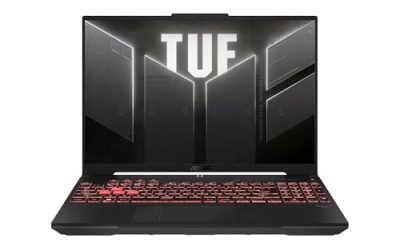
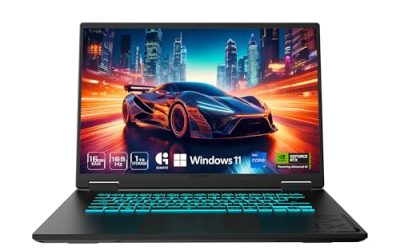
The best way to buy a used gaming laptop is to verify its exact hardware, test it under gaming load, inspect its battery and cooling system, and compare its total cost with a refurbished alternative. A low asking price is not necessarily a good deal if the laptop needs a replacement battery, has a failing fan, or cannot be returned.
Our Top Picks
 Dell Latitude 5420 14" FHD Business Laptop Computeri5-1145G7-16-256-SV-Win1112.76 x 8.35 x 0.76 inches3 poundsCheck on Amazon


Top 3 picks at a glance
What Should You Check Before Buying a Used Gaming Laptop?
Before buying a used gaming laptop, verify the exact CPU and GPU, confirm it has enough RAM and SSD storage, check battery and SSD health, and test gaming performance under load. Inspect the screen, keyboard, ports, cooling system, and charger, then confirm there are no unresolved BIOS passwords or device-management restrictions. Finally, compare the total cost—including necessary repairs and upgrades—with a refurbished alternative that offers a clear return policy.
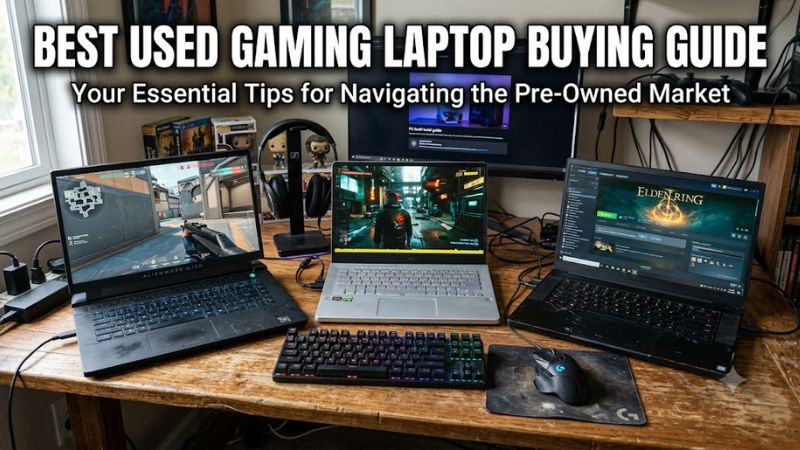
1. Understand Used, Refurbished, and Open-Box Gaming Laptops
These labels describe different sales conditions, not guaranteed levels of quality.
| Condition | What it generally means | Main consideration |
| Used | Previously owned and resold | Actual condition and return protection |
| Seller-refurbished | Inspected or repaired by the seller | Quality of repairs and testing |
| Manufacturer-refurbished | Processed through a manufacturer refurbishment program | Program-specific warranty and inspection standards |
| Open-box | Packaging opened; usage history varies | Missing accessories, prior use, and coverage |
A refurbished label does not guarantee that every component has been replaced or thoroughly tested. Ask what the inspection covered and whether the seller provides written warranty terms.
For first-time buyers, a refurbished laptop with documented testing and a clear return policy can be safer than a private sale. However, an individual seller may offer better value if the machine can be inspected thoroughly before payment.
2. Choose the GPU and Verify the CPU
The graphics processing unit (GPU) is one of the most important components for gaming. It affects which games you can run, the graphics settings you can use, and how well demanding visual effects perform.
Older GPUs such as the GeForce GTX 1650 may suit lightweight games and less demanding settings. The GeForce RTX 3050 can be a budget option for 1080p gaming, while laptops equipped with the RTX 3060 or RTX 4050 may offer attractive alternatives depending on price, power limits, and condition.
These are broad categories, not a guaranteed performance ranking. A laptop’s GPU power limit, cooling design, and sustained operating behavior can materially affect performance. Check the exact GPU and VRAM capacity instead of assuming all configurations with the same model name are identical.
Before buying, compare the GPU against the official system requirements of your preferred games. Also check whether the laptop can run them at its native display resolution without relying on graphics settings you would find unacceptable.
The CPU matters, too. Verify the complete processor model and generation rather than comparing advertised clock speeds alone. Processor performance can affect frame consistency in competitive games, simulations, and CPU-intensive titles.
When comparing laptops, prioritize the complete configuration: CPU, GPU, VRAM, graphics power limit, cooling, display, and price. Never trust an FPS claim without knowing the game, resolution, graphics preset, power mode, and whether upscaling or frame generation was enabled.
3. Check RAM, SSD Capacity, and Upgradeability
For a budget gaming laptop, 16GB of RAM is a practical starting point. A 32GB configuration may be preferable for demanding games, multitasking, streaming, or creative applications.
Confirm the installed capacity and memory configuration. Single-channel and dual-channel configurations can behave differently, depending on the platform and workload. Check the manufacturer’s service manual to determine whether the memory is replaceable, soldered, or a combination of both.
A 512GB SSD is a reasonable storage target, although your needs depend on how many games you install. A smaller drive may be sufficient for lightweight titles but can become inconvenient when several large games compete for space.
Check the drive’s interface and the laptop’s expansion options before budgeting for an upgrade. Use a reputable storage diagnostic utility to inspect available SMART health information, error warnings, and reported drive status. A healthy report is useful evidence, but it cannot guarantee future reliability.
Include the cost of necessary upgrades in your budget. A laptop that appears cheaper initially may become less attractive after adding RAM, replacing a worn SSD, or purchasing a compatible charger.
4. Inspect Battery Health and Charging
Battery condition affects portability and can add unexpected replacement costs. Even if you usually game while plugged in, a deteriorated battery may reduce the laptop’s usefulness away from a power outlet.
On Windows, you can generate a battery report:
- Open Command Prompt or Windows Terminal.
- Run powercfg /batteryreport.
- Open the HTML report from the file location displayed by Windows.
- Compare Design Capacity with Full Charge Capacity, if both values are available.
For example, a battery with 40,000 mWh of full-charge capacity against 50,000 mWh of design capacity retains approximately 80% of its original rated capacity. This is a useful indicator, not an automatic pass-or-fail threshold.
Ask the seller about battery runtime during ordinary use, but remember that brightness, background applications, power settings, and battery age all affect the result. Gaming typically consumes substantially more power than web browsing.
Never buy a laptop with a visibly swollen battery. A raised trackpad, bulging chassis, or case that no longer sits flat can indicate swelling. Do not press on, charge, or attempt to remove a swollen battery yourself. Stop using the laptop and arrange appropriate professional service.
5. Test Cooling and Gaming Performance
Cooling problems can cause excessive temperatures, fan noise, instability, and reduced sustained performance. Dust, worn fans, damaged heatsinks, and deteriorated thermal-interface materials are potential causes.
If the seller permits testing, inspect the exhaust vents and listen for grinding or rattling. Then run a familiar game while monitoring CPU and GPU temperatures, clock behavior, and signs of thermal throttling with a reputable hardware-monitoring utility.
Watch for:
- Visual artifacts, crashes, or unexpected shutdowns.
- Sudden performance drops during sustained gameplay.
- Fans that fail to operate or make abnormal mechanical noises.
- Charging problems or unexpected power limitations under load.
Do not judge a laptop solely by its idle temperature or a short FPS demonstration. Operating temperatures depend on the specific processor, GPU, firmware, cooling design, and workload. Consult manufacturer guidance rather than applying one universal temperature limit.
For a meaningful performance comparison, keep the game, resolution, graphics preset, power mode, and rendering settings consistent. Record whether upscaling or frame generation is enabled. If you cannot perform a reasonable test, treat performance and condition as unverified rather than assuming the laptop is healthy.
6. Inspect the Screen, Chassis, Keyboard, and Ports
Physical wear is not always a reason to reject a used laptop, but structural damage and unreliable components can make repairs expensive.
| Component | What to check |
| Display | Dead pixels, flickering, brightness, resolution, and refresh rate |
| Hinges and chassis | Cracks, loose hinges, impact damage, and uneven panel gaps |
| Keyboard and trackpad | Every key, backlight, clicks, and pointer movement |
| Ports | USB, video outputs, audio, and charging connection |
| Speakers and webcam | Audio distortion, microphone, and camera operation |
Check the actual display resolution and refresh rate in Windows settings. A laptop family may offer several panel configurations, so do not assume the screen matches the listing’s advertised specifications.
If possible, connect an external monitor through a supported video output. This helps check output functionality, although it cannot rule out every graphics or display fault.
Finally, verify the charger. Confirm that its connector, voltage, and rated power meet the laptop manufacturer’s requirements. A low-powered or incompatible adapter can limit performance or fail to charge the battery properly during gaming.
7. Verify Ownership, BIOS Access, and Seller Protection
A working laptop can still be a poor purchase if you cannot use it freely, activate its operating system legitimately, or obtain help when a defect appears.
Before paying, confirm that the seller can remove personal accounts and transfer the machine properly. Check for BIOS passwords, unexpected boot restrictions, and organizational device-management enrollment. Ask the seller to resolve legitimate ownership or management restrictions before completing the transaction; do not attempt to bypass security controls.
Verify the serial number and available warranty status through the manufacturer’s support system where possible. Do not assume that the original warranty remains active or automatically transfers to a second owner.
For online purchases, review the return window, refund conditions, shipping costs, restocking fees, and seller dispute process. For local sales, inspect the actual machine before paying and keep written records of any condition or functionality claims.
A private seller may offer a lower price, but a reputable refurbished seller with documented testing and meaningful return protection may be worth paying more for.
8. Calculate the Total Cost of Ownership
Compare the complete cost of getting the laptop ready for your games, not just the advertised price.
Totalcost=Purchaseprice+Requiredrepairsandupgrades
Also account for shipping, applicable sales tax, and nonrefundable fees when comparing offers.
| Potential expense | What to verify |
| Battery | Replacement part and installation cost |
| RAM | Supported capacity and memory type |
| SSD | Interface, capacity, and available slots |
| Charger | Compatible replacement and rated power |
| Cooling | Cleaning, inspection, or repair cost |
| Warranty | Included coverage or optional protection |
Compare this total with a similarly configured refurbished laptop. Match the GPU, RAM, storage, screen, and condition as closely as possible.
There is no universal discount that makes every used gaming laptop worthwhile. A well-maintained machine with documented condition and good return protection may justify a smaller saving. A laptop with questionable cooling, a weak battery, or expensive proprietary parts may not be worth buying even at a substantial discount.
For older hardware, consider how long it is likely to meet your gaming needs. Spending heavily on repairs can make a newer, lower-tier laptop a better long-term choice.
9. Common Buying Mistakes to Avoid
Four mistakes account for many avoidable purchasing problems.
Buying by model name alone. Verify the exact CPU, GPU, VRAM, display, RAM configuration, and upgrade options for the actual unit.
Trusting unsupported performance claims. FPS figures without a named game, resolution, settings, and testing conditions are not reliable evidence of comparable performance.
Ignoring battery and cooling condition. A laptop that starts successfully may still have an aging battery, faulty fan, or thermal problem that appears during sustained gameplay.
Skipping inspection and return protection. Confirm the laptop’s ownership status, charger compatibility, and return terms before paying. If essential checks are refused and no meaningful buyer protection exists, walk away or choose another listing.
Used Gaming Laptop Inspection Checklist: 15–20 Minutes Before Paying
Follow this sequence when inspecting a used gaming laptop in person. The time is a practical target, not enough to guarantee that every hidden fault will be discovered.
- Minutes 1–2 — Verify the hardware. Open Task Manager and Device Manager. Confirm the CPU, GPU, and installed RAM match the listing. Check the exact GPU model and VRAM where available.
- Minutes 3–4 — Check the battery. Review the Windows battery report, compare design and full-charge capacity, and inspect for swelling or chassis distortion.
- Minutes 5–6 — Inspect SSD health. Use a reputable diagnostic utility to check SMART warnings, reported errors, and drive status.
- Minutes 7–11 — Run a game under load. Use a familiar game with known settings. Watch for artifacts, crashes, unusual fan noise, temperature warnings, and major performance drops.
- Minutes 12–14 — Test the display and controls. Check for dead pixels, flickering, keyboard failures, trackpad problems, and incorrect refresh-rate claims.
- Minutes 15–16 — Test ports and charging. Check available USB and display ports, audio, Wi-Fi, and the charging connector. Confirm the adapter meets the manufacturer’s power requirements.
- Minutes 17–18 — Check BIOS and management restrictions. Confirm there are no unresolved BIOS passwords, ownership issues, or organizational management locks. Ask the seller to resolve legitimate restrictions before purchase.
- Minutes 19–20 — Confirm the purchase terms. Verify the return deadline, warranty coverage, included accessories, and any promised repairs in writing.
If the seller cannot provide enough time for meaningful checks, do not treat the laptop as verified. For online purchases, arrange the same checks during the return window and confirm the return conditions beforehand.
Final Verdict
The best used gaming laptop is the one that offers suitable gaming performance at a reasonable total cost without unacceptable hardware or purchasing risks.
Prioritize a GPU that meets your games’ requirements, at least 16GB of RAM where practical, sufficient SSD storage, and a display you are comfortable using. Then verify battery health, cooling behavior, physical condition, charger compatibility, and seller protection.
A carefully inspected used laptop can offer excellent value, but a refurbished alternative with documented testing and a clear return policy may be the better choice when inspection is limited. If the hardware does not match the listing, the laptop shows signs of serious damage, or the seller cannot resolve ownership restrictions, do not pay simply because the price looks attractive.
Used Business Laptops to Consider as a Budget Alternative
As an Amazon Associate we earn from qualifying purchases at no extra cost to you.



Dell Latitude 5420
Aimed at buyers who want one renewed laptop that handles a normal workday, the Latitude 5420 lists a quad-core Core i5-1145G7, 16GB of DDR4 memory, and a 256GB SSD behind a 14-inch full HD display. Camera, HDMI, and Windows 11 Pro are also named. That mix makes it the closest thing to a default recommendation in a list like this, because nothing in the spec line looks starved: the processor is from a newer generation, memory is generous, and the HDMI port means a second monitor is an easy add. Remote workers and university students who live in video calls and document tabs are the natural audience.
- Strength: 16GB of RAM leaves room for many browser tabs and video calls.
- Strength: 11th-generation chip with an SSD suits everyday office and school use.
- Trade-off: 256GB of storage fills up if you keep large media libraries locally.
Skip it if you need a dedicated graphics card for gaming or video editing. Anyone planning to store a large photo library locally should also budget for an external drive.
Dell Latitude 5400
The 5400 is the older of the two mainstream Latitudes here, with a Core i5-8365U, 8GB of RAM, and a 256GB SSD under a 14-inch 1920 by 1080 screen. The title also quotes four cores at 4.1 GHz, which describes a peak boost, so do not read it as constant speed. This generation of chip is older than the others in the Latitude family here, but the combination of an SSD and a full HD screen still suits spreadsheets, web apps, and streaming lectures. It is a reasonable fit for a household that needs a second laptop for homework and bill paying.
- Strength: Full HD screen and an SSD at the entry-level end of business laptops.
- Strength: Windows 11 Pro is stated, useful for work accounts.
- Trade-off: 8GB of RAM is on the tight side for heavy multitasking.
Skip it if you want the newest processor generation or more than light office performance. People who edit video or keep dozens of tabs open will outgrow it quickly.
Lenovo IdeaPad 130S
This is the lightest-spec machine in the group: a 14-inch HD screen, a Celeron N4000, 4GB of RAM, and 64GB of eMMC storage, with Wi-Fi and Windows 11. Think of it as a note-taking and web companion for a child, a guest room, or a travel bag. The listing describes it as a lightweight everyday laptop, and the specs back up a narrow job: reading, writing, streaming a show, and sending email. Because the storage is small flash memory rather than a full SSD, expect to lean on cloud storage or a USB drive for files.
- Strength: Lightweight everyday design is part of the listing description.
- Strength: Likely the lowest cost tier among the five.
- Trade-off: 4GB of memory and 64GB of eMMC storage limit Windows updates and multitasking.
Skip it if you want to work in many tabs or install more than a few programs. Buyers who want a machine to last several years of school or office use should step up to one of the Latitudes.
Dell Latitude 7420
The 7420 sits at the upper end of this list, naming an 11th-generation Core i7, 16GB of memory, and a 512GB SSD with Wi-Fi, Bluetooth, and Windows 11 Pro. The listing also mentions a carbon fiber finish, which points to a more premium business design. This is the pick for someone who wants a used machine that still feels current: a professional who travels, a freelancer who keeps client files on the device, or a student heading into a program with heavier software. The spec sheet shows both Wi-Fi and Bluetooth, which covers the usual wireless accessories.
- Strength: Largest storage in the group at 512GB, handy for local files and projects.
- Strength: Core i7 with 16GB RAM is the strongest processor and memory pairing here.
- Trade-off: Costs the most in this group, so it makes sense only if you will use the extra headroom.
Skip it if your tasks are just web browsing and email, where a cheaper model is enough. Households whose main need is streaming video should also look at lower tiers first.
HP Stream 14
The Stream targets simple, portable use with a 14-inch HD display, an Intel N150 processor, 4GB of RAM, and 128GB of UFS storage. The listing highlights a webcam, Wi-Fi 6, long battery life, and Windows 11 S in a gold finish. It suits a younger student, a casual home user, or a traveler who wants a second laptop that is easy to carry and easy to replace. The newer chip name is a plus, but the memory and S mode shape what it can realistically do day to day.
- Strength: Wi-Fi 6 and a webcam cover video classes and calls.
- Strength: 128GB of storage is double the IdeaPad’s.
- Trade-off: 4GB of RAM and S mode make it limited for anything beyond browsing and Microsoft Store apps.
Skip it if you rely on desktop software that cannot run in S mode without switching. Anyone who plans to run a full desktop office suite, a VPN client from outside the Store, or specialty software should confirm compatibility first.