Choosing between gaming laptop hybrid graphics vs discrete GPU mode affects how your laptop handles games, battery consumption, heat, and display output. Although both modes can use a dedicated GPU, they manage the display connection differently. Understanding this distinction helps you choose the right configuration for gaming, everyday work, and portable use.
What Gaming Laptop Hybrid Graphics vs Discrete GPU Mode Really Comes Down To
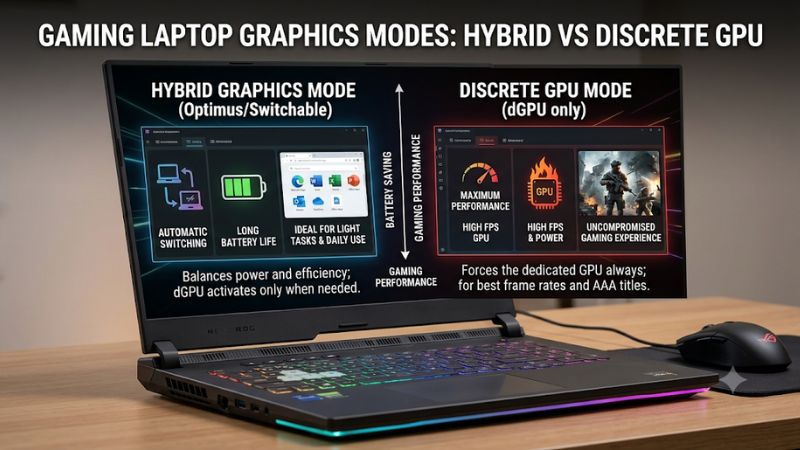
The main difference is how the laptop routes graphics output. Hybrid mode normally lets the integrated GPU handle display output while the discrete GPU renders demanding applications. Discrete GPU mode routes the internal display directly through the dedicated GPU. The best choice depends on gaming performance, battery life, display features, and laptop hardware.
1. How Hybrid Graphics Mode Works
Hybrid graphics combines the integrated GPU (iGPU) and discrete GPU (dGPU). The processor’s integrated graphics handles everyday display tasks, while the dedicated graphics processor activates when demanding applications need additional rendering power.
On conventional NVIDIA Optimus laptops, the discrete GPU renders a game, then transfers the completed frames through the integrated GPU before they appear on the internal screen. This arrangement reduces the need to keep the dedicated GPU responsible for every display operation.
This configuration is useful when switching between gaming and everyday activities. Browsing, watching videos, and working with documents can rely on the integrated graphics, while supported games can request the dedicated GPU.
2. How Discrete GPU Mode Works
Discrete GPU mode, sometimes called dGPU Only, Dedicated GPU Mode, or NVIDIA GPU Only, changes the display connection so the dedicated graphics processor directly drives the internal laptop panel.
This arrangement bypasses the conventional Optimus display path. It can reduce frame-transfer overhead and improve performance in situations where the hybrid display route creates a bottleneck. It can also enable certain display features that require direct dGPU output.
However, selecting this mode does not automatically increase GPU clock speeds, VRAM, TGP, or cooling capacity. The graphics processor retains its existing hardware and power limits. The benefit comes from changing the display path rather than upgrading the GPU itself.
3. Understanding the MUX Switch
A MUX switch, short for multiplexer, is hardware that changes which graphics processor drives the laptop’s internal display. It allows supported laptops to switch between integrated and discrete graphics output.
Without a suitable display multiplexer, a laptop may still use the dedicated GPU for rendering while routing the finished frames through integrated graphics. With a MUX switch, the system can establish a direct connection between the discrete GPU and internal panel.
Not every gaming laptop includes this hardware. Having an NVIDIA GeForce RTX or AMD Radeon dedicated GPU does not automatically mean the laptop supports dGPU-only display routing.
4. What Doesn’t Help
Simply selecting High Performance for a game in Windows does not necessarily activate discrete-only display mode. These are separate controls: application GPU preference determines which processor handles graphics work, while a MUX or Advanced Optimus changes the display connection.
Likewise, forcing every application to use the dedicated GPU is not a reliable way to improve overall system performance. It can increase unnecessary power consumption without providing meaningful benefits for lightweight applications.
How to Choose and Configure the Right GPU Mode
Understanding gaming laptop hybrid graphics vs discrete GPU mode is only the first step. You also need to know which configuration your laptop supports and how to change it safely. Windows graphics preferences, manufacturer utilities, and NVIDIA Control Panel provide different controls, so the correct method depends on your laptop model and graphics architecture.
1. Check Whether Your Laptop Supports Both GPUs
Start by checking the installed graphics hardware.
On Windows:
- Right-click the Start button.
- Select Device Manager.
- Expand Display adapters.
- Look for both an integrated GPU and a discrete GPU.
For example, an Intel processor may appear alongside an NVIDIA GeForce RTX Laptop GPU. An AMD-based laptop may show Radeon integrated graphics and a separate Radeon or NVIDIA graphics processor.
Seeing two adapters confirms that Windows recognizes both graphics devices, but it does not confirm that the laptop has a physical MUX switch. Check the manufacturer’s specifications or user manual for supported GPU modes.
2. Assign the Dedicated GPU to Individual Games
If you want a particular game to use the discrete GPU without changing the entire display configuration, Windows provides an application-level graphics preference.
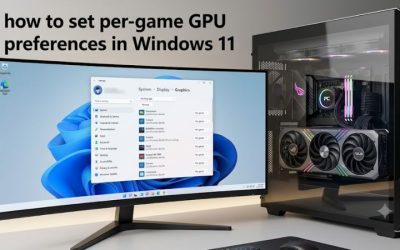
On Windows 11:
- Open Settings.
- Select System.
- Choose Display.
- Open Graphics.
- Select the game under Custom options for apps, or browse for its executable file.
- Select Options.
- Choose High performance.
- Save the configuration and restart the game.
Windows normally identifies the available GPU associated with the High performance preference. The exact GPU selection depends on the laptop’s installed graphics hardware.
This approach is particularly useful when a game launches on integrated graphics unexpectedly. It does not require a physical MUX switch and does not necessarily disable integrated graphics.
3. Switch Between Hybrid and Discrete GPU Modes
If your laptop supports a MUX switch, its manufacturer may provide a dedicated control.
For example, supported MSI laptops offer GPU mode options through MSI Center:
- Open MSI Center.
- Navigate to Features.
- Select User Scenario or General Settings, depending on the version.
- Find the GPU Switch setting.
- Choose the desired graphics mode.
- Follow the restart prompt if required.
Other manufacturers may provide similar options through Armoury Crate, Lenovo Vantage, or BIOS/UEFI settings. Menu names and available configurations vary by model.
Before changing the mode, save your work and connect the laptop to its AC adapter. Some configurations require a restart before the new display routing becomes active.
4. Configure NVIDIA Advanced Optimus When Available
NVIDIA Advanced Optimus provides dynamic display switching on compatible laptop designs. Instead of requiring a traditional manual mode change and reboot for every transition, it can automatically switch the internal display between integrated and discrete graphics.
On supported systems, NVIDIA Control Panel provides these Display Mode options:
- Automatic Select: Allows compatible applications to trigger a display switch to the discrete GPU.
- Optimus: Keeps the internal display connected through integrated graphics.
- NVIDIA GPU Only: Routes the internal display directly through the NVIDIA GPU.
To access the setting, open NVIDIA Control Panel and look for Manage Display Mode or the corresponding Display Mode section, depending on the driver and laptop configuration.
Advanced Optimus requires compatible hardware and software. If the option is missing, your laptop may use standard Optimus or another graphics architecture rather than supporting dynamic display switching.
GPU Mode Configuration Comparison
The following table summarizes the practical differences between common configurations.
| Setting or Step | Where | Effect | Risk |
| Hybrid Graphics | Manufacturer utility or BIOS | Balances dedicated GPU rendering and integrated display output | Some display-path overhead |
| Discrete GPU Only | Supported MUX utility or BIOS | Routes internal display directly through dGPU | Higher power consumption and heat |
| Windows High Performance | Settings > System > Display > Graphics | Assigns a preferred GPU to an individual application | Does not guarantee direct display routing |
| Advanced Optimus | NVIDIA Control Panel > Display Mode | Automatically switches display ownership on compatible systems | Requires supported hardware and drivers |
For most gaming sessions while plugged in, discrete GPU mode is worth considering when your laptop supports it and you want to minimize display-path overhead. Hybrid mode remains a practical default for everyday use and portable gaming.
FAQ
1. Does Discrete GPU Mode Increase FPS on a Gaming Laptop?
Yes, discrete GPU mode can increase FPS in some games, particularly when conventional hybrid graphics introduces a display-routing bottleneck.
However, the improvement varies with the game, resolution, refresh rate, laptop architecture, and hardware limitations. A GPU-limited game may show little difference because its main bottleneck remains the graphics processor’s rendering workload.
If your laptop already performs well in hybrid mode, switching to discrete-only graphics may produce only a modest change.
2. Does Hybrid Graphics Reduce Gaming Laptop Battery Consumption?
Yes, hybrid graphics generally reduces power consumption during lightweight workloads because the integrated GPU can handle everyday display operations.
The dedicated GPU can remain inactive when demanding graphics processing is unnecessary, depending on the laptop’s power management and connected displays.
Discrete GPU mode generally consumes more power because the dedicated graphics processor remains responsible for driving the internal display. This makes hybrid mode more suitable for users who frequently work away from a charger.
3. Can I Use Discrete GPU Mode Without a MUX Switch?
Not necessarily, because discrete-only display routing generally requires suitable hardware support.
You can still assign individual games to the dedicated GPU through Windows Graphics settings or compatible graphics-driver controls. However, this does not automatically bypass the integrated GPU’s display connection.
Some laptops support NVIDIA Advanced Optimus, which provides dynamic display switching without requiring a traditional manually controlled MUX configuration.
4. Should I Always Keep My Gaming Laptop in Discrete GPU Mode?
No, discrete GPU mode is not necessary for every situation.
Use it when gaming while connected to AC power, especially if your laptop benefits from direct dGPU display output. Hybrid mode is generally more practical for browsing, studying, video playback, and working on battery power.
If you are unsure which configuration provides the best balance, start with hybrid mode and switch to discrete graphics for demanding games when supported. Compare performance, temperatures, and power consumption before deciding which configuration suits your usage.
Final Thoughts
Choosing between gaming laptop hybrid graphics vs discrete GPU mode comes down to balancing gaming performance and portability. Hybrid mode is generally better for everyday use, while discrete mode can reduce display-path overhead during gaming. Check your laptop’s MUX or Advanced Optimus support before changing settings, then select the configuration that matches your workload.