A Windows update can change gaming performance by replacing graphics drivers, resetting power preferences, or introducing software compatibility issues. If gaming laptop performance after Windows update has declined, compare results before changing settings, identify the likely cause, and apply targeted fixes without compromising system security.
What Gaming Laptop Performance After Windows Update Really Comes Down To
A performance drop after updating Windows does not automatically mean the update damaged your laptop. The timing is a useful clue, but the cause could be a graphics driver change, an altered power profile, background maintenance, or a game-specific compatibility issue. Start by identifying when the problem began and whether it affects one game or the entire system.
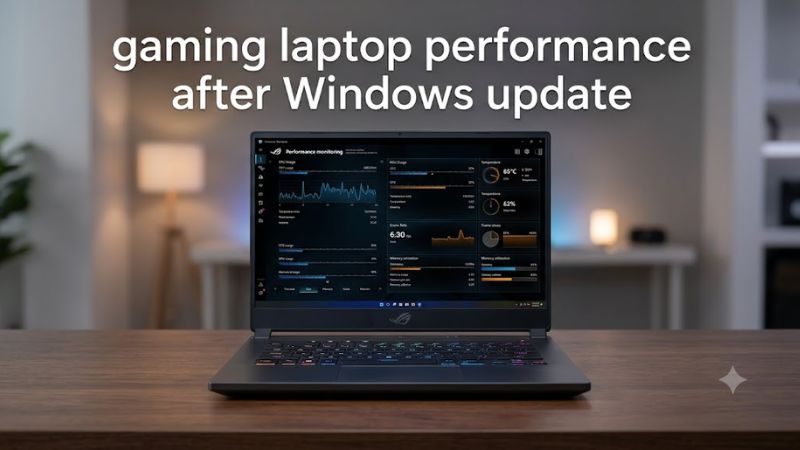
1. Separate a Temporary Slowdown From a Persistent Problem
After a major update, Windows may perform background maintenance, including indexing files and completing update-related tasks. These activities can temporarily compete with a game for CPU time, storage access, or memory. Check Task Manager before assuming the graphics hardware has become slower.
Open Task Manager with Ctrl + Shift + Esc and inspect the Processes tab while the laptop is idle. Look for unusually high CPU, memory, disk, or GPU utilization. If a legitimate Windows process is busy, let it finish and retest later. Avoid forcibly terminating unfamiliar system processes.
2. Check Whether the Graphics Driver Changed
Windows Update can deliver hardware drivers, and laptop manufacturers sometimes provide customized graphics packages for their specific systems. A driver change may affect stability, display behavior, or game performance, although a newer driver is not necessarily worse.
Right-click Start, open Device Manager, expand Display adapters, and open your discrete GPU’s Properties. Under the Driver tab, note the provider, date, and version. Compare these details with the previous version if you recorded it, or with the laptop manufacturer’s support page. This helps distinguish a driver change from an unrelated performance issue.
3. Check Power, GPU Selection, and Laptop Operating Mode
Gaming laptops often behave differently on battery power than when connected to their appropriate AC adapter. Windows power preferences and manufacturer utilities can also affect the balance between performance, fan noise, and battery life.
Connect the original or manufacturer-approved power adapter, select the intended performance profile in your laptop utility, and check Settings > System > Power & battery. On supported Windows versions, the Power mode menu may offer options such as Best performance. Availability and wording can vary by device and power configuration, so use the options actually shown on your system.
What Doesn’t Help
Changing multiple settings at once makes it difficult to determine what caused the slowdown. RAM-cleaning utilities, registry boost scripts, and disabling Windows telemetry are not reliable solutions for reduced gaming performance. They do not establish whether the problem comes from a driver, power limit, background task, or game update.
Avoid immediately reinstalling Windows, using third-party driver-removal tools, or disabling security features. First collect basic evidence and try reversible changes. A measured troubleshooting process is more useful than applying generic optimization tips that may create additional problems.
How to Improve Gaming Laptop Performance After Windows Update: Step by Step
Work through the checks in order, starting with reversible actions that cost nothing. Record your current driver version, power profile, and performance symptoms before making changes. The table below links each action to its purpose and risk, helping you avoid unnecessary driver removal or Windows recovery procedures.
| Setting or Step | Where | Effect | Risk |
| 1. Restart and check background activity | Start > Power > Restart; Task Manager | Clears pending restart states and helps identify resource-heavy tasks | Low |
| 2. Restore the appropriate power mode | Settings > System > Power & battery | May restore performance when power preferences changed | Higher power use and heat |
| 3. Verify the graphics driver | Device Manager > Display adapters > Properties > Driver | Identifies recent driver changes and possible compatibility problems | Low when inspecting only |
| 4. Roll back a problematic driver | Device Manager > GPU Properties > Driver | Can restore the previous driver if Windows offers rollback | May remove newer fixes |
| 5. Uninstall a confirmed problematic Windows update | Settings > Windows Update > Update history | Can resolve a regression linked to a specific update | Security and stability risks |
Step 1: Restart, Then Establish a Performance Baseline
Save your work and choose Restart rather than simply closing the lid or relying on sleep. Once Windows loads, allow active updates and background maintenance to finish. Open Task Manager and check CPU, memory, disk, and GPU usage before launching a game.
Next, choose one game you know well and use the same resolution, graphics preset, power connection, and performance mode for each comparison. Record average FPS if the game provides it, along with noticeable stuttering and loading behavior. A repeatable baseline helps you distinguish a real regression from normal variation.
Step 2: Restore Appropriate Power and Graphics Settings
Open Settings > System > Power & battery and check Power mode. If your laptop supports it, select Best performance while connected to AC power for comparison. This can increase power consumption and temperatures, so return to Balanced if the difference is negligible or the extra heat is undesirable. Manufacturer utilities may also have their own Quiet, Balanced, or Performance profiles.
If the game is running on integrated graphics instead of the discrete GPU, check Settings > System > Display > Graphics. Select the game, open Options, and choose High performance when that option identifies your discrete GPU. Menu availability varies by Windows version and hardware. Restart the game and verify that the intended GPU is active before judging the result.
Step 3: Roll Back or Reinstall the Graphics Driver When Evidence Supports It
If the performance change began immediately after a graphics driver update, open Device Manager > Display adapters, right-click the affected GPU, and select Properties > Driver. If Roll Back Driver is available, follow the prompts and restart. The option may be unavailable if Windows has no previous driver package to restore.
If rollback is unavailable, check your laptop manufacturer’s support page for the exact model and Windows version. Notebook-specific drivers may be preferable when generic packages cause display or power-management problems. For NVIDIA graphics, a clean installation through the official driver installer is another option when there is evidence of a corrupted installation. NVIDIA documents the Custom installation and Perform a clean installation process. Avoid third-party driver-removal utilities as your first step.
Step 4: Consider Removing a Windows Update Only as a Last Resort
If the slowdown persists across multiple games and began directly after a specific Windows update, review Settings > Windows Update > Update history. Identify the relevant quality update and check whether Microsoft or your hardware manufacturer has documented a related issue. Do not assume that every slowdown after an update is caused by Windows itself.
If the evidence supports a regression and safer fixes fail, open the update history and select Uninstall updates, then remove only the relevant update if Windows permits it. Back up important files first and understand the security implications, especially for security updates. Some updates cannot be removed. Reinstall the update or apply Microsoft’s recommended fix when a corrected version becomes available.
FAQ
1. Why did my gaming laptop lose FPS after a Windows update?
A graphics driver change, altered power settings, background activity, or a game compatibility issue can explain the decline. Compare the driver version and power profile with their previous states, then repeat the same in-game test before deciding which change to reverse.
2. Should I reinstall my graphics driver after every Windows update?
No, reinstalling the graphics driver after every Windows update is unnecessary. Reinstall or roll back only when you find evidence of a driver problem, such as a version change that coincides with lower performance, display issues, or instability.
3. Can changing Windows power mode improve gaming performance?
Yes, changing to Best performance can help when a restrictive power mode is limiting performance, but the effect depends on the laptop and workload. Expect potentially higher temperatures, fan noise, and power consumption, and restore Balanced if the trade-off is not worthwhile.
4. Is it safe to uninstall a Windows update to restore gaming performance?
It can be appropriate when a specific update is linked to the problem, but uninstalling security updates can leave the laptop exposed to vulnerabilities. Prefer a targeted driver fix or official correction first, and reinstall the update when a suitable fix becomes available.
Final Thoughts
Improving gaming laptop performance after Windows update starts with identifying what changed, not applying every optimization available. Compare repeatable game results, check GPU drivers and power settings, and reserve update removal for a confirmed regression. If performance remains poor, investigate temperatures, power delivery, and game-specific issues before considering hardware repairs.