Ray tracing can make game lighting, reflections, and shadows more realistic, but enabling it can significantly increase GPU workload. Understanding gaming laptop performance for ray tracing games means looking beyond the GPU name: graphics power, VRAM, cooling, resolution, and upscaling all influence whether a laptop can deliver a smooth experience.
What Determines Gaming Laptop Ray Tracing Performance?
Gaming laptop performance for ray tracing games depends primarily on the graphics processor, its available power, and the workload created by the selected game settings. Unlike conventional rasterization, ray tracing introduces additional calculations for lighting and reflections. Understanding these factors helps explain why two laptops with similarly named GPUs can deliver different results.
1. GPU Architecture and Ray Tracing Hardware
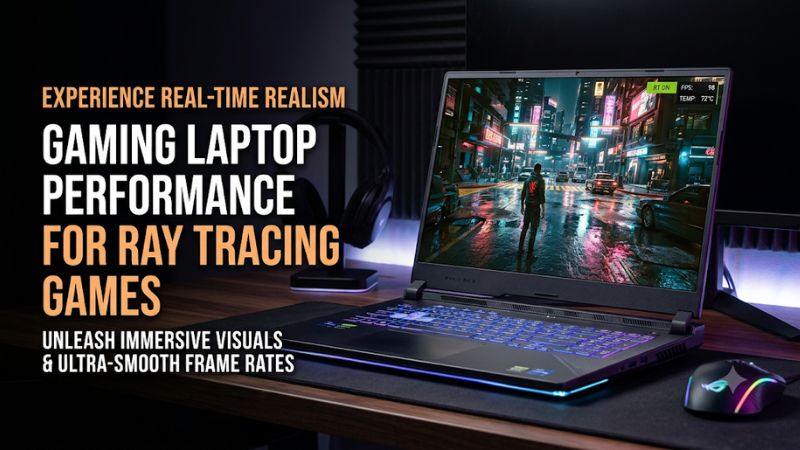
The GPU is the most important component when evaluating ray tracing capability. Modern NVIDIA GeForce RTX laptop GPUs include dedicated Ray Tracing Cores, while AMD Radeon laptop GPUs use dedicated ray accelerators in supported architectures. These hardware resources accelerate calculations associated with ray-traced lighting and reflections.
However, having dedicated ray tracing hardware does not mean every GPU can handle demanding effects equally well. Architecture, processing resources, memory bandwidth, and overall graphics performance influence the results. A GPU designed for entry-level gaming may support ray tracing but struggle with demanding path-tracing workloads.
When comparing laptop graphics options, identify the exact GPU generation and model. NVIDIA’s RTX 50 Series Laptop GPUs use Blackwell architecture, while RTX 40 Series Laptop GPUs use Ada Lovelace. AMD’s Radeon RX laptop graphics also have different capabilities depending on their generation and configuration.
2. GPU TGP and Available Graphics Power
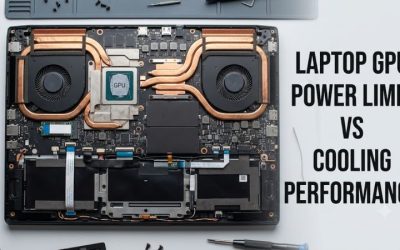
Total Graphics Power (TGP) is another important factor. Laptop manufacturers configure GPUs with different power limits depending on the cooling system, chassis dimensions, and intended performance profile. Consequently, two laptops using the same GPU model may not deliver identical ray tracing performance.
NVIDIA’s published specifications for RTX 50 Series Laptop GPUs illustrate this variation. The RTX 5070 Laptop GPU has a listed GPU subsystem power range of 50–100W, while the RTX 5080 Laptop GPU has a range of 80–150W. These are configuration ranges, not guaranteed operating power levels for every laptop.
Check the manufacturer’s specifications for the exact laptop configuration rather than relying on the desktop GPU equivalent or the GPU name alone. Also distinguish the GPU’s configured power limit from its actual power consumption during gameplay. Dynamic Boost and manufacturer performance modes can affect how available platform power is allocated.
3. VRAM, Resolution, and Ray Tracing Complexity
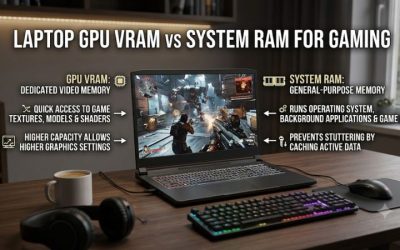
Video memory matters because ray tracing can increase graphics memory requirements. Higher-resolution textures, complex environments, ray-tracing acceleration structures, and additional visual effects all contribute to memory demand.
A laptop with insufficient available VRAM may experience texture-quality compromises, stuttering, or performance problems when demanding graphics settings are enabled. However, VRAM capacity alone does not determine performance. GPU processing capability, memory bandwidth, and the game’s implementation remain important.
Resolution also changes the workload. Rendering at 2560 × 1600 requires more pixels than rendering at 1920 × 1080. When ray tracing is enabled, the additional graphics calculations can make this difference particularly noticeable. Laptop owners should therefore consider their actual display resolution rather than judging performance from a GPU specification alone.
4. Cooling, Temperatures, and Sustained Performance
Ray tracing places substantial and sometimes sustained workloads on a laptop GPU. The cooling system must dissipate heat generated by the GPU, CPU, memory, and other components sharing the chassis.
When temperatures approach hardware operating limits, GPU Boost behavior and thermal management can affect clock speeds and sustained performance. This is why a laptop that performs well during a short benchmark may behave differently during a longer gaming session.
Chassis design, fan capacity, heatsink construction, airflow, and power profiles all influence thermal behavior. A thin gaming laptop may prioritize portability, while a thicker performance-oriented model may have more room for cooling hardware. Neither design automatically determines the outcome, but cooling capacity should be part of the purchasing decision.
How to Optimize Ray Tracing Performance on a Gaming Laptop
Improving gaming laptop performance for ray tracing games does not necessarily require replacing hardware. Start by establishing a reliable baseline, then adjust the most demanding graphics settings and available reconstruction technologies. The goal is to find a practical balance between image quality, responsiveness, temperatures, and consistent frame delivery.
1. Establish a Baseline Before Changing Settings
Begin by checking the laptop’s GPU model, driver version, display resolution, and current performance mode. Connect the original AC adapter because many gaming laptops restrict CPU or GPU performance when operating on battery power.
Open the game and record its average frame rate, frame-time behavior, and GPU utilization under consistent conditions. If available, use an in-game benchmark or repeatable section of gameplay. Keep the same resolution, graphics preset, and scene when comparing subsequent changes.
For additional monitoring, HWiNFO can display GPU temperature, utilization, clock speeds, and power consumption. NVIDIA’s overlay or MSI Afterburner can also provide useful performance information when configured appropriately. Avoid drawing conclusions from a single brief frame-rate reading.
2. Adjust the Most Expensive Ray Tracing Settings
Not every ray-tracing effect has the same performance cost. Depending on the game, reflections, global illumination, shadows, and ambient occlusion can place different demands on the GPU.
Start with the highest ray-tracing preset and reduce individual effects if performance is insufficient. For example, lowering reflection quality may provide a more acceptable balance than disabling every ray-tracing feature. The actual improvement depends on the game’s rendering implementation.
Some games also offer path tracing, which simulates more complex lighting interactions than conventional selective ray tracing. Path tracing can be particularly demanding, so it should be treated as a separate workload rather than an ordinary graphics preset. Begin with less demanding ray-tracing options before attempting maximum settings.
3. Configure DLSS or FSR Where Supported
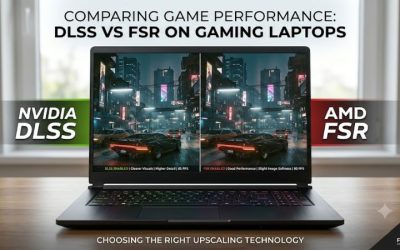
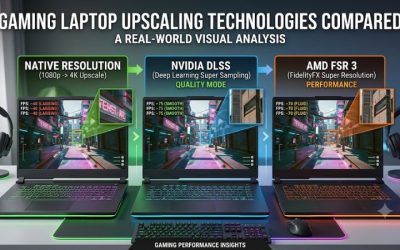
Upscaling technologies can improve gaming laptop performance for ray tracing games by rendering the scene internally at a lower resolution and reconstructing the output for the display.
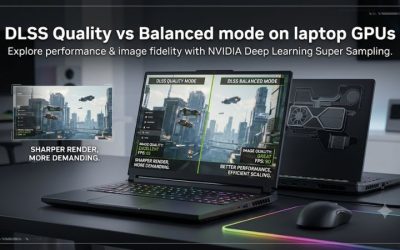
NVIDIA DLSS Super Resolution uses AI-based reconstruction on supported GeForce RTX hardware. AMD FidelityFX Super Resolution provides upscaling options in supported games and on compatible hardware. The available versions and features depend on the game, GPU, and implementation.
For a practical starting point, select Quality mode when image clarity is important. If performance remains insufficient, try Balanced mode. Performance mode can provide additional rendering headroom but may introduce more visible image-quality compromises.
Frame Generation is a separate feature that generates additional frames between conventionally rendered frames. It can increase displayed frame rates, but it does not make the underlying game simulation run at the same higher rate. Input latency and visual artifacts should also be considered.
4. Monitor Temperatures and Verify Sustained Results
After adjusting graphics settings, repeat the same gameplay sequence and compare performance. Look at average FPS alongside frame times or 1% lows when your monitoring tool provides them. A high average frame rate does not necessarily mean the experience is consistently smooth.
Pay attention to GPU temperature, clock speed, and power consumption. If performance declines during longer sessions, investigate whether the laptop is encountering thermal or power limitations. Also check whether the manufacturer control software has switched to a quieter or battery-focused profile.
Use the manufacturer’s recommended performance mode when gaming while connected to AC power. Keep the laptop on a hard, unobstructed surface and ensure its ventilation openings are clear. Avoid aggressive overclocking or unofficial power-limit modifications when diagnosing ordinary performance problems.
| Setting or Step | Where | Effect | Risk |
|---|---|---|---|
| Performance mode | Manufacturer laptop control software | Allows the laptop to use its intended gaming power profile | Higher fan noise, power consumption, and heat |
| Ray-tracing quality | Individual game graphics settings | Reduces the workload from demanding lighting effects | Reduced visual detail |
| DLSS or FSR Quality | Supported game’s graphics menu | Improves rendering performance through upscaling | Minor reconstruction artifacts |
| Frame Generation | Supported game’s graphics menu | Increases displayed frame rate | Added latency or visual artifacts |
| Resolution scaling | Game display or graphics settings | Reduces the number of pixels rendered internally | Lower image sharpness |
| GPU monitoring | HWiNFO or compatible monitoring software | Helps identify thermal and power limitations | Incorrect interpretation of sensor readings |
FAQ
1. Does Ray Tracing Significantly Reduce Gaming Laptop FPS?
Yes, enabling ray tracing can reduce FPS because the GPU must perform additional lighting, reflection, and shadow calculations. The size of the performance reduction depends on the GPU, TGP, game engine, resolution, and selected effects.
Less demanding implementations may remain playable on capable midrange hardware, while path tracing can require substantially more graphics processing resources. Upscaling can help, but its effectiveness varies between games. Compare native rendering and upscaled performance using the same scene and settings.
2. Is NVIDIA RTX Better Than AMD Radeon for Laptop Ray Tracing?
NVIDIA RTX and AMD Radeon both offer dedicated ray-tracing hardware, but their relative performance depends on the specific laptop GPUs and game implementation. It is not accurate to compare entire GPU families as though every model delivers the same results.
NVIDIA offers DLSS features on supported RTX GPUs, while AMD provides FSR technologies with different compatibility requirements. Compare independent benchmarks using the same game, resolution, graphics preset, and upscaling configuration before deciding between two laptops.
3. Does Higher TGP Always Mean Better Ray Tracing Performance?
No, higher TGP does not automatically guarantee better ray tracing performance. A higher configured GPU power limit can provide additional operating headroom, but architecture, cooling, memory, and GPU characteristics also influence results.
A laptop with a higher-power GPU may perform differently from another model because of thermal constraints or manufacturer power management. Check exact configuration specifications and independent benchmarks rather than using TGP as the only purchasing criterion.
4. Can a Gaming Laptop Run Path Tracing Smoothly?
A sufficiently powerful gaming laptop can run path-tracing games, but achieving smooth performance depends on the specific GPU, resolution, game, and graphics settings. High-end laptop GPUs generally provide more suitable hardware resources for demanding path-tracing workloads.
Upscaling and supported frame-generation technologies can improve the displayed experience. However, generated frames should not be confused with native rendering performance. Before enabling maximum path tracing, check the game’s requirements and compare performance with less demanding ray-tracing presets.
Final Thoughts
Understanding gaming laptop performance for ray tracing games requires evaluating GPU architecture, TGP, VRAM, cooling, and graphics settings together. Start with your preferred game’s actual workload, then adjust ray tracing and upscaling to balance image quality and responsiveness. Prioritize sustained performance over impressive short-term FPS figures when choosing a laptop.
Related guides
More from Amazon
Programs that pair well with the guide above. Offers and eligibility are set by Amazon and may change.
Free shipping on eligible items, Prime Video and more. Eligible new members can start with a free trial.
Start a Prime free trialAd-free music streaming. Eligible new subscribers can start with a free trial.
Try Music Unlimited freeA Prime membership for ages 18-24 with a trial period. Eligibility is set by Amazon.
See Prime for Young AdultsAudiobooks and podcasts to listen to on the go. Eligible new members can start with a free trial.
Try Audible freeAs an Amazon Associate we earn from qualifying purchases.