Gaming laptop upscaling technologies compared means understanding how DLSS, AMD FSR, Intel XeSS, and Unreal Engine TSR reconstruct lower-resolution images to improve rendering performance. Each approach has different hardware requirements, image-quality trade-offs, and game support. This guide explains their differences and how to choose settings for your laptop.
What Gaming Laptop Upscaling Technologies Really Come Down To
Upscaling allows a gaming laptop to render a game at a lower internal resolution and reconstruct the image toward the display’s output resolution. This can reduce GPU rendering demands, particularly at 1440p and 4K. However, results depend on the upscaler, graphics hardware, game implementation, and selected quality mode.
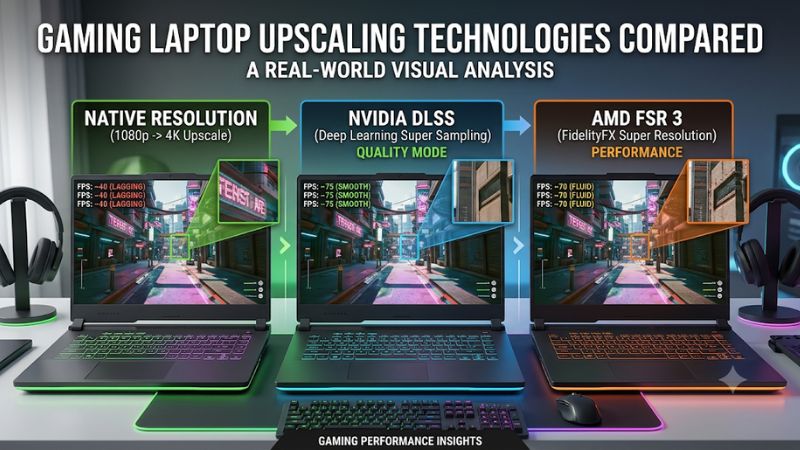
1. How Upscaling Works on a Gaming Laptop
A laptop displaying a game at 2560 × 1600 does not necessarily render every frame at that resolution. With upscaling enabled, the GPU can render at a lower internal resolution and reconstruct the missing visual information before displaying the final image.
Temporal upscalers use information from multiple frames, including motion vectors and previous-frame data, to reconstruct details. This differs from basic spatial scaling, which primarily enlarges the current image. Temporal reconstruction can preserve more detail but may produce ghosting, flickering, or unstable fine objects in difficult scenes.
The benefit is particularly relevant to gaming laptops because mobile GPUs operate within platform-specific power and thermal limits. Rendering fewer pixels can reduce GPU workload and improve frame rates, although the actual result depends on whether the game is GPU-limited or constrained by another component.
2. Upscaling Is Different From Frame Generation
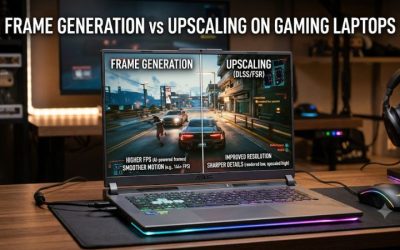
Upscaling reconstructs an image from a lower-resolution render, whereas frame generation creates additional frames between traditionally rendered frames. They are related technologies, but they solve different performance problems.
A laptop can use upscaling without frame generation. Some games also allow both features simultaneously. Frame generation can make displayed motion look smoother, but generated frames do not represent additional independently rendered game-state updates. Consequently, a higher displayed FPS figure does not automatically mean lower input latency.
This distinction matters for competitive games. A player prioritizing mouse responsiveness may prefer stable native rendering or upscaling without frame generation. In a demanding single-player game, combining the two can be a reasonable compromise when the base frame rate is already sufficient.
3. Image Quality Depends on More Than the Technology Name
DLSS, FSR, XeSS, and TSR can produce different results depending on the game engine, implementation, and quality preset. A Quality mode generally preserves more source detail than Performance mode because it starts with a higher internal rendering resolution.
The display also influences the perceived result. A 1920 × 1080 laptop panel has different reconstruction demands from a 2560 × 1600 or 3840 × 2160 panel. Thin cables, foliage, distant text, particles, and fast-moving objects can reveal reconstruction artifacts that are less noticeable in static scenes.
For meaningful comparisons, use the same game, output resolution, graphics preset, scene, and sharpening level. Compare image stability while moving the camera, not just a paused screenshot. This helps distinguish genuine reconstruction improvements from differences caused by settings.
How DLSS, FSR, XeSS, and TSR Compare
The main technologies are not interchangeable in every situation. NVIDIA DLSS relies on GeForce RTX hardware for its AI-based features, AMD FSR has multiple implementations with different hardware requirements, Intel XeSS offers Intel-optimized and cross-vendor paths, and TSR is integrated into Unreal Engine. Compatibility must be checked feature by feature.
1. NVIDIA DLSS: An Important Option for GeForce RTX Laptops
NVIDIA Deep Learning Super Sampling (DLSS) uses AI-assisted reconstruction on supported GeForce RTX GPUs. Its Tensor Core acceleration is an important distinction from conventional spatial upscaling. NVIDIA also offers related technologies, including DLAA, Frame Generation, Multi Frame Generation, and Ray Reconstruction, but these features have different hardware and game-support requirements.
DLSS Super Resolution supports GeForce RTX 20, 30, 40, and 50 Series GPUs, including corresponding laptop GPU models. Frame Generation is available on RTX 40 and 50 Series, while Multi Frame Generation is restricted to RTX 50 Series. These distinctions mean an older RTX laptop can support DLSS upscaling without supporting newer frame-generation features.
For a gaming laptop buyer, DLSS is particularly relevant when considering demanding games with ray tracing or high-resolution displays. However, the RTX label alone does not establish expected performance. Laptop GPU power limits, cooling, VRAM capacity, and the specific game still influence the experience.
2. AMD FSR: Flexible Hardware Compatibility
AMD FidelityFX Super Resolution (FSR) is a family of rendering technologies rather than one fixed upscaling method. Earlier FSR versions include spatial and temporal approaches, while newer ML-based FSR Upscaling provides a different reconstruction path. AMD also groups its newer machine-learning technologies under the FSR Redstone name.
FSR 2 and FSR 3 upscaling have broad GPU compatibility, depending on the game and implementation. Newer FSR Upscaling 4.1 has more specific hardware requirements, with AMD expanding support beyond its original Radeon RX 9000 Series launch. Its October 2026 announcement includes Radeon RX 6000 Series graphics and selected Ryzen AI laptop processors.
This makes it important to distinguish traditional FSR compatibility from compatibility with the latest ML-based implementation. An AMD laptop does not automatically support every FSR feature simply because its GPU carries a Radeon name. Check the exact processor or GPU, driver version, and game’s supported implementation before changing expectations.
3. Intel XeSS: Intel-Optimized and Cross-Vendor Options
Intel Xe Super Sampling (XeSS) uses AI-assisted image reconstruction. Its Intel-optimized implementation uses specialized acceleration available on supported Intel graphics hardware, while its cross-vendor implementation can operate on compatible GPUs using the required shader capabilities.
This flexibility makes XeSS relevant beyond laptops with Intel Arc graphics. However, the cross-vendor path does not necessarily provide the same performance characteristics as the Intel-optimized implementation. Actual results depend on hardware support, the XeSS version integrated into the game, and the driver’s implementation.
Intel’s XeSS-SR technology provides several rendering presets, including Native Anti-Aliasing, Ultra Quality Plus, Ultra Quality, Quality, and Balanced. These modes represent different internal rendering scales. The appropriate choice depends on the laptop’s output resolution and available GPU performance rather than the preset name alone.
4. Unreal Engine TSR: An Engine-Level Alternative
Temporal Super Resolution (TSR) is Unreal Engine’s temporal upscaling solution. It reconstructs a higher-resolution image using temporal information and is designed to work across supported graphics hardware rather than being tied exclusively to one GPU manufacturer.
TSR is particularly relevant when playing games built with Unreal Engine. Developers can integrate it into their rendering pipelines and expose different resolution-scaling options through the game’s graphics menu. The implementation and available settings therefore vary between titles.
Unlike DLSS, TSR is not an NVIDIA-exclusive feature, and it does not require an RTX Tensor Core. However, that does not mean every Unreal Engine game uses TSR in the same way or that its visual output is identical across games. Treat TSR as an engine-level option whose quality depends on implementation and configuration.
Technology Comparison Table
| Technology | Main Hardware Compatibility | Upscaling Approach | Main Advantage | Important Limitation |
|---|---|---|---|---|
| NVIDIA DLSS | GeForce RTX GPUs | AI-assisted reconstruction | RTX Tensor Core acceleration | Requires RTX hardware and game integration |
| AMD FSR 2/3 | Broad GPU support | Temporal reconstruction | Flexible hardware compatibility | Quality varies by version and implementation |
| AMD FSR Upscaling 4.1 | Supported Radeon and Ryzen AI hardware | ML-based reconstruction | Newer ML reconstruction | More specific hardware and driver requirements |
| Intel XeSS | Intel graphics and compatible cross-vendor GPUs | AI-assisted reconstruction | Intel-optimized and cross-vendor paths | Performance depends on implementation |
| Unreal Engine TSR | Supported GPUs running compatible Unreal Engine games | Temporal reconstruction | Engine-level hardware flexibility | Depends on developer integration |
How to Choose and Configure Upscaling on a Gaming Laptop
The right choice depends on the laptop’s actual graphics hardware and the games being played. Start by identifying the GPU, checking available in-game technologies, and selecting an appropriate output resolution and quality preset. Then compare image stability and responsiveness before deciding whether frame generation is worthwhile.
1. Check Your Laptop GPU and Available Features
Open Windows Settings, select System, Display, and Advanced display to identify your active display mode. To identify the graphics hardware, open Task Manager with Ctrl + Shift + Esc, select Performance, and inspect the GPU entries. You can also use Device Manager under Display adapters.
Once you know the GPU model, check the manufacturer’s supported-feature documentation. For NVIDIA laptops, distinguish DLSS Super Resolution compatibility from Frame Generation and Multi Frame Generation. For AMD systems, distinguish older FSR implementations from newer ML-based FSR Upscaling.
Hybrid-graphics laptops may have integrated and discrete GPUs listed separately. The presence of an integrated GPU does not necessarily mean the game uses it for rendering. Confirm which GPU is handling the game before interpreting performance or compatibility information.
2. Select the Appropriate Upscaling Quality Mode
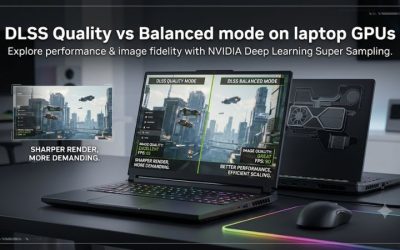
Most games with upscaling provide several presets, although their exact names and available options vary. Quality usually prioritizes image detail, Balanced aims for a middle ground, and Performance reduces the internal rendering resolution further to prioritize rendering speed.
| Setting or Step | Where | Effect | Risk |
|---|---|---|---|
| Quality mode | Game graphics settings | Prioritizes reconstructed image detail | Smaller performance improvement |
| Balanced mode | Game graphics settings | Balances image quality and GPU workload | Some fine-detail loss |
| Performance mode | Game graphics settings | Reduces internal rendering resolution further | More visible reconstruction artifacts |
| Frame Generation | Supported game graphics settings | Adds generated frames for smoother displayed motion | May increase latency or visual artifacts |
For a 1080p laptop, begin with native resolution or Quality mode before considering more aggressive scaling. At 1440p or 1600p, Quality and Balanced modes can be useful starting points when GPU performance is limited.
Performance mode is more appropriate when the laptop struggles to maintain a playable frame rate and the image remains acceptable. Avoid choosing a preset solely because it produces the largest FPS increase.
3. Compare Results Under Consistent Gaming Conditions
Choose a repeatable section of a game and record its performance at native resolution. Then enable one upscaling technology and repeat the same scene with unchanged graphics settings. Keep the output resolution, ray-tracing options, power profile, and other variables consistent.
Use an overlay or monitoring utility to inspect average FPS, GPU utilization, GPU temperature, and frame-time behavior. If the game provides a benchmark, its repeatability can help make comparisons more meaningful. Avoid comparing results from different scenes or driver versions as if they were equivalent.
Pay attention to moving foliage, fine textures, character outlines, reflections, and particle effects. A higher frame rate may come with ghosting, flickering, or reduced detail. If the visual compromise is distracting, return to a higher-quality preset or native rendering.
4. Decide Whether Frame Generation Is Worth Enabling
Frame Generation is an optional feature, not a replacement for sufficient base rendering performance. It can improve displayed smoothness in supported games, particularly when the laptop already maintains a reasonably consistent underlying frame rate.
Enable it through the game’s graphics menu when supported, then assess responsiveness alongside displayed FPS. Fast camera movements, HUD elements, and moving objects can expose generated-frame artifacts. Competitive shooters and rhythm games may benefit less from the added displayed frames than slower single-player titles.
If mouse response feels less immediate, disable Frame Generation and compare again. Also remember that laptop power and cooling affect sustained performance. A short increase in displayed FPS does not establish that the GPU can maintain the same result during a longer gaming session.
FAQ
Is DLSS better than FSR on a gaming laptop?
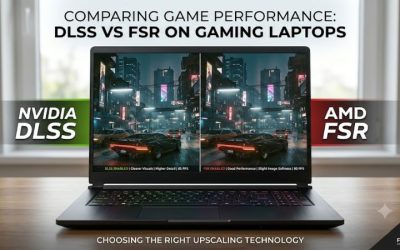
DLSS can be the stronger option on supported GeForce RTX laptops, but FSR can be more flexible across different GPU manufacturers. The result depends on the specific game, implementation, resolution, and quality preset. Compare both visually when the game offers them.
Can I use DLSS on an AMD or Intel gaming laptop?
No, NVIDIA DLSS requires supported GeForce RTX graphics hardware. AMD and Intel laptops can use compatible FSR implementations, while XeSS also provides a cross-vendor implementation for supported hardware.
Does upscaling reduce gaming laptop temperatures?
Upscaling can reduce GPU rendering workload, which may reduce power consumption and heat generation in some situations. However, temperature changes are not guaranteed because power limits, cooling behavior, CPU workload, and fan profiles also affect laptop temperatures.
Should I enable Frame Generation with upscaling?
Enable Frame Generation when the game supports it and the underlying frame rate is already reasonably stable. It can improve displayed smoothness, but it does not provide the same responsiveness as an equivalent increase in traditionally rendered frames.
Final Thoughts
Choosing between gaming laptop upscaling technologies compared comes down to GPU compatibility, game support, image quality, and responsiveness. DLSS is a strong RTX option, FSR offers broader implementation choices, XeSS provides cross-vendor flexibility, and TSR suits compatible Unreal Engine games. Start with Quality mode and compare before sacrificing visual detail.
Related guides
More from Amazon
Programs that pair well with the guide above. Offers and eligibility are set by Amazon and may change.
Free shipping on eligible items, Prime Video and more. Eligible new members can start with a free trial.
Start a Prime free trialAd-free music streaming. Eligible new subscribers can start with a free trial.
Try Music Unlimited freeA Prime membership for ages 18-24 with a trial period. Eligibility is set by Amazon.
See Prime for Young AdultsAudiobooks and podcasts to listen to on the go. Eligible new members can start with a free trial.
Try Audible freeAs an Amazon Associate we earn from qualifying purchases.