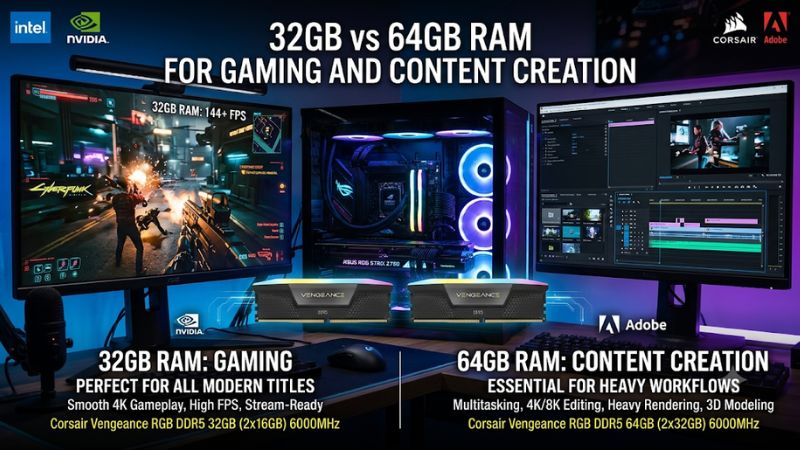
Choosing between 32GB vs 64GB RAM for gaming and content creation depends more on your workload than on the amount of memory installed. For most gaming PCs, 32GB provides sufficient capacity, while 64GB makes more sense for demanding video editing, complex creative projects, and heavy multitasking. This comparison explains where the extra memory matters.
32GB vs 64GB RAM: Understanding the Main Differences
The practical difference between these capacities is available working space, not an automatic increase in processing speed. A game that comfortably fits within 32GB will not necessarily run faster with 64GB. However, creative applications, background processes, large project files, and simultaneous workloads can consume enough memory to make the larger configuration worthwhile.
1. Gaming Performance and Everyday Use
For mainstream PC gaming, 32GB is a sensible capacity in 2026. It provides room for modern games, Windows, voice chat, browser tabs, launchers, and background utilities without requiring most players to pay for additional memory they may not use.
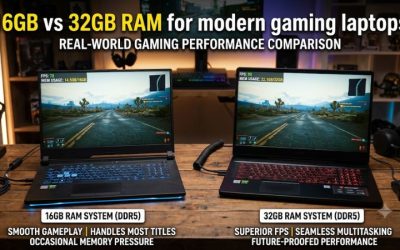
Moving to 64GB does not automatically improve average FPS, reduce input latency, or eliminate stuttering. Those results depend on whether memory capacity is actually limiting the system. CPU performance, GPU capability, memory speed, game optimization, and storage can all influence gaming performance independently.
2. Video Editing and Content Creation
Content creation changes the calculation because applications handle different amounts of data depending on resolution, media format, effects, timeline complexity, and project size. Adobe Premiere’s current Windows recommendations specify 32GB or more for 4K and higher-resolution media, making 32GB a reasonable starting point rather than a universal ceiling.
A 64GB configuration provides additional room for demanding projects and multiple creative applications. It becomes particularly useful when editors work with high-resolution footage, complex compositions, RAW media, large image libraries, or several applications simultaneously. The benefit is greatest when a real workload approaches the available memory limit.
3. Multitasking, Streaming, and Professional Workflows
Gaming while streaming, recording gameplay, managing browser tabs, and running communication software increases memory demand. However, these activities do not automatically require 64GB. Many ordinary streaming setups remain comfortable with 32GB, particularly when the encoder relies on a supported GPU encoding feature.
The decision changes when streaming is combined with editing, rendering, large development environments, virtual machines, or other memory-intensive applications. In these situations, 64GB offers more flexibility and reduces the likelihood that one application will compete with another for limited physical memory.
4. Upgrade Cost and Long-Term Value
The additional capacity has value only when your workload can use it. Spending more on 64GB may leave less money for a faster GPU, stronger CPU, larger SSD, or better cooling. Those components can have a more direct effect on gaming and creative performance when the existing system is not memory-constrained.
However, buying 64GB initially can be sensible if you already know that your professional workload will expand. The right decision also depends on motherboard capacity, available memory slots, supported memory configurations, and whether the system can be upgraded without replacing existing modules.
32GB vs 64GB RAM: Performance, Compatibility, and Value Compared
The better configuration depends on how frequently your applications approach the physical memory limit. Gaming benchmarks and creator workloads show why doubling capacity does not automatically double performance. The following comparison separates ordinary gaming, mixed workloads, and professional production so you can choose memory based on actual requirements rather than theoretical headroom.
1. Gaming and Streaming Comparison
For gaming alone, 32GB is generally the better allocation of your budget. TechSpot’s January 2026 gaming investigation used a Ryzen 7 9800X3D, GeForce RTX 5090, and DDR5 memory, running games at 4K with typically maximum quality settings. Its results showed similar performance across 16GB, 32GB, and 64GB in the games examined, with 32GB remaining its recommended gaming capacity.
The important distinction is that these findings apply to the tested games and system, not every possible gaming setup. A heavily modded game, unusually demanding simulation, or simultaneous creative workload can change memory requirements. For conventional gaming with Discord, recording, and browser applications, 32GB remains a sensible starting point.
2. Video Editing, Photoshop, and After Effects
Adobe’s October 2026 Premiere requirements recommend 32GB or more for 4K and higher-resolution media on Windows. This means a 32GB system meets the published capacity recommendation, although demanding projects can benefit from additional working space.
Puget Systems’ June 2026 creator benchmarks provide a useful comparison between 32GB and 64GB. Its test platform used a Ryzen 9 9950X3D2, GeForce RTX 5080, and DDR5-5600 memory. The results varied by application: Photoshop showed no overall performance difference between the two capacities, while After Effects also showed no overall difference when comparing 32GB with 64GB. More complex workflows can still benefit from the additional capacity.
3. Memory Capacity Comparison Table
| Workload | 32GB RAM | 64GB RAM |
| Mainstream gaming | Recommended | Usually unnecessary |
| Competitive gaming | Sufficient | Limited additional value |
| Gaming with Discord and browser tabs | Generally sufficient | Useful for unusually heavy multitasking |
| Gaming and streaming | Good starting point | Better headroom for additional applications |
| 1080p video editing | Generally sufficient | Useful for complex projects |
| 4K Premiere editing | Meets Adobe’s recommendation | More room for demanding projects |
| Large Photoshop documents | Suitable for many workflows | Better for complex compositions |
| After Effects | Suitable for moderate projects | Better for demanding compositions |
| DaVinci Resolve and Fusion | Suitable for lighter projects | More appropriate for complex Fusion work |
| Virtual machines and development | Depends on workload | Better for multiple memory-intensive environments |
These are workload recommendations, not guaranteed performance outcomes. Adobe’s requirements and Puget Systems’ application benchmarks measure different things: minimum or recommended operating requirements versus performance under specific test conditions.
4. Which Capacity Offers Better Long-Term Value?
A 32GB configuration is usually the more balanced choice when gaming is the primary activity and content creation is occasional. It leaves more of the build budget available for components that directly affect rendering and gaming, including the GPU, CPU, and SSD.
However, creators who regularly work with complex timelines, large image compositions, and multiple professional applications may find 64GB a more practical long-term investment. Puget Systems also notes that filling additional motherboard memory slots can affect achievable memory speeds, depending on the platform and configuration. Buying more capacity therefore requires checking the motherboard’s memory support rather than assuming every combination operates at its advertised speed.
How to Choose Between 32GB and 64GB RAM
Before purchasing an upgrade, examine your actual memory consumption and check the system’s supported configuration. The difference between these capacities is most important when your regular workload exceeds the practical space available in a 32GB system. A few simple checks can prevent unnecessary spending and avoid compatibility problems.
1. Check Your Actual Memory Usage
Open Task Manager in Windows by pressing Ctrl + Shift + Esc, then select Performance and Memory. This screen displays installed memory, current usage, available memory, and other useful information about the system’s RAM.
Monitor usage while running your normal combination of games and creative applications. Pay attention to repeated periods of high memory consumption, application slowdowns, and increasing committed memory. A single high reading does not automatically justify an upgrade, because Windows also uses available memory for caching.
2. Check Your Motherboard and CPU Compatibility
Before installing additional memory, identify the motherboard model and processor. Check the motherboard manufacturer’s memory specifications, supported DIMM capacity, DDR generation, supported module configurations, and CPU memory limitations.
DDR4 and DDR5 modules are physically and electrically different and cannot be substituted for each other. A DDR5 motherboard requires compatible DDR5 memory, while a DDR4 motherboard requires DDR4 modules. Also check whether the laptop uses replaceable SO-DIMMs, soldered memory, or a combination of both.
3. Choose the Right Module Configuration
For a typical dual-channel desktop system, a matched 2 x 16GB kit provides 32GB, while a matched 2 x 32GB kit provides 64GB. Using matched modules simplifies configuration and helps avoid mixing different memory specifications.
Do not assume that adding two more modules to an existing kit will preserve the original speed. Four-DIMM configurations can place greater electrical demands on the memory controller, potentially requiring a lower operating speed. Check the motherboard’s qualified memory information and CPU specifications before purchasing.
4. Verify Stability After Upgrading
After installing memory, enter Windows and confirm that the expected capacity appears in Task Manager. Check the reported operating speed and verify that the system recognizes every installed module.
If you enable an XMP or EXPO memory profile, confirm that your motherboard and CPU support the selected configuration. These profiles are optional performance settings, not mandatory requirements. If the computer becomes unstable, return the memory settings to their default values and check module installation before considering further changes.
Frequently Asked Questions
1. Is 32GB RAM enough for gaming and content creation?
Yes, 32GB is enough for most gaming and many moderate content creation workflows. It supports mainstream gaming, multitasking, and Premiere editing, including 4K projects under Adobe’s recommended memory guidance. However, large creative projects and demanding simultaneous workloads can benefit from 64GB.
2. Does 64GB RAM increase FPS compared with 32GB?
No, not consistently. When a game already has enough available memory, additional capacity generally does not increase average FPS. CPU, GPU, memory speed, and game optimization remain important. The larger capacity becomes useful when insufficient memory is affecting performance or background workloads.
3. Is 64GB RAM worth it for video editing?
Yes, if your regular projects involve complex effects, large RAW files, demanding compositions, or several creative applications running simultaneously. For lighter editing and many conventional Premiere workflows, 32GB is a reasonable starting point. Consider your project complexity before paying for additional capacity.
4. Should I use four 16GB RAM sticks or two 32GB sticks?
Two matched 32GB modules are generally the simpler choice for a 64GB desktop configuration. However, actual memory speed and compatibility depend on the motherboard, processor, and supported DIMM population. Check the motherboard specifications before choosing either configuration.
Final Thoughts
The choice between 32GB vs 64GB RAM for gaming and content creation comes down to workload, not capacity alone. Choose 32GB for gaming and moderate editing; choose 64GB for demanding creative production and heavier multitasking. Check your motherboard compatibility and actual memory usage before spending money on an upgrade.
Related guides
More from Amazon
Programs that pair well with the guide above. Offers and eligibility are set by Amazon and may change.
Free shipping on eligible items, Prime Video and more. Eligible new members can start with a free trial.
Start a Prime free trialAd-free music streaming. Eligible new subscribers can start with a free trial.
Try Music Unlimited freeA Prime membership for ages 18-24 with a trial period. Eligibility is set by Amazon.
See Prime for Young AdultsAudiobooks and podcasts to listen to on the go. Eligible new members can start with a free trial.
Try Audible freeAs an Amazon Associate we earn from qualifying purchases.