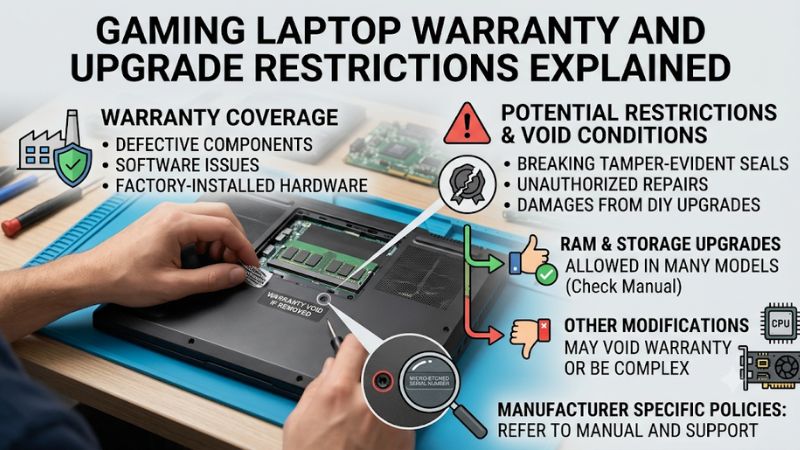
Gaming laptop warranty and upgrade restrictions explained starts with one important distinction: upgrading a component does not automatically cancel every warranty, but damage caused during installation or by an incompatible replacement may not be covered. Understanding manufacturer policies, upgradeable hardware, and repair conditions helps protect your laptop and avoid unnecessary service costs.
What Gaming Laptop Warranties and Upgrade Restrictions Really Mean
A gaming laptop warranty generally covers qualifying manufacturing defects and hardware failures under the manufacturer’s written terms. It does not automatically cover accidental damage, improper installation, or every problem involving third-party components. Before opening the chassis, understand the difference between warranty cancellation, excluded damage, and limitations on individual upgrades.
1. Does Opening a Gaming Laptop Void Its Warranty?
Opening a gaming laptop does not automatically void its warranty in every situation. The actual policy depends on the manufacturer, country, product, and type of work performed. Some manufacturers allow owners to replace accessible RAM and SSD components, provided the installation does not damage the computer.
For example, Acer’s US and Canadian guidance says opening a computer does not automatically invalidate its warranty, although damage caused by opening or upgrading can affect coverage. MSI also distinguishes between permitted memory and storage upgrades and damage caused by the owner’s components or installation procedure.
Acer Community+1
2. Understanding Warranty Coverage Versus Upgrade Damage
A manufacturer’s limited warranty and an upgrade restriction are not necessarily the same thing. A laptop may remain covered for an unrelated manufacturing defect even if an owner has installed additional storage. However, a damaged connector, scratched motherboard, or failure caused by an incorrectly installed component may be excluded.
This distinction matters when requesting service. If an upgraded SSD causes boot problems, the manufacturer may decline coverage for that particular issue. That does not necessarily mean an unrelated factory defect affecting the display, motherboard, or another covered component loses all warranty protection.
3. Why Gaming Laptop Components Have Different Upgrade Restrictions
Gaming laptops have more limited upgrade options than desktop PCs because their compact designs use soldered components, proprietary connectors, and model-specific cooling assemblies. RAM and SSDs are sometimes replaceable, but the CPU and GPU are commonly integrated into the motherboard.
Even when a laptop has accessible memory slots, its supported capacity and memory configuration depend on the exact model. An available M.2 connector also does not establish that every SSD format, thickness, interface, or capacity is supported. Check the manufacturer’s specifications and service documentation.
4. What Doesn’t Help: Assuming Every Upgrade Is Automatically Allowed
A common mistake is assuming that every gaming laptop follows the same warranty rules. Advice from another owner’s ASUS, Acer, Lenovo, or MSI computer might not apply to a different model or regional warranty. Retailer promises and general online discussions are not substitutes for the written warranty.
Another misconception is that removing a warranty sticker automatically proves that coverage has been canceled. In the United States, federal warranty law restricts certain warranty practices involving required branded parts and services. However, this does not protect owners from liability for damage caused by an improper repair or modification.
Consumer Advice+1
How Gaming Laptop Upgrades Affect Warranty Coverage
The practical question is not simply whether an upgrade is possible. It is whether the component is user-replaceable, whether the laptop supports the replacement, and whether the installation could affect warranty service. The following distinctions help identify which modifications deserve extra caution before purchasing parts or opening the chassis.
1. RAM Upgrades and Warranty Considerations
RAM upgrades are among the more common gaming laptop modifications. Models with removable SO-DIMM modules may allow owners to replace existing memory or populate an available slot. However, soldered memory cannot be upgraded through a normal module replacement.
Before purchasing RAM, verify the laptop’s supported DDR generation, module type, maximum capacity, supported speeds, and slot configuration. Installing incompatible memory may cause boot failures or instability. Keep the original modules because reinstalling them can help isolate upgrade-related problems during troubleshooting.
2. SSD Upgrades and Storage Restrictions
SSD replacement or expansion is another common upgrade, but physical access alone does not establish compatibility. Check whether the laptop supports M.2 NVMe or SATA storage, the supported drive dimensions, available PCIe interface, and the number of accessible storage slots.
Some laptops have a second M.2 connector, while others require replacing the existing drive. Certain models also have thermal pads or shields that must be transferred correctly. If the SSD installation damages the connector, motherboard, or surrounding components, the resulting repair may not qualify for warranty coverage.
3. Battery, Wi-Fi, and Cooling System Modifications
Battery replacement, wireless card changes, and cooling-system repairs require additional caution. Batteries must match the laptop’s approved electrical and physical specifications. Wireless cards may also have interface, antenna, firmware, or regional compatibility restrictions.
Cooling components are particularly sensitive because heatsinks, fans, thermal pads, and heat pipes are designed around specific configurations. Removing a heatsink without following the service procedure can damage components or create cooling problems. Check whether the manufacturer treats these parts as user-serviceable before attempting replacement.
4. CPU, GPU, BIOS, and Motherboard Changes
CPU and GPU upgrades are generally not practical on conventional gaming laptops because these processors are soldered to the motherboard. Replacing them usually involves specialized equipment and may require a compatible motherboard assembly rather than a simple component swap.
BIOS modifications, firmware changes, and unofficial performance modifications also introduce risks. A failed firmware update can prevent the laptop from booting, while unsupported voltage or power changes may cause instability. Follow the manufacturer’s firmware instructions and avoid treating unofficial modifications as ordinary warranty-safe upgrades.
Upgrade and Warranty Comparison Table
| Upgrade or modification | Usually upgradeable? | Main compatibility concern | Warranty consideration |
| Removable RAM | Often | DDR generation, capacity, speed | Installation damage may be excluded |
| M.2 SSD | Often | Interface, dimensions, PCIe support | SSD-related damage may be excluded |
| Battery | Model-dependent | Voltage, connector, approved part | Incorrect installation may affect coverage |
| Wi-Fi card | Model-dependent | Interface, antennas, firmware | Third-party compatibility may be limited |
| Cooling fans | Model-dependent | Connector, dimensions, mounting | Physical damage may be excluded |
| CPU | Usually no | Soldered motherboard design | Major modification and repair risks |
| GPU | Usually no | Soldered GPU and motherboard | Major modification and repair risks |
| Motherboard | Replaceable as a service part | Exact laptop configuration | Installation and replacement terms apply |
How to Protect Your Warranty Before Upgrading a Gaming Laptop
A careful upgrade begins before the laptop’s bottom cover is removed. Confirm the warranty conditions, identify the exact laptop configuration, and determine whether the intended component is replaceable. These precautions reduce the likelihood of installation damage and make it easier to distinguish an existing hardware defect from a problem introduced by an upgrade.
1. Check the Manufacturer’s Warranty and Service Manual
Start by identifying the complete laptop model number, serial number, and regional warranty information. Visit the manufacturer’s official support website and locate the warranty statement and service manual for that particular configuration.
Pay attention to language covering customer-installed components, authorized service centers, physical damage, and third-party replacement parts. If the policy is unclear, contact support before proceeding. Ask whether installing RAM or an SSD yourself affects coverage and whether the manufacturer recommends professional installation.
2. Verify Hardware Compatibility Before Installation
Check the laptop’s specifications and service documentation before ordering replacement components. Do not rely exclusively on a retailer’s compatibility list because different configurations within the same laptop family can have different internal layouts.
Use this checklist:
- Confirm the exact RAM generation, module format, and supported capacity.
- Verify the SSD interface, physical dimensions, and available M.2 slots.
- Check whether the battery or wireless card is designated as replaceable.
- Identify any required thermal pads, brackets, screws, or mounting accessories.
- Confirm whether the manufacturer requires a particular installation procedure.
Compatibility matters for warranty protection as well as functionality. An incompatible component can cause boot problems, instability, or physical damage.
3. Document the Original Configuration and Installation
Before making changes, record the laptop’s original hardware configuration. Save the purchase receipt, warranty documentation, and photographs of the internal components if you are permitted to open the device.
Back up important files before replacing storage. If the existing SSD contains Windows and personal data, consider whether you need a disk image or a separate backup before proceeding.
When performing an approved upgrade, use appropriate tools and follow the manufacturer’s service instructions. Disconnect external power and follow the documented battery-disconnection procedure before handling internal components. Avoid forcing connectors, bending circuit boards, or using excessive pressure on retention clips.
Keep removed components, screws, and original packaging where practical. These records can help establish the laptop’s previous configuration if warranty service becomes necessary.
4. Restore the Original Configuration Before Requesting Service
If a laptop develops a problem after an upgrade, determine whether the replacement component is responsible. For example, if the computer starts experiencing memory errors after installing new RAM, reinstalling the original modules can help isolate the cause.
However, restoring the original configuration is not a universal requirement for warranty coverage. Follow the manufacturer’s return instructions rather than assuming that every modification must be reversed.
Before sending the laptop for repair, document the symptoms and any troubleshooting already performed. Contact support to determine whether the upgraded component should remain installed or be removed. Never conceal modifications or continue disassembling a laptop when doing so could cause further damage.
Understanding US Warranty Rights
For US consumers, the Magnuson-Moss Warranty Act is relevant when evaluating manufacturer restrictions. The FTC explains that manufacturers generally cannot condition warranty coverage on using branded parts or specified repair services unless an applicable legal exception applies.
The FTC also issued warning letters in 2024 concerning potentially unlawful warranty restrictions, including certain warranty-void stickers used by companies selling computer hardware. However, these protections do not mean that manufacturers must cover damage caused by improper installation, incompatible components, or unauthorized modifications.
A practical approach is to distinguish between a blanket refusal to honor a warranty and a legitimate exclusion for damage directly caused by an upgrade. If a manufacturer denies coverage, request the specific written warranty provision and an explanation connecting the reported damage to the modification. State consumer protection laws may provide additional rights.
Consumer Advice+2
Frequently Asked Questions
1. Does Upgrading RAM Void a Gaming Laptop Warranty?
No, upgrading RAM does not automatically void every gaming laptop warranty. Some manufacturers permit memory upgrades, while others impose model-specific installation requirements. Damage caused by incompatible RAM or improper installation may be excluded from coverage. Check the warranty and service manual before replacing the original modules.
2. Can I Upgrade My Gaming Laptop SSD Without Losing Warranty Coverage?
Yes, many gaming laptops support SSD replacement or expansion without automatically canceling the entire warranty. However, coverage depends on the manufacturer’s terms and whether the installation causes damage. Verify the M.2 interface, supported dimensions, and installation procedure before opening the laptop.
3. Can a Manufacturer Refuse Warranty Service After I Open My Laptop?
A manufacturer may refuse coverage for damage caused by opening or modifying a laptop, depending on the applicable warranty terms and consumer protection laws. Opening the chassis alone does not universally invalidate warranty protection in the United States. Ask the manufacturer to explain any denial in writing.
4. Should I Upgrade My Gaming Laptop Myself or Use an Authorized Service Center?
Using an authorized service center is generally the safer choice when warranty terms are unclear or the upgrade involves delicate components. Self-installation may be reasonable for documented user-replaceable RAM and SSD components. Compare installation costs with the potential repair risks before deciding.
Final Thoughts
Understanding gaming laptop warranty and upgrade restrictions explained helps owners make better decisions before modifying their hardware. RAM and SSD upgrades are often practical, but compatibility, installation procedures, and regional warranty terms matter. Check your exact model’s documentation, preserve original components, and contact manufacturer support whenever coverage is uncertain.
Related guides
More from Amazon
Programs that pair well with the guide above. Offers and eligibility are set by Amazon and may change.
Free shipping on eligible items, Prime Video and more. Eligible new members can start with a free trial.
Start a Prime free trialAd-free music streaming. Eligible new subscribers can start with a free trial.
Try Music Unlimited freeA Prime membership for ages 18-24 with a trial period. Eligibility is set by Amazon.
See Prime for Young AdultsAudiobooks and podcasts to listen to on the go. Eligible new members can start with a free trial.
Try Audible freeAs an Amazon Associate we earn from qualifying purchases.