Moving how to move games to a new gaming laptop SSD involves more than copying folders between drives. You need to preserve installation files, configure the destination SSD, and make sure each game launcher recognizes its new location. This guide explains safe transfer methods for Steam, Epic Games, and other Windows gaming platforms.
What Moving Games to a New Gaming Laptop SSD Really Comes Down To
The most important distinction is whether you are moving games between two SSDs in the same laptop or transferring them to a different laptop. The process is not identical. Launcher-managed transfers are generally preferable because they preserve installation records, while a new computer may require the launcher to rediscover or verify copied files.
1. Understand the Difference Between Moving and Reinstalling
Moving a game transfers its existing installation files to another storage location. When the launcher supports this operation, it can update its installation records without requiring a complete download. This is particularly useful for large games that would otherwise consume substantial bandwidth and time.
Reinstalling downloads the game again from its distribution platform. It is sometimes necessary when installation records are missing, files are damaged, or the launcher does not support the desired transfer method. Your game saves may be stored separately, so reinstalling does not automatically mean losing progress.
2. Check the New SSD Before Transferring Games
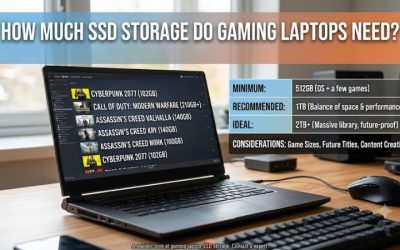
Before moving anything, confirm that Windows recognizes the destination SSD and that it has sufficient free space. Open File Explorer, select This PC, and check the available capacity. Remember that the combined size of your selected games must fit alongside future updates and temporary installation files.
If the SSD is newly installed, open Disk Management by right-clicking Start and selecting Disk Management. A new, uninitialized drive may require initialization and volume creation before Windows can use it. Be careful to select the correct disk because formatting or deleting partitions can destroy existing data.
3. Identify Game Files and Saved Data Separately
Game installation folders do not necessarily contain every file associated with a game. Launchers may store installation manifests, configuration files, screenshots, mods, and saved progress in separate locations. Some games use cloud synchronization, while others depend on local save folders.
Before transferring a large library, identify which games have cloud saves and which require manual backup. Check the game’s launcher settings and documentation. For important local saves, make an independent backup rather than assuming that copying the installation directory will preserve everything.
4. Choose the Right Transfer Method
The safest method depends on the launcher and whether the new SSD is installed in the original laptop or a replacement machine. Steam provides a built-in installation-folder moving feature, while Epic Games documents a separate backup-and-recognition procedure. Other platforms may require their own migration process.
For a new laptop, you can also copy backed-up game folders using an external SSD or a local network. However, copying files alone does not guarantee that a launcher will recognize them. Plan to reconnect each installation through its original platform and allow file verification before deleting the backup.
How to Move Games to a New Gaming Laptop SSD: Step by Step
Once the destination drive is ready, organize the migration before transferring files. Create a dedicated folder for game libraries, identify the games you want to prioritize, and close running launchers before manually copying anything. The following methods cover common situations without assuming every platform handles migration identically.
1. Prepare the Destination SSD and Create a Game Library
Open File Explorer and locate the destination drive. Create a folder such as D:\Games or D:\SteamLibrary, depending on your preferred organization. Using a dedicated folder makes it easier to distinguish game installations from documents, downloads, and personal files.
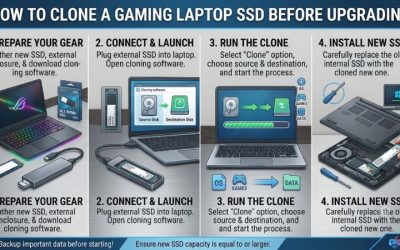
If you are moving to a replacement laptop, connect the external SSD containing your backups or access the old laptop over your local network. Confirm that the copied files are readable before proceeding. Keep the original installation or backup intact until every transferred game launches successfully.
2. Move Steam Games Using Steam Storage
Steam offers a built-in way to move installed games between library folders. Open Steam, select Settings, and navigate to Storage. Use the add-library control to create or select a library folder on the destination SSD. This makes the new location available for game installations.
To move an existing installation, select the game in your Library, open Properties, choose Installed Files, and select Move Install Folder. Choose the destination library and confirm. Steam manages the transfer and updates its installation location. For a replacement laptop, you may instead need to add the copied library folder and let Steam recognize the existing files.
3. Transfer Epic Games Installations Carefully
Epic Games uses a different process from Steam. Its official instructions describe backing up the original game folder, starting a new installation at the destination, and allowing the launcher to recognize the copied files. The exact procedure depends on the launcher version.
For the documented Epic Games Launcher Preview procedure, copy the game folder to the intended destination, uninstall the original launcher entry, and select Install again using that destination. Epic’s instructions state that the launcher can automatically detect the copied files. Keep the backup until verification finishes and the game launches correctly.
4. Verify the Installation and Restore Game Saves
After transferring files, open the relevant launcher and check whether each game appears as installed. If a game is recognized but behaves unexpectedly, use its built-in file verification or repair function when available. This checks installation integrity and may download missing or damaged files.
Launch each game and confirm that its settings, downloadable content, and saved progress are available. For games using local saves, restore the backed-up save data to the appropriate location according to the game’s documentation. Do not overwrite newer saves with older backups without checking their dates.
| Setting or Step | Where | Effect | Risk |
| Create destination library | Steam Settings → Storage | Adds the new SSD as an installation location | Selecting the wrong drive |
| Move existing Steam games | Properties → Installed Files → Move Install Folder | Transfers files through Steam | Interrupting the transfer |
| Relocate Epic Games files | Epic Games Launcher and destination folder | Allows the launcher to detect backed-up files | Incorrect folder selection |
| Verify game installation | Launcher game settings | Checks for missing or damaged files | Additional downloads may be required |
| Restore saved progress | Game-specific save folder or cloud service | Recovers supported game progress | Overwriting newer save files |
5. Move Games Between Two Different Laptops
If you are replacing your gaming laptop, the migration process requires an additional step. Connect the old laptop’s SSD through a compatible external enclosure or use an external storage device to copy the game folders. Alternatively, transfer the files over a local network if both computers are accessible.
On the new laptop, install the appropriate game launcher and sign in using the account that owns the games. Create the destination library and follow the platform’s instructions for recognizing existing installations. Some launchers will require you to begin an installation before they can identify copied files.
6. Avoid Common File Transfer Mistakes
One common mistake is copying an entire launcher directory and assuming that every game will automatically appear in the new library. Installation records and manifests may be stored outside the game folder. Moving only the visible game files can therefore leave the launcher unable to identify the installation.
Another mistake is deleting the original files immediately after copying them. Keep a backup until the launcher recognizes the installation, completes verification, and successfully starts the game. Also check that the destination drive has enough free capacity for future patches, updates, and temporary files.
7. Check Performance After the Migration
Moving games to another SSD does not automatically increase frame rates. The GPU, CPU, memory, game engine, and graphics settings remain major factors in gaming performance. Storage changes primarily affect loading behavior, file access, and installation management.
After migration, launch several games and compare their loading behavior with your previous setup. Check for missing textures, unusually long loading screens, or error messages. If problems appear, verify the game files and check whether the particular title has storage requirements documented by its developer.
FAQ
1. Can I Move Games to a New Gaming Laptop SSD Without Downloading Them Again?
Yes, you can move many games without downloading their entire installations again. Steam supports moving existing installations between library folders, while Epic Games documents a process for recognizing backed-up game files. Other launchers have different procedures, so check their support documentation before transferring files.
2. Will Moving Games to Another SSD Delete My Saved Progress?
Not necessarily. Many games synchronize saves through cloud services, but others store progress locally in separate folders. Back up important save data before moving installations, and check cloud synchronization status after signing into your account on the new laptop.
3. Does Moving Games to an NVMe SSD Improve Gaming FPS?
No, changing the installation drive does not automatically increase average FPS. An NVMe SSD can improve storage-related loading performance in suitable workloads, but actual gaming performance depends primarily on the system’s hardware and the game’s design. Improvements vary between titles.
4. Can I Use the Same External SSD to Transfer Games Between Laptops?
Yes, provided the external SSD has sufficient capacity and both laptops support its connection and file system. Use it to transfer game folders, then reconnect the installations through their respective launchers. Keep the backup until the new laptop successfully recognizes and launches the games.
Final Thoughts
Learning how to move games to a new gaming laptop SSD can save download time, preserve bandwidth, and make a laptop upgrade easier. Prioritize launcher-supported transfers, back up local saves, and verify every installation before deleting original files. Start with one game before migrating your entire library.
Related guides
More from Amazon
Programs that pair well with the guide above. Offers and eligibility are set by Amazon and may change.
Free shipping on eligible items, Prime Video and more. Eligible new members can start with a free trial.
Start a Prime free trialAd-free music streaming. Eligible new subscribers can start with a free trial.
Try Music Unlimited freeA Prime membership for ages 18-24 with a trial period. Eligibility is set by Amazon.
See Prime for Young AdultsAudiobooks and podcasts to listen to on the go. Eligible new members can start with a free trial.
Try Audible freeAs an Amazon Associate we earn from qualifying purchases.