
Fixing thermal throttling through software means attacking it from three angles: increasing fan speed through your manufacturer’s control center app, reducing the heat generated per unit of performance through CPU undervolting, and adjusting power limits so the system isn’t asking for more sustained performance than your cooling can support. Each angle addresses a different part of the same underlying heat equation. None of these fully replace a physical cleaning if dust or degraded thermal paste is the root cause, but they’re the right first steps before opening the laptop. Working through all three in order gives you the clearest possible picture before deciding whether a teardown is genuinely necessary.
Start with fan curve and performance preset changes, since they’re the fastest to test and reverse. Undervolting takes more setup time but often produces the larger sustained improvement for CPU-driven throttling specifically. Work through each fix in order and retest after every single change.
As an Amazon Associate we earn from qualifying purchases at no extra cost to you.



Top 3 picks at a glance
Quick answer
Set your manufacturer’s control center app to its highest fan/performance preset during gaming, undervolt your CPU through ThrottleStop or Intel XTU (Intel) or an AMD-specific equivalent tool, and check that your turbo power limits aren’t set higher than your cooling can sustain. Combine all three rather than relying on just one.
| Fix | Tool | What it addresses |
|---|---|---|
| Fan curve / performance preset | Manufacturer control center app | How quickly heat is removed |
| CPU undervolt | ThrottleStop, Intel XTU, or AMD equivalent | Heat generated per performance level |
| Power limit adjustment | ThrottleStop / manufacturer app | How much sustained power the CPU draws |
| Monitoring | HWiNFO64 | Confirming what’s actually happening |
How to confirm it’s actually thermal throttling
Before applying fixes, confirm the drop in performance is genuinely thermal throttling and not a different bottleneck. Run HWiNFO64 alongside a demanding game or benchmark and watch CPU and GPU temperature alongside clock speed — if clocks drop noticeably at the same moment temperatures hit a specific ceiling (often close to the chip’s rated maximum operating temperature) and recover once temperatures fall, that’s a clear throttling signature.
If clocks stay high and stable while temperatures are well below any obvious limit, but performance is still lower than expected, the cause is more likely a power limit, a CPU-bound game engine, or a different issue entirely — throttling fixes won’t help in that case, and you’d be solving the wrong problem.
This confirmation step matters because the fixes below specifically target thermal throttling, and applying them to a performance problem with a different root cause wastes time without improving anything. Spend the few extra minutes on this diagnosis step before touching any settings, since it determines which of the fixes below are actually relevant to your specific situation.
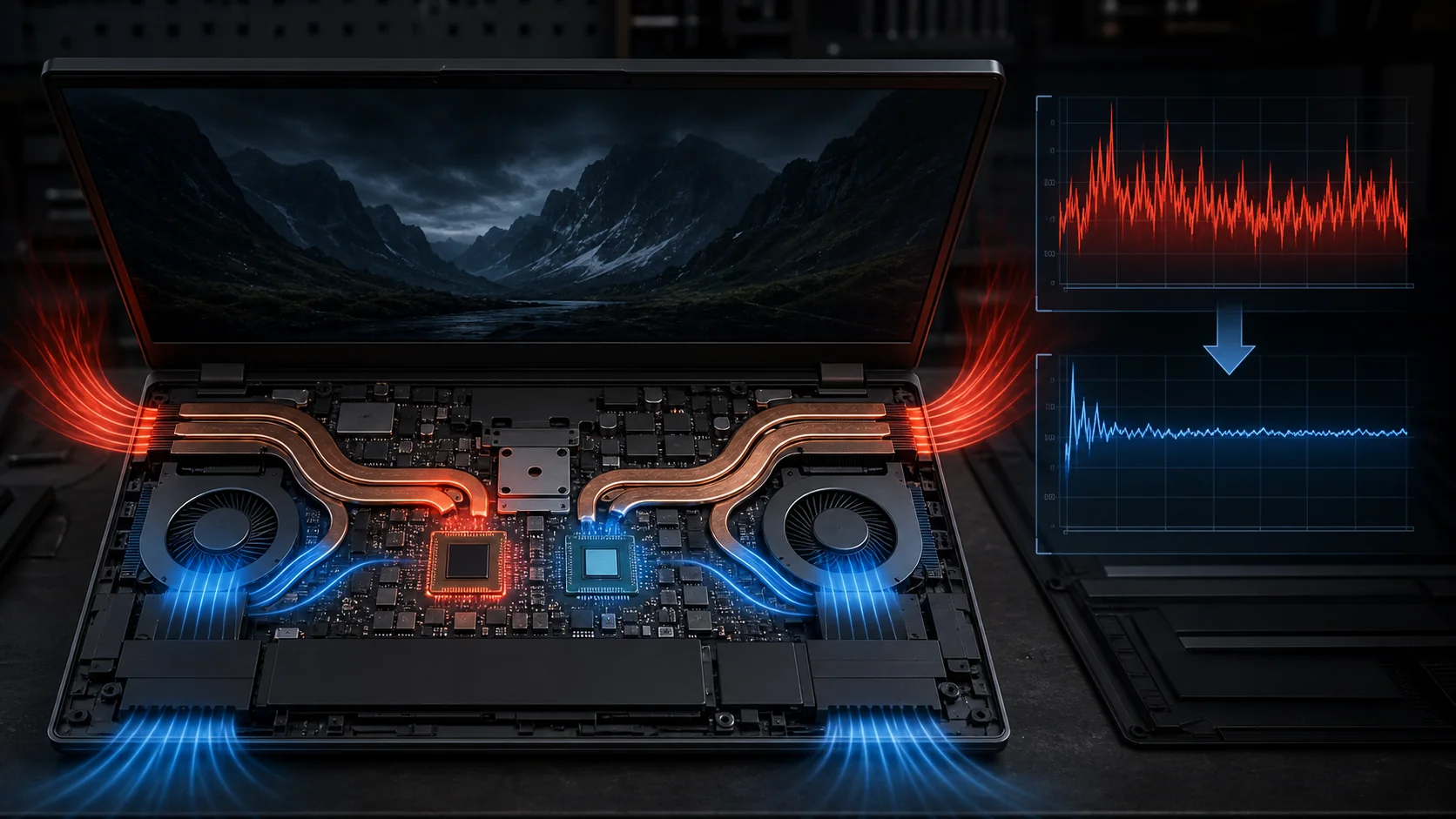
A useful pattern-matching detail to watch for in HWiNFO64’s logged data: genuine thermal throttling tends to show a distinctive sawtooth shape when graphed over time — temperature climbs to a ceiling, clock speed drops sharply, temperature falls slightly as a result, clock speed recovers, and the cycle repeats every few seconds to a couple of minutes depending on the workload. A power-limit-driven slowdown, by contrast, typically shows a single step-down in clock speed that then holds roughly steady, without the repeating sawtooth pattern, since it isn’t reacting to a moving temperature ceiling the same way. Recognizing which shape your logged data shows is a fast way to confirm which category of fix is actually relevant before spending time on the wrong one.
Raising fan curves and performance presets
Open your manufacturer’s control center app and check the current performance or fan preset — many laptops default to a Balanced or quieter mode out of the box, which prioritizes noise reduction over maximum cooling. Switching to the highest available performance preset (often called Turbo, Performance, or similar) usually increases fan speed and, on some models, also raises power limits simultaneously.
If your laptop exposes a custom fan curve rather than just presets, set it to ramp fan speed earlier and more aggressively as temperature rises, rather than waiting until a high threshold before fans spin up significantly — this keeps the system further from the throttle point throughout a session instead of reacting only once it’s close.
This is the fastest change to test, since it doesn’t require stress testing for stability the way undervolting does — just apply it, play your game, and check with HWiNFO64 whether temperatures and clock stability improved.
Undervolting to reduce heat generation
Undervolting reduces the voltage the CPU needs at a given clock speed, which directly reduces the heat generated for the same performance level. On Intel laptops, ThrottleStop or Intel XTU expose this control; AMD laptops need a separate AMD-specific tool. Apply a conservative negative voltage offset, stress test thoroughly for stability, and increase gradually only if stable.
This is the fix most likely to produce a meaningful, sustained reduction in throttling frequency specifically for CPU-driven throttling, since it reduces the actual heat load rather than just improving how that heat gets removed. It takes more setup time than a fan curve change because of the stability testing required, but the payoff for chronic CPU throttling tends to be larger.
Undervolting the GPU, where supported by tools like MSI Afterburner on compatible laptop models, can similarly help with GPU-driven throttling, though laptop GPU voltage control is less universally supported than CPU voltage control across different laptop brands.
Adjusting turbo power limits
If your CPU’s sustained turbo power limit is set higher than your cooling system can actually support without throttling, the CPU spends part of every demanding session ramping up to that limit, throttling back down once temperature catches up, then ramping again — a cycle that produces inconsistent performance rather than a smooth, sustained clock speed. Lowering the sustained power limit slightly, through ThrottleStop’s Turbo Boost Power Limits panel or your manufacturer’s own tuning options where available, can produce steadier performance even though the peak number looks lower on paper.
This sounds counterintuitive — reducing a limit to fix a performance problem — but a lower, steadily sustained clock speed frequently outperforms a higher clock speed that keeps triggering throttling cycles, since the throttling itself introduces stutters and inconsistency on top of the average frame rate reduction.
Test this change specifically by comparing sustained frame rate and frame-time consistency over a fifteen-plus minute session, not just an initial few seconds where the CPU is still running at its unthrottled burst clocks.
A practical way to find the right power limit value without excessive trial and error: start by lowering the sustained power limit in reasonably large steps until the sawtooth throttling pattern disappears entirely from a logged HWiNFO64 session, then raise it back up gradually in smaller steps until the pattern just barely starts to reappear, and settle on the value just below that point. This converges on the highest sustained power limit your specific cooling can support without triggering the throttle cycle, rather than guessing at an arbitrary reduction.
Combining fixes for the best result
These three approaches work well together rather than as alternatives: raise your fan curve first since it’s the fastest test, add an undervolt to reduce heat generation at the source, and finally check whether your power limits need adjustment once the other two changes are in place. Testing each change individually before combining them helps you understand which one is actually responsible for any improvement you see.
Keep HWiNFO64 or a similar monitoring tool running throughout this process, since without visibility into actual temperature and clock behavior, you’re guessing at whether each change helped rather than confirming it directly.
Applying software fixes for throttling
- Confirm throttling is actually occurring by monitoring temperature and clock speed together with HWiNFO64 during a demanding session.
- Switch your manufacturer’s control center app to its highest performance/fan preset, or set a more aggressive custom fan curve if available.
- Retest and check whether temperatures and clock stability improved.
- If CPU throttling persists, apply a conservative undervolt through ThrottleStop, Intel XTU, or an AMD-specific tool, stress testing for stability.
- If throttling still cycles under sustained load, lower the turbo power limit slightly and retest for steadier sustained clocks.
- Compare frame-time consistency, not just peak FPS, across a full fifteen-plus minute session to judge the real improvement.
When software fixes aren’t enough
If throttling persists even after maximizing fan curves, undervolting, and adjusting power limits, the remaining bottleneck is very likely physical — dust buildup restricting airflow through the heatsink fins, thermal paste that has degraded and lost effectiveness over months or years of use, or a cooling system that’s genuinely undersized for the CPU and GPU combination in that specific chassis regardless of software tuning.
A laptop cooling pad, which improves airflow underneath the chassis, can help bridge some of this gap without opening the laptop, particularly on thin-and-light designs where internal cooling headroom is limited by the form factor itself. Beyond that, physical cleaning or a thermal paste repaste addresses the root cause more directly than any further software adjustment can.
As a rough guide to when the physical route is genuinely necessary rather than optional: a laptop still throttling significantly after all three software fixes, especially one more than a year or two old that hasn’t been opened for cleaning in that time, is showing a pattern strongly consistent with dust buildup or thermal paste degradation rather than a configuration problem that further software tuning could resolve.
Reassessing after driver and BIOS updates
Graphics driver updates occasionally change default power management behavior in ways that affect throttling patterns even without you touching any of the settings covered here, and BIOS updates can specifically revise a laptop’s fan curve or power limit defaults as part of a manufacturer’s own thermal tuning revisions over a model’s lifecycle. After either type of update, it’s worth re-running your monitoring check with HWiNFO64 during a demanding session to confirm your previously tuned settings are still producing the same result, rather than assuming an update couldn’t have changed thermal behavior just because it wasn’t advertised as a performance-related change.
This is particularly relevant for BIOS updates specifically, since manufacturers sometimes ship a BIOS revision that intentionally adjusts default power limits in response to widespread user feedback about a specific model’s thermal behavior — in some cases the update genuinely improves the situation without any custom tuning needed at all, and in other cases it resets custom values you’d previously configured through ThrottleStop back to a new default that needs to be re-tuned from scratch.
Troubleshooting
Symptom: Fan curve changes have no visible effect on temperature. Cause: fans may already be at or near maximum speed under the previous preset, or dust buildup is limiting how effective increased fan speed actually is at removing heat. Fix: physically inspect and clean intake/exhaust vents if increasing the fan preset produces no measurable improvement.
Symptom: Undervolt improves temperatures but throttling still occurs under long sessions. Cause: the remaining heat load, even reduced, still exceeds what the cooling system can sustain over an extended period. Fix: combine the undervolt with a lower sustained power limit, and consider a cooling pad for additional external airflow.
Symptom: Performance is steadier after lowering the power limit, but peak FPS in short bursts is lower. Cause: this is the expected tradeoff — you’re trading peak burst performance for sustained consistency. Fix: this is often the better real-world outcome for longer sessions; if peak burst performance matters more for your use case, raise the limit back and accept more throttling cycling instead.
Symptom: All software fixes applied but throttling is unchanged. Cause: the cooling hardware itself is very likely the limiting factor at this point. Fix: check for dust buildup, consider a professional repaste if the laptop is old enough for thermal paste degradation to be likely, and add a cooling pad for extra airflow.
Symptom: Logged temperature data shows a repeating sawtooth pattern even after every software fix has been applied. Cause: this specific pattern strongly indicates the cooling hardware itself, not any configuration, is the limiting factor. Fix: prioritize a physical inspection and cleaning over further software adjustments at this point.
Setting expectations for the combined effort
Applying all three software fixes properly, including the stability testing an undervolt requires, realistically takes a couple of hours spread across a few sessions rather than a single quick pass. That time investment is worth weighing against simply living with occasional throttling in less demanding games, since a full tuning effort makes the most sense specifically when you’ve confirmed throttling is actually affecting the games and sessions you care most about.
Frequently asked questions
Can software completely eliminate thermal throttling on any laptop?
No. Software can reduce the heat generated at a given performance level and improve fan response, but if the cooling hardware genuinely can’t dissipate enough heat for your CPU and GPU combination under sustained load, some throttling is a physical limitation software can’t fully remove.
What’s the fastest software fix to try first for throttling?
Checking and raising your fan curve or performance preset in your manufacturer’s control center app is the fastest single change, since many laptops ship in a more conservative default mode than their cooling hardware actually supports.
Does undervolting help more than adjusting fan curves for throttling?
They address different parts of the problem — undervolting reduces the heat generated in the first place, while fan curve adjustments improve how quickly that heat gets removed. Combining both typically produces a bigger improvement than either alone.
Why does my laptop throttle even at low room temperature?
If throttling happens even in a cool room, the bottleneck is more likely the laptop’s internal cooling capacity (heatsink size, fan speed, thermal paste condition) rather than ambient temperature, meaning software tuning has a more limited ceiling and physical cleaning or a cooling pad may be needed too.
Should I lower graphics settings instead of trying to fix throttling?
Lowering graphics settings reduces GPU workload and can indirectly reduce heat, which is a valid quick fix, but it doesn’t address the underlying throttling behavior itself — it just reduces the demand enough that the throttle point is reached less often.
Aaron Whitfield tested combined software throttling fixes using a thermal camera and standardised sustained-load benchmark suite across multiple gaming laptop models. For the physical side of this problem, see gaming laptop thermal throttling fixes and how to clean a gaming laptop. For the tools referenced here in more depth, check how to keep a gaming laptop cool, and if physical cooling is clearly the limit, best gaming laptop cooling pad is the next practical step.
Related guides
- Alienware 16 Aurora RTX 5070 Review: Display, Portability and Configuration Gaps
- Lenovo Legion Pro 7i Gen 10 Review: 64GB RAM and Dual-SSD Configuration
- MSI Katana 15.6-inch RTX 5050 Review: Configuration Strengths and Upgrade Unknowns
- ASUS ROG Strix SCAR 16 G635LX-XS97 Review: Display Ambition, Upgrade Questions


