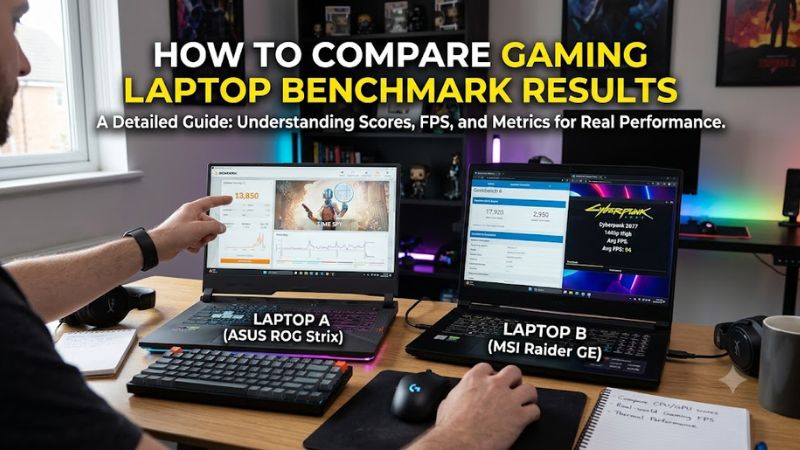
Comparing gaming laptops requires more than looking at benchmark scores or average FPS. how to compare gaming laptop benchmark results comes down to matching test conditions, identifying the exact hardware configuration, and understanding power limits, temperatures, and frame-time consistency. This guide explains how to judge performance fairly before buying a laptop or diagnosing your own.
What Gaming Laptop Benchmark Results Really Mean
The most useful benchmark comparison starts with understanding what each result measures. A synthetic graphics score, an in-game average FPS figure, and a temperature reading describe different aspects of performance. Treat them as complementary evidence rather than interchangeable measurements, and check the test conditions before drawing conclusions.
Distinguish Synthetic Benchmarks from Gaming Tests
Synthetic benchmarks such as 3DMark run standardized workloads to measure graphics or other hardware performance. They are useful for comparing systems running the same benchmark under comparable conditions. However, a higher synthetic score does not guarantee proportionally higher frame rates in every game because engines, drivers, and CPU limitations vary.
Real-game benchmarks answer a different question: how well does a laptop run a particular game? Check the title, game version, resolution, graphics preset, and rendering features. A result from a demanding ray-traced game cannot be treated as equivalent to one from a lightweight competitive shooter, even if both report average FPS.
Identify the Exact CPU and Laptop GPU
Start by checking the complete processor and graphics chip names. Two laptops carrying the same GPU family name can deliver different results because their cooling systems, firmware, power limits, and chassis designs differ. Also record the RAM configuration, since memory capacity and channel configuration can affect some CPU-limited games.
Do not rely on a headline such as “RTX 5070 gaming laptop” alone. Compare the full laptop model and configuration, including the GPU’s specified maximum graphics power where available. Confirm whether a review describes the same configuration you are considering; results from a similarly named laptop are useful context, not a direct substitute.
Understand GPU Power Limits and Cooling
Laptop GPU performance depends partly on the power available to the graphics processor and on whether the cooling system can sustain operation under load. NVIDIA Dynamic Boost may allocate additional power to the GPU when system conditions permit, so advertised maximum graphics power should not automatically be interpreted as a constant operating level.
Check whether a source reports the GPU’s configured power limit, observed power consumption, temperatures, and sustained clock speeds. These measurements help explain why two laptops with nominally similar GPUs may perform differently. A brief peak clock or power reading is less informative than behavior across a sustained workload.
What Doesn’t Help
Comparing isolated numbers without their test labels is one of the easiest ways to reach the wrong conclusion. A graphics score from one 3DMark test is not interchangeable with a score from another test, and a custom run should not be assumed to use the same conditions as a standard run. UL explicitly distinguishes its individual benchmark tests.
Likewise, avoid judging a laptop from its highest published FPS figure alone. That number may reflect a lower resolution, reduced graphics settings, upscaling, or frame generation. Marketing summaries can help identify products, but a transparent methodology and full configuration details are more useful for performance comparisons.
How to Compare Gaming Laptop Benchmark Results Step by Step
Use a consistent comparison process rather than mixing scores from different reviews. First establish which results are genuinely comparable, then examine frame rates, power behavior, and repeatability. The table below summarizes the most important checks and their limitations so you can interpret published data without assuming every review follows the same methodology.
Step 1: Match Resolution and Graphics Settings
Compare results recorded at the same rendering resolution and graphics preset. For example, a game running at 1920 × 1080 with High settings should be compared with another result using the same resolution and preset. Higher resolutions usually place more demand on the GPU, so unmatched results can distort the apparent performance gap.
Also check ray tracing, texture quality, anti-aliasing, and any manually adjusted settings. If one review uses a built-in benchmark and another measures a different gameplay sequence, treat the results as separate evidence. When exact matching is impossible, compare the closest available conditions and clearly identify the differences.
Step 2: Separate Native, Upscaled, and Generated Frames
Check whether reported FPS comes from native rendering or an upscaling technology such as NVIDIA DLSS, AMD FSR, or Intel XeSS. Record the upscaler and quality mode because different settings can change both performance and image quality. Native-resolution results and upscaled results belong in separate comparison groups.
Frame generation requires additional care. It can increase the displayed frame rate by generating intermediate frames, but that figure is not equivalent to the number of frames rendered directly by the game. Compare native or conventionally rendered FPS first, then review frame-generation results separately alongside image quality and latency information when available.
Step 3: Read Average FPS Alongside 1% Lows
Average FPS provides a useful overview of throughput, but it does not fully describe smoothness. A laptop can deliver a high average while experiencing substantial dips during demanding scenes. The 1% low provides additional information about slower frames and can help reveal inconsistent performance.
Use both figures when comparing gaming laptops, provided the source uses a consistent measurement method. Also check whether the results come from repeated runs or a single run. Do not substitute minimum FPS for 1% lows, because a single brief frame-rate drop can disproportionately affect the minimum figure.
Step 4: Compare the Test Conditions and Results
Use this table to assess whether two benchmark results can support a fair comparison. The risk column identifies common interpretation errors rather than defects in a particular laptop.
| Setting or Step | Where | Effect | Risk |
| Match benchmark version | Benchmark report or review methodology | Keeps the workload consistent | Different tests may produce incomparable scores |
| Match resolution and preset | Game settings or published test notes | Makes FPS comparisons more meaningful | Higher settings can make one result look weaker |
| Separate upscaling and frame generation | Graphics settings and review tables | Clarifies how FPS was produced | Generated FPS can be mistaken for native performance |
| Check CPU, GPU, and GPU power | System information and review specifications | Explains hardware and power differences | Similar GPU names may conceal different configurations |
| Compare average FPS and 1% lows | Game benchmark results | Shows throughput and frame-rate consistency | Different capture methods can affect results |
| Review temperature and clock behavior | Monitoring graphs or thermal results | Helps identify sustained performance limits | Peak readings alone may hide later slowdowns |
| Repeat the same benchmark | Benchmark application | Helps reveal run-to-run variation | Background activity or heat can affect scores |
For synthetic results, compare the same benchmark test and its standard settings whenever possible. UL Solutions explains that scores from different 3DMark tests are not directly comparable and recommends repeating runs when results vary.
How to Judge Performance Differences Without Being Misled
Once the test conditions match, look for patterns across the results rather than treating one number as a final verdict. Differences in sustained power, thermal behavior, and CPU limitations can explain performance gaps. Consider the games you actually play, because a laptop’s relative advantage can change between GPU-heavy titles and CPU-limited competitive games.
Compare GPU Power and Sustained Clock Speeds
When two laptops use the same GPU family, check their reported graphics power limits and observed power consumption. A higher configured limit can provide more performance headroom, but the actual benefit depends on the GPU, cooling, firmware, and workload. A power limit alone does not establish which laptop will perform better in every game.
Monitoring graphs are more informative than isolated peak readings. Look at GPU utilization, clock speed, power consumption, and temperature throughout a sustained workload if those measurements are available. If the GPU stays busy and maintains stable clocks, the result may indicate a GPU-limited workload; low GPU utilization may point toward a CPU limit or another system constraint.
Interpret Temperatures in Context
A temperature figure cannot be judged fairly without knowing the workload, ambient conditions, duration, and fan or performance mode. A short benchmark run and a long gaming session produce different thermal patterns. Compare temperature trends alongside clock speeds and performance rather than assuming that the lowest reported temperature means the fastest laptop.
Check whether a laptop maintains similar performance after it heats up. If scores fall on successive runs, repeat the test under consistent conditions and examine the monitoring data. Heat-related performance reduction is one possible explanation, but background tasks, power profiles, and software changes can also affect results. Do not diagnose thermal throttling from temperature alone.
Check the CPU, Memory, and Power Profile
CPU performance matters even when the graphics chip is the main focus. Competitive games, simulation-heavy titles, and high-frame-rate scenarios can be limited by processor performance. Compare the exact CPU model and the game workload before concluding that a lower FPS result means the GPU is weaker.
Memory configuration and power mode also matter. Record RAM capacity and configuration, whether the laptop is plugged into its supplied charger, and the selected manufacturer performance profile. A result captured in a quiet or battery-saving mode should not be directly compared with one from a high-performance mode without acknowledging that difference.
Decide Whether the Difference Matters in Practice
A benchmark gap matters most when it affects the experience you want. If you play competitive games at high refresh rates, consistent frame delivery and CPU performance may matter more than a small advantage in a GPU-heavy synthetic test. For graphically demanding single-player games, resolution, ray tracing, and sustained graphics performance may carry more weight.
Consider the full set of relevant results, including performance consistency, noise, temperature, and power consumption when the source reports them. Do not invent a universal percentage that separates a meaningful upgrade from an insignificant one. The practical value of a difference depends on the game, settings, display, and price of the laptops being compared.
Frequently Asked Questions
Can I Compare Gaming Laptop Benchmark Scores From Different Websites?
Yes, but only when the benchmark and test conditions are sufficiently similar. Check the exact test, hardware configuration, software version, and settings before treating the scores as directly comparable.
Is Average FPS or 1% Low More Important?
Both matter because average FPS measures overall throughput while 1% lows help describe slower frames. Use average FPS to compare general performance and 1% lows to assess consistency, especially in games where stuttering affects play.
Why Does the Same Gaming Laptop Get Different Benchmark Scores?
The same laptop can produce different scores because of temperature, background activity, driver versions, power profiles, and normal run-to-run variation. Repeat the same test under consistent conditions before deciding that a performance change indicates a problem.
Should I Trust a Laptop’s Highest Advertised FPS?
No, not without the test conditions. Check the game, resolution, preset, upscaling, frame generation, and exact hardware configuration. A published peak can be useful context, but comparable results across realistic workloads provide a stronger basis for choosing a laptop.
Final Thoughts
Learning how to compare gaming laptop benchmark results helps you separate meaningful performance differences from misleading headline figures. Match the workload, verify the hardware and power limits, and review average FPS alongside frame-time consistency and thermal behavior. Before buying, compare results from the closest available configurations and settings for the games you play most.