A BIOS update can change how a gaming laptop manages power, cooling, memory, and hardware initialization. If gaming laptop performance after BIOS update seems worse, compare results under consistent conditions before changing settings. This guide explains how to identify the cause, restore appropriate configurations, and decide when firmware support is necessary.
What Gaming Laptop Performance After BIOS Update Really Comes Down To
A performance drop after a firmware update does not automatically mean the new BIOS is defective. The update may alter settings, expose a driver or firmware compatibility issue, or coincide with another software change. Start by checking power, temperatures, fan behavior, and repeatable game performance before attempting advanced fixes.
1. Check whether the performance change is real
Begin with the symptom you can reproduce. Does a game deliver lower frame rates, develop intermittent stutter, take longer to load, or run normally for a few minutes before slowing down? Each pattern points toward different potential causes, so avoid changing several settings at once.
Use the same game, save location, resolution, graphics preset, and display mode for before-and-after comparisons whenever previous records exist. If you have no earlier benchmark, record the current result as a baseline. Keep the laptop connected to its original or manufacturer-approved AC adapter and allow background updates to finish.
2. Understand what a BIOS update can change
The BIOS or UEFI firmware initializes hardware and helps manage platform behavior. Depending on the laptop, a firmware release can address processor power limits, fan control, memory compatibility, security, or device initialization. Release notes are the best starting point for identifying changes relevant to your particular model.
An update may also restore some settings to defaults or change how existing options behave. Fan profiles, performance modes, memory configuration, and boot or security settings are model-dependent. Do not assume every laptop resets every setting, and do not copy BIOS settings from another model simply because it uses the same GPU.
3. Separate firmware problems from normal variation
Game performance changes with temperature, background activity, graphics drivers, power source, and game updates. A laptop running a shader-compilation task or installing updates may temporarily perform differently from an idle system. One short benchmark is not enough to establish a lasting firmware-related regression.
Repeat the same workload after the system has settled, then compare average FPS and, if available, 1% low FPS. Record CPU and GPU temperatures, clock speeds, utilization, and power draw when accessible. A repeatable drop accompanied by unusual clock limits or fan behavior is more useful evidence than a single low FPS reading.
What Doesn’t Help
Avoid immediately reinstalling Windows, changing registry values, disabling security features, or flashing an older BIOS. These actions can add risk without identifying the cause. Registry cleaners and RAM-cleaning utilities are not reliable solutions to firmware-related performance loss.
Do not assume higher temperatures alone prove a fault, either. Gaming laptops can run hot under sustained loads, and their performance depends on each model’s power and cooling limits. Investigate abnormal behavior against the manufacturer’s guidance rather than applying a universal temperature or clock-speed target.
How to Restore Gaming Laptop Performance After a BIOS Update
Follow the steps in order, starting with reversible settings and moving toward model-specific firmware troubleshooting only when necessary. The table summarizes the checks that are most useful for diagnosing gaming laptop performance after BIOS update issues without introducing unnecessary changes.
| Setting or Step | Where | Effect | Risk |
| 1. Check power and charger | Windows power settings and AC adapter | Identifies power-related performance limits | Low |
| 2. Restore the appropriate performance profile | Manufacturer control software | Corrects a potentially restrictive fan or power mode | Low |
| 3. Check BIOS settings and release notes | BIOS/UEFI and official support page | Identifies changed settings or known firmware issues | Moderate if changing firmware settings |
| 4. Check temperatures, clocks, and drivers | Task Manager, manufacturer diagnostics, Windows Update | Helps distinguish thermal, software, and hardware causes | Low if monitoring only |
Step 1: Check Windows power mode and the AC adapter
In Windows 11, open Settings > System > Power & battery and inspect Power mode. Select Best performance while plugged in if available and appropriate for your laptop. This setting may increase power consumption and heat, so return to Balanced for ordinary use if the extra performance is unnecessary.
Next, verify that the laptop recognizes its AC adapter and that Windows is not reporting a battery or charging problem. Gaming laptops may restrict CPU or GPU power when running on battery or when an adapter is incompatible or insufficient. Use the adapter specified for your exact model rather than assuming any connector-compatible charger is adequate.
Step 2: Restore the manufacturer’s performance profile
Open the laptop manufacturer’s control application and check its operating mode, thermal profile, and GPU mode if available. Names vary by manufacturer and model. On supported ASUS ROG and TUF systems, for example, Armoury Crate provides modes such as Silent, Performance, and Turbo, with different power and cooling behavior.
Choose the normal gaming profile recommended for your model, then repeat the same game or benchmark. Some high-performance modes require AC power and are not available on every system. If changing the profile does not help, restore your original setting before trying another adjustment. Avoid manual overclocking or custom fan curves during initial diagnosis.
Step 3: Inspect BIOS settings and the update notes
Restart the laptop and enter BIOS/UEFI using the manufacturer’s documented key. Check whether the update changed any relevant settings, such as a supported thermal-management option or memory configuration. Photograph existing values before making changes, and modify only settings you understand. BIOS menus differ substantially between laptop models.
If a setting appears incorrect, use the model-specific instructions to restore its recommended value. Loading optimized defaults can also reset unrelated settings, including boot configuration or security options, so it should not be your first troubleshooting action. Check the firmware release notes for known performance or thermal issues before considering another update or a rollback.
Step 4: Monitor temperatures, clock speeds, and drivers
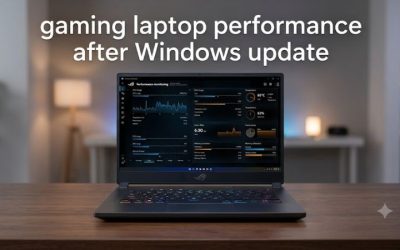
Open Task Manager with Ctrl + Shift + Esc and review CPU, memory, GPU, and disk activity while the problem occurs. If the game is stuttering while another process consumes substantial resources, investigate that process before blaming the BIOS. For deeper analysis, a reputable hardware-monitoring utility can help record temperatures, clock speeds, and power behavior during the same workload.
Compare these readings with the manufacturer’s guidance for your exact laptop. If CPU or GPU clocks fall sharply as temperatures rise, thermal throttling may be involved; if clocks remain unusually low without high temperatures, a power limit, operating mode, or firmware issue may be more relevant. Check official support updates for your model before changing drivers, and install only packages intended for the exact system.
FAQ
Can a BIOS update permanently reduce gaming performance?
Not necessarily; lower performance may result from changed settings, power-management behavior, driver compatibility, or a firmware defect. Compare repeatable results and consult the release notes for your exact model before deciding that the update caused a lasting problem.
Should I downgrade my BIOS to restore FPS?
Only consider a downgrade when the manufacturer supports it and there is credible evidence that the installed version causes your specific problem. Some systems block rollback or impose security restrictions, and an incorrect firmware procedure can prevent the laptop from booting. Contact the manufacturer’s support team if the release notes identify a relevant defect.
How long should I wait before benchmarking after an update?
Wait until the laptop has completed its initial startup activity, background updates, and any visible maintenance tasks. There is no universal waiting period for every model. Run the same workload more than once under consistent power, graphics, and thermal conditions before concluding that performance has changed.
When should I contact the laptop manufacturer?
Contact support when the laptop repeatedly suffers major performance loss, abnormal fan behavior, overheating, shutdowns, or unusually low processor clocks after basic checks. Provide the exact model, BIOS version, symptoms, benchmark conditions, and any diagnostic results. Stop gaming and seek assistance promptly if the cooling system appears not to function or the laptop shuts down because of overheating.
Final Thoughts
Gaming laptop performance after BIOS update problems are best approached through controlled comparisons, power-mode checks, manufacturer performance profiles, and model-specific firmware guidance. Avoid unnecessary resets or firmware downgrades until the evidence points to a cause. If performance remains consistently lower, send your laptop model and BIOS version to the manufacturer’s support team for targeted advice.