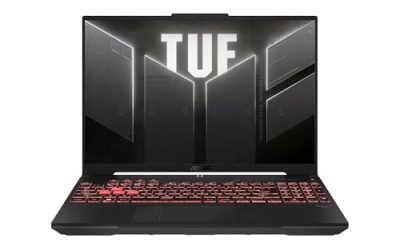
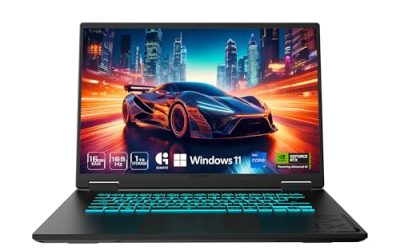
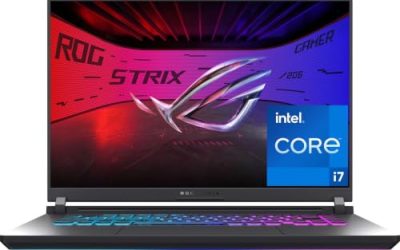
The best docking station for a laptop depends on three numbers that the product title gives you before anything else: how many monitors it drives, how many watts it passes to the laptop, and what the uplink to your computer can carry. For a gaming laptop the wattage number is the one buyers overlook. This guide goes through ten listings, ranks them by use case rather than hype, and finishes with a bandwidth and power worksheet you can fill in with your own gear.
The basis is published specifications, manufacturer documentation and buyer reviews. Nobody on the team used or measured these units, so every claim below traces back to a listing title or to general standards knowledge, hedged where it matters.
Our Top Picks
Picks at a glance

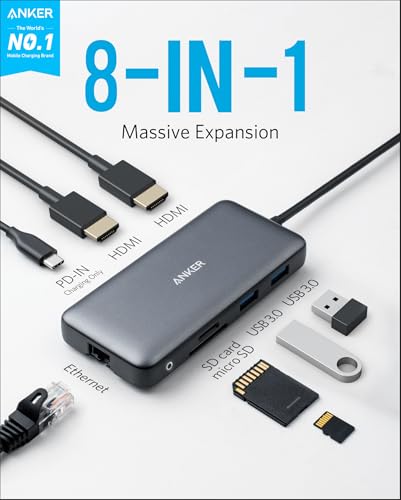
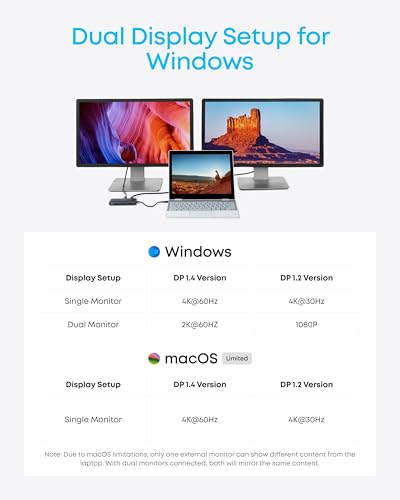
Anker Laptop Docking Station Dual Monitor, 8-in-1 USB C Hub with 4K HDMI | Dual HDMI USB C Dock, 1Gbps Ethernet, 85W Max PD, SD/TF Card Reader, for USB C Laptops, XPS and More (Charger Not Included)


As an Amazon Associate we earn from qualifying purchases. Product prices and availability are accurate as of the date/time indicated.
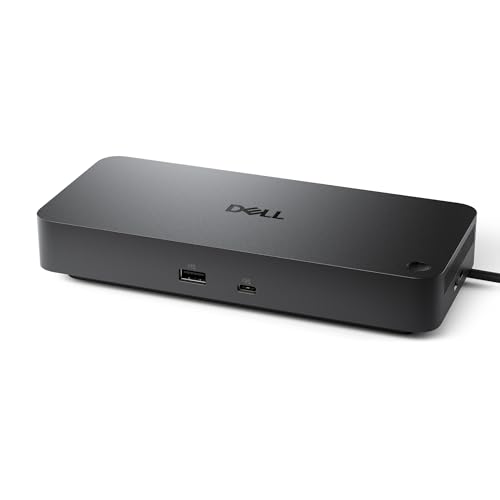
Dell Pro Laptop Docking Station WD25, USB-C, 100W, DisplayPort, HDMI | Universal Dock, Ethernet, USB-A Ports, USB-C Ports, Power Delivery Charging, Quad Display, Plug and Play, Office Ready, WD25


As an Amazon Associate we earn from qualifying purchases. Product prices and availability are accurate as of the date/time indicated.

Anker Prime Docking Station, 14-in-1 Laptop Docking Station Dual Monitor | Dual 4K HDMI, 160W Max Output, 10Gbps Data Transfer, Smart Interface, Audio and Ethernet Ports for Dell, HP, Lenovo and More



As an Amazon Associate we earn from qualifying purchases. Product prices and availability are accurate as of the date/time indicated.

Anker Nano Laptop Docking Station, 13in1 Dock with Detachable 6in1 USBC Hub | 3 Display USB C Dock (2 HDMI+1 DP), 10 Gbps USBC, 3 USBA, Audio, SD/TF, Ethernet, 100W Max PD for Dell/Lenovo/HP Home Office


As an Amazon Associate we earn from qualifying purchases. Product prices and availability are accurate as of the date/time indicated.

USB C Laptop Docking Station Dual Monitor HDMI USB C Hub Multiport Adapter | USB C Dongle Dock 14 in 1 USB C to 2 HDMI 4K+DisplayPort+Ethernet+4USB+2USB C+100W PD Charger+SD/TF for Dell/Lenovo/HP Laptop


As an Amazon Associate we earn from qualifying purchases. Product prices and availability are accurate as of the date/time indicated.

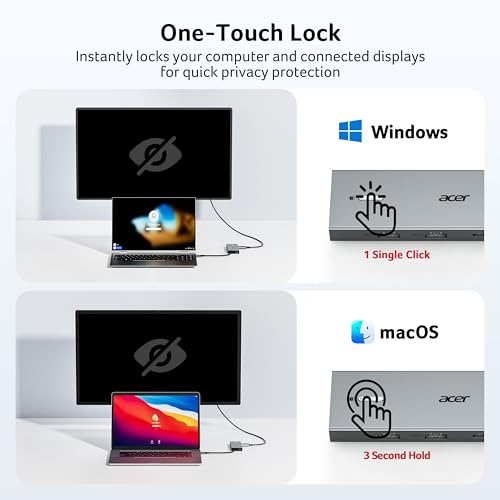
Acer USB-C Docking Station Dual Monitor, 9-in-1 Laptop Dock with 2 HDMI | Laptop Docking Station with 4K@60Hz HDMI, USB A&C 3.0, SD/Micro SD, 100W PD Compatible with Acer/Dell XPS/HP/Mac (0.65FT)




As an Amazon Associate we earn from qualifying purchases. Product prices and availability are accurate as of the date/time indicated.

Anker Laptop Docking Station, 13-in-1 USB C Docking Station, Triple Display | 2 HDMI and 1 DP, 10Gbps USB-C and 5Gbps USB-A Data Ports, Ethernet, Audio, SD/TF, 85W Charging for Dell, HP, Lenovo and More


As an Amazon Associate we earn from qualifying purchases. Product prices and availability are accurate as of the date/time indicated.

Plugable USB 3.0 Universal Laptop Docking Station, Dual HDMI Monitor | for Windows and Mac (Driver Required), USB 3.0 or USB-C, 2x HDMI, Gigabit Ethernet, Audio, 6 USB Ports UD-3900


As an Amazon Associate we earn from qualifying purchases. Product prices and availability are accurate as of the date/time indicated.

MOKiN Laptop Docking Station Dual Monitor 4K HDMI USB C Hub for Dell/HP/Mac | 14-in-1, 2 HDMI 2 DP,Triple 4K, 87W PD, Ethernet, SD/TF Card Reader, Turn off Screen Button, USB C Dock for Laptop, MacBook


As an Amazon Associate we earn from qualifying purchases. Product prices and availability are accurate as of the date/time indicated.

Acer 13-in-1 Laptop Docking Station, USB-C 3 Display Docking (2 HDMI+1 DP) | 100W Laptop Charging, 5Gbps USB-A/C, 1Gbps LAN, Requires Full-Featured USB-C Port, Windows Compatible,macOS Supports Only SST

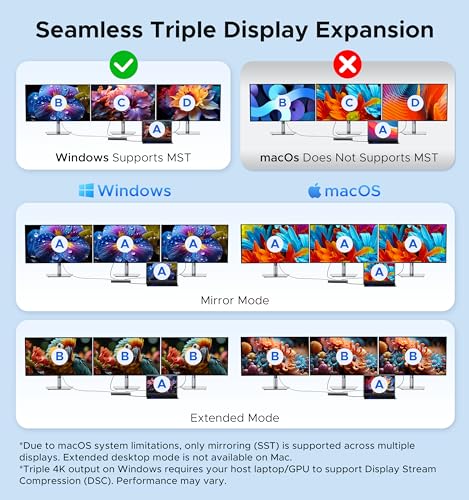


As an Amazon Associate we earn from qualifying purchases. Product prices and availability are accurate as of the date/time indicated.
| Model | What the title promises | Price tier | Fits best |
|---|---|---|---|
| Dell Pro WD25 | 100W, DP and HDMI, quad display, Ethernet | Mid to premium | Office-style multi-monitor desks |
| Anker Prime 14-in-1 | Dual 4K HDMI, 160W max output, 10Gbps | Premium | Power-hungry laptops |
| Anker Nano 13-in-1 | 3 displays, detachable 6-in-1 hub, 100W | Mid | Home desk plus travel hub |
| Anker 13-in-1 Triple Display | 2 HDMI plus DP, 10Gbps USB-C, 85W | Mid | Three-screen setups |
| Acer 13-in-1 | 3 displays, 100W, requires full-featured USB-C | Mid | Windows triple-screen desks |
| Plugable UD-3900 | USB 3.0 or USB-C, dual HDMI, driver required | Mid | Laptops without video over USB-C |
| MOKiN 14-in-1 | 2 HDMI plus 2 DP, 87W, screen-off button | Budget | Port count shoppers |
| VVB 14-in-1 Dongle Dock | 2 HDMI plus DP, Ethernet, 100W | Budget | Entry multi-port use |
| Acer 9-in-1 | 2 HDMI, 4K at 60Hz on one HDMI, 100W, short cable | Budget | Compact setups |
| Anker 8-in-1 | Dual HDMI, 85W max, charger not included | Budget | Light office docking |
Tier labels are relative within this set. Prices drift, so confirm the current figure on the listing before you decide.
Why dock choice is different for a gaming laptop
An office laptop sips 30 to 65 watts. A gaming laptop under load can ask for several times that, and its factory charger reflects it. Most USB-C docks top out at 100W, with a few climbing higher, so the dock may simply be unable to supply what the laptop wants during a long session. The result is a battery that slowly drains while you play on the dock, which shortens battery life over time and can occasionally throttle performance on some designs. Treat that as an assumption to verify for your model rather than a rule.
Display routing is the second quirk. Depending on the laptop, the external ports of a dock may be driven by the integrated graphics or by the discrete GPU through a multiplexer. That affects frame rates in games on the external monitor, and the dock title will never tell you which route your model uses. The laptop manual or the maker’s spec page will.
Finally, a dock helps with the thing gamers care about most outside of frames: wired Ethernet. A gigabit port on a dock often beats Wi-Fi for stability in online games, though a congested uplink or a faulty cable can erase the gain. If your connection acts up on the dock, our walkthrough on fixing docking station Ethernet problems covers the usual causes.
How we picked these
We read each title for host connection, display outputs, charging wattage, Ethernet speed, USB speeds and stated compatibility limits. We flagged marketing phrases that do not carry a number, noted when the title names a port count that does not match the display count, and called out the one listing that needs a driver. We also checked each listing against well-known USB-C behavior: how many video streams a single port can usually carry, and what happens on macOS versus Windows with multi-stream docks.
The ten docks
Dell Pro Laptop Docking Station WD25
The title lists USB-C connection, 100W power delivery, DisplayPort and HDMI outputs, Ethernet, USB-A and USB-C ports, quad display support and plug-and-play use. The phrase office ready tells you the target: a business desk with multiple monitors. For a gaming laptop, the main question is whether 100W is enough for your charger class. If your laptop uses a 65W or 100W adapter, this is a tidy fit. If it ships with 200W or more, expect the dock to charge more slowly than the wall adapter.
Quad display support is a strong claim, so confirm resolution and refresh limits on the maker’s page. Also check the laptop requirements, since some multi-display modes depend on host features.
Question before buying: does my laptop’s USB-C port support DisplayPort output?
Pros
- Brand-name business dock with a broad port mix
- 100W charging and quad display in the title
- Plug-and-play positioning
Cons
- 100W may fall short for a large gaming laptop
- Quad display needs host support to pay off
- Higher price tier than generic hubs
Anker Prime Docking Station 14-in-1
This is the only listing that names 160W maximum output, which makes it the most relevant for hungry gaming laptops. The title adds dual 4K HDMI, 10Gbps data transfer, audio and Ethernet, plus a smart interface of unspecified type. Dual 4K output matches the usual two-monitor desk, but it is not three screens.
Output of 160W is a ceiling, not a guarantee. Total power depends on the laptop’s negotiation and the wall adapter. Read the listing for the power bricks that ship and what happens when you plug in a second charging device.
Question before buying: how many watts reach the laptop port when external drives are also drawing power?
Pros
- 160W maximum output stated in the title
- Dual 4K HDMI with 10Gbps data
- Broad port selection
Cons
- Premium price tier
- Only two displays are named
- Smart interface wording is vague
Anker Nano Laptop Docking Station 13-in-1
The distinguishing feature is a detachable 6-in-1 USB-C hub inside a larger dock. At home you use the full unit, on the road you grab the smaller hub. The title lists three displays (two HDMI and one DisplayPort), a 10Gbps USB-C port, three USB-A ports, audio, SD and TF slots, Ethernet and 100W max power delivery.
That versatility is useful for students who carry a gaming laptop between dorm and library. But the detachable design raises a question about which ports live on which half, so scan the product images for that. A three-display claim also needs a host that supports the right mode.
Question before buying: which ports stay on the hub and which on the base?
Pros
- Portable hub and desk dock in one box
- Three displays named, plus 10Gbps USB-C
- 100W max charging
Cons
- 100W cap for heavier gaming laptops
- Detachable design adds a connection point
- Mid price tier
Anker 13-in-1 USB C Docking Station, Triple Display
Aimed at triple-screen desks: two HDMI and one DisplayPort, 10Gbps USB-C, 5Gbps USB-A ports, Ethernet, audio, SD and TF, and 85W charging for Dell, HP and Lenovo laptops. The stated 85W is lower than the Nano and Prime models, so it suits laptops that ship with adapters in the 65W to 90W class better than big gaming rigs.
Check the multi-display notes: three screens over one USB-C connection typically rely on compression or on lower resolutions and refresh rates. The listing may say which combinations work. If you want triple 4K at 60Hz, verify that before ordering.
Question before buying: what resolution and refresh combinations does the maker list for three displays?
Pros
- Triple display listed
- Mixed 10Gbps and 5Gbps ports
- Reasonable mid price tier
Cons
- 85W is modest for a gaming laptop
- Triple display may come with resolution limits
- Brand compatibility list focuses on business laptops
Acer 13-in-1 Laptop Docking Station
This one is explicit about its limits, which is refreshing. The title says it requires a full-featured USB-C port, is Windows compatible, and that macOS supports only SST. SST means a single stream, so on a Mac you should expect one independent display rather than three. On Windows, three displays are named (two HDMI and one DisplayPort), along with 100W charging, 5Gbps USB ports and a 1Gbps LAN.
For a Windows gaming laptop, those caveats are mostly harmless. Just verify that your port is the right type; a data-only USB-C port will not work as the title requires.
Question before buying: is my laptop’s USB-C port full-featured, with video and charging?
Pros
- Honest compatibility notes in the title
- Three displays on Windows, 100W charging
- Gigabit Ethernet
Cons
- macOS limited to one stream
- Needs a full-featured USB-C host port
- 5Gbps ports, not 10Gbps
Plugable USB 3.0 Universal Docking Station UD-3900
The unusual entry. The title says USB 3.0 or USB-C, dual HDMI monitors, driver required, Gigabit Ethernet, audio and six USB ports for Windows and Mac. Needing a driver is the clue that the video is handled by software over the USB link, rather than a DisplayPort passthrough. That makes it useful for laptops whose USB-C port has no video output, but it adds CPU work and is a weaker choice for fast-moving game visuals.
Also note what the title does not say: it names no laptop charging. Check the listing before assuming it will power your machine. Use it for productivity screens, not as a gaming display path.
Question before buying: does the driver support my operating system version, and is power delivery included at all?
Pros
- Works over plain USB 3.0 hosts
- Dual HDMI and six USB ports
- Gigabit Ethernet and audio
Cons
- Driver required, per the title
- No power delivery mentioned in the title
- Not the right pick for game-grade external video
MOKiN Laptop Docking Station 14-in-1
A budget dock with a lot of claims: two HDMI, two DisplayPort, triple 4K, 87W power delivery, Ethernet, SD and TF readers, and a button that turns the screen off. The port count suggests four video outputs, but the triple 4K wording implies you can use at most three at once. Treat the screens it can drive simultaneously as the real number.
At this price tier, it is wise to read buyer feedback on heat, stability and firmware. The 87W figure is also on the low side for a gaming laptop. It is a reasonable option for a work-heavy desk where games are an occasional extra.
Question before buying: how many displays can be active at once, and at what refresh rate?
Pros
- Large port selection for the budget tier
- Triple 4K claim and screen-off button
- Includes Ethernet and card readers
Cons
- Four video ports but fewer simultaneous screens
- 87W is limited for heavy laptops
- Generic brand; check support and warranty
VVB USB C Laptop Docking Station, 14-in-1 Dongle Dock
The title packs in 2 HDMI, a DisplayPort, Ethernet, 4 USB ports, 2 USB-C ports, 100W PD and an SD/TF reader, for Dell, Lenovo and HP laptops. The word dongle describes the form factor: a short pigtail cable attached to a compact body. It suits a portable desk setup but the cable length limits placement.
Two HDMI plus one DisplayPort suggests multi-stream behavior, but title wording does not say how many independent screens you get. If you rely on macOS, check for single-stream limits. For Windows gaming laptops, it is a cheap way to add a monitor and wired network.
Question before buying: is the 100W number the pass-through limit, or the total dock budget?
Pros
- 14 ports in a small body
- 100W PD named
- Budget tier
Cons
- Pigtail cable limits desk layout
- Display count not clearly specified
- Brand has little visible support history
Acer USB-C Docking Station, 9-in-1, Dual Monitor
The smallest of the Acer pair. The title lists two HDMI ports, 4K at 60Hz on HDMI, USB-A and USB-C at 3.0 speeds, SD and Micro SD slots, and 100W power delivery compatibility with Acer, Dell XPS, HP and Mac. The 0.65 foot cable note means the dock sits very close to the laptop, which is neat on a small desk and awkward on a big one.
Notice that the title does not mention Ethernet. For a gaming laptop where wired networking matters, that omission is relevant. Check the listing photos before you commit.
Question before buying: is there an Ethernet port, and does the 4K@60Hz claim apply to both HDMI ports?
Pros
- Compact, with a clear 4K at 60Hz statement
- 100W PD compatibility
- Budget tier
Cons
- Title omits Ethernet
- Very short cable
- Fewer ports than the 13-in-1 models
Anker Laptop Docking Station 8-in-1 Dual Monitor
The title offers dual HDMI with 4K, 1Gbps Ethernet, 85W max PD, and SD/TF slots, and adds that a charger is not included. That last part matters: pass-through charging needs your own power adapter plugged into the dock. If you forget, the dock will not magically power the laptop.
Dual HDMI over a hub can mirror instead of extend on some systems, so check the listing and your host operating system. It is the simplest and cheapest option here, good for office-style docking and weak for demanding gaming laptops.
Question before buying: do I own a USB-C charger of high enough wattage to feed it?
Pros
- Low price tier with 1Gbps Ethernet
- Dual HDMI and 4K
- Established accessory brand
Cons
- Charger not included
- 85W cap
- Possible mirror-only behavior on some hosts
Which dock for which desk
| Your situation | Pick first | Reason | Check before you buy |
|---|---|---|---|
| Gaming laptop with a large power brick | Anker Prime 14-in-1 | Only 160W listing in the set | Which wall adapter ships with it |
| Dorm or travel use | Anker Nano 13-in-1 | Detachable hub for the bag | Which ports are on the hub |
| Three-screen Windows desk | Acer 13-in-1 or Anker 13-in-1 | Triple display named | Port type and refresh limits |
| Business-style quad displays | Dell Pro WD25 | Quad display and DP plus HDMI | Host display modes |
| Laptop with no USB-C video | Plugable UD-3900 | Works over USB 3.0 with a driver | Driver support and charging |
| Tight budget | Anker 8-in-1 or MOKiN | Lowest tiers with Ethernet | Power cap and screen count |
Bandwidth and display constraints
A USB-C port rarely carries unlimited video. In DisplayPort Alt Mode, the four high-speed lanes are shared between video and USB data. Give all four to video and you typically lose fast USB, so the dock falls back to older, slower speeds for storage and webcams. Give two to video and two to data, and video bandwidth halves. Multi-display docks cope by compressing, by limiting resolution, or by routing multiple streams.
The worksheet below uses raw pixel math, ignoring blanking and compression, so real numbers will be somewhat higher. Treat it as a rough guide, not a specification.
| Display setup | Rough raw pixel rate | Typical concern |
|---|---|---|
| 1080p at 60Hz, 24-bit color | About 3.0 Gbps | Easy for any dock |
| 1440p at 144Hz | About 12.7 Gbps | Needs a fast mode or compression |
| 4K at 60Hz | About 11.9 Gbps | Fine on one screen; two or three may share a link |
| Two 4K at 60Hz | About 23.9 Gbps | Close to a full DP 1.4 link; USB speeds may drop |
The takeaway: a gaming monitor at 1440p 144Hz uses more video bandwidth than a 4K 60Hz office screen. If you want your fast gaming display at full refresh, plug it into a native HDMI or DisplayPort on the laptop and use the dock for the slower monitors. That one trick often solves a refresh problem before it starts.
Power worksheet for a gaming laptop
Follow these steps with your own numbers. The example values are assumptions.
| Step | Example value | Your value |
|---|---|---|
| Original laptop charger wattage | 180W | Read the label |
| Estimated draw during gaming | About 150W | Use the maker’s guidance |
| Dock maximum output | 100W | From the title |
| Dock overhead for ports and charging peripherals | About 10W | Allow a margin |
| Power reaching the laptop | About 90W | Output minus overhead |
| Shortfall from the battery | About 60W | Draw minus received |
In this example the laptop draws about 60W from its own battery while gaming. A 70Wh battery would last roughly an hour at that deficit, less in practice as the battery ages. Use the dock to work and the original adapter to play, or choose a 160W-class dock. For help with wattage planning, see our size guide to dock wattage.
Pre-purchase checklist
- Confirm your laptop’s USB-C or Thunderbolt port supports video output and power delivery.
- Write down the original charger wattage and compare it with the dock’s maximum.
- Count how many screens you want and at which resolution and refresh.
- Check whether the dock is single-stream or multi-stream, especially for macOS.
- Read the cable length and measure your desk.
- Note whether a power adapter ships in the box.
When the dock arrives, follow a methodical process; our guide to setting up a laptop docking station at home walks through cabling and settings.
Common mistakes
| Mistake | Why it bites | Fix |
|---|---|---|
| Counting video ports as screens | Ports exceed simultaneous outputs | Read the maximum active display line |
| Using a data-only USB-C port | No video or charging | Use the port marked for DisplayPort or Thunderbolt |
| Forgetting the charger | Pass-through needs a power adapter | Check whether it is included |
| Running a fast gaming monitor through a hub | Refresh drops or stutters | Plug it in natively |
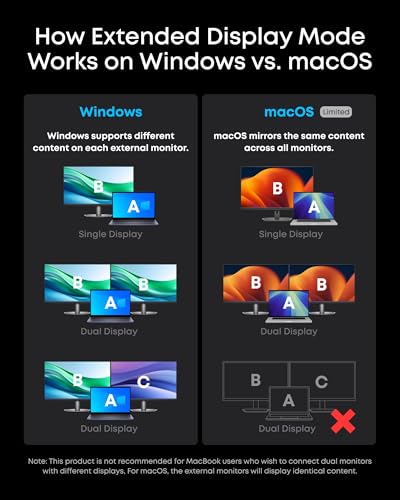
| Assuming macOS behaves like Windows | Mirrored or single displays | Look for SST and MST notes |
Verdict
If your laptop eats power, start with the Anker Prime. For a Windows triple-screen desk, the Acer 13-in-1 and Anker 13-in-1 are the clear candidates, and the Dell WD25 is the office-grade choice for many monitors. Pick the Plugable only when USB-C video is unavailable. Budget picks like the MOKiN, VVB and Anker 8-in-1 are fine for a work-first desk, as long as you accept their power caps. If frames matter most, keep your gaming monitor on a direct port.
Frequently asked questions
Will a docking station make my gaming laptop run games faster?
No. A dock adds ports, extra monitors, wired Ethernet and charging, but it does not add graphics power. The laptop still renders everything with its own GPU. Extra monitors can even lower frame rates if you game on a second screen or leave heavy apps open. Think of a dock as desk plumbing, not a performance upgrade.
Is 100W charging enough for a gaming laptop?
Often not under full load. Many gaming laptops ship with chargers well above 100W, so a 100W dock may keep the battery level steady in light use but drain it slowly during demanding games. Check your laptop’s original adapter wattage and the maker’s note on USB-C charging, then compare it with the dock’s maximum output.
Why does my second monitor mirror instead of extend?
Cheap multi-HDMI docks sometimes split a single video stream, which can show as mirrored output on some systems, and macOS handles multi-stream docks differently from Windows. Check the listing for words like MST, SST or DisplayLink, and confirm your laptop’s USB-C port supports DisplayPort Alt Mode before assuming two independent screens.
Do I need a driver for a USB docking station?
Some docks use USB display technology that needs a software driver, and the Plugable UD-3900 listing says so directly. Docks that pass video through the USB-C port’s DisplayPort mode usually do not. Read the title for the words driver required, and confirm the driver is available for your operating system version.
Can I use a dock with a laptop that has only one USB-C port?
Yes, as long as that port supports the features you want: video output, power delivery or both. Some laptop USB-C ports are data-only. A Thunderbolt or USB4 port is the most flexible, and a port marked with a DisplayPort or lightning symbol is a good sign. Check the laptop manual or the maker’s spec page.
Should I worry about heat from a dock?
Docks that pass 100W or more will warm up, and compact units with many ports tend to run hotter. Give the dock airflow, keep it off soft surfaces, and read buyer feedback on temperature. If it becomes too hot to touch comfortably, unplug it and contact the seller.