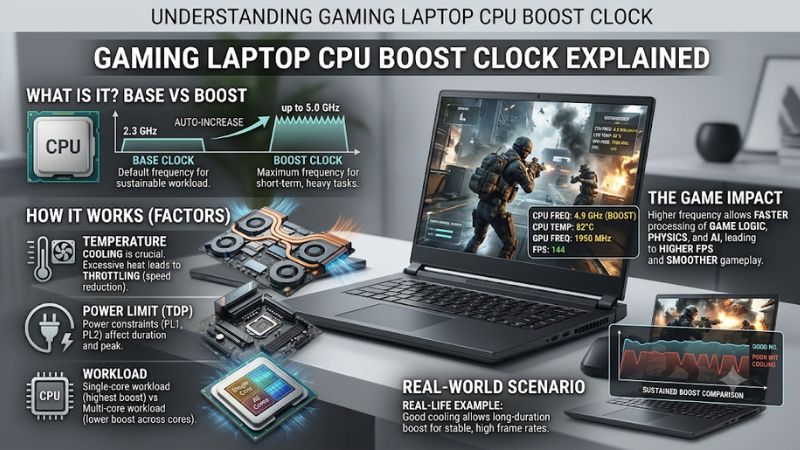
A gaming laptop CPU boost clock explained starts with understanding why a processor can run faster than its advertised base frequency but cannot maintain its maximum speed indefinitely. This guide covers turbo behavior, power limits, temperature, gaming performance, and practical ways to monitor CPU frequency before buying or troubleshooting a laptop.
What Gaming Laptop CPU Boost Clock Really Comes Down To
A CPU boost clock is the maximum frequency a processor can reach automatically when workload demand and operating conditions allow it. Unlike base clock, which describes a reference operating frequency under specified conditions, boost frequency is opportunistic. Understanding this distinction helps explain why two gaming laptops with the same processor can deliver different sustained performance.
1. Base Clock vs. Boost Clock
Base clock and boost clock describe different operating conditions. Base frequency is a reference point for the processor, while boost frequency represents a higher operating speed available when the CPU has sufficient power, thermal, and electrical headroom. Neither number represents the frequency used constantly during every game.
For example, a laptop CPU advertised with a 2.4 GHz base clock and a 5.0 GHz maximum boost clock does not necessarily run at 5.0 GHz throughout a gaming session. The actual frequency changes with workload, active cores, cooling capacity, and manufacturer power settings. The maximum figure is a ceiling, not a sustained-performance promise.
2. How Automatic CPU Boost Works
Intel processors use Intel Turbo Boost technology to increase operating frequency when additional processing performance is needed. The processor continuously considers workload demand alongside power, current, and temperature limits. If one of those limits becomes restrictive, the CPU adjusts its operating frequency accordingly.
AMD Ryzen processors use Precision Boost 2 for comparable automatic frequency management. This technology considers processor temperature, workload type, active cores, power consumption, and electrical limits. Consequently, a light application may reach a higher peak frequency than a demanding, sustained multicore workload.
3. Why Single-Core and All-Core Boost Differ
Maximum boost specifications commonly describe the highest frequency available under favorable conditions, often involving a limited number of active cores. When a game uses several cores, the processor distributes its available power and thermal capacity across a broader workload. Its average operating frequency may therefore be lower than the advertised maximum.
This distinction matters when comparing gaming laptops. Some games depend heavily on a few fast CPU cores, while others benefit from additional cores and threads. A processor with a higher single-core boost specification is not automatically faster in every game, particularly when sustained power limits or GPU performance become the bottleneck.
4. What Doesn’t Help
Chasing the highest possible GHz reading is not a reliable way to judge gaming performance. A brief frequency spike does not show how quickly the laptop processes an entire game workload, and a higher clock does not automatically mean higher FPS. Architecture, cache, core configuration, memory, and GPU limitations also matter.
Likewise, disabling power-saving features or forcing maximum processor performance is not automatically beneficial. These changes can increase heat, fan noise, and battery consumption without producing meaningful gaming improvements. The more useful approach is to understand the laptop’s normal power profile and monitor its behavior under a repeatable workload.
How to Check Gaming Laptop CPU Boost Clock: Step by Step
Checking boost behavior requires more than looking at the highest GHz value displayed in a specification sheet. You need to identify the exact processor, understand its power profile, and observe its frequency during an actual gaming workload. The following steps help distinguish normal frequency changes from possible performance restrictions.
1. Identify Your Exact CPU Model and Specifications
Start by pressing Ctrl + Shift + Esc to open Task Manager. Select Performance, then CPU to find the processor model and its reported speed. Search for that exact model on the manufacturer’s official specification page and compare its base frequency with its maximum boost frequency.
For Intel, check the Max Turbo Frequency specification. For AMD, look for the Maximum Boost Clock specification. Also check the processor’s supported features and core configuration. Avoid comparing two laptops using only their maximum GHz figures because different CPU architectures and power limits can produce different real-world results.
2. Monitor Actual CPU Frequency During Gaming
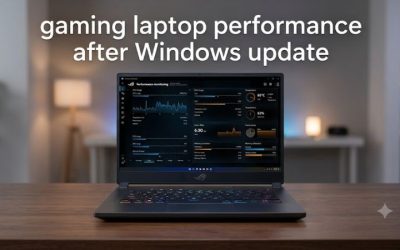
Use HWiNFO to inspect CPU sensors while a game is running. Relevant readings include per-core effective clocks, CPU package temperature, and CPU package power, when the laptop exposes those sensors. Effective clock readings are particularly useful because they account for periods when a core is not actively executing work.
Record readings after launching the game and again after a longer session. Compare the same game, graphics settings, laptop power mode, and approximate workload. A short peak followed by a lower stable frequency is not automatically a problem. Look for repeated performance drops alongside temperature or power-limit indicators.
3. Check Windows Power Mode and Laptop Performance Profile
In Windows 11, open Settings > System > Power & battery > Power mode. Select Best performance when connected to the charger if your priority is gaming performance. Balanced remains suitable for everyday use, while Best power efficiency prioritizes energy savings. The higher-performance option can increase power consumption and operating temperature.
Next, check the laptop manufacturer’s control application. Depending on the model, this could be Armoury Crate, Lenovo Vantage, OMEN Gaming Hub, or Alienware Command Center. Performance profiles can change fan behavior and available CPU power. Their names and effects vary by laptop, so consult the manufacturer’s documentation before changing advanced settings.
4. Evaluate Cooling and Sustained Performance
Place the laptop on a hard, flat surface so its cooling intakes and exhausts are not obstructed. Check that the fans operate normally and that vents are free of accumulated dust. Restricted airflow can reduce available thermal headroom, causing the processor to lower its frequency during extended gaming sessions.
Compare CPU temperature, effective clock, package power, and game performance over time. If frequency decreases while temperature approaches the processor’s specified thermal limit, thermal management may be involved. If power drops without temperatures reaching that limit, the laptop’s configured power budget or shared CPU-GPU power allocation may be responsible.
| Setting or Step | Where | Effect | Risk |
| Identify CPU specifications | Task Manager and manufacturer specification page | Establishes base and maximum boost frequencies | None |
| Monitor effective clocks | HWiNFO Sensors | Shows actual operating behavior under load | Avoid interpreting brief peaks as sustained performance |
| Change Windows power mode | Settings > System > Power & battery | Can favor performance over battery efficiency | Higher power consumption and heat |
| Select laptop performance profile | Manufacturer control application | May increase fan speed and available performance limits | More fan noise, heat, and battery consumption |
These checks are primarily observational. You do not need to overclock the processor, modify BIOS voltage settings, or disable thermal protections to understand its boost behavior. If changing a power profile causes excessive noise or heat, return to the previous profile and compare performance again.
FAQ
1. Is a Higher CPU Boost Clock Better for Gaming?
A higher boost clock can improve gaming performance, particularly in games that rely heavily on single-core CPU speed. However, GHz alone cannot determine which processor is faster. CPU architecture, cache, core count, cooling, and sustained power limits also influence frame rates.
When comparing gaming laptops, consider independent gaming benchmarks using similar GPUs, resolutions, and graphics settings. A processor with a slightly lower maximum boost frequency may deliver better sustained performance if its cooling and power configuration are more capable.
2. Why Doesn’t My Gaming Laptop Reach Its Advertised Boost Clock?
Your laptop may not reach its maximum boost clock because the workload does not require it or because power, temperature, current, or firmware limits restrict additional frequency. Maximum boost is a conditional operating limit, not a speed the CPU must maintain.
Check the processor’s effective clock readings, temperature, and package power during gaming. Also verify that the laptop is plugged in and using an appropriate performance profile. Intel and AMD both describe boost frequency as dependent on operating conditions.
Intel+1
3. Does CPU Boost Clock Affect Gaming Laptop Battery Life?
Yes, higher CPU frequencies can increase power consumption and reduce battery runtime. Modern processors automatically adjust their operating frequency according to workload and available power, helping balance performance and energy efficiency.
For gaming, use the manufacturer’s recommended plugged-in performance profile. When working unplugged, a balanced or power-efficient setting can reduce energy consumption. Maximum CPU boost is rarely necessary for everyday tasks such as browsing, document editing, or video playback.
4. Is CPU Boost Clock More Important Than GPU Performance?
No, CPU boost clock is not universally more important than GPU performance in gaming laptops. The GPU generally has a larger influence on demanding games at higher resolutions and graphics settings, while CPU performance can become more important in CPU-intensive games and high-refresh-rate scenarios.
Consider both components together. Check GPU specifications, laptop GPU TGP, CPU performance, cooling design, and independent gaming benchmarks. A powerful GPU paired with a processor that cannot sustain sufficient performance may also limit the overall gaming experience.
Final Thoughts
Understanding gaming laptop CPU boost clock specifications helps you avoid choosing a laptop based on an impressive GHz number alone. Focus on sustained frequency, cooling, power limits, and real gaming benchmarks. Before purchasing, compare complete laptop configurations rather than relying exclusively on advertised maximum boost speeds.