Gaming laptop fan curve settings explained starts with understanding how temperature controls fan speed during gaming and other demanding workloads. A well-adjusted curve can balance cooling, noise, and sustained performance. This guide covers fan-curve basics, safe configuration, manufacturer software, and practical ways to check whether your settings are working.
What Gaming Laptop Fan Curves Really Mean
A fan curve determines how quickly your laptop’s cooling fans respond as CPU or GPU temperatures increase. Lower fan speeds reduce noise during light tasks, while higher speeds move more air when gaming creates additional heat. The goal is to choose a response that suits your laptop’s cooling design without restricting necessary airflow.
Understanding Temperature and Fan Speed
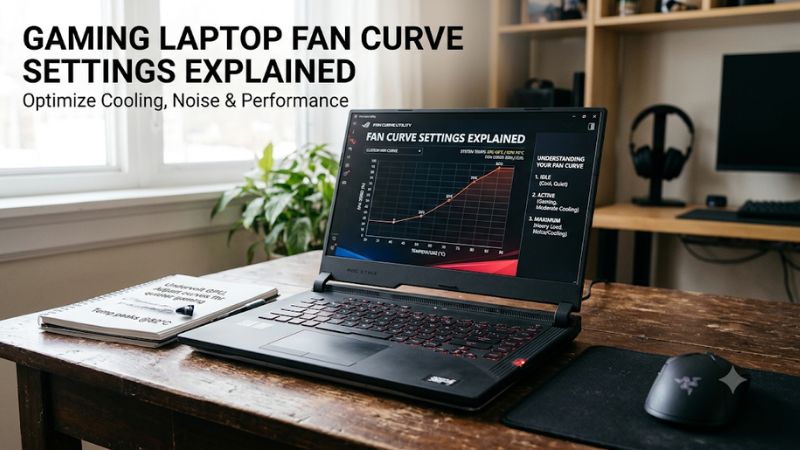
A fan curve normally uses temperature on the horizontal axis and fan speed percentage on the vertical axis. For example, a point at 60°C and 50% means the controller requests 50% fan speed when its corresponding temperature reaches that point. The actual RPM depends on the fan and laptop firmware.
Most customizable profiles contain multiple control points connected by a line. Moving a point changes how aggressively the fan responds within that temperature range. Some manufacturers also impose minimum fan speeds, maximum limits, or predefined temperature ranges, so the available adjustments depend on the laptop model.
Why Gaming Laptops Need Different Fan Curves
Gaming laptops have compact cooling systems that handle heat from both the CPU and discrete GPU. During demanding games, these components can operate simultaneously, increasing the workload on shared heatsinks, heat pipes, vapor chambers, and exhaust fans.
A curve designed for everyday browsing may therefore be unsuitable for extended gaming sessions. When fan speeds increase too slowly, temperatures can rise before sufficient airflow develops. A more responsive profile can help the cooling system maintain its intended operating conditions, although it cannot overcome the physical limits of the heatsink.
CPU and GPU Temperature Are Not Always Identical
Some laptop utilities provide separate CPU and GPU fan curves, while others use combined thermal control. This distinction matters because CPU-intensive games, GPU-heavy titles, and applications that stress both components create different thermal patterns.
For example, a competitive game with high frame rates can place considerable demand on the CPU, while a graphically demanding game may keep the GPU busy for extended periods. A suitable profile must account for the actual temperature readings and fan-control behavior supported by the laptop.
What Doesn’t Help
Setting every fan point to maximum speed is not automatically the best solution. It increases noise and may create unnecessary fan activity without delivering meaningful improvements when the cooling system is already operating effectively.
Likewise, copying a curve from another gaming laptop is unreliable. Different processors, GPU power limits, heatsink designs, fan sizes, and firmware configurations produce different thermal characteristics. Avoid unofficial fan-control utilities that cannot properly communicate with your laptop’s embedded controller.
How to Configure Gaming Laptop Fan Curve Settings
Configuring gaming laptop fan curve settings requires checking which controls your manufacturer provides before changing anything. Start with the default profile, identify the available temperature sensors, and make small adjustments rather than immediately creating an aggressive curve. The following steps explain where to configure the settings and how to evaluate the results.
Step 1 – Open Your Manufacturer’s Fan Control Software
Start with the laptop manufacturer’s official control application. ASUS uses Armoury Crate on supported ROG and TUF models, MSI provides fan controls through MSI Center, and Alienware uses Alienware Command Center for supported thermal profiles.
The exact menu depends on the laptop generation and software version. Look for options such as Manual, Advanced, Thermal, Cooling, or Fan Speed. If custom curves are unavailable, your model may only support automatic or predefined cooling profiles.
Step 2 – Understand the Available Curve Controls
Before moving any points, identify whether the application measures CPU temperature, GPU temperature, or another thermal sensor. Also check whether fan speed is represented as a percentage or RPM. These values describe different things and should not be treated as interchangeable.
ASUS documents its Manual Mode fan curve as temperature against fan-speed percentage, with adjustable points and increasing fan-speed requirements between consecutive points on supported models. MSI also documents an Advanced fan option for compatible notebooks. These manufacturer restrictions matter when configuring a profile.
Step 3 – Create a Balanced Gaming Profile
A balanced gaming profile should increase airflow progressively as temperatures rise. Avoid keeping the fans unnecessarily fast during light workloads, but do not delay cooling until the laptop is already experiencing sustained high temperatures.
One possible starting approach is to maintain a moderate fan response at lower temperatures and progressively increase fan speed as the workload becomes more demanding. The actual percentages and temperature points should follow the manufacturer’s permitted ranges rather than an arbitrary universal formula.
Step 4 – Save and Verify the Changes
After adjusting the curve, use the application’s Apply or Save control if available. Some utilities also allow custom profiles to be named and stored for later use. Keep the original default configuration so you can return to it if the new profile creates excessive noise or unexpected behavior.
Run a familiar game under consistent conditions and monitor CPU temperature, GPU temperature, fan RPM, and performance. Compare the results with the original profile using the same game, graphics settings, power mode, and approximate workload. This makes it easier to identify whether the changes provide a useful cooling benefit.
Gaming Laptop Fan Curve Settings: Configuration Comparison
The following table summarizes common adjustments and their practical trade-offs. These are configuration approaches, not universal temperature or fan-speed recommendations.
| Setting or Step | Where | Effect | Risk |
| Default fan curve | Manufacturer utility | Maintains factory cooling behavior | May prioritize noise or performance differently |
| Gradual fan increase | Manual or Advanced mode | Balances airflow and acoustics | Temperatures may still rise under heavy workloads |
| Aggressive fan increase | Manual or Advanced mode | Provides stronger cooling airflow | Higher fan noise and power consumption |
| Automatic thermal mode | Manufacturer utility | Lets firmware manage fan behavior | Less control over cooling response |
How to Optimize and Monitor Fan Curve Performance
After configuration, monitoring is essential because a fan curve should be judged by actual laptop behavior rather than the shape of its graph. A quieter profile is not necessarily better if it allows sustained thermal throttling, while maximum fan speed is not necessary when temperatures and performance are already within the system’s intended operating range.
Monitor Temperatures During Real Gaming Sessions
Use the manufacturer’s monitoring dashboard or a suitable hardware monitoring application to observe CPU and GPU temperatures. HWiNFO can provide detailed sensor information on supported systems, including temperatures, fan readings, and other hardware metrics.
Check readings during gameplay rather than relying exclusively on idle temperatures. Also observe whether CPU and GPU clocks remain consistent under sustained workloads. A temperature increase alone does not establish a cooling problem because modern processors dynamically manage power, frequency, and thermal limits.
Understand Thermal Throttling and Fan Response
Thermal throttling occurs when a processor reduces its operating performance to remain within its applicable thermal or power limits. A responsive fan curve may help the cooling system manage heat, but it cannot guarantee that throttling will never occur.
Pay attention to repeated clock reductions during sustained gaming, particularly when accompanied by temperatures approaching the component’s thermal limits. Manufacturer-specific thermal protections remain active independently of your preferred fan profile.
Account for Noise, Battery Life, and Gaming Conditions
A more aggressive fan curve generally produces more audible cooling, which may be acceptable when gaming with headphones but distracting during everyday use. Fan behavior also affects power consumption, making unnecessarily high speeds less desirable when operating on battery.
Consider maintaining separate profiles if your manufacturer supports them. A quiet profile can suit browsing and office tasks, while a more responsive gaming profile can prioritize cooling when the laptop is connected to its power adapter. Some performance modes are restricted to AC power, depending on the manufacturer and model.
Troubleshoot Unexpected Fan Curve Behavior
If your laptop becomes unusually hot or the fans fail to respond as expected, restore the default profile first. Check that the correct performance mode is active and that the manufacturer’s control software is functioning properly.
Also inspect the laptop’s ventilation openings for dust or obstructions. Blocked airflow, elevated room temperature, background applications, and aging thermal materials can affect cooling independently of fan-curve settings. If a fan produces grinding noises, stops spinning, or is not detected, software adjustments are unlikely to resolve the underlying hardware problem.
Frequently Asked Questions
What Is a Good Fan Curve for a Gaming Laptop?
A good fan curve progressively increases fan speed as CPU or GPU temperatures rise while respecting the manufacturer’s supported limits. There is no universally correct percentage because cooling capacity, fan design, thermal sensors, and power limits vary between laptop models.
Start with the factory profile and make small changes only when monitoring indicates a useful reason. A balanced configuration should provide sufficient cooling during sustained gaming without creating unnecessary noise during lighter workloads.
Does Increasing Fan Speed Improve Gaming FPS?
Increasing fan speed can help maintain gaming performance if excessive heat is causing thermal throttling. However, it does not directly increase CPU or GPU processing capability, and it may produce little difference when the laptop is already operating within its intended thermal range.
Check temperatures and clock speeds before and after making adjustments. If performance remains unchanged, the limiting factor may instead be GPU power, CPU workload, memory capacity, or game optimization.
Can I Customize My Gaming Laptop Fan Curve?
Yes, but only if your laptop’s manufacturer and firmware support custom fan control. ASUS Armoury Crate and MSI Center provide manual or advanced fan adjustments on selected compatible models, while other laptops may only offer preset thermal modes.
Check the official support documentation for your exact model. Avoid forcing unsupported fan-control settings through third-party utilities because laptop embedded controllers can impose hardware-specific restrictions.
Should I Run Gaming Laptop Fans at 100%?
No, running fans at 100% continuously is generally unnecessary unless a specific workload or troubleshooting situation requires maximum cooling. Full-speed operation increases noise and fan activity without necessarily improving temperatures or gaming performance significantly.
Use the manufacturer’s automatic or performance profile as your starting point. If maximum cooling is needed, select a supported full-speed mode and return to a suitable everyday profile afterward.
Final Thoughts
Understanding gaming laptop fan curve settings explained helps you balance cooling, noise, and sustained gaming performance without making unnecessary hardware changes. Start with your manufacturer’s default profile, adjust supported controls gradually, and monitor temperatures and clock speeds under real workloads. Prioritize stable cooling over maximum fan speed, and restore defaults if problems appear.