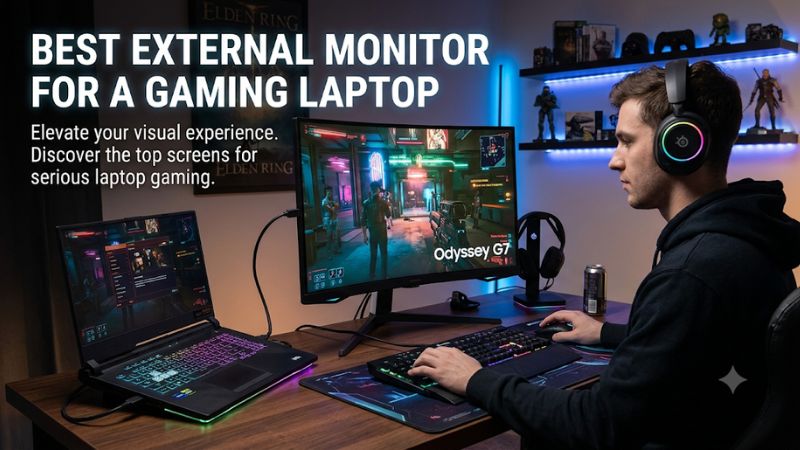
Choosing the best external monitor for a gaming laptop means balancing resolution, refresh rate, panel quality, and connection compatibility. A 27-inch 1440p display suits many gaming setups, while 4K and ultrawide options offer different advantages. This roundup compares four monitors for distinct budgets and gaming priorities.
How to Choose an External Gaming Monitor
The right monitor depends on how you play, what your laptop GPU can drive, and how you plan to connect the display. A high refresh rate is useful for competitive games, but resolution, panel technology, adaptive sync, and port bandwidth also determine whether an upgrade makes practical sense.
1. Match Resolution to Your Laptop GPU
Resolution should be your first consideration. A 1080p monitor is relatively easy to drive and can suit entry-level gaming laptops, particularly when playing competitive titles. However, a 27-inch 1440p monitor provides a sharper image and a useful balance between desktop space and gaming detail.
For laptops with stronger GPUs, 1440p at high refresh rates is an attractive target. A 4K monitor offers greater image detail, but rendering games at 3840 × 2160 places substantially more demand on the GPU than 1440p. Consider DLSS, FSR, and other supported upscaling options when planning a high-resolution setup.
2. Choose a Refresh Rate That Your Laptop Can Use
Refresh rate determines how many times the monitor can update its image each second. A 144Hz or 165Hz display is a sensible starting point for many gaming laptops, while 240Hz and 360Hz panels target players who prioritize fast competitive gameplay.
However, buying a 360Hz monitor does not mean every game will run at 360 FPS. Your laptop GPU, CPU, cooling system, game settings, and resolution all influence frame rates. Adaptive-Sync technologies can help reduce visible tearing when frame delivery varies.
3. Understand Panel Technology and Screen Size
IPS monitors are versatile choices for gaming, offering wide viewing angles and generally good color reproduction. VA panels can provide deeper native contrast, making them attractive for darker games, although individual models differ in motion handling.
OLED and QD-OLED displays offer excellent contrast, near-instantaneous pixel response, and strong HDR potential. Their drawbacks include higher purchase costs and the possibility of permanent image retention. A 27-inch screen is a practical desktop choice, while 32-inch displays provide more viewing area and suit larger desks.
4. Check Laptop Connectivity Before Purchasing
Your laptop must support the monitor’s required video signal through its available ports. HDMI 2.1, DisplayPort, and USB-C with DisplayPort Alternate Mode can all provide external display connectivity, but their supported resolutions and refresh rates depend on the exact laptop and monitor specifications.
USB-C deserves particular attention. Some ports support data and charging but not video output. Others support DisplayPort Alt Mode and USB Power Delivery. Also, a monitor’s USB-C charging capability does not automatically mean it can power a gaming laptop under demanding workloads. Check the laptop’s manufacturer documentation and retain its original power adapter for gaming.
Top Picks: Best External Monitors for a Gaming Laptop
These four monitors cover different gaming priorities, from affordable high-refresh IPS gaming to premium OLED image quality. The specifications below come from manufacturer documentation. The recommendations reflect their feature sets rather than a shared independent benchmark, and actual performance depends on the connected laptop and its graphics hardware.
| Product | Best For | Key Spec | Compatibility | Watch Out For |
| ASUS ROG Strix OLED XG27ACDNG | Best Overall | 1440p, 360Hz QD-OLED | HDMI 2.1, DP 1.4, USB-C | Premium price |
| GIGABYTE M27Q X | Best Value | 1440p, 240Hz SS IPS | HDMI 2.0, DP 1.4, USB-C | USB-C charging limited to 18W |
| MSI MPG 321URX QD-OLED | Best for 4K Gaming | 4K, 240Hz QD-OLED | HDMI 2.1, DP 1.4a, USB-C | High GPU demands |
| Alienware AW2725D | Best for Competitive Gaming | 1440p, 280Hz QD-OLED | HDMI 2.1, DP 1.4 | No USB-C video input |
1. ASUS ROG Strix OLED XG27ACDNG – Best Overall
Premium 1440p gaming
The ASUS ROG Strix OLED XG27ACDNG is a strong all-around choice for gaming laptop owners who want a fast desktop display without moving to 4K. Its 26.5-inch QD-OLED panel delivers 2560 × 1440 resolution and a maximum 360Hz refresh rate. ASUS also specifies a 0.03ms GtG response time, HDR10 support, and both FreeSync Premium Pro and G-SYNC compatibility.
Republic of Gamers|ROG Global+1
Connectivity includes DisplayPort 1.4, two HDMI 2.1 ports, and USB-C with DisplayPort Alt Mode and up to 90W Power Delivery. The built-in KVM and adjustable stand add practical value for a multi-device desk. However, its premium positioning and OLED image-retention considerations make it less suitable for buyers who mainly need an inexpensive second screen. A conventional IPS alternative makes more sense when cost or static desktop use is the priority.
2. GIGABYTE M27Q X – Best Value
High-refresh IPS gaming
The GIGABYTE M27Q X is worth considering if you want high-refresh 1440p gaming without paying for an OLED panel. It uses a 27-inch Super Speed IPS display with 2560 × 1440 resolution, a maximum 240Hz refresh rate, and a manufacturer-rated 1ms GtG response time. Its listed brightness is 350 cd/m², and it supports VESA DisplayHDR 400.
GIGABYTE Vietnam
Its connection options include two HDMI 2.0 ports, DisplayPort 1.4, and USB-C with DisplayPort Alternate Mode. The USB-C port supports up to 18W Power Delivery, so it should not be treated as a replacement gaming-laptop charger. Its IPS panel also cannot reproduce OLED’s per-pixel black levels. Choose this model if you value a fast 1440p display, useful connectivity, and a more conventional panel technology.
3. MSI MPG 321URX QD-OLED – Best for 4K Gaming
Large premium gaming display
The MSI MPG 321URX QD-OLED targets gamers who want a larger display with detailed 4K visuals. Its 31.5-inch QD-OLED panel runs at 3840 × 2160 and supports up to 240Hz. MSI lists a 0.03ms GtG response time, DisplayHDR True Black 400, and G-SYNC Compatible support. These specifications make it particularly attractive for high-end gaming laptops with sufficient GPU performance.
MSI+1
The monitor includes two HDMI 2.1 ports, DisplayPort 1.4a, and USB-C with DisplayPort Alt Mode and up to 90W Power Delivery. It also has a KVM switch and USB hub. Its main limitation is the GPU workload associated with 4K gaming, especially when targeting high frame rates. Buyers with midrange laptop GPUs may get better practical value from a 1440p display. OLED care and burn-in warranty terms should also be considered before purchasing.
4. Alienware AW2725D – Best for Competitive Gaming
Fast QD-OLED performance
The Alienware AW2725D is another compelling choice for competitive players who want a fast QHD display. Its 27-inch-class QD-OLED screen supports 2560 × 1440 resolution and up to 280Hz. The combination of OLED contrast and a high refresh ceiling suits fast-paced shooters, esports titles, and games where motion clarity matters.
Dell USA+1
Dell lists two HDMI ports and one DisplayPort 1.4 connection, with support for QHD at up to 280Hz. It also includes a USB hub and a USB-C downstream port with up to 15W charging, but that USB-C port is data-only rather than a video input. Therefore, connect a gaming laptop through HDMI or DisplayPort using an appropriate supported output. Consider the ASUS XG27ACDNG if USB-C video and laptop charging are important to your setup.
FAQ
1. Can I Connect a Gaming Laptop to an External Monitor?
Yes, most gaming laptops support external monitors through HDMI, DisplayPort, or USB-C with DisplayPort Alternate Mode. Check the laptop manufacturer’s specifications to confirm which ports support video output and their maximum resolution and refresh rate. If using USB-C, verify that the port supports video rather than data-only connectivity.
2. Does an External Monitor Improve Gaming Performance?
An external monitor does not increase your laptop’s GPU or CPU performance. However, it can provide a larger display, higher resolution, or faster refresh rate. Depending on the laptop’s display routing, using an external monitor connected directly to the discrete GPU may also change gaming performance. Check your laptop’s port documentation before assuming this benefit.
3. Is 1440p or 4K Better for a Gaming Laptop?
1440p is generally the more practical choice for many gaming laptops because it offers a good balance between image detail and GPU workload. 4K is attractive for powerful systems that can maintain suitable frame rates at higher resolutions. Consider your laptop GPU, the games you play, and whether you prioritize visual detail or competitive performance.
4. Can USB-C Charge My Gaming Laptop Through a Monitor?
Yes, but only if both devices support compatible USB Power Delivery. Some gaming monitors provide 65W or 90W charging, which may be sufficient for lightweight tasks but insufficient for gaming under heavy GPU and CPU loads. Check your laptop’s required power input before relying on monitor charging. Keep the original power adapter available for demanding sessions.
Final Thoughts
The best external monitor for a gaming laptop depends on your GPU, preferred games, and available connections. The ASUS XG27ACDNG is a versatile premium option, while the GIGABYTE M27Q X offers a practical IPS alternative. Match your monitor’s resolution and refresh rate to your laptop before making the purchase.
Related guides
- 6 Best Most Affordable Gaming Laptop (October 2026)
- Best Portable Monitor for Laptop: Nine Travel Screens Compared by Port and Fit (2026)
- Best Gaming Laptop with 240Hz Display: Eight Listings Sorted by GPU Headroom and Panel Type (2026)
- Best Docking Stations for a Windows Laptop: Eight Picks and a Host-Port Check (2026)