DLSS vs FSR on gaming laptops is an important comparison when choosing a GPU or optimizing demanding games. Both technologies reconstruct images from lower rendering resolutions to improve performance, but they differ in hardware support, image quality, frame generation, and implementation. Understanding those differences helps you choose the right settings without sacrificing more visual clarity than necessary.
1. How DLSS and FSR Differ on Gaming Laptops
DLSS and FSR address a similar performance problem: rendering every frame at a high native resolution can overwhelm a laptop GPU, particularly at higher graphics settings or with ray tracing enabled. Both technologies can improve perceived smoothness and image quality, but their reconstruction methods and hardware requirements are different.
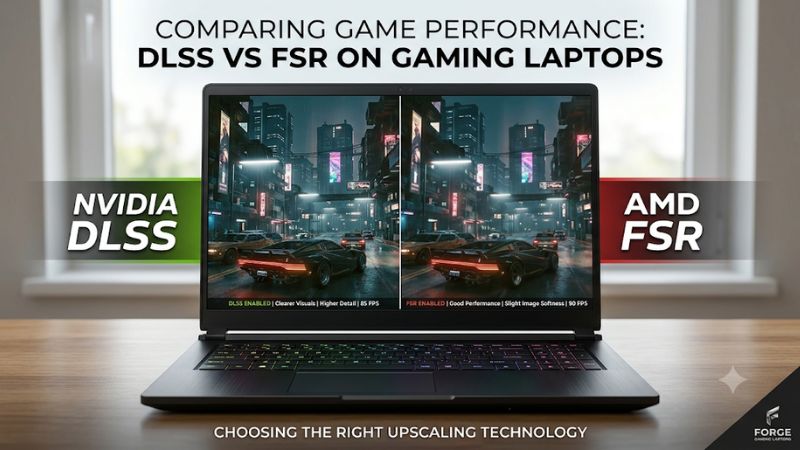
DLSS Uses NVIDIA GPU-Specific AI Hardware
NVIDIA DLSS uses machine learning to reconstruct higher-resolution images from lower-resolution input. Its Super Resolution technology uses information from multiple frames, including motion information, to reconstruct image detail. Supported GeForce RTX GPUs provide Tensor Cores for the AI processing.
DLSS is particularly relevant when shopping for an RTX gaming laptop because the available features depend on GPU generation. Super Resolution, Frame Generation, Multi Frame Generation, and Ray Reconstruction are separate technologies rather than interchangeable names for one performance setting.
DLSS 4.5 Super Resolution introduces a second-generation transformer model, while NVIDIA’s newer Multi Frame Generation features extend generated-frame options on supported hardware. However, owning an RTX laptop does not automatically mean every DLSS feature is available in every game.
FSR Offers Broader Graphics Hardware Support
AMD FidelityFX Super Resolution (FSR) is a collection of rendering technologies that developers can integrate into their games. Traditional FSR versions use temporal or spatial reconstruction techniques, while newer FSR Upscaling versions incorporate machine learning on supported hardware.
This broader approach makes FSR particularly useful when a game runs on an AMD Radeon laptop or another supported GPU without access to NVIDIA’s Tensor Core-based DLSS implementation. However, FSR compatibility does not mean every version works identically across all graphics processors.
AMD’s FSR Upscaling 4.1, announced in October 2026, expands machine-learning upscaling support to additional Radeon graphics and selected Ryzen AI laptop processors. Older hardware may instead use an earlier FSR rendering path, depending on compatibility and implementation.
Upscaling and Frame Generation Solve Different Problems
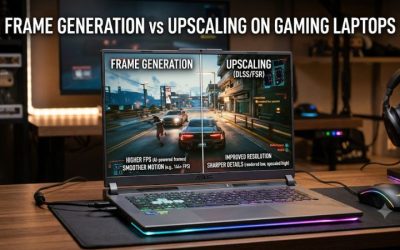
Upscaling reduces the resolution at which the game initially renders and reconstructs the output at the selected display resolution. This can improve conventional rendering performance, although the resulting image may contain reconstruction artifacts or less detail than native rendering.
Frame Generation takes another approach by inserting generated frames between conventionally rendered frames. It can increase the displayed frame rate, but those generated frames do not represent additional game simulations or equivalent improvements in input responsiveness.
This distinction matters when comparing DLSS vs FSR on gaming laptops. A game reporting a substantially higher FPS number with frame generation enabled may still have the responsiveness of a much lower underlying rendered frame rate.
Game Support Matters More Than the Technology Name
Neither technology works universally across all PC games. Developers must implement the relevant features, and different games can support different combinations of upscaling, frame generation, and ray tracing reconstruction.
NVIDIA maintains an official RTX technology compatibility list, while AMD provides an FSR supported-games resource. Check the individual game’s graphics settings before assuming a particular version or feature is available.
For laptop buyers, this means the best graphics technology depends partly on the games they actually play. A feature-rich GPU is less useful if the preferred games do not support its advanced rendering options.
2. DLSS vs FSR on Gaming Laptops: Performance and Image Quality
The practical difference becomes clearer when comparing image reconstruction, GPU compatibility, frame generation, and responsiveness. Neither technology automatically produces the best result in every game. Laptop GPU architecture, available VRAM, rendering resolution, graphics settings, and the game’s implementation all influence the outcome.
Image Quality at 1080p, 1440p, and 4K
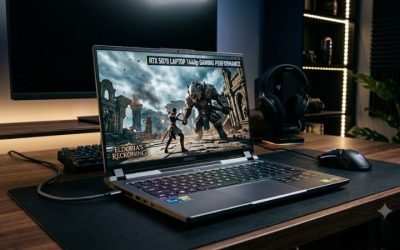
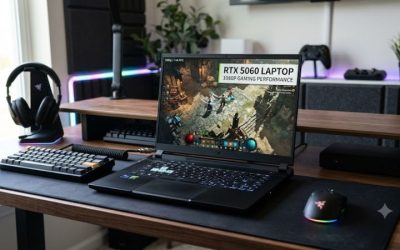
DLSS and FSR can produce different results depending on the input resolution and selected quality mode. At 1080p, aggressive upscaling can make fine textures, thin objects, foliage, and distant details appear less stable. This is particularly noticeable on laptop displays where the viewing distance is relatively short.
At higher output resolutions, both technologies have more pixels available for reconstruction, although image quality still depends on the original rendering resolution and game implementation. DLSS may offer a visual advantage in some titles, but it is not accurate to assume that every DLSS implementation looks better than every FSR implementation.
Performance Depends on GPU Power and Rendering Resolution
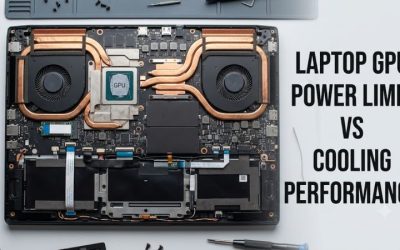
A gaming laptop’s GPU power limit can influence how much performance an upscaler delivers. Two laptops using the same GPU model can produce different results because of differences in GPU subsystem power, cooling, firmware, and operating modes.
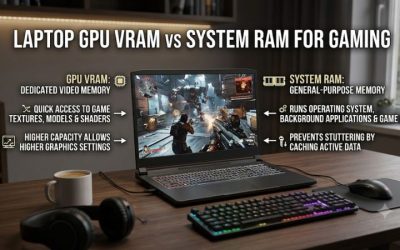
Upscaling is generally most useful when the GPU is the performance bottleneck. If the processor, memory bandwidth, VRAM capacity, or another system component is limiting performance, reducing rendering resolution may provide a smaller improvement than expected.
Frame Generation and Input Responsiveness
DLSS Frame Generation is available on GeForce RTX 40 Series and RTX 50 Series laptop GPUs. Multi Frame Generation is a newer capability associated with RTX 50 Series hardware. These distinctions matter because an older RTX laptop may support DLSS Super Resolution without supporting the same frame-generation options as a newer model.
FSR Frame Generation follows a different compatibility model, with support depending on its version, GPU, driver, and game implementation. AMD also separates conventional frame generation from its newer machine-learning-based rendering technologies. Therefore, checking the actual feature exposed by a game is more useful than comparing the FSR name alone.
Direct Comparison of the Main Features
The following table summarizes the practical differences without treating all versions as technically identical.
| Comparison | NVIDIA DLSS | AMD FSR |
|---|---|---|
| Main upscaling method | AI-based reconstruction | Spatial, temporal, and newer ML-based reconstruction |
| Hardware ecosystem | GeForce RTX GPUs | Supported AMD and other GPU platforms, depending on version |
| AI processing | RTX Tensor Cores | Supported Radeon and Ryzen AI hardware for ML features |
| Frame Generation | RTX 40 and 50 Series support, with newer options on RTX 50 | Version and game dependent |
| Multi Frame Generation | Available on supported RTX 50 Series GPUs | Feature availability depends on implementation |
| Older laptop support | DLSS Super Resolution supports older RTX generations | Earlier FSR versions support a broader range of hardware |
| Ray tracing reconstruction | DLSS Ray Reconstruction in supported games | FSR Ray Regeneration in supported implementations |
| Main consideration | GPU generation and game support | Exact FSR version and hardware compatibility |
Choosing the Right Technology for Your Laptop
If you own an RTX 40 or RTX 50 gaming laptop, DLSS is usually the logical starting point when a game supports it. You can use the available Super Resolution options and, where compatible, Frame Generation or Multi Frame Generation.
For an AMD Radeon laptop, FSR is an important performance option, particularly when the game supports a newer reconstruction version compatible with the installed GPU. On older systems, an earlier FSR implementation may be the available choice.
Owners of older RTX laptops should also remember that DLSS Super Resolution and DLSS Frame Generation have different hardware requirements. An RTX 30 Series laptop can benefit from supported DLSS upscaling even though it does not support NVIDIA’s DLSS Frame Generation feature.
3. How to Choose and Configure DLSS or FSR
The best approach is to compare both technologies under consistent conditions rather than relying on advertised FPS improvements. Start with the same game, resolution, graphics preset, and power mode. Then change one rendering feature at a time so you can identify whether the improvement is worth the visual or responsiveness trade-off.
Check Your Laptop GPU Before Changing Settings
First, identify your graphics processor through Windows Task Manager. Press Ctrl + Shift + Esc, select Performance, and open the GPU sections to identify the available graphics adapters. You can also use the DirectX Diagnostic Tool by entering dxdiag in Windows search.
For NVIDIA laptops, check the exact GeForce RTX generation. For AMD systems, identify whether the graphics processor is a discrete Radeon GPU or integrated Radeon graphics inside a Ryzen processor. These distinctions affect which FSR features are available.
Select the Appropriate Upscaling Mode
Open the game’s Settings menu and find its Display, Graphics, or Advanced Graphics section. Look for the upscaling option and choose DLSS or FSR if supported. The available quality presets vary by game, so do not assume every title offers identical options.
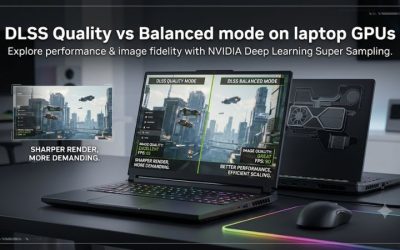
Start with Quality mode when image clarity is important. If performance remains insufficient, compare Balanced and Performance modes. Ultra Performance can help in particularly demanding situations, but its lower internal rendering resolution may create more visible reconstruction artifacts, especially at 1080p.
Enable Frame Generation Only When Appropriate
Frame Generation is most useful when conventional rendering already provides a reasonably stable baseline. It can make motion appear smoother, particularly in demanding single-player games, but it does not replace the responsiveness of higher native rendering performance.
For competitive shooters, fast multiplayer games, and titles where precise input timing matters, prioritize conventionally rendered FPS and latency. If Frame Generation is available, compare movement, aiming, camera motion, and input responsiveness rather than judging the result by the displayed frame counter alone.
Compare Results Using Consistent Test Conditions
Use the same game scene and graphics preset when comparing DLSS and FSR. Keep the laptop connected to its charger and use the same manufacturer performance profile. Hybrid graphics settings and background applications should also remain consistent.
Record average FPS and, if available, 1% lows. Compare image quality by examining fine details, moving objects, foliage, shadows, and interface elements. If frame generation is enabled, record that separately from conventional rendering performance. This prevents generated frames from being mistaken for equivalent improvements in actual game rendering.
| Setting or test | Where | Expected effect | Risk or limitation |
|---|---|---|---|
| GPU identification | Windows Task Manager | Confirms graphics hardware | Hybrid graphics can show multiple GPUs |
| DLSS or FSR Quality | Game Graphics settings | Improves performance while retaining more detail | Reconstruction artifacts remain possible |
| Balanced or Performance | Game Graphics settings | Reduces internal rendering resolution further | Greater potential loss of image detail |
| Frame Generation | Game Graphics settings | Increases displayed frame output | Does not provide equivalent input responsiveness |
| Native-resolution comparison | Game Graphics settings | Establishes a baseline | Higher GPU workload and potentially lower FPS |
Common Mistakes When Comparing Upscaling Technologies
Several testing mistakes can make one technology appear better than it actually is:
-
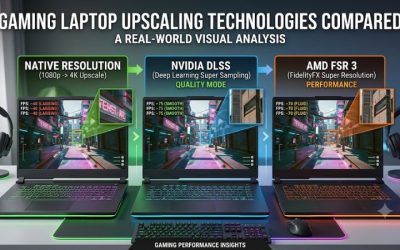
Mixing rendering modes: Comparing DLSS Quality against FSR Performance does not provide a fair image-quality comparison.
-
Ignoring GPU power limits: A laptop operating in Silent mode may deliver different results from the same machine in Performance mode.
-
Counting generated frames as native FPS: Frame Generation changes displayed frame output, not the underlying rate of game simulation.
-
Ignoring VRAM limitations: Upscaling does not automatically solve memory-capacity problems or eliminate texture-related stuttering.
-
Changing multiple settings simultaneously: This makes it difficult to identify which setting caused a performance or visual difference.
A useful comparison should include native rendering, upscaling without frame generation, and frame generation as separate configurations.
Frequently Asked Questions
Is DLSS better than FSR on gaming laptops?
DLSS often has an advantage in image reconstruction and advanced AI rendering features on compatible GeForce RTX laptops, but FSR offers broader hardware compatibility. Actual results depend on the game, GPU generation, rendering resolution, and implementation. Compare the available Quality modes before choosing.
Can AMD FSR work on NVIDIA gaming laptops?
Yes, many FSR implementations can work on NVIDIA GPUs because compatibility depends on the particular FSR version and game implementation. An RTX laptop can use FSR in supported titles even when DLSS is also available. However, newer machine-learning-based FSR features have more specific hardware requirements.
Does DLSS or FSR increase laptop temperatures?
Either technology can affect GPU temperature because the resulting workload changes with rendering resolution and frame generation. Upscaling may reduce GPU workload, but higher displayed frame rates or increased graphics settings can offset those savings. Monitor GPU temperature, power consumption, and fan behavior during actual gameplay.
Should I use Frame Generation for competitive gaming?
Not necessarily, because generated frames do not provide the same input responsiveness as conventionally rendered frames. Competitive players should prioritize stable native rendering performance and low latency. Frame Generation is generally more appropriate for slower-paced games where smoother displayed motion is more important than precise input timing.
Final Thoughts
Choosing between DLSS vs FSR on gaming laptops depends on GPU compatibility, game support, image quality, and responsiveness rather than FPS figures alone. DLSS is a strong starting point for compatible RTX systems, while FSR offers valuable flexibility across supported hardware. Compare both at equivalent settings before deciding which to use.
Related guides
More from Amazon
Programs that pair well with the guide above. Offers and eligibility are set by Amazon and may change.
Free shipping on eligible items, Prime Video and more. Eligible new members can start with a free trial.
Start a Prime free trialAd-free music streaming. Eligible new subscribers can start with a free trial.
Try Music Unlimited freeA Prime membership for ages 18-24 with a trial period. Eligibility is set by Amazon.
See Prime for Young AdultsAudiobooks and podcasts to listen to on the go. Eligible new members can start with a free trial.
Try Audible freeAs an Amazon Associate we earn from qualifying purchases.