DLSS Quality vs Balanced mode on laptop GPUs is primarily a choice between sharper image reconstruction and additional rendering performance. Quality uses a higher internal resolution, while Balanced reduces the rendering workload further to help demanding games run faster. This comparison explains image quality, FPS, laptop GPU limitations, and when switching modes makes sense.
DLSS Quality vs Balanced: What Actually Changes?
DLSS Super Resolution uses AI to reconstruct an image from a lower internal rendering resolution. Both Quality and Balanced target the selected output resolution, but they differ in how much detail the GPU renders before reconstruction. Understanding this distinction helps laptop owners choose a setting based on display resolution, GPU limitations, and the demands of individual games.
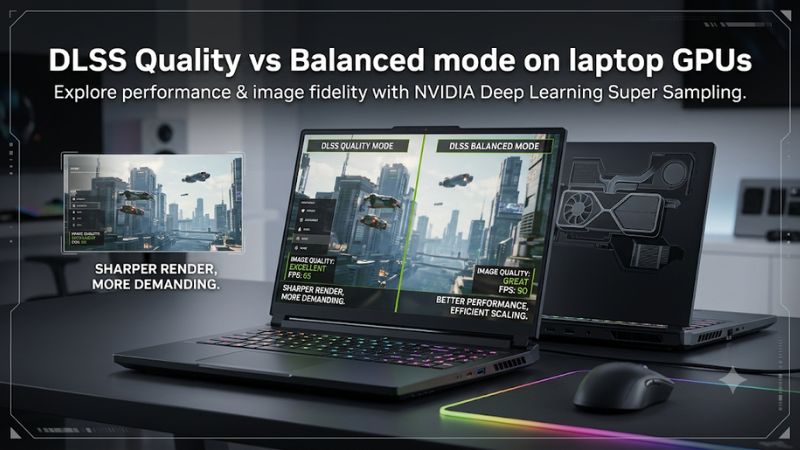
1. Internal Resolution and Upscaling
DLSS Quality renders each frame at a higher internal resolution than Balanced before reconstructing the final image. This generally preserves more fine detail, particularly around distant objects, thin geometry, foliage, and complex textures. It is often a sensible starting point for gaming laptops with 1440p or 1600p displays.
Balanced uses a lower internal resolution, giving the reconstruction process less original image information to work with. The GPU therefore has less rendering work to perform, which can improve performance when rendering resolution is a significant bottleneck. However, fine details and moving objects can become less stable in demanding scenes.
The difference is not simply that Balanced produces a smaller image. Both modes can output the same display resolution. The distinction is the amount of source information available to reconstruct that image.
2. Image Sharpness and Visual Stability
Quality generally provides better image clarity because its higher input resolution retains more information about small objects and edges. This can matter in games with distant enemies, detailed environments, thin power lines, foliage, and fast-moving objects. These elements are useful reference points when comparing screenshots.
Balanced can introduce more visible reconstruction artifacts in certain situations. Fine foliage may appear less defined, distant objects can shimmer, and thin lines may become unstable during camera movement. The actual difference depends on the game’s implementation, DLSS model, anti-aliasing, motion vectors, and scene complexity.
Modern DLSS models can improve reconstruction quality, so older comparisons should not automatically determine how a newer game or driver combination looks. The best comparison uses the same game version, DLSS model, graphics settings, and camera position.
3. Rendering Workload and Performance
Balanced can improve FPS because the GPU renders fewer pixels internally before upscaling. This advantage is most relevant when a laptop GPU is heavily occupied by rendering tasks, including demanding ray tracing, high-resolution graphics, and complex visual effects.
However, a lower internal resolution does not guarantee a proportional FPS improvement. Some games become limited by CPU performance, memory bandwidth, shader processing, or other parts of the rendering pipeline. In those situations, reducing the internal resolution may produce only a small improvement.
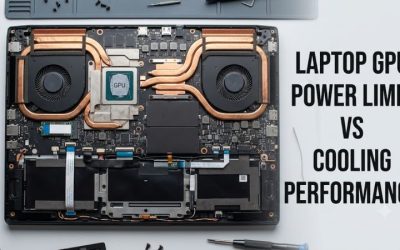
Laptop power limits also influence the result. An RTX 4060 Laptop GPU operating within a restrictive thermal or power configuration may respond differently from the same GPU in a larger laptop with a higher power allowance. GPU model names alone do not establish equivalent performance.
4. When Each Mode Makes More Sense
Quality is generally the better starting point when a game already delivers acceptable performance. It preserves more visual information and is particularly useful for single-player games, exploration, competitive titles where distant details matter, and environments with complex geometry.
Balanced becomes more attractive when the laptop struggles to maintain its desired frame rate. It can help when demanding graphics settings or ray tracing push GPU utilization close to its practical limit. It is also worth considering when playing at a higher output resolution.
Neither mode is universally superior. A laptop owner should consider actual frame-time consistency, visual clarity, and the game’s performance demands rather than selecting a preset based on its name.
How Quality and Balanced Compare on Gaming Laptops
The practical difference between the two modes depends on the laptop’s display resolution, GPU generation, available VRAM, cooling, and workload. A 1080p gaming laptop may benefit more from retaining Quality, while a laptop connected to a higher-resolution external display may have a stronger reason to try Balanced. The following comparison explains the main trade-offs.
1. Comparison by Display Resolution
Display resolution is one of the most useful starting points when choosing DLSS settings. At 1080p, Quality generally retains more useful source detail, making additional upscaling less attractive unless performance is inadequate.
At 1440p and 1600p, Balanced becomes a more reasonable alternative because the output contains more pixels to reconstruct. It can reduce the GPU’s internal rendering workload while retaining the same final output resolution.
At 4K, Balanced can be particularly useful for demanding games. However, the result still depends on the specific DLSS model and game implementation. A higher output resolution does not automatically make reconstruction artifacts invisible.
| Laptop display resolution | DLSS Quality | DLSS Balanced | Practical recommendation |
|---|---|---|---|
| 1920 × 1080 | Better starting point for clarity | Useful when additional FPS is needed | Start with Quality |
| 2560 × 1440 | Strong image-quality option | Useful for demanding graphics | Compare both |
| 2560 × 1600 | Preserves more source detail | Can reduce GPU rendering workload | Choose based on GPU load |
| 3840 × 2160 | Good visual-quality option | Useful for demanding 4K gaming | Consider Balanced when GPU-limited |
These are configuration recommendations, not guaranteed performance rankings. The actual result depends on the game, reconstruction model, graphics settings, and laptop hardware.
2. Differences Across Laptop GPU Classes
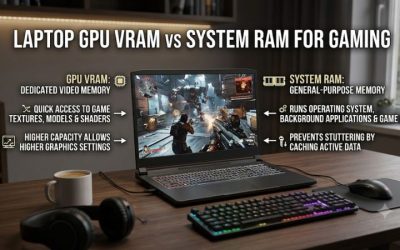
DLSS settings do not operate independently of the GPU. An entry-level laptop GPU may benefit from Balanced when demanding visual effects create a substantial rendering workload. However, limited VRAM or other hardware constraints can introduce problems that lowering the internal resolution cannot fully resolve.
Midrange laptop GPUs often provide more flexibility. An RTX 4060 or RTX 5060 Laptop GPU, for example, can use Quality for games that already run comfortably and switch to Balanced when more rendering performance is necessary.
Higher-tier GPUs, including RTX 4070, RTX 4080, RTX 5070, and RTX 5080 Laptop GPUs, may have more rendering headroom, depending on their laptop implementation. Quality can therefore remain practical in more demanding games.
Importantly, these GPU families have different architectures, memory configurations, and power characteristics. A higher model number does not establish a fixed FPS advantage across every laptop.
3. How to Evaluate FPS Improvements
The most reliable way to determine whether Balanced helps is to compare both modes using the same game and graphics configuration. Start with Quality, record the frame rate and frame times, and then switch to Balanced without changing other settings.
Pay attention to average FPS and 1% lows when the benchmark provides them. Average FPS describes overall performance, while 1% lows help identify slower frames that can affect perceived smoothness. Frame-time graphs can reveal whether an apparent FPS improvement also produces more consistent delivery.
An older Notebookcheck comparison of RTX 4050, RTX 4060, and RTX 4070 Laptop GPUs documented substantial improvements from Balanced DLSS compared with native rendering in several games. However, those results do not establish the exact advantage of Balanced over Quality because the comparison was against DLSS disabled.
Similarly, benchmark results from different laptop power configurations should not be treated as directly interchangeable. GPU wattage, CPU, cooling, resolution, and game version all influence the outcome.
4. Visual Quality Versus Smooth Gameplay
A higher average FPS does not necessarily produce a better gaming experience. If Quality already maintains a stable frame rate, switching to Balanced may introduce visual compromises without providing a meaningful improvement in responsiveness.
Conversely, a game that regularly drops below the desired frame rate may benefit from Balanced, particularly when GPU rendering is responsible for the slowdown. More consistent frame delivery can be more valuable than preserving maximum image detail.
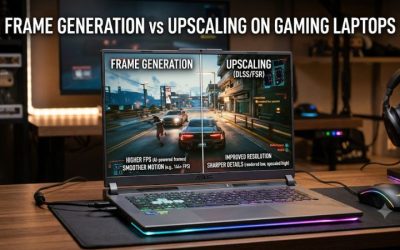
Competitive players should also distinguish Super Resolution from Frame Generation. DLSS Super Resolution reconstructs the rendered image, whereas Frame Generation creates additional frames. These technologies affect performance and responsiveness differently, so comparisons should keep Frame Generation enabled or disabled consistently.
How to Choose and Configure DLSS on a Laptop
Choosing between the two modes should involve more than selecting a preset and checking the FPS counter. A useful comparison considers GPU utilization, frame times, visual artifacts, and laptop operating conditions. These steps help identify whether Balanced provides a genuine advantage or whether Quality remains the more appropriate option.
1. Check the Game’s DLSS Support
First, confirm that the game supports NVIDIA DLSS Super Resolution. Not every game offers the same DLSS features, and some titles expose different options depending on their graphics engine or implementation.
Open the game’s graphics or display settings and locate the upscaling option. Select NVIDIA DLSS, then find the Super Resolution quality preset. Choose Quality or Balanced depending on the available options.
Do not confuse DLSS Super Resolution with DLAA, Frame Generation, or Ray Reconstruction. They serve different purposes. DLAA focuses on anti-aliasing at native resolution, Frame Generation creates additional frames, and Ray Reconstruction processes ray-traced lighting and effects.
2. Compare Both Modes Under Identical Conditions
A meaningful comparison requires consistent settings. Keep the output resolution, graphics preset, ray tracing, texture quality, and other rendering options unchanged.
Use the same save point or repeatable benchmark sequence. Record the following:
-
Average FPS during the same gameplay section.
-
1% lows, when available.
-
GPU utilization and power consumption.
-
GPU temperature and clock behavior.
-
Visible reconstruction artifacts during movement.
Change only the DLSS Super Resolution preset between comparisons. Otherwise, it becomes difficult to determine whether the difference came from Balanced or another graphics setting.
3. Monitor GPU Load and Laptop Temperatures
Monitoring GPU behavior helps establish whether Balanced is addressing the actual performance limitation. Tools such as HWiNFO and MSI Afterburner can display GPU utilization, temperature, clock speeds, and other relevant telemetry.
If GPU utilization remains high while performance is below the desired target, reducing internal resolution may help. If utilization is consistently low and FPS does not improve after switching modes, investigate CPU limitations, frame-rate caps, or other bottlenecks.
Laptop cooling also matters. High temperatures, power restrictions, and reduced clock speeds can affect performance during longer gaming sessions. Balanced should not be treated as a replacement for investigating thermal or power-related problems.
4. Keep the Better Setting for Each Game
There is no requirement to use one DLSS mode across every game. A visually demanding single-player game may benefit from Quality, while a demanding ray-traced title may be more comfortable with Balanced.
Save the preferred configuration in each game’s graphics settings when available. Revisit it after major game updates or changes to the DLSS model, because reconstruction quality and performance can change between implementations.
If Balanced produces little FPS improvement, return to Quality rather than accepting unnecessary visual compromises. If it provides a useful performance increase without distracting artifacts, keeping Balanced is reasonable.
Frequently Asked Questions
Is DLSS Quality better than Balanced on a 1080p gaming laptop?
Yes, Quality is generally the better starting point for a 1080p gaming laptop because its higher internal rendering resolution preserves more source detail. Balanced is worth considering when demanding graphics settings, ray tracing, or other GPU workloads prevent the laptop from maintaining its desired frame rate.
Does DLSS Balanced increase FPS more than Quality?
Generally, yes, Balanced can produce higher FPS because it renders at a lower internal resolution. However, the actual improvement depends on GPU limitations, CPU performance, game optimization, and the DLSS implementation. A CPU-limited game may show little difference between the two settings.
Does DLSS Balanced reduce image quality significantly?
Not necessarily, because the visible difference depends on the game, output resolution, and reconstruction model. Some games retain convincing image quality in Balanced, while others show more noticeable softness, ghosting, or instability around fine details. Comparing moving gameplay is more useful than relying exclusively on static screenshots.
Should I use DLSS Balanced with Frame Generation on my gaming laptop?
You can use Balanced with Frame Generation when the game supports both features, but they address different performance aspects. Balanced reduces internal rendering resolution, while Frame Generation creates additional displayed frames. Check actual responsiveness, base frame rate, and VRAM usage rather than judging the experience by the displayed FPS alone.
Final Thoughts
Choosing DLSS Quality vs Balanced mode on laptop GPUs comes down to whether visual detail or additional rendering performance matters more in a particular game. Start with Quality, switch to Balanced when GPU limitations justify it, and compare frame times alongside image clarity. Keep whichever setting delivers the better overall experience on your laptop.
Related guides
More from Amazon
Programs that pair well with the guide above. Offers and eligibility are set by Amazon and may change.
Free shipping on eligible items, Prime Video and more. Eligible new members can start with a free trial.
Start a Prime free trialAd-free music streaming. Eligible new subscribers can start with a free trial.
Try Music Unlimited freeA Prime membership for ages 18-24 with a trial period. Eligibility is set by Amazon.
See Prime for Young AdultsAudiobooks and podcasts to listen to on the go. Eligible new members can start with a free trial.
Try Audible freeAs an Amazon Associate we earn from qualifying purchases.