Gaming laptop owners often enable graphics technologies to improve performance without lowering visual quality too much. However, frame generation vs upscaling on gaming laptops involves two different approaches: upscaling reduces rendering resolution and reconstructs the image, while frame generation inserts additional frames between traditionally rendered ones. Understanding their differences helps you choose settings that improve gameplay without unnecessarily increasing latency or GPU workload.
1. What Frame Generation and Upscaling Actually Do
Frame generation and upscaling both aim to improve the gaming experience, but they operate at different stages of the rendering process. One creates additional displayed frames, while the other reconstructs an image from a lower internal resolution. Understanding these mechanisms explains why their FPS improvements, image quality, and responsiveness are not interchangeable.
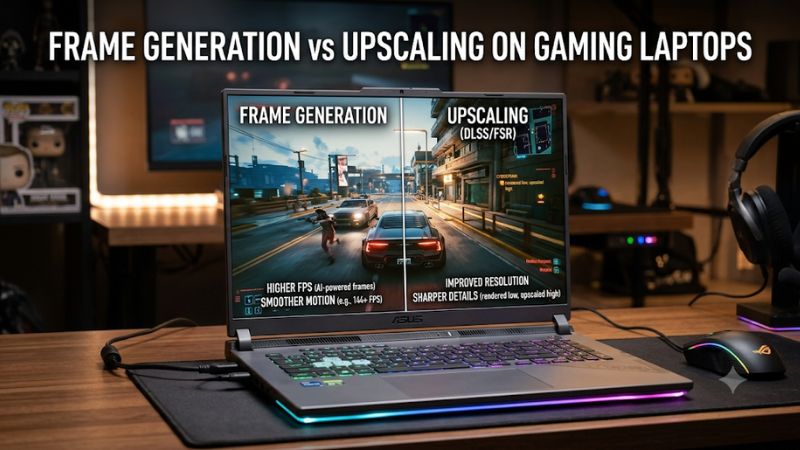
How Upscaling Improves Gaming Performance
Upscaling allows a laptop GPU to render a game at a resolution below the display’s native resolution. A reconstruction algorithm then processes the rendered image and produces an output matching the screen resolution. Because the GPU initially processes fewer pixels, rendering can become less demanding.
For example, a gaming laptop with a 2560 × 1600 display can render a game at a lower internal resolution before reconstructing the final image. The exact internal resolution depends on the selected upscaling technology and quality preset. This approach can improve performance while preserving more detail than conventional resolution reduction.
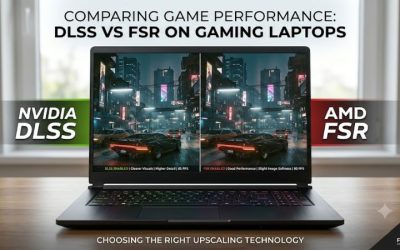
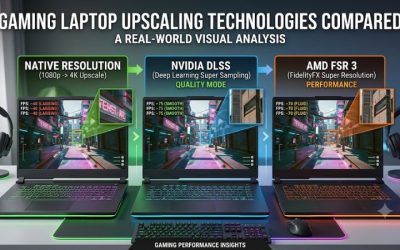
Modern technologies include NVIDIA DLSS Super Resolution, AMD FidelityFX Super Resolution (FSR), and Intel Xe Super Sampling (XeSS). Their reconstruction methods differ, but their primary purpose is similar: increase rendering efficiency while maintaining acceptable image quality.
NVIDIA+2
Upscaling is particularly useful when a laptop GPU struggles with demanding graphics settings, high resolutions, or ray tracing. It can also help maintain a more consistent rendering workload when native-resolution performance is insufficient.
How Frame Generation Creates Additional Frames
Frame generation works differently because it does not primarily reduce the resolution of traditionally rendered frames. Instead, it analyzes information from rendered frames and generates intermediate images to increase the number of frames displayed.
Technologies such as NVIDIA DLSS Frame Generation, AMD FSR Frame Generation, and Intel XeSS Frame Generation use different reconstruction and interpolation techniques. They rely on information such as motion vectors and previous or consecutive frames to estimate how objects should appear between rendered images.
The distinction matters because generated frames are not equivalent to frames fully rendered by the GPU. They can make motion appear smoother, but they do not provide the same increase in underlying game simulation or input responsiveness as an equivalent increase in traditionally rendered FPS.
NVIDIA also offers Multi Frame Generation on supported GeForce RTX 50 Series hardware, while Intel XeSS 3 introduces Multi Frame Generation on compatible Intel hardware. These implementations have different hardware requirements and should not be treated as universally available laptop features.
NVIDIA+1
Why Higher Displayed FPS Does Not Always Mean Better Responsiveness
One common misunderstanding is assuming that a higher FPS counter automatically means a more responsive gaming experience. Frame generation can substantially increase displayed frame rates without proportionally increasing the rate at which the game processes player input.
For example, a game producing a relatively low number of traditionally rendered frames may display considerably more frames after frame generation is enabled. However, the underlying simulation and input sampling are still tied to the original rendering workload.
Upscaling can improve responsiveness differently. By reducing the number of pixels the GPU must render, it may help increase the actual rendering frame rate. This can reduce the time between traditionally rendered frames, although total system latency also depends on CPU processing, GPU scheduling, and other factors.
For competitive gaming, the distinction is especially important. A stable native rendering frame rate is generally more valuable for responsiveness than a large displayed FPS number achieved primarily through interpolation.
Why Gaming Laptops Have Different Performance Limitations
Gaming laptops operate within shared thermal and power constraints. Their CPU, discrete GPU, cooling system, and power delivery determine how much sustained performance the machine can provide.
Upscaling can reduce GPU rendering demands, potentially leaving more thermal and power headroom for other workloads. The actual benefit depends on whether the game is GPU-limited and how the laptop manages its power allocation.
Frame generation introduces additional processing requirements. Depending on the implementation, GPU workload, display configuration, and game, this can increase overall resource utilization. A laptop already operating near its thermal or power limits may not benefit as much as a system with sufficient performance headroom.
This is why frame generation vs upscaling on gaming laptops should be evaluated using the laptop’s actual GPU configuration, rather than the technology name alone. Two laptops with the same GPU family can deliver different results because of differences in GPU power limits, cooling, memory, and firmware settings.
2. Frame Generation vs Upscaling: Key Differences Compared
The most useful comparison considers what each technology changes, how it affects responsiveness, and which gaming situations benefit most. Neither approach is universally superior. Your laptop’s rendering performance, display resolution, refresh rate, and game type determine which option makes more sense.
Performance and FPS Improvements
Upscaling improves performance by reducing the rendering resolution and reconstructing the final image. This directly reduces the pixel workload, which can produce higher traditionally rendered FPS when the GPU is the limiting component.
Frame generation increases displayed FPS by inserting additional frames. Its performance benefit is therefore primarily visual smoothness rather than an equivalent increase in the game’s underlying rendering capability. The distinction is important when comparing FPS counters or evaluating hardware performance.
Combining the two can be useful in demanding single-player games. Upscaling helps the GPU produce rendered frames more efficiently, while frame generation increases the number of displayed frames. However, the result depends on the starting frame rate, game implementation, and hardware support.
Image Quality and Visual Artifacts
Upscaling reconstructs image details that were not rendered at the final output resolution. Its visual quality depends on the reconstruction algorithm, internal resolution, motion information, and game implementation.
Quality-oriented presets generally preserve more detail than aggressive performance-oriented presets. However, difficult scenes can reveal shimmering, ghosting, blurred fine details, or instability around moving objects. Thin geometry, foliage, distant textures, and particle effects are particularly useful areas to inspect.
Frame generation can introduce different visual artifacts because it must estimate what happens between rendered frames. Fast camera movements, rapidly changing objects, particle effects, and complex animation can produce visual inconsistencies.
Neither technology guarantees native-rendering image quality. The best approach is to compare the actual game at the same output resolution and examine both stationary scenes and fast movement.
Input Latency and Gameplay Responsiveness
Input latency is one of the most important differences between these technologies. Upscaling can improve the actual rendering rate by reducing GPU workload, potentially improving responsiveness when the system is GPU-bound.
Frame generation adds an intermediate processing stage to produce additional displayed images. This can increase perceived smoothness without making the underlying game simulation equally responsive. The exact latency impact varies by implementation and system configuration.
NVIDIA Reflex is designed to reduce system latency and is integrated into supported DLSS Frame Generation implementations. AMD also provides Radeon Anti-Lag 2 for supported configurations, while Intel XeSS 3 includes Xe Low Latency as part of its technology stack. These features help manage responsiveness, but they do not make generated frames identical to traditionally rendered frames.
NVIDIA+2
GPU Workload, Temperature, and Battery Consumption
Upscaling can reduce the GPU’s rendering workload, potentially lowering power consumption or allowing the GPU to maintain a higher rendering rate. However, the final power and temperature results depend on the laptop’s power management and the game workload.
Frame generation adds processing requirements that can increase GPU utilization. This does not mean temperatures must always rise. If the laptop has sufficient thermal headroom, its cooling system may accommodate the additional work without a significant temperature change.
Battery life requires separate consideration. Gaming laptops commonly operate under different power limits when unplugged, and some performance features may be restricted by battery-saving configurations. Neither upscaling nor frame generation should be assumed to improve battery life without measuring actual system consumption.
| Comparison factor | Upscaling | Frame Generation |
|---|---|---|
| Primary function | Reconstructs higher-resolution images | Creates intermediate frames |
| Main FPS benefit | Increases traditionally rendered FPS | Increases displayed FPS |
| Internal resolution | Usually reduced | Does not inherently reduce it |
| Image quality | Can introduce reconstruction artifacts | Can introduce interpolation artifacts |
| Input responsiveness | Can improve through lower GPU workload | Does not proportionally improve input response |
| GPU workload | Often reduces rendering demands | Adds frame-generation processing |
| Competitive gaming | Generally more useful | Often less suitable |
| Single-player gaming | Useful for demanding graphics | Useful for smoother motion |
| Hardware support | Depends on upscaler and game | Depends on frame-generation implementation |
| Best application | Improving rendering efficiency | Increasing perceived smoothness |
The central difference is that upscaling helps the laptop render each frame more efficiently, while frame generation increases displayed motion smoothness. They can complement each other, but they solve different performance problems.
3. Which Technology Should You Use on a Gaming Laptop?
Choosing between these technologies requires looking beyond the advertised FPS improvement. Consider the game’s performance before enabling either option, the type of gameplay, and the laptop’s GPU limitations. The following situations provide a practical starting point for selecting settings without sacrificing responsiveness unnecessarily.
Choose Upscaling When Your Laptop Has Low Native FPS
Upscaling is generally the better starting point when your laptop struggles to maintain a comfortable rendering frame rate. By reducing internal resolution, it can help improve actual GPU rendering performance.
This is particularly relevant for gaming laptops with demanding displays, such as 1440p or 1600p panels. Running modern games at native resolution with high graphics settings can place considerable pressure on mobile GPUs, especially when ray tracing is enabled.
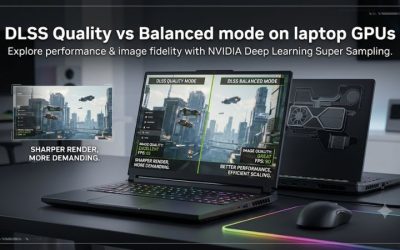
Start with the Quality preset if image clarity is important. If performance remains insufficient, consider Balanced mode before moving to Performance mode. Compare the resulting image quality in the same game scenes rather than assuming the most aggressive preset is automatically the best choice.
Upscaling is also worth considering when you notice inconsistent frame delivery caused by a GPU bottleneck. However, it cannot solve every performance problem. If the CPU is limiting performance, reducing GPU rendering resolution may produce only a small improvement.
Choose Frame Generation for Supported Single-Player Games
Frame generation is most attractive when your laptop already delivers a reasonably stable base frame rate but you want smoother displayed motion. It can be particularly useful in visually demanding single-player games, where responsiveness is less important than in competitive multiplayer titles.
Open-world games, cinematic adventures, and graphically intensive action games are examples of situations where additional displayed frames may improve the viewing experience. However, the result depends on the quality of the game’s implementation and the frame rate before generation.
Avoid enabling frame generation simply because your laptop produces a very low base frame rate. Interpolation becomes more difficult when there is insufficient source-frame information, and visual artifacts or uneven motion can become more noticeable.
AMD’s developer guidance for FSR Frame Generation recommends a minimum of 60 FPS before interpolation for its documented implementation and advises against using it below 30 FPS. This is a technology-specific recommendation, not a universal requirement for every frame-generation solution.
AMD GPUOpen
Combine Both Technologies When Your Laptop Has Enough Headroom
Using upscaling and frame generation together can be an effective approach for demanding games. Upscaling reduces the workload associated with producing traditionally rendered frames, while frame generation adds intermediate images to increase displayed smoothness.
For example, a laptop with a high-resolution display may struggle to run a demanding game at native resolution with ray tracing enabled. Using DLSS Super Resolution or a supported FSR or XeSS upscaler can improve rendering efficiency before frame generation is introduced.
However, the combination should be evaluated using base FPS, frame pacing, input latency, and visual quality. A large displayed FPS increase does not automatically indicate a better experience.
For NVIDIA laptops, check whether the game supports DLSS Super Resolution, Frame Generation, and Reflex. For AMD and Intel systems, verify the specific FSR or XeSS version, supported GPU, and game integration. Feature availability varies across generations and software implementations.
Recommended Settings for Different Gaming Scenarios
There is no single configuration that works best for every gaming laptop. Your preferred settings should reflect the game’s performance requirements and the capabilities of your display.
| Gaming scenario | Recommended approach | Reason |
|---|---|---|
| Competitive FPS games | Upscaling or native rendering | Prioritizes responsiveness |
| Esports at high refresh rates | Native rendering or Quality upscaling | Supports consistent real-frame delivery |
| Single-player AAA games | Upscaling + optional frame generation | Balances rendering efficiency and smoothness |
| Ray-tracing-heavy games | Upscaling + optional frame generation | Reduces rendering demands |
| Low base FPS | Upscaling first | Improves the underlying rendering rate |
| Already high base FPS | Optional frame generation | Adds smoothness when useful |
| Laptop operating near thermal limits | Start with upscaling | Avoids unnecessary additional processing |
To compare settings properly, use the same game scene, resolution, graphics preset, and power mode. Record average FPS, 1% lows where available, frame-time consistency, and GPU temperature. Compare displayed FPS separately from traditionally rendered FPS whenever the monitoring software allows it.
Also check whether the laptop is connected to its appropriate power adapter. Battery operation can change performance limits, making comparisons between plugged-in and unplugged configurations misleading.
FAQ
Is Frame Generation Better Than Upscaling on Gaming Laptops?
No, frame generation is not universally better than upscaling. Upscaling improves rendering efficiency, while frame generation increases displayed smoothness. Upscaling is generally the better starting point when native FPS is low, whereas frame generation is more useful when the laptop already maintains a stable base frame rate.
Can You Use Frame Generation and Upscaling Together?
Yes, supported games can use frame generation and upscaling together. NVIDIA DLSS, AMD FSR, and Intel XeSS offer different combinations depending on the game and hardware. Check the individual game’s graphics menu because feature availability and compatibility vary between implementations.
Does Frame Generation Increase Input Lag?
Frame generation can add latency because additional frames must be generated and presented. However, the actual impact varies by implementation and starting performance. Technologies such as NVIDIA Reflex and Intel Xe Low Latency help address responsiveness, but generated FPS should not be confused with the underlying input response.
Does Upscaling Reduce Gaming Laptop Temperatures?
Upscaling can reduce GPU rendering demands and potentially lower temperatures, but the result is not guaranteed. GPU power limits, cooling capacity, CPU workload, and frame-rate limits also affect temperatures. Monitor GPU power and temperature under identical conditions to determine whether a particular upscaling preset makes a difference.
Final Thoughts
Understanding frame generation vs upscaling on gaming laptops helps you choose performance settings based on actual rendering capability rather than FPS counters alone. Start with upscaling when native performance is insufficient, then consider frame generation for supported games with stable base FPS. Always prioritize image quality, responsiveness, and consistent frame delivery over the highest displayed FPS.
Related guides
More from Amazon
Programs that pair well with the guide above. Offers and eligibility are set by Amazon and may change.
Free shipping on eligible items, Prime Video and more. Eligible new members can start with a free trial.
Start a Prime free trialAd-free music streaming. Eligible new subscribers can start with a free trial.
Try Music Unlimited freeA Prime membership for ages 18-24 with a trial period. Eligibility is set by Amazon.
See Prime for Young AdultsAudiobooks and podcasts to listen to on the go. Eligible new members can start with a free trial.
Try Audible freeAs an Amazon Associate we earn from qualifying purchases.