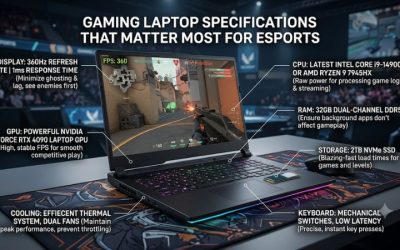
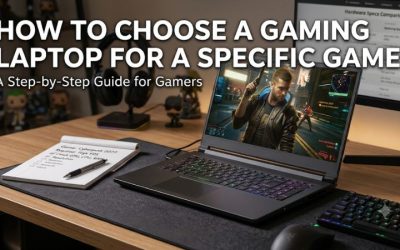
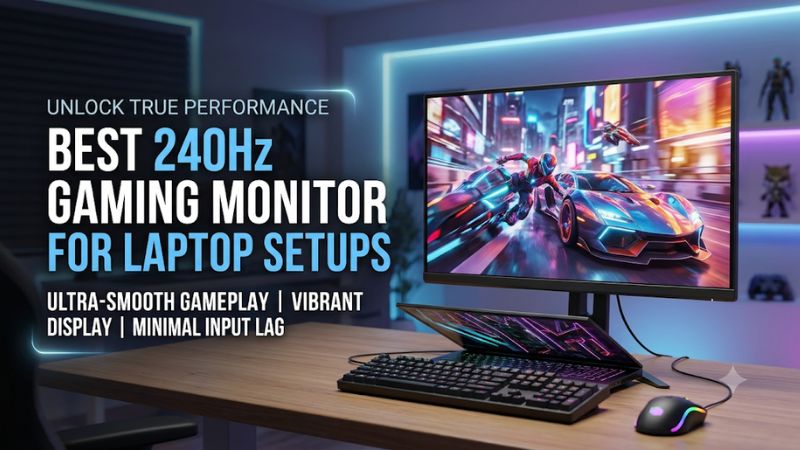
Choosing the best 240Hz gaming monitor for laptop setups means balancing refresh rate, resolution, connectivity, and your laptop’s GPU capabilities. A fast display alone cannot deliver 240 FPS. This guide compares four options for different budgets, explains laptop compatibility, and highlights the connections needed to reach their advertised refresh rates.
How to Choose a 240Hz Gaming Monitor for a Laptop
A 240Hz external monitor can make competitive gaming feel smoother, but your laptop must support the display’s resolution and refresh rate through its available video outputs. Before choosing a model, consider the GPU, port specifications, panel technology, and desk requirements rather than focusing exclusively on the refresh-rate number.
1. Match Resolution and Refresh Rate to Your Laptop GPU
Resolution determines how much graphical work your laptop GPU must handle. A 1080p display is generally easier to drive at 240 FPS than a 1440p or 4K monitor, making it attractive for competitive games such as Valorant, Counter-Strike 2, and Overwatch 2.
For stronger gaming laptops with modern NVIDIA GeForce RTX or AMD Radeon GPUs, 1440p provides a useful balance between image detail and responsiveness. A 4K 240Hz display is a more demanding option, particularly in graphically intensive games where maintaining consistently high frame rates requires substantial GPU performance.
2. Check HDMI, DisplayPort, and USB-C Compatibility
Laptop connectivity deserves particular attention because two laptops with similar GPUs may offer different external-display capabilities. HDMI 2.1 and DisplayPort 1.4 can support high-refresh-rate gaming, but the achievable resolution and refresh rate depend on bandwidth, compression support, and the laptop’s actual implementation.
USB-C can simplify a gaming desk when it supports DisplayPort Alternate Mode. However, a USB-C connector alone does not guarantee video output or 240Hz compatibility. Check the laptop manual for its supported display protocol and maximum external resolution before purchasing a monitor.
3. Choose IPS or OLED Based on Your Gaming Habits
IPS monitors remain attractive for laptop gaming because they generally cost less than comparable OLED displays and handle static desktop content without OLED-specific burn-in considerations. Modern fast IPS panels can also provide high refresh rates, making them suitable for competitive multiplayer games.
OLED offers substantially different image characteristics, including deep blacks, high contrast, and very fast pixel response. These advantages benefit fast-paced games and HDR content. However, static interface elements can contribute to image retention or burn-in over time, so consider your desktop usage and the manufacturer’s warranty.
4. Consider USB-C Power Delivery and Desk Space
Some gaming monitors include USB-C Power Delivery, allowing compatible laptops to receive power while transmitting video through one cable. This is particularly convenient when switching between work and gaming, although the available charging wattage matters.
Many gaming laptops require their original high-wattage AC adapters to maintain full CPU and GPU performance. A monitor offering 90W USB-C charging may be sufficient for everyday productivity but insufficient for demanding gaming workloads. Also consider screen size, stand adjustment, and VESA mounting before finalizing your setup.
Top 240Hz Gaming Monitors for Laptop Setups
The following four monitors address different laptop gaming requirements, from affordable 1080p competitive gaming to premium 4K OLED performance. Their specifications provide a starting point for choosing the right display, but the laptop’s video output remains the deciding factor in whether you can use the maximum refresh rate.
1. MSI MPG 321URX QD-OLED – Best Overall
The MSI MPG 321URX QD-OLED is a premium option for gaming laptop owners who want a large, high-resolution external display. Its 31.5-inch QD-OLED panel combines 3840 × 2160 resolution with a 240Hz refresh rate and a specified 0.03ms GtG response time.
Its laptop-friendly connectivity is a major advantage. MSI includes HDMI 2.1, DisplayPort 1.4a, and USB-C with DisplayPort Alternate Mode and up to 90W Power Delivery. The monitor also includes a KVM function, making it useful when sharing peripherals between a gaming laptop and another computer.
The main limitation is its demanding 4K resolution. Reaching high frame rates in demanding games requires a capable laptop GPU, and 90W charging may not replace the original gaming laptop adapter. OLED image-retention considerations also matter for users who spend long periods working with static desktop applications.
Best for: Premium gaming laptop setups, 4K gaming, and users who want USB-C connectivity.
2. Gigabyte M27Q X – Best Value 1440p IPS
The Gigabyte M27Q X offers a practical alternative for gamers who prefer an IPS panel instead of paying for premium OLED technology. It features a 27-inch SuperSpeed IPS display with 2560 × 1440 resolution, a 240Hz maximum refresh rate, and a specified 1ms GtG response time.
Its connectivity is particularly interesting for laptop owners. The monitor includes DisplayPort 1.4, two HDMI 2.0 ports, and USB-C with DisplayPort Alternate Mode and up to 18W Power Delivery. It also provides a USB hub and KVM functionality, helping organize a multi-device desk.
The biggest drawback is its limited USB-C charging capacity. Eighteen watts is not intended to power a demanding gaming laptop during intensive workloads. Its HDMI 2.0 connections also make DisplayPort or a suitable USB-C video connection worth prioritizing when targeting 1440p at 240Hz.
Best for: Mid-range gaming laptops, 1440p gaming, and users who prioritize IPS technology and value.
3. LG UltraGear 27GR83Q-B – Best for Competitive IPS Gaming
The LG UltraGear 27GR83Q-B is another 27-inch 1440p IPS monitor designed around high-refresh-rate gaming. Its specifications include a 2560 × 1440 resolution, 240Hz refresh rate, 1ms GtG response time, and VESA DisplayHDR 400 support.
For laptop connectivity, LG provides two HDMI 2.1 ports and a DisplayPort input. The monitor also includes USB upstream and downstream connections for peripheral management. NVIDIA G-SYNC Compatible and AMD FreeSync Premium support make it suitable for gaming systems using compatible graphics hardware.
Unlike the MSI MPG 321URX, this monitor does not provide USB-C video input or laptop charging. You will need an appropriate HDMI or DisplayPort connection from your laptop. Its IPS panel also cannot reproduce the deep blacks of OLED technology, making it less attractive for users prioritizing high-contrast HDR gaming.
Best for: Competitive gaming, 1440p laptop setups, and users who prefer IPS over OLED.
4. Dell SE2426HGS – Best Budget 1080p Option
The Dell SE2426HGS is a more affordable choice for gaming laptop owners who prioritize high refresh rates over resolution. Its 23.8-inch IPS display provides 1920 × 1080 resolution and a native 240Hz refresh rate, making it a straightforward option for competitive gaming.
Dell specifies two HDMI 2.1 ports supporting Full HD at 240Hz and one DisplayPort 1.4 connection. The monitor also includes an adjustable stand with height, swivel, and tilt functionality. Its 300-nit typical brightness and 99% sRGB color gamut provide a reasonable feature set for everyday gaming and desktop use.
The trade-off is its lower resolution and lack of USB-C connectivity. You cannot use a single USB-C cable for video and charging, and the smaller Full HD workspace is less suitable for users who frequently work with multiple windows. Nevertheless, its lower resolution can make high frame rates more achievable on less powerful laptop GPUs.
Best for: Budget gaming laptops, esports titles, and players who prioritize 240Hz over resolution.
Comparison Table
| Product | Best For | Key Spec | Compatibility | Watch Out For |
| MSI MPG 321URX QD-OLED | Best Overall | 32-inch, 4K, 240Hz QD-OLED | HDMI 2.1, DP 1.4a, USB-C 90W | Demanding 4K gaming |
| Gigabyte M27Q X | Best Value | 27-inch, QHD, 240Hz IPS | HDMI 2.0, DP 1.4, USB-C 18W | Limited USB-C charging |
| LG 27GR83Q-B | Competitive Gaming | 27-inch, QHD, 240Hz IPS | HDMI 2.1, DisplayPort | No USB-C video |
| Dell SE2426HGS | Best Budget | 23.8-inch, FHD, 240Hz IPS | HDMI 2.1, DP 1.4 | Lower resolution, no USB-C |
FAQ
1. Can a gaming laptop run a 240Hz external monitor?
Yes, provided its GPU and video output support the monitor’s resolution and refresh rate. Check the laptop manufacturer’s specifications for HDMI, DisplayPort, or USB-C display capabilities. You should also verify that the connection supports 240Hz at the desired resolution rather than assuming every available port provides identical performance.
2. Is 240Hz worth it for laptop gaming?
Yes, 240Hz can be worthwhile if your laptop consistently produces high frame rates in the games you play. Competitive titles benefit more than demanding AAA games because they are generally easier to run at very high FPS. If your laptop frequently produces considerably fewer than 240 FPS, a lower-refresh-rate display may offer better value.
3. Can USB-C deliver 240Hz to an external gaming monitor?
Yes, USB-C can deliver 240Hz when the laptop supports the required DisplayPort Alternate Mode bandwidth and the monitor and cable support the selected display mode. DisplayPort 1.4 with Display Stream Compression may be necessary for certain high-resolution configurations. Always check the complete laptop and monitor specifications.
4. Can a 90W USB-C monitor replace a gaming laptop charger?
Not necessarily, because many gaming laptops require more power than a 90W USB-C connection provides. The laptop may reduce performance, charge slowly, or discharge its battery under heavy gaming workloads. Keep the original power adapter connected when the manufacturer requires it for full-performance operation.
Final Thoughts
Choosing the best 240Hz gaming monitor for laptop setups comes down to matching display specifications with your laptop’s actual capabilities. The MSI offers premium 4K OLED features, while Gigabyte and LG provide practical 1440p IPS alternatives. For tighter budgets, Dell’s 1080p option makes sense. Check your laptop’s video outputs before buying.
Related guides
More from Amazon
Programs that pair well with the guide above. Offers and eligibility are set by Amazon and may change.
Free shipping on eligible items, Prime Video and more. Eligible new members can start with a free trial.
Start a Prime free trialAd-free music streaming. Eligible new subscribers can start with a free trial.
Try Music Unlimited freeA Prime membership for ages 18-24 with a trial period. Eligibility is set by Amazon.
See Prime for Young AdultsAudiobooks and podcasts to listen to on the go. Eligible new members can start with a free trial.
Try Audible freeAs an Amazon Associate we earn from qualifying purchases.