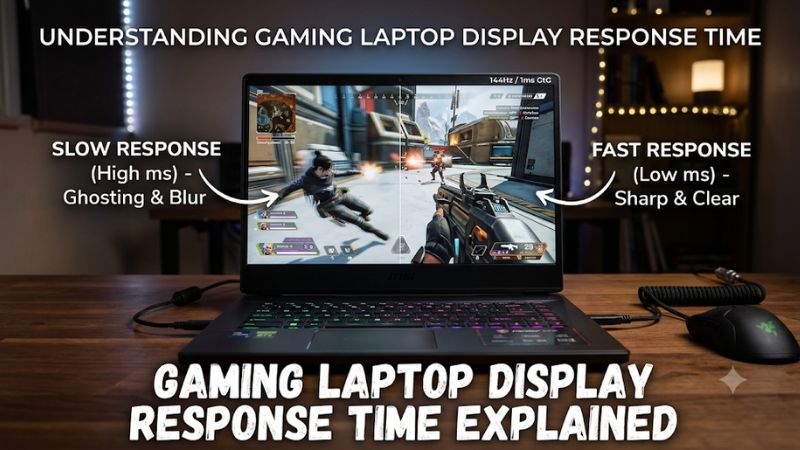
Gaming laptop display response time explained starts with one important distinction: response time measures how quickly pixels change color, not how quickly your laptop processes an input. A slower panel can leave visible trails behind moving objects. This guide covers GtG, MPRT, refresh rates, ghosting, and practical ways to assess display specifications before buying.
What Gaming Laptop Display Response Time Really Means
Display response time describes the time pixels need to transition between colors, usually measured in milliseconds (ms). It affects motion clarity, particularly in fast-paced games. However, advertised figures do not always represent everyday performance. Understanding the measurement method, panel behavior, and relationship with refresh rate helps you judge whether a laptop screen is suitable for your games.
1. How Pixel Response Time Works
Every LCD or OLED display creates images using pixels that change their visual output as new frames arrive. When a pixel takes too long to reach its intended color, remnants of the previous image can remain visible during movement. This can make enemies, objects, and environmental details look smeared.
A gaming laptop’s response time describes these pixel transitions rather than the time required for the GPU to render a frame. The distinction matters because a powerful NVIDIA GeForce RTX GPU cannot make a slow display panel change colors faster. Both components contribute to the final gaming experience.
2. GtG: Gray-to-Gray Response Time
Gray-to-gray (GtG) measures how long a pixel takes to transition between two shades of gray. Manufacturers commonly advertise GtG figures because they provide a way to describe pixel transition speed. However, the result depends on which transitions are measured, the measurement method, and the panel’s operating conditions.
A manufacturer advertising 3 ms GtG is not necessarily describing every possible pixel transition. Some transitions can take longer than others, particularly on LCD panels. Independent reviews that measure multiple transitions provide more useful information than a single headline specification.
3. MPRT: Moving Picture Response Time
Moving Picture Response Time (MPRT) describes how long an image remains visible while moving across the display. Unlike GtG, it focuses on perceived motion persistence rather than simply measuring the time required for a pixel to change between two color levels.
Some displays achieve lower MPRT figures through backlight strobing or black-frame insertion. These techniques reduce the time an image remains illuminated, potentially improving motion clarity. However, they can introduce flicker, reduce brightness, or have compatibility limitations, so a low MPRT figure is not automatically better for every player.
4. Response Time vs. Input Lag
Response time and input lag describe different parts of display performance. Response time concerns pixel transitions, while input lag describes the delay between a system receiving an input and displaying the corresponding result. A laptop can have fast pixel transitions but still experience noticeable input delay.
System latency also involves game processing, CPU scheduling, GPU rendering, and display processing. NVIDIA identifies pixel response as one component of display latency, alongside scanout and display processing. Therefore, a laptop’s advertised response time should never be treated as its complete input-to-screen latency.
5. Why Slow Response Time Causes Ghosting
Ghosting occurs when a moving object leaves a faint trail or shadow behind it. This happens because pixels cannot complete their transitions quickly enough to keep pace with changing frames. Dark scenes can make the effect especially noticeable when bright objects move against dark backgrounds.
The severity depends on the panel, the specific color transition, refresh rate, and overdrive configuration. When evaluating gaming laptop display response time, look for independent motion tests or photographs showing moving objects rather than relying exclusively on the advertised millisecond rating.
6. What Inverse Ghosting and Overshoot Mean
Inverse ghosting, sometimes called overshoot, happens when a pixel is pushed beyond its intended color before settling at the correct value. It can create bright or dark outlines around moving objects, making motion look unnatural even when the advertised response time is low.
LCD panels may use overdrive to accelerate pixel transitions by applying additional voltage. An aggressive setting can reduce transition time but produce distracting artifacts. The best configuration balances transition speed against overshoot instead of simply choosing the strongest available overdrive mode.
How to Evaluate Gaming Laptop Display Response Time
Choosing a gaming laptop screen requires more than comparing advertised millisecond figures. You should consider response time alongside refresh rate, panel technology, and the type of games you play. These factors determine whether a display can deliver clear motion at the frame rates your hardware can realistically produce.
1. Match Response Time With Refresh Rate
Refresh rate measures how many times a display updates each second. A 60Hz screen refreshes approximately every 16.67 ms, while a 144Hz screen refreshes every 6.94 ms. At 240Hz, the interval drops to approximately 4.17 ms.
These intervals help explain why pixel transitions matter more at higher refresh rates. However, they are not strict response-time requirements. A pixel does not need to complete every transition within one refresh interval for the display to function, although slower transitions can reduce motion clarity and cause visible trailing.
2. Understand How Panel Technology Affects Motion
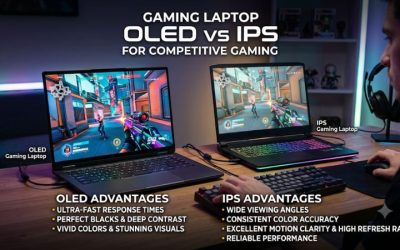
IPS LCD panels are popular in gaming laptops because they generally offer useful viewing angles and color reproduction. Their response characteristics vary considerably between implementations. Two laptops with identical refresh rates and IPS labels can deliver noticeably different motion clarity.
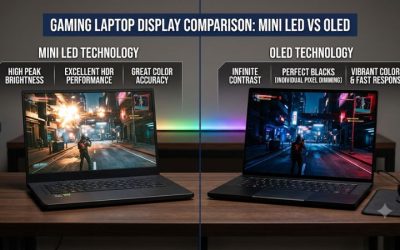
OLED panels use self-emissive pixels and generally offer substantially faster pixel transitions than conventional LCD technology. This can produce particularly clear motion, although the complete gaming experience also depends on refresh rate, brightness behavior, panel characteristics, and the laptop’s graphics capabilities.
3. Check the Actual Measurement Conditions
When comparing specifications, identify whether the manufacturer reports GtG or MPRT. A 1 ms GtG figure and a 1 ms MPRT figure describe different measurements, so comparing them directly can lead to an incorrect buying decision.
Independent reviews are especially useful when they publish transition measurements across multiple gray levels, refresh rates, and overdrive settings. RTINGS, for example, incorporates response time and overshoot into its Cumulative Absolute Deviation (CAD) methodology. Its testing illustrates why a single average response-time number cannot describe every aspect of motion performance.
4. Consider Your Gaming Habits
For competitive shooters, fighting games, and fast racing games, motion clarity can make it easier to follow moving targets and environmental details. A laptop with a high refresh rate and consistently fast pixel transitions is generally preferable for these workloads.
For strategy games, turn-based titles, and slower single-player experiences, response time may be less important than resolution, color accuracy, brightness, or contrast. Gaming laptop display response time should be considered in the context of your actual games rather than treated as the only specification that determines screen quality.
Comparison Table: Display Specifications and Their Effects
The following table summarizes the main specifications to examine when evaluating a laptop display. It distinguishes measurements that are frequently confused and explains what each one can tell you.
| Setting or Specification | What It Measures | Effect | Risk or Limitation |
| GtG response time | Pixel color transitions | Helps assess pixel switching speed | Advertised results may cover limited transitions |
| MPRT | Image visibility during movement | Indicates motion persistence | May depend on strobing or black-frame insertion |
| Refresh rate (Hz) | Screen updates per second | Determines available frame presentation frequency | Higher Hz does not automatically mean faster pixels |
| Overdrive | Accelerated pixel transitions | Can reduce slow transitions | Excessive settings can create inverse ghosting |
| VRR | Variable refresh rate | Matches display refresh behavior to changing frame rates | Depends on supported hardware and software |
| Panel technology | How pixels produce images | Influences response behavior and image quality | IPS and OLED implementations vary |
Practical Steps to Evaluate Your Laptop Screen
You do not need specialized measurement equipment to begin assessing a gaming laptop display. Windows settings and motion patterns can help identify basic limitations, although accurately measuring individual pixel transitions requires specialized instruments.
Step 1. Confirm the Active Refresh Rate
Open Settings > System > Display > Advanced display in Windows 11. Select the correct display and check its active refresh rate. If your laptop supports multiple refresh rates, choose an appropriate available option.
Compare the selected rate with the manufacturer’s specifications for your exact laptop configuration. Some models offer different display options across product variants, and battery-saving modes may affect available refresh settings. Return to this menu if you need to restore the previous configuration.
Step 2. Inspect Motion Using a Consistent Test
Use a reputable online motion test or a suitable moving-object video to observe trailing, smearing, and edge clarity. Keep the browser window, resolution, refresh rate, and viewing conditions consistent when comparing results.
Pay particular attention to dark-to-light transitions and moving high-contrast objects. These patterns can reveal problems that are difficult to notice on static desktop backgrounds. Visual inspection is useful for identifying artifacts, but it cannot replace instrument-based GtG measurements.
Step 3. Check Available Overdrive Settings
Some gaming laptops provide panel response or overdrive controls through manufacturer software or firmware settings. The exact location and available options depend on the laptop model. Do not assume every laptop includes an overdrive adjustment.
If an option exists, compare its available levels using the same motion pattern. Choose a setting that reduces trailing without introducing distracting bright or dark outlines. Restore the default or previous setting if the stronger mode creates noticeable inverse ghosting.
Step 4. Evaluate Motion at Realistic Gaming Frame Rates
Run a game you regularly play and observe motion during camera turns, fast movement, and dark scenes. Check whether the displayed frame rate is reasonably consistent with the refresh rate and whether the image remains clear during movement.
Avoid assuming that a high FPS counter automatically means better motion clarity. GPU rendering performance, display refresh behavior, pixel transitions, and frame pacing all contribute to the result. If the game runs below the screen’s maximum refresh rate, assess the display under those actual playing conditions too.
What Doesn’t Help
Changing graphics settings cannot directly improve a laptop panel’s physical pixel transition speed. Lowering resolution, reducing texture quality, or upgrading the GPU may improve rendering performance, but these actions do not change the panel’s underlying GtG characteristics.
Similarly, third-party applications cannot reliably transform a slow LCD panel into a faster one. Avoid utilities that claim to force hardware-level response-time improvements without manufacturer support. Focus on supported refresh-rate and overdrive settings instead.
FAQ
1. What Is a Good Response Time for a Gaming Laptop?
A lower GtG response time is generally preferable, but there is no universal threshold that guarantees good motion clarity. A manufacturer’s 1 ms claim should not automatically be considered better than another laptop’s 3 ms specification.
Look for independent measurements, particularly when choosing a high-refresh-rate laptop for competitive gaming. Consistent transitions, low overshoot, and good performance across different refresh rates are more useful indicators than one advertised number.
2. Is 1ms Response Time Better Than 5ms for Gaming?
A genuinely measured 1 ms GtG transition is faster than a 5 ms GtG transition under comparable conditions. However, the measurement method and panel behavior determine how meaningful that difference is in actual gameplay.
Check whether both specifications use GtG or MPRT measurements. Also consider whether the laptop achieves its advertised performance across different color transitions. A consistently fast panel can provide better motion clarity than one with an impressive but narrowly measured specification.
3. Does OLED Have Better Response Time Than IPS?
OLED generally has faster pixel transitions than conventional IPS LCD technology, which can improve motion clarity in fast-moving games. However, the comparison depends on the specific panels rather than the technology labels alone.
IPS remains a practical choice for gamers who prioritize viewing angles, color reproduction, and display options. OLED can be attractive for players who want deep blacks, strong contrast, and fast transitions. Compare independent measurements and other display characteristics before choosing.
4. Can I Improve Gaming Laptop Display Response Time?
You cannot directly change the physical response characteristics of a laptop panel through ordinary Windows settings. However, you may be able to improve perceived motion clarity by selecting the correct refresh rate and using manufacturer-supported overdrive controls.
Start by checking Windows Advanced display settings, then inspect the available display controls for your laptop model. Avoid aggressive overdrive configurations if they introduce inverse ghosting. If the panel itself has slow transitions, software adjustments cannot completely correct that hardware limitation.
Final Thoughts
Understanding gaming laptop display response time helps you look beyond attractive specifications and marketing claims. Prioritize consistent GtG performance, appropriate refresh rates, and minimal overshoot. Before purchasing, check independent display measurements for the exact laptop configuration so you can choose a screen that suits your games and budget.
Related guides
More from Amazon
Programs that pair well with the guide above. Offers and eligibility are set by Amazon and may change.
Free shipping on eligible items, Prime Video and more. Eligible new members can start with a free trial.
Start a Prime free trialAd-free music streaming. Eligible new subscribers can start with a free trial.
Try Music Unlimited freeA Prime membership for ages 18-24 with a trial period. Eligibility is set by Amazon.
See Prime for Young AdultsAudiobooks and podcasts to listen to on the go. Eligible new members can start with a free trial.
Try Audible freeAs an Amazon Associate we earn from qualifying purchases.