Choosing a display involves more than resolution and refresh rate. Gaming laptop color gamut explained for gaming and content creation helps you understand how sRGB, DCI-P3, and Adobe RGB affect color reproduction, visual quality, and editing accuracy. This guide covers the specifications that matter and how to choose the right screen.
What Gaming Laptop Color Gamut Really Comes Down To
Color gamut describes the range of colors a display can reproduce. For gaming, wider coverage can make supported scenes look richer, while content creators need a display that accurately represents the colors in their projects. Understanding the differences between color standards, coverage percentages, and calibration helps you avoid confusing marketing specifications.
1. What Is Color Gamut on a Gaming Laptop?
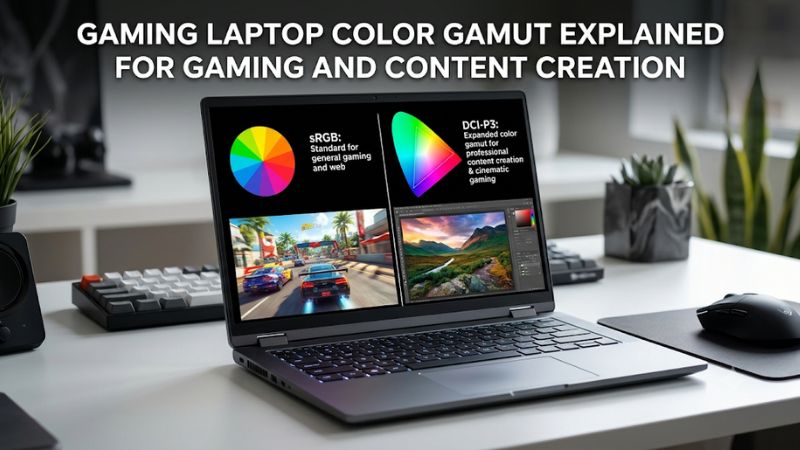
A color gamut is the range of colors that a display can reproduce within a defined color space. Every screen has physical limitations, so some displays can reproduce more saturated reds, greens, and blues than others.
Manufacturers commonly express gamut coverage as a percentage of standards such as sRGB, DCI-P3, and Adobe RGB. For example, a laptop advertising 100% sRGB coverage can reproduce the full range of colors defined by the sRGB standard, assuming the specification uses coverage rather than gamut volume.
However, a wider gamut does not automatically mean better image quality. A display might reproduce a broad range of colors but still show them inaccurately. This distinction matters when choosing a laptop for both gaming and creative work.
2. sRGB: The Practical Standard for Everyday Content
sRGB is the most important color space for everyday digital content. Websites, standard Windows applications, online images, and much SDR content are generally designed around this color space.
For gaming, a laptop with high sRGB coverage can provide consistent colors across many games and applications. For creators producing website graphics, social media images, and other digital assets, it is also a practical starting point.
A display with 100% sRGB coverage is a sensible target for general-purpose creative work. Budget gaming laptops sometimes use panels with noticeably narrower coverage, which can make images appear less vibrant and reduce confidence when adjusting colors.
3. DCI-P3 and Adobe RGB: Two Wider Color Spaces
DCI-P3 covers a wider range of colors than sRGB, particularly in saturated red and green regions. It is associated with digital cinema and is increasingly relevant to modern displays, HDR content, and video production.
For gaming, high DCI-P3 coverage can help compatible HDR content reproduce a broader range of colors. Video editors working with P3-oriented projects may also benefit from a display that supports the intended color space.
Adobe RGB serves a different purpose. It extends coverage particularly into green and cyan regions and is relevant to professional photography and print-oriented workflows. A creator preparing photographs for print should consider Adobe RGB coverage rather than assuming DCI-P3 is automatically the better choice.
One important distinction is that DCI-P3 and Display P3 are related but not identical standards. Display P3 uses the DCI-P3 color primaries with a D65 white point and an sRGB-like transfer function. Check the actual target color space required by your software and workflow.
4. What Doesn’t Help: Confusing Gamut With Other Display Specs
A high refresh rate does not improve color gamut. A 240Hz display can have limited color coverage, while a 60Hz panel can reproduce a much wider range of colors. These specifications describe different aspects of display performance.
Similarly, 4K resolution does not guarantee accurate colors, and OLED technology does not automatically mean factory-calibrated color reproduction. HDR support is another separate consideration involving brightness, contrast, color volume, and supported signal formats.
Avoid judging a laptop by a single specification such as 100% DCI-P3 or 10-bit color. These numbers need context. A useful display specification should explain its color-space coverage, accuracy, brightness, and operating modes.
How to Evaluate Gaming Laptop Color Gamut: Step by Step
Evaluating a laptop display requires more than reading the headline specification. Start by identifying your primary workload, then compare the actual panel’s color coverage and accuracy. Finally, consider how the laptop handles color profiles and HDR in Windows. These steps help distinguish a genuinely versatile display from one that simply advertises impressive numbers.
Step 1: Identify the Color Space Your Work Requires
Start by deciding what you will create and where the finished content will be viewed. Different workflows use different color standards, so the widest available gamut is not necessarily the right target.
For example, a creator producing website banners, thumbnails, and social media graphics should prioritize sRGB accuracy. A video editor working with compatible P3 footage may need broader DCI-P3 coverage, while print photographers should investigate Adobe RGB support.
Gaming preferences also matter. If you mainly play SDR games, good sRGB reproduction is more important than chasing the highest possible wide-gamut percentage. If you regularly play HDR titles, DCI-P3 coverage and color volume become more relevant.
Step 2: Compare Gamut Coverage, Not Just Marketing Percentages
When examining laptop specifications, identify the exact color standard and determine whether the manufacturer reports coverage or volume. These measurements are not interchangeable.
Coverage indicates how much of a defined color space the panel can reproduce. Gamut volume compares the display’s overall color range with the reference space and can exceed 100%, even when some colors within that space cannot be reproduced.
The following comparison provides practical targets rather than mandatory hardware requirements.
| Color specification | Main application | Practical consideration |
| 100% sRGB | Web graphics, everyday gaming, general content | Strong starting point for digital content |
| 90–100% DCI-P3 | HDR gaming and P3 video workflows | Check actual coverage and HDR performance |
| 90–100% Adobe RGB | Photography and print preparation | Particularly relevant to green and cyan reproduction |
| Below 100% sRGB | General use and casual gaming | May restrict color-sensitive editing |
These figures are selection guidelines, not guarantees of professional accuracy. A laptop with 100% sRGB coverage can still have poor white balance or color errors. Likewise, a display with high DCI-P3 coverage may need calibration before it is suitable for color-critical production.
RTINGS separates color gamut coverage from color volume and color accuracy in its display evaluation methodology. This is a useful distinction when comparing independent reviews rather than relying exclusively on manufacturer claims.
RTINGS.com+1
Step 3: Check Color Accuracy and Calibration
Color gamut determines which colors a display can reproduce, while color accuracy describes how closely those colors match their intended values. Both measurements matter for content creation.
One commonly used measurement is Delta E (ΔE), which describes the difference between a target color and the displayed result. Lower values generally indicate smaller color differences. However, the reported result depends on the measurement method, color space, test conditions, and calibration state.
When comparing laptop reviews, look for:
- Factory color accuracy before calibration.
- Color accuracy after calibration.
- White balance and grayscale performance.
- Gamma tracking and color temperature.
- Availability of suitable ICC profiles or built-in color modes.
For professional work, a calibration-capable display is preferable to one that relies entirely on an attractive factory preset. An external colorimeter can measure the panel and help create a more appropriate color profile.
Remember that calibration cannot expand the physical gamut of a panel. If a screen cannot reproduce a particular color, software adjustments cannot make that missing color physically available.
Step 4: Verify Color Management and HDR Support
Even a wide-gamut laptop can display inaccurate colors when applications and system settings do not handle color profiles correctly. This is particularly important when switching between gaming, web browsing, photography, and video editing.
In Windows 11, open Settings > System > Display > Color profile to inspect available color profiles and supported management options. Available features depend on the display, Windows version, and graphics hardware.
For HDR, navigate to Settings > System > Display > HDR when using a compatible display. Windows requires suitable display and hardware support to provide an HDR experience. Microsoft also explains that some HDR-capable displays may reproduce ordinary SDR desktop colors incorrectly when color handling is inadequate.
Microsoft Support+2
| Setting or Step | Where | Effect | Risk |
| Check the active color profile | Windows Settings > System > Display > Color profile | Helps applications interpret display colors correctly | An incorrect profile can produce inaccurate colors |
| Select an sRGB mode | Laptop manufacturer’s display utility, if available | Restricts output toward the sRGB color space | Can reduce saturation in wide-gamut content |
| Apply a calibrated ICC profile | Windows Color Management | Improves color reproduction when correctly measured | An unsuitable profile can distort colors |
| Enable HDR | Windows Settings > System > Display > HDR | Enables supported HDR output | SDR appearance may change depending on display and application handling |
After changing a profile or display mode, compare familiar images and test the applications you actually use. If colors look worse, return to the previous profile or display preset. Do not assume that enabling HDR improves every game or desktop application.
FAQ
1. Is 100% sRGB Enough for Gaming and Content Creation?
Yes, 100% sRGB is sufficient for most everyday gaming and general digital content creation. It provides a useful foundation for website graphics, social media images, and standard SDR content.
However, creators working with P3 video or professional print photography may need broader DCI-P3 or Adobe RGB coverage. Your software, delivery format, and target audience should determine the appropriate standard.
2. Is 100% DCI-P3 Better Than 100% sRGB?
No, not for every task. DCI-P3 covers a wider range of colors, but sRGB remains the appropriate target for many websites, applications, and SDR projects.
A wide-gamut display can make unmanaged sRGB content appear oversaturated. An accurate sRGB mode or appropriate color management helps preserve the intended appearance.
3. Does OLED Automatically Provide Better Color Accuracy?
No, OLED technology does not automatically guarantee accurate color reproduction. OLED panels can offer wide color gamuts and strong contrast, but actual performance depends on the panel, factory calibration, display mode, and color management.
Check independent measurements for the specific laptop configuration. Pay attention to gamut coverage, Delta E, brightness, and calibration results rather than choosing based on OLED branding alone.
4. Can I Improve My Gaming Laptop’s Color Gamut With Software?
No, software cannot expand the physical color gamut of a laptop panel. However, calibration, ICC profiles, and manufacturer-provided color modes can improve how accurately the existing gamut is reproduced.
If your display has limited coverage, an external monitor with a wider gamut may be a practical option for color-sensitive work. Check its connection compatibility and color specifications before purchasing.
Final Thoughts
Understanding gaming laptop color gamut helps you balance visual quality with creative accuracy. Prioritize 100% sRGB for everyday digital work, consider DCI-P3 for HDR and video workflows, and choose Adobe RGB when print photography requires it. Compare independent calibration measurements before making your next laptop purchase.
Related guides
More from Amazon
Programs that pair well with the guide above. Offers and eligibility are set by Amazon and may change.
Free shipping on eligible items, Prime Video and more. Eligible new members can start with a free trial.
Start a Prime free trialAd-free music streaming. Eligible new subscribers can start with a free trial.
Try Music Unlimited freeA Prime membership for ages 18-24 with a trial period. Eligibility is set by Amazon.
See Prime for Young AdultsAudiobooks and podcasts to listen to on the go. Eligible new members can start with a free trial.
Try Audible freeAs an Amazon Associate we earn from qualifying purchases.