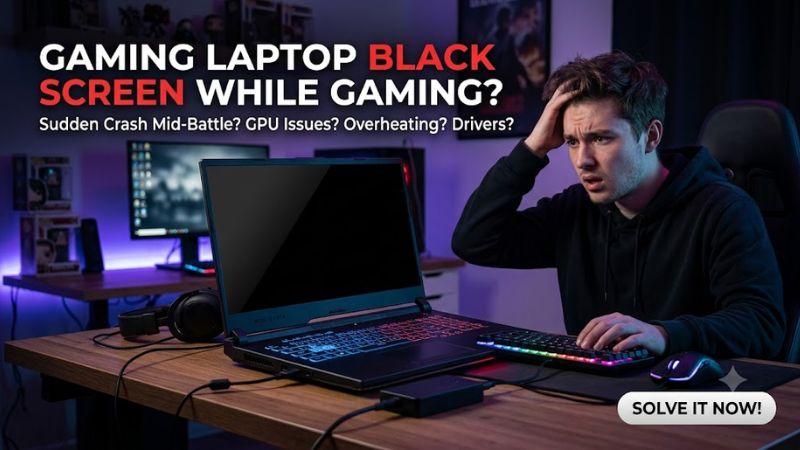
A gaming laptop black screen while gaming can indicate a graphics driver timeout, a game-specific display conflict, overheating, or a hardware fault. If audio continues, the system may still be running. Start with a graphics reset, then check drivers, temperatures, and display connections before considering repairs.
Why a Gaming Laptop Black Screen Happens
A black screen during gameplay does not automatically mean the GPU has failed. The quickest diagnostic check is to press Windows + Ctrl + Shift + B and listen for a beep or watch for a brief screen flicker. If the display returns, investigate the graphics driver; if the laptop shuts down or loses power, examine stability and cooling instead.
1. Graphics Driver Timeout or Crash
The graphics driver coordinates communication between Windows, the GPU, and the display. When a demanding game triggers a driver timeout, the screen can go black while audio continues, or Windows may recover after a brief interruption. Repeated black screens can also accompany a driver error or system restart.
Windows uses a mechanism called Timeout Detection and Recovery (TDR) to detect certain GPU hangs and attempt recovery. Microsoft identifies driver problems, insufficient cooling or power, and hardware instability among possible contributors. A timeout is evidence of a graphics-processing problem, not proof that the GPU itself is defective.
2. Overheating or Power Instability
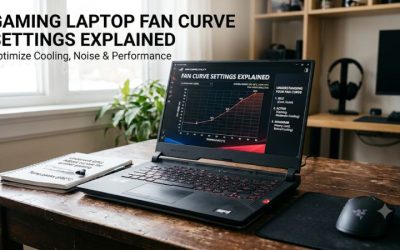
Gaming laptops share limited cooling capacity between the CPU and GPU. Dust buildup, obstructed air intakes, failing fans, or an unsuitable surface can increase temperatures under sustained load. If the display fails after several minutes of gameplay, especially alongside unusual fan behavior or sudden shutdowns, thermal or power-related instability deserves attention.
Use the laptop on a hard, flat surface and check whether its fans operate normally. Connect the correct manufacturer-approved AC adapter, since some laptops restrict performance or behave differently when using an underpowered adapter. Avoid opening the chassis or replacing thermal components until simpler checks establish whether a hardware problem is likely.
3. Game, Display Mode, or Graphics Switching Conflicts
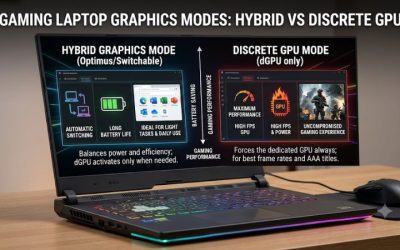
If the black screen appears only in one game, a game-specific problem is more likely than a general display failure. Exclusive fullscreen mode, unsupported display settings, overlays, or a recent game update may contribute. A laptop that switches between integrated and discrete graphics can also encounter driver or display-transition issues.
Note whether the problem starts at launch, when changing resolution, when switching applications, or during sustained gameplay. If the desktop remains visible after closing the game, begin with that game’s display settings and overlays. If several unrelated games trigger the same failure, investigate the shared graphics driver, cooling system, and hardware stability instead.
4. What Doesn’t Help
Randomly reinstalling Windows, changing BIOS settings, or repeatedly forcing shutdowns is not a good first response. These actions can introduce new problems or risk losing unsaved data without identifying the original cause. Likewise, a black screen alone does not justify buying a replacement GPU or assuming the laptop needs new thermal paste.
Do not increase GPU voltage, overclock the laptop, or edit Windows graphics-timeout registry values to suppress the symptom. Such changes can complicate diagnosis and do not correct a defective component or unstable driver. Record the symptoms, try reversible checks first, and escalate if the machine repeatedly loses its display.
How to Fix a Gaming Laptop Black Screen: Step by Step
Work through the following checks in order, starting with actions that do not change system settings. After each meaningful change, launch the affected game again and check whether the display remains stable. If the laptop repeatedly powers off, smells burnt, or makes unusual electrical noises, stop using it and arrange a hardware inspection.
1. Reset the Graphics Driver and Check System Response
When the screen goes black but the laptop still appears powered on, press Windows + Ctrl + Shift + B. Windows attempts to reset the graphics driver; a beep or brief flicker can indicate that the command was received. This shortcut does not fix every black screen, but it is a useful first check on Windows 10 and Windows 11.
If the screen stays black, wait briefly and check whether audio continues or the keyboard responds. If the computer remains completely unresponsive, hold the power button until it shuts down, then restart it. A forced shutdown can lose unsaved work, so use it only when normal recovery fails.
2. Update or Roll Back the Graphics Driver
If the problem started after a driver update, rolling back may be more appropriate than installing another version immediately. Open Device Manager, expand Display adapters, right-click the relevant GPU, select Properties, and open the Driver tab. Choose Roll Back Driver if available, then restart Windows and repeat the same game scenario.
If the rollback option is unavailable or the driver is outdated, obtain a compatible driver from the laptop manufacturer’s support page or the GPU vendor. Laptop-specific graphics switching and power management can depend on manufacturer software, so prioritize the laptop maker’s recommended package if a generic driver causes new issues. Avoid removing every display driver before confirming that a suitable replacement is available.
3. Reduce Game Load and Check Graphics Settings
If the black screen happens only in one title, lower its graphics preset and switch from exclusive fullscreen to borderless windowed mode if the game supports it. Temporarily disable overlays from game launchers, chat applications, or GPU utilities one at a time. Retest after each change so you can identify which setting, if any, affects stability.
For laptops with switchable graphics, open Settings > System > Display > Graphics in Windows and select the affected game. Choose Options and select High performance if that option is available, then save the setting. This requests the discrete GPU for the game; it may increase power consumption and heat. To undo it, return to the same menu and restore the previous preference.
4. Check Cooling, Power, and External Displays
Place the laptop on a hard surface, clear the air intakes, and confirm that the cooling fans operate normally. Use the original or manufacturer-approved AC adapter with the correct power rating. If the black screen occurs after sustained gameplay, allow the laptop to cool before retesting rather than repeatedly forcing it through the same failure.
Disconnect external monitors and nonessential USB devices, then check whether the built-in display works reliably. If you normally game on an external monitor, test a different cable or display when possible. A stable external display with a failing built-in panel can point toward the internal display path, but it does not conclusively identify a defective panel or cable.
Diagnostic Table: Which Fix Should You Try First?
| Step | Where | How to Verify | Cost |
| Reset graphics driver | Windows keyboard shortcut | Display returns or briefly flickers | Free |
| Roll back or update driver | Device Manager or official support software | Game runs without recurring black screens | Free |
| Lower settings and disable overlays | Game settings and overlay applications | Failure no longer occurs under the same conditions | Free |
| Check cooling and adapter | Laptop vents and power connection | Fans operate normally and the issue becomes less frequent | Free |
| Test an external display | HDMI, DisplayPort, or supported USB-C display output | Compare built-in and external display behavior | Free if equipment is available |
| Seek hardware diagnosis | Manufacturer or qualified repair service | Technician identifies a panel, GPU, power, or cooling fault | Varies |
5. Check Windows Logs for Recurring Errors
If the display failure returns, use Event Viewer to look for evidence rather than guessing. Right-click Start, open Event Viewer, and navigate to Windows Logs > System. Check the timestamps around the incident for display-driver recovery messages, unexpected shutdowns, or hardware-related errors.
A display-driver timeout can support the theory that the graphics subsystem stopped responding, but one log entry does not prove that the GPU is physically damaged. Correlate the timestamp with the black screen and any restart or error code. If the same failure continues after a suitable driver change and basic cooling checks, save the relevant error details for the manufacturer’s support team.
FAQ
Why does my gaming laptop screen go black but the sound keeps playing?
A graphics driver or display-output failure can make the screen black while the game continues running. Try the graphics-reset shortcut first, then check whether the issue occurs in one game or several. Persistent failures can also involve display hardware or GPU instability.
Can overheating cause a black screen during gaming?
Yes, excessive heat can contribute to graphics instability or system shutdowns, although a black screen alone does not establish overheating as the cause. Check airflow, fan behavior, and available temperature readings, and stop gaming if the laptop shows signs of thermal or electrical distress.
Should I reinstall Windows to fix a gaming laptop black screen?
No, reinstalling Windows should not be an early troubleshooting step. Start with driver recovery, game settings, cooling, and Event Viewer. Consider Windows recovery only when the evidence points to broader operating-system corruption and you have backed up important files.
When should I take my gaming laptop for repair?
Seek professional service if the display repeatedly fails across multiple games, the laptop shuts down under load, artifacts appear before the screen goes black, or the problem persists after appropriate software checks. Stop using the device if you notice a burning smell, battery swelling, or other signs of physical damage.
Final Thoughts
A gaming laptop black screen while gaming is best approached as a diagnostic problem, not an automatic hardware failure. Start with the graphics-reset shortcut, then isolate driver, game, cooling, and display issues one at a time. If the problem persists across games or causes repeated shutdowns, preserve the error details and contact the laptop manufacturer before replacing components.