A gaming laptop blue screen during gaming usually indicates a Windows-level failure involving a driver, memory, system component, or hardware instability. The right fix depends on the stop code and when the crash occurs. This guide explains how to identify the cause, troubleshoot safely, and reduce repeat crashes without unnecessary upgrades.
Why a Gaming Laptop Blue Screen During Gaming Happens
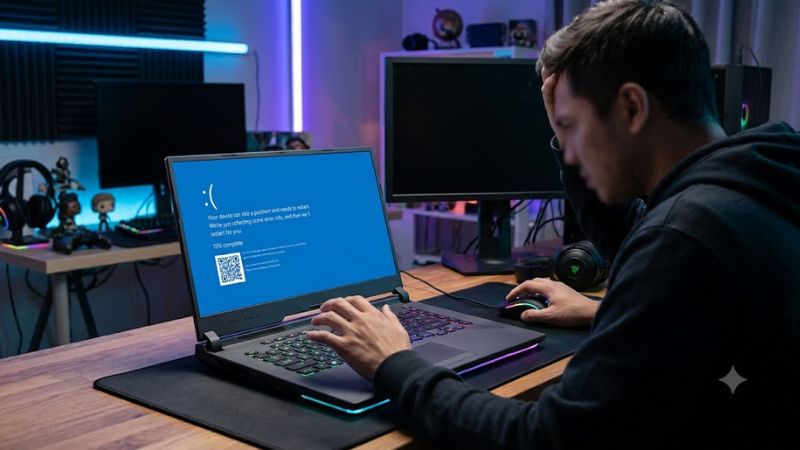
A blue screen, also called a Blue Screen of Death (BSOD), occurs when Windows encounters a serious problem and stops operating. A demanding game can expose an existing driver conflict, unstable memory configuration, overheating-related fault, or failing component, but the timing alone does not identify the cause. Start by recording the stop code and any driver named on the screen.
1. Graphics Driver Conflicts
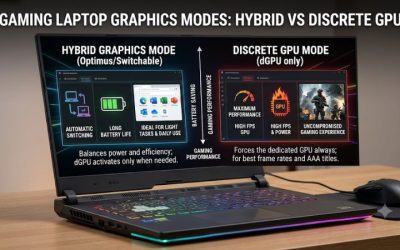
Graphics drivers allow Windows and games to communicate with the laptop’s GPU. A recent NVIDIA, AMD, or Intel graphics driver update can introduce a compatibility problem, while an outdated or corrupted installation can also contribute to system crashes. If the blue screen started after a driver change, investigate that change before modifying other settings.
Look for a stop code and any accompanying “What failed” filename. A display-related driver reference is a useful clue, not conclusive proof that the GPU itself is defective. Check the laptop manufacturer’s support page and the GPU vendor’s release notes for a compatible update or a known issue affecting your hardware.
2. Memory or Hardware Instability
Stop codes such as MEMORY_MANAGEMENT or PAGE_FAULT_IN_NONPAGED_AREA can point toward memory corruption, but they do not automatically mean the RAM module has failed. A driver, damaged system files, or unstable memory settings can produce similar symptoms. Crashes across multiple games make a system-wide problem more plausible than a single-game bug.
WHEA_UNCORRECTABLE_ERROR is another important clue because Windows associates it with a hardware error. Possible sources include the processor, memory subsystem, motherboard, or other hardware. If you recently changed RAM, enabled memory tuning, or installed an SSD, return to the previous stable configuration where possible before considering replacement parts.
3. Heat, Power, or System-Level Faults
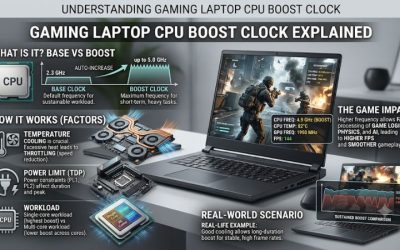
Gaming increases CPU and GPU workloads, making cooling and power delivery relevant when crashes happen after several minutes of play. Blocked vents, obstructed fans, or a damaged power adapter can contribute to instability. However, a high temperature reading alone does not prove that overheating caused a blue screen; the stop code and supporting evidence still matter.
Software conflicts can also appear during gameplay. Monitoring overlays, overclocking utilities, third-party hardware-control software, and recently installed drivers may interact with the graphics or kernel-level components. If the crashes began after adding an application or changing performance settings, temporarily reverse that specific change and see whether the failure returns.
What Doesn’t Help
Repeatedly restarting the laptop without recording the error loses useful diagnostic information. Installing several driver packages at once makes it harder to identify which change mattered. RAM-cleaning utilities, registry-boost scripts, and random BIOS tweaks are not appropriate first-line fixes for a blue screen.
Do not assume that every gaming crash is caused by GPU temperature or insufficient RAM. Likewise, do not disable Windows security features or change system files based on an online suggestion for a different stop code. Preserve important files before advanced repairs, and avoid repeatedly launching a game if the laptop is also showing signs of hardware failure.
How to Fix a Gaming Laptop Blue Screen During Gaming: Step by Step
Work from the least disruptive checks toward more advanced repairs. Before changing drivers or Windows settings, save important files and record the stop code. If the laptop crashes repeatedly, avoid stress-testing it until you have narrowed down the likely cause. These steps apply primarily to Windows 10 and Windows 11, although menu labels may vary by version.
Step 1: Record the Stop Code and Check Windows Logs
When the blue screen appears, photograph the stop code and any filename listed under “What failed.” Common examples include VIDEO_TDR_FAILURE, MEMORY_MANAGEMENT, and WHEA_UNCORRECTABLE_ERROR. These messages narrow the investigation but do not independently identify a failed component.
After restarting, right-click Start and open Event Viewer. Navigate to Windows Logs > System and inspect errors around the crash time. You can also search Start for “Reliability Monitor” and select View reliability history to find critical events. Correlate timestamps with the stop code rather than treating every warning as the cause.
Step 2: Update or Roll Back the Relevant Driver
If the problem began after a graphics driver update, consider rolling back that driver before installing another version. Open Device Manager, expand Display adapters, right-click the relevant GPU, and select Properties > Driver. If Roll Back Driver is available, follow the prompts and restart Windows. The option may be unavailable if Windows has no previous driver to restore.
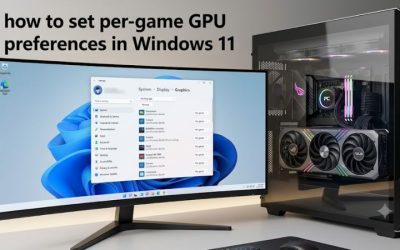
If no recent change explains the crash, check Windows Update and your laptop manufacturer’s support page for compatible graphics, chipset, and other relevant drivers. Use the laptop model’s recommended packages when vendor-specific graphics switching or power management is involved. Change one driver at a time, then check whether the same crash recurs.
Step 3: Check Game Settings, Power, and Cooling
Connect the laptop to its intended power adapter and use the manufacturer’s normal gaming performance profile. Place it on a hard, flat surface with unobstructed vents. Temporarily disable overclocking or undervolting if you introduced those changes, and return to the previous stable settings. Do not assume a more aggressive fan or power profile will resolve a driver or memory fault.
If the crash occurs only in one game, temporarily lower graphics settings and disable optional overlays or recording features. Verify game files through the relevant game launcher if the issue remains limited to that title. If several unrelated games trigger the same blue screen, prioritize Windows, drivers, and hardware diagnostics instead of repeatedly reinstalling games.
Step 4: Check Memory and Windows System Files
Run Windows Memory Diagnostic by searching Start for “Windows Memory Diagnostic,” selecting Restart now and check for problems, and allowing the test to finish. Save your work first because the laptop will restart. After Windows loads, check Event Viewer for the MemoryDiagnostics-Results entry. A clean result does not rule out every intermittent memory problem.
If system-file corruption is plausible, open Terminal or Command Prompt as administrator and run sfc /scannow. Allow the scan to finish and follow its repair message. If Windows reports corruption it could not repair, further servicing with DISM may be appropriate. Do not delete system files manually or reset Windows before backing up personal data.
Diagnostic Table: Which Fix Should You Try First?
| Step | Where | How to Verify | Cost |
| Record the stop code | Blue screen or Reliability Monitor | Compare the error and timestamp with the next crash | Free |
| Check Windows logs | Event Viewer > Windows Logs > System | Review events near the failure time | Free |
| Update or roll back a driver | Device Manager or manufacturer support software | Check whether the same stop code returns | Usually free |
| Restore stable game and power settings | Game settings and laptop control utility | Observe whether the crash recurs under normal settings | Free |
| Check memory and system files | Windows Memory Diagnostic and administrator terminal | Review diagnostic results and repair messages | Free |
| Request hardware diagnostics | Laptop manufacturer’s support or repair service | Review diagnostic findings and warranty options | Depends on service |
These steps are diagnostic, not guaranteed fixes. If a change makes the crashes more frequent, undo it where possible. Keep a short record of each change so you can distinguish a genuine improvement from an intermittent period without errors.
FAQ
Why does my gaming laptop blue screen only during games?
A gaming laptop may blue screen during games because higher workloads expose a driver conflict, unstable memory, a hardware fault, or a cooling or power problem. Record the stop code and determine whether multiple games trigger the same failure before choosing a fix.
Can a graphics driver cause a blue screen?
Yes, a faulty or incompatible graphics driver can contribute to a blue screen. Check the error details, recent driver changes, and manufacturer release notes, then update or roll back the relevant driver as appropriate.
Should I reinstall Windows to fix gaming blue screens?
No, reinstalling Windows should not be the first step for most gaming blue screens. Check stop codes, drivers, Windows updates, and memory first. Consider System Restore or Windows recovery options if the issue follows a recent software change and simpler repairs fail.
When should I take my gaming laptop for repair?
Seek professional service if blue screens persist after basic troubleshooting, hardware diagnostics report errors, or the laptop repeatedly crashes across unrelated applications. Stop using it and seek prompt assistance if you notice a burning smell, battery swelling, liquid damage, or unusual electrical behavior.
Final Thoughts
A gaming laptop blue screen during gaming is a symptom, not a diagnosis. Start with the stop code, inspect Windows logs, and reverse recent driver or performance changes before moving to memory and hardware checks. If crashes persist across games or diagnostics identify a fault, contact the laptop manufacturer or a qualified repair technician before replacing components.