When a gaming laptop crashes when switching graphics modes, the cause may be a display-driver conflict, an unstable hybrid-GPU configuration, or a firmware compatibility issue. This guide explains how to distinguish a brief, expected screen blackout from a genuine crash, troubleshoot safely, and restore stable gaming without unnecessary hardware upgrades.
Why Gaming Laptops Crash When Switching Graphics Modes
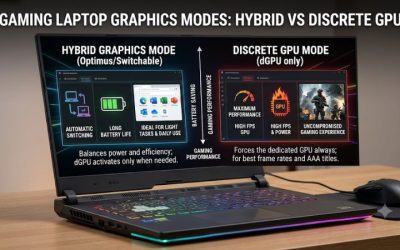
A gaming laptop may use an integrated GPU (iGPU) for everyday tasks and a discrete GPU (dGPU) for demanding games. Switching between them can temporarily interrupt display output, but repeated freezes, game exits, blue screens, or forced restarts deserve investigation. Start by identifying what actually stops responding before changing graphics settings.
1. Normal display switching versus a real crash
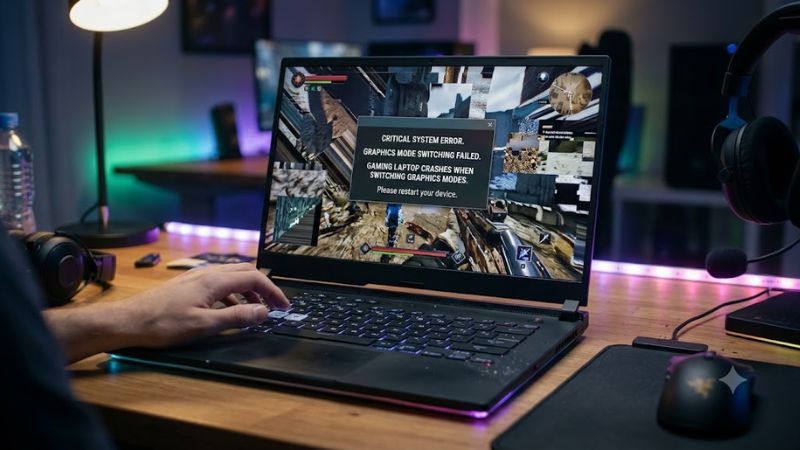
NVIDIA Advanced Optimus can switch the laptop’s internal display between integrated and discrete graphics. NVIDIA documents that this transition may briefly freeze the screen, flicker, or produce a black display. A short interruption alone does not establish that the graphics system is failing.
A genuine crash is more concerning if the laptop remains unresponsive, the game closes unexpectedly, Windows displays a blue screen, or you must hold the power button to restart. If audio continues while the display freezes, record that detail; it can help distinguish a display-path problem from a complete system hang.
2. Conflicting integrated and discrete GPU drivers
Hybrid graphics depend on coordinated drivers for both GPUs. For example, a laptop with Intel integrated graphics and an NVIDIA GeForce GPU needs a compatible driver configuration for each adapter. An update affecting only one driver can coincide with crashes during mode changes, although timing alone does not prove causation.
AMD also recommends laptop-manufacturer drivers when its generic graphics package causes compatibility problems. OEM drivers can include customizations for a specific laptop’s display routing and power management. Check the exact laptop model and both GPU names before downloading anything; a desktop driver or package for a different configuration may be unsuitable.
3. MUX switch, firmware, or application conflicts
Some gaming laptops use a hardware multiplexer, or MUX switch, to change which GPU directly drives the internal display. Manufacturer utilities may label the available modes Hybrid, Standard, Optimus, Discrete, or Ultimate. These names vary by model, and some laptops do not support every mode.
A graphics-mode change may also interact with a running game, an external monitor, a dock, or an application using an older graphics API. NVIDIA specifically notes that switching display modes while certain DirectX 9 applications are running can cause a crash or freeze. Close games before manually changing display modes, and follow the manufacturer’s restart instructions.
What Doesn’t Help
Repeatedly switching between Hybrid and Discrete modes is not a reliable repair. It can reproduce the fault without identifying its cause. Likewise, avoid immediately flashing the BIOS, using third-party driver-removal utilities, or disabling the integrated GPU in Device Manager. These actions can introduce additional problems and make diagnosis harder.
Instead, record the laptop model, Windows version, GPU models, current driver versions, and the precise event that triggers the failure. Determine whether the issue began after a driver update, a Windows update, or a graphics-mode change. That information helps narrow the next step without risking unrelated components.
How to Fix Gaming Laptop Graphics Mode Crashes: Step by Step
Work through the least disruptive checks first, then adjust drivers and graphics settings only when the symptoms support those changes. Keep the laptop connected to its normal AC adapter, save important work, and close games before switching modes. If the system repeatedly hard-locks, avoid provoking another crash just to reproduce the problem.
| Setting or Step | Where | Effect | Risk |
| Check GPU status | Device Manager → Display adapters | Identifies missing adapters or reported errors | Low |
| Test one graphics mode | NVIDIA Control Panel or laptop utility | Helps isolate automatic-switching problems | Low; restart may be required |
| Update or roll back drivers | Laptop manufacturer’s support page or Device Manager | Addresses driver compatibility issues | Moderate; keep a recovery option |
| Check Windows error records | Reliability Monitor or Event Viewer | Helps identify the failing component | Low |
| Request hardware diagnosis | Laptop manufacturer’s service center | Investigates persistent firmware or hardware faults | Depends on repair |
1. Confirm both GPUs are recognized
Press Windows + X, open Device Manager, and expand Display adapters. On a hybrid-graphics laptop, you would normally expect to see both the integrated and discrete GPU, although a discrete-only mode can intentionally hide or disable the integrated adapter. Look for warning icons or a device status error.
If an adapter reports an error, open its Properties window and review the General tab for the device status message. Record any error code before changing drivers. If a GPU is missing in a mode that should expose it, return to the manufacturer’s recommended default graphics mode and restart before investigating further.
2. Test a supported graphics mode
Open the laptop manufacturer’s control application, such as MSI Center or Armoury Crate, if your model supports graphics switching. Select its documented Hybrid or Standard mode and restart if prompted. Test the same game and launch sequence without changing other settings. If crashes stop, automatic switching or the previous display configuration may be involved.
If the laptop supports NVIDIA Advanced Optimus, NVIDIA Control Panel may offer display modes under 3D Settings → Manage Display mode. Selecting Optimus can disable dynamic display switching on supported systems, making it a useful diagnostic comparison. Restore the original mode if the problem persists, and remember that a mode unavailable on your model should not be forced through another tool.
3. Update or roll back compatible graphics drivers
First, check the laptop manufacturer’s support page for your exact model and Windows version. Install the recommended integrated-GPU and discrete-GPU drivers in the order specified by the manufacturer. Restart when required, then repeat the same graphics-mode transition. Avoid mixing driver packages from different sources without a specific compatibility reason.
If the crashes began immediately after a graphics-driver update, a rollback may be more appropriate than installing another new version. Open Device Manager, expand Display adapters, right-click the affected GPU, select Properties, and open the Driver tab. If Roll Back Driver is available, use it and restart. If it is unavailable, obtain a suitable previous OEM driver rather than guessing which package will work.
4. Check Windows errors and escalate when necessary
Search the Start menu for Reliability Monitor and open View reliability history. Look for a critical event at the time of the crash, then inspect its technical details. You can also open Event Viewer and check Windows Logs → System for relevant errors. A display-driver failure, application crash, or unexpected shutdown can point toward different causes, but a single event rarely establishes the root cause by itself.
If a black screen occurs while Windows remains responsive, press Windows + Ctrl + Shift + B to request a graphics-driver reset. The display may flicker or produce a sound. This shortcut is a recovery attempt, not a permanent fix. If the laptop repeatedly requires forced shutdowns, produces blue screens, or cannot detect a GPU in its normal mode, stop repeated switching and contact the manufacturer or a qualified repair technician.
FAQ
Is a brief black screen normal when switching graphics modes?
Yes, a short black screen or freeze can be normal with supported dynamic display switching. NVIDIA documents this behavior for Advanced Optimus, although the duration varies with the system and Windows version. Repeated crashes, blue screens, or forced restarts are different symptoms and should not be dismissed as normal switching behavior.
Should I use discrete GPU mode to stop crashes?
Discrete GPU mode can help isolate a hybrid-switching problem, but it is not a universal repair. On supported laptops, it may bypass automatic transitions and increase power consumption. If the laptop becomes stable in discrete mode, investigate drivers and firmware compatibility before deciding whether to keep that configuration.
Can a graphics driver update cause the problem?
Yes, a graphics driver update can introduce a compatibility problem, particularly when integrated and discrete GPU drivers interact. If the issue started directly after an update, check the manufacturer’s recommended versions and consider rolling back the affected driver. Avoid assuming that the newest generic driver is always the best option for a specific laptop.
When should I suspect hardware failure?
Suspect a possible hardware or firmware fault when crashes continue across supported graphics modes and compatible drivers, especially if the GPU disappears unexpectedly or Windows repeatedly reports device errors. Back up important files, document the error codes, and arrange professional diagnosis before attempting BIOS changes or replacing components.
Final Thoughts
When a gaming laptop crashes when switching graphics modes, begin by separating normal display interruptions from actual system failures. Check both GPU drivers, compare supported graphics modes, and review Windows error records before attempting deeper changes. If the problem persists in the manufacturer’s recommended configuration, seek model-specific support rather than risking an unnecessary firmware update.