When your gaming laptop fan keeps running after closing a game, it usually means the CPU or GPU is still cooling down, a background process is generating heat, or your laptop’s fan profile is maintaining airflow. This guide explains how to identify the cause, reduce unnecessary fan noise, and recognize when further troubleshooting is needed.
Why Your Gaming Laptop Fan Keeps Running After Closing a Game
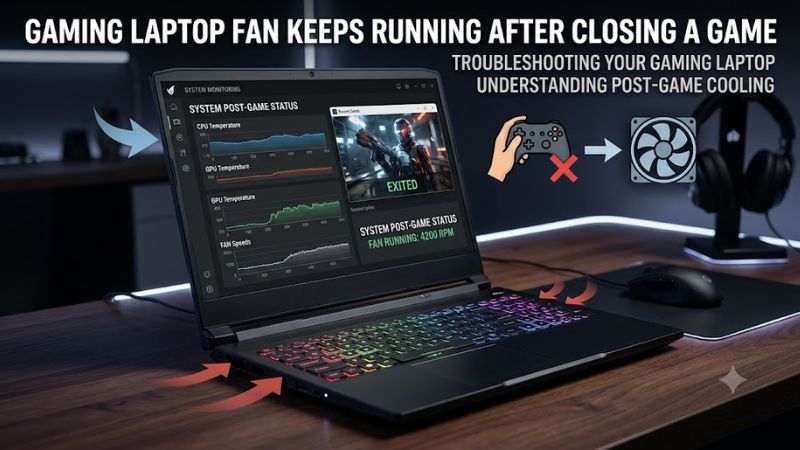
A gaming laptop fan does not stop immediately just because a game closes. The cooling system responds to internal temperatures and workload, so the fans may continue spinning while the processor and graphics chip cool down. If the noise persists after the laptop has settled, check for background activity, restricted airflow, and thermal-control settings before changing anything.
1. The CPU and GPU Are Still Cooling Down
Games place sustained demands on the CPU and GPU, generating heat throughout the laptop’s cooling system. After you exit, heat remains in the heatsinks and other internal components, so the fans may need additional time to remove it. A short period of continued airflow is generally normal, especially after demanding games.
Let the laptop sit on a hard, level surface with its exhaust vents unobstructed. Observe whether the fan gradually slows as the system becomes cooler. The cooldown period varies by laptop, room temperature, recent workload, and fan-control design, so there is no universal shutdown time that applies to every model.
2. A Background Process Is Still Using Resources
Closing a game does not necessarily close its launcher, recording software, browser, shader compilation task, or other supporting processes. Windows Update, antivirus scans, cloud synchronization, and game launchers can also consume CPU resources after gameplay ends, creating enough heat to keep the fans active.
Open Task Manager with Ctrl + Shift + Esc, select Processes, and click the CPU column to sort by usage. Check the GPU column too, if available. Look for sustained activity from recognizable applications rather than assuming every background process is unnecessary. Close only applications you recognize and do not need.
3. Cooling Restrictions or Fan Profiles Keep Temperatures Elevated
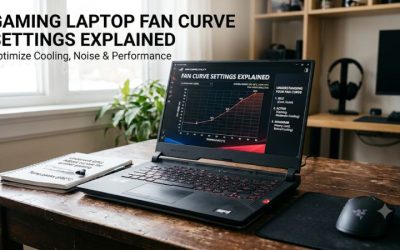
Dust buildup, blocked air intakes, soft surfaces, and poorly maintained cooling systems can reduce airflow. When heat escapes less efficiently, fans may need to run faster for longer after a game closes. A performance-oriented thermal profile can also prioritize cooling over quiet operation, even after the game itself has ended.
Check the manufacturer’s control application, such as Armoury Crate, NitroSense, Lenovo Vantage, or OMEN Gaming Hub, depending on your laptop. If the model offers a Balanced or Quiet profile, compare its behavior with the current setting. Avoid forcing the fans off while the components are still hot.
What Doesn’t Help
Repeatedly force-closing random Windows processes, installing third-party fan-control utilities without checking compatibility, or disabling essential services can create additional problems without identifying the cause. Likewise, a fan running after a demanding session is not, by itself, evidence of a failing fan or damaged GPU.
Do not change BIOS settings or apply unofficial fan curves as the first response. Start with temperature cooldown, Task Manager, airflow, and the laptop’s supported thermal controls. Those checks help distinguish normal cooling behavior from a persistent software or hardware problem.
How to Fix a Gaming Laptop Fan That Keeps Running After a Game
Start with free checks and change one thing at a time. The table below matches common symptoms to the next useful action, so you can avoid unnecessary driver changes or hardware work. Menu names may differ by Windows version and laptop manufacturer, particularly for thermal profiles and graphics monitoring.
| Step | Where | How to Verify | Cost |
| 1. Allow cooldown | Hard, level surface | Fan gradually slows | Free |
| 2. Check background load | Task Manager | CPU and GPU activity settles | Free |
| 3. Adjust power mode | Windows Settings | Fan noise decreases under light use | Free |
| 4. Change thermal profile | Manufacturer control app | Fan behavior changes without overheating | Free |
| 5. Inspect airflow | Laptop vents and cooling system | Airflow is unobstructed | Free to service cost |
Step 1: Let the Laptop Cool Down and Check Temperatures
Exit the game normally, close unnecessary applications, and leave the laptop running on a firm surface. Keep the intake and exhaust vents clear, and give the cooling system time to respond. If the fan gradually slows, the behavior is consistent with a normal cooldown rather than a persistent fault.
If the fan remains loud, use a monitoring utility supported by your laptop or graphics hardware to check CPU and GPU temperatures and utilization. Compare the readings with your model’s specifications instead of relying on a universal temperature threshold. A single temperature reading cannot establish whether the cooling system is faulty.
Step 2: Find and Close Unnecessary Background Processes
Open Task Manager by pressing Ctrl + Shift + Esc. Under Processes, sort by CPU usage and inspect the applications near the top. If your version displays GPU usage, check that column as well. A game launcher, recording utility, browser tab, or another application may still be performing work after the game window closes.
Save your work before ending an application. Select only a process you recognize and no longer need, then observe whether resource usage and fan noise decrease. Do not terminate unfamiliar Windows services or security processes simply because they appear active. If the same application repeatedly keeps the system busy, check its own settings for background downloads, overlays, recording, or automatic updates.
Step 3: Switch to a Balanced Windows Power Mode
On Windows 11, open Settings > System > Power & battery and locate Power mode. Select Balanced for everyday use if the laptop currently uses a more performance-focused option. On Windows 10, available power settings vary by device; check Settings or Control Panel > Power Options for the corresponding plan.
A less aggressive power mode may reduce unnecessary CPU power consumption and heat, but it does not directly command every laptop fan to stop. Performance can also change under demanding workloads. If gaming performance becomes less responsive, return to your previous mode when needed and use the laptop manufacturer’s thermal controls for more specific adjustments.
Step 4: Check the Laptop’s Thermal Profile
Open the manufacturer’s supported control application and look for its thermal, performance, or fan settings. Depending on the laptop, the utility may offer Quiet, Balanced, Performance, or similar modes. Choose a quieter profile for light workloads only if the manufacturer supports it for your model.
Close the control panel and repeat the same post-game routine. If the fan becomes quieter while temperatures remain within the laptop’s operating limits, the profile may have been contributing to the noise. If the fan continues running at high speed, restore the original profile and investigate background activity or cooling restrictions instead of forcing a lower fan speed.
Step 5: Inspect Airflow and Consider Maintenance
Place the laptop on a hard surface and inspect the external vents for visible dust or obstructions. Keep the machine away from bedding, thick fabric, and other surfaces that can block airflow. If dust is visible, follow the manufacturer’s cleaning instructions; turn the laptop off and disconnect power before cleaning as directed.
Do not insert objects into the fan openings, open the chassis without checking warranty conditions, or use aggressive compressed-air cleaning that can damage the fan. If the fan remains unusually loud at idle despite low system activity, or if the laptop also overheats, loses performance, shuts down, or makes grinding noises, contact the manufacturer’s support service for further diagnosis.
FAQ
Is it normal for a gaming laptop fan to keep running after closing a game?
Yes, a fan can continue running normally while the CPU, GPU, and cooling assembly release stored heat. The duration depends on the laptop design, workload, room temperature, and fan curve. A fan that stays unusually loud at idle or accompanies overheating deserves further investigation.
How long should a gaming laptop fan run after gaming?
There is no universal cooldown duration for every gaming laptop. The fan may slow relatively quickly after a light session but continue longer after sustained, demanding gameplay. Focus on whether fan speed and temperature trend downward rather than treating a specific number of minutes as a strict failure threshold.
Can Windows background apps keep laptop fans running?
Yes, background applications and maintenance tasks can increase CPU or GPU activity enough to generate additional heat. Use Task Manager to identify resource-intensive processes, then close unnecessary applications or adjust their settings. Avoid disabling essential Windows services or security software as a shortcut.
Should I replace the fan if it never stops spinning?
Not immediately, because persistent fan operation can result from heat, background activity, restricted airflow, or thermal-control settings rather than a defective fan. Seek professional service if the fan stays unusually loud under light workloads, makes abnormal mechanical noises, or the laptop shows recurring thermal problems after basic checks.
Final Thoughts
When a gaming laptop fan keeps running after closing a game, first allow the system to cool, check background CPU and GPU activity, and review the power and thermal profiles. If the fan remains loud at idle or overheating symptoms appear, arrange model-specific diagnostics before replacing hardware or changing firmware settings.