If your gaming laptop fans loud at idle issue persists when no games are running, the cause may be background CPU activity, a restrictive airflow path, an aggressive cooling profile, or a hardware problem. You can narrow it down without replacing components. This guide explains how to check temperatures, reduce unnecessary workloads, and adjust fan behavior safely.
What Causes Gaming Laptop Fans to Run Loud at Idle?
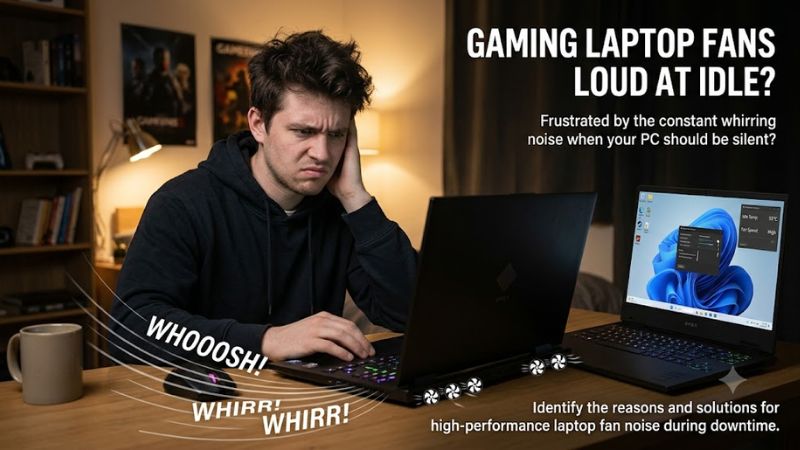
Gaming laptop fans can run loudly at idle because the processor is still working, internal temperatures remain elevated, or the manufacturer’s cooling profile prioritizes aggressive cooling. Start by checking CPU activity and whether the chassis feels unusually warm. A fan that stays loud in a cool, quiet desktop session deserves further investigation.
1. Background Processes Keep the CPU Busy
A laptop may look idle while Windows Update, antivirus scans, cloud synchronization, game launchers, or other background applications continue using the processor. Higher CPU activity produces heat, so the cooling system increases fan speed even when you are not actively using an application.
Press Ctrl + Shift + Esc to open Task Manager and select Processes. Check CPU usage and sort the list by that column. Wait briefly and observe whether a process consistently consumes resources. Temporary activity may be normal, but sustained unexplained usage deserves investigation.
2. The Cooling Profile Favors Performance
Gaming laptops commonly offer thermal or operating modes such as Quiet, Balanced, Performance, and Turbo. These profiles can change fan curves, processor power limits, and performance behavior. A performance-oriented profile may keep fans spinning faster than necessary during ordinary desktop tasks.
Open the manufacturer’s control application, such as Lenovo Vantage, Armoury Crate, OMEN Gaming Hub, or MSI Center, depending on your laptop. Select the available Quiet or Balanced mode and observe whether fan noise changes. Mode names and effects differ by model, so consult the laptop’s manual before changing advanced controls.
3. Dust and Restricted Airflow Trap Heat
Dust accumulation around fan blades, heatsinks, and exhaust fins can reduce airflow. Using a laptop on a bed, blanket, or soft surface can also obstruct intake vents. When heat cannot escape efficiently, the fans may run harder even during light tasks.
Place the laptop on a firm, flat surface and keep its intake and exhaust openings unobstructed. If the chassis remains unusually hot while CPU usage is low, inspect the vents for visible dust. Internal cleaning may be necessary, but follow the manufacturer’s maintenance instructions to avoid damaging fans, connectors, or other components.
What Doesn’t Help
Do not immediately disable cooling, force the fans to stop, or apply aggressive undervolting to quiet a noisy laptop. These changes can conceal a thermal problem or introduce instability. Likewise, registry tweaks, RAM-cleaning utilities, and generic performance scripts are not reliable solutions to fan noise.
Avoid assuming that a high fan speed always indicates a fault. Some gaming laptops have audible fans even during light workloads, and short bursts can occur after updates or intensive tasks. The useful distinction is whether the noise matches the laptop’s temperature, workload, and configured cooling profile.
How to Fix Gaming Laptop Fans Loud at Idle: Step by Step
The safest approach is to identify what is generating heat before changing cooling settings. Start with Windows resource monitoring, then check the power mode and manufacturer thermal controls. If those changes do not help, inspect airflow and run available hardware diagnostics rather than forcing the fans to operate more slowly.
| Setting or Step | Where | Effect | Risk |
| Check CPU activity | Task Manager > Processes | Identifies demanding background apps | Low |
| Change Windows power mode | Settings > System > Power & battery | Adjusts power and performance behavior | Low; performance may change |
| Select Quiet or Balanced | Manufacturer control app | May reduce fan speed and power limits | Low; sustained performance may decrease |
| Inspect vents and run diagnostics | Laptop exterior and manufacturer support utility | Helps identify airflow restrictions or fan faults | Low if external checks follow the manual |
1. Identify the Process Generating Heat
Press Ctrl + Shift + Esc, select Processes, and sort by CPU usage. Close applications you recognize and no longer need, using their normal exit commands. If an updater or security scan is active, allow it to finish and check again before assuming something is wrong.
For persistent activity, inspect the Startup apps section in Task Manager. Disable only applications you recognize and do not need at sign-in. Avoid disabling security software or unfamiliar system processes. Restart Windows afterward and check whether the fan settles during an otherwise quiet session.
2. Change Windows Power Mode
On Windows 11, open Settings > System > Power & battery and locate Power mode. If your laptop is configured for maximum performance, try Balanced for everyday desktop use. Windows power modes influence power consumption and performance, but they do not directly provide a universal manual fan-speed control.
Observe fan behavior after changing the mode, both on battery and while connected to power. If the noise decreases but applications feel slower, return to your previous setting or choose a suitable alternative. Some laptops use manufacturer-specific power plans that limit which Windows options are available.
3. Select a Suitable Manufacturer Cooling Profile
Open your laptop’s supplied thermal-control utility and look for its operating mode or thermal profile. Select Quiet or Balanced if available, then check whether the fans slow down during light work. Some models link these profiles to CPU and GPU power limits, so lower noise may come with reduced sustained performance.
If the selected mode makes no difference, check whether the laptop’s firmware or manufacturer utility offers separate fan controls. Do not assume every model supports a custom fan curve. Restore the default profile if temperatures rise excessively, performance becomes unstable, or the system begins to throttle during ordinary tasks.
4. Check Airflow, Updates, and Hardware Diagnostics
Place the laptop on a hard, level surface and check that its vents are not blocked. If dust is visible, follow the model-specific cleaning instructions. Shut the laptop down and disconnect its charger before external cleaning. Do not insert objects into vents or use a vacuum cleaner directly on internal components.
Next, check Windows Update and your manufacturer’s support utility for relevant system, thermal-management, or driver updates. Use the manufacturer’s built-in fan diagnostic if one is available. Avoid updating the BIOS merely to address noise unless the manufacturer identifies a relevant issue and you can follow its exact instructions.
FAQ
Why are my gaming laptop fans loud at idle even with low CPU usage?
Gaming laptop fans can remain loud with low CPU usage because residual heat, GPU activity, dust, or an aggressive thermal profile may still require cooling. Check whether the chassis feels hot, whether a Quiet mode changes the noise, and whether the behavior continues after a restart.
What CPU temperature is normal when a gaming laptop is idle?
There is no single idle temperature that applies to every gaming laptop because processor models, ambient temperatures, firmware, and background workloads differ. Compare readings with the manufacturer’s guidance for your exact model, and investigate persistent high temperatures alongside loud fans rather than relying on one universal threshold.
Should I stop my laptop fans from spinning at idle?
No, you should not force the fans to stop unless the laptop’s manufacturer explicitly supports that behavior under appropriate conditions. Cooling requirements vary with internal temperatures and component activity, and overriding fan control can cause overheating or instability.
When should I get my gaming laptop repaired?
Seek professional service if the fans grind, rattle, remain unusually loud when the laptop is cool and idle, or trigger hardware diagnostic errors. Stop using the laptop if you notice a burning smell, a swollen battery, or other signs of electrical or battery damage.
Final Thoughts
When gaming laptop fans loud at idle becomes a persistent problem, start with Task Manager, then review Windows power mode and the manufacturer’s cooling profile. Check airflow before considering repairs. If the noise continues despite low workloads and normal ventilation, run the model’s hardware diagnostics or contact the manufacturer for service.