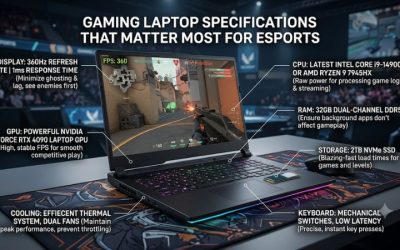
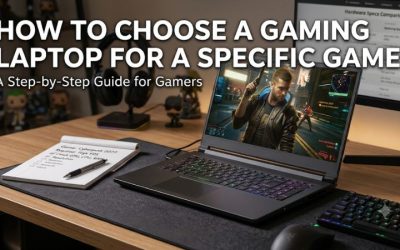
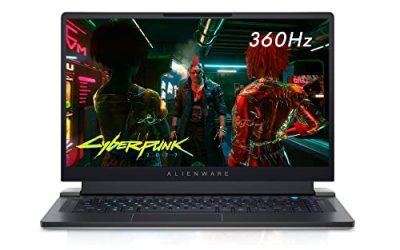
Gaming laptop performance for CPU-heavy games depends on more than processor core count or advertised clock speed. Game logic, simulation workloads, memory, cooling, and laptop power limits all influence frame rates and consistency. Understanding these factors helps identify performance limitations and choose settings that make a meaningful difference.
What Gaming Laptop Performance for CPU-Heavy Games Really Comes Down To
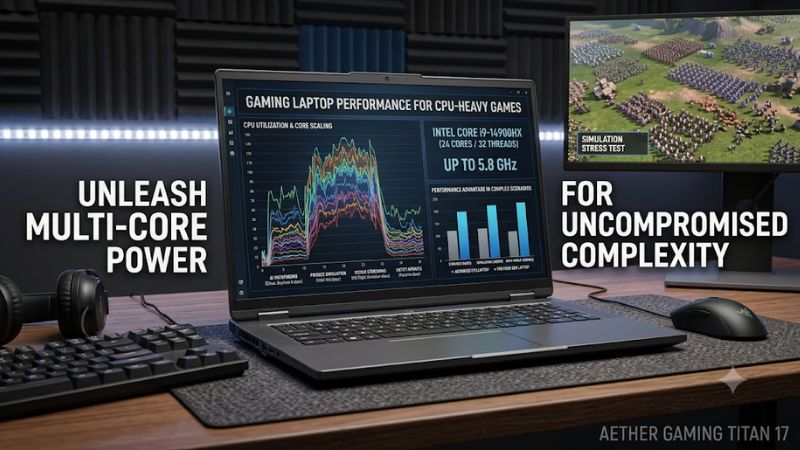
CPU-heavy games place substantial demands on the processor through simulation, artificial intelligence, physics, world calculations, and background game systems. Unlike graphics-heavy workloads, these games may struggle to maintain high frame rates even when the laptop GPU has processing capacity available. Understanding the relationship between CPU workload, GPU utilization, and cooling is essential before changing settings or considering an upgrade.
1. Understand What Makes a Game CPU-Heavy
CPU-heavy games rely on processor calculations that must be completed while preparing each frame. Strategy games with numerous units, simulation titles with complex economies, open-world games with extensive NPC activity, and heavily modded games can place considerable demands on CPU resources.
These workloads are not distributed equally across every processor core. A game may depend heavily on one or several important threads while other cores remain relatively idle. Consequently, overall CPU utilization can appear moderate even when processor performance limits the frame rate.
2. Why CPU Performance Matters at High Frame Rates
Higher frame rates give the processor less time to complete the work associated with each frame. At 60 FPS, a frame has approximately 16.67 milliseconds available; at 120 FPS, that falls to 8.33 milliseconds. At 240 FPS, the available frame time is approximately 4.17 milliseconds.
This makes gaming laptop performance for CPU-heavy games particularly important when using high-refresh-rate displays. A laptop might deliver acceptable performance at a 60 FPS target but struggle to maintain consistent output at 144 FPS or 240 FPS. The difference depends on the game engine, scene complexity, processor architecture, and sustained operating conditions.
3. CPU and GPU Performance Must Be Balanced
The CPU prepares game instructions and handles simulation, while the GPU processes graphics workloads. When the processor cannot prepare frames quickly enough, the GPU may spend time waiting for additional work. This is commonly described as a CPU bottleneck.
However, low GPU utilization does not automatically establish a CPU bottleneck. Frame-rate caps, synchronization settings, memory limitations, power restrictions, and background processes can produce similar observations. Intel’s Graphics Performance Analyzers documentation distinguishes CPU-bound workloads from GPU-bound workloads by examining which processing stage limits frame delivery.
cdrdv2-public.intel.com+1
How to Improve Gaming Laptop Performance for CPU-Heavy Games
Improving performance starts with identifying what limits the laptop rather than lowering every graphics option. CPU-intensive workloads respond differently from GPU-intensive games, so the most useful adjustments often involve simulation quality, background applications, power profiles, and thermal conditions. Make one change at a time and compare the same game scene under consistent conditions.
1. Identify the Actual CPU Bottleneck
Start by monitoring CPU utilization, individual logical processor activity, GPU utilization, temperatures, clock speeds, and frame times while playing the game. Windows Task Manager provides an initial overview through Performance, where you can inspect CPU and GPU activity.
For more detailed monitoring, tools such as HWiNFO and MSI Afterburner can help identify changes during gameplay. Pay particular attention to whether one or more CPU threads remain heavily occupied while GPU utilization stays comparatively low. Neither measurement alone establishes the cause, but together they provide useful diagnostic evidence.
2. Adjust CPU-Heavy Game Settings
Many games provide settings that directly affect processor workload. Population density, NPC counts, simulation complexity, traffic density, draw distance, and physics calculations can increase CPU demands. Reducing these options may improve frame consistency without substantially changing image quality.
The available settings depend on the game engine and individual title. For example, reducing crowd density in a city simulation may have a different effect from reducing unit counts in a real-time strategy game. Start with settings that control the number of simulated objects or active entities rather than immediately lowering texture quality or display resolution.
3. Manage Windows Power and Background Activity
Gaming laptops often include manufacturer-controlled performance profiles that influence processor power limits, cooling behavior, and fan speed. Depending on the model, these options may be available through applications such as Lenovo Vantage, Armoury Crate, OMEN Gaming Hub, or Alienware Command Center.
Use the manufacturer’s recommended performance profile when gaming while connected to the appropriate power adapter. Also close unnecessary CPU-intensive applications, such as large software updates, background encoding jobs, and resource-heavy browser processes. Avoid disabling essential Windows services simply to reduce background activity.
4. Maintain Cooling and Memory Headroom
CPU-intensive games can sustain processor workloads for extended periods. Dust accumulation, blocked ventilation, unsuitable operating surfaces, or high ambient temperatures can contribute to reduced operating clocks and inconsistent performance. Place the laptop on a firm surface and keep its ventilation openings unobstructed.
Memory capacity and configuration also matter. When a game and background applications exceed available physical memory, Windows may rely more heavily on virtual memory, potentially contributing to stuttering. Check memory usage before considering an upgrade. Adding RAM is useful only when memory capacity or configuration is actually limiting the workload.
What Doesn’t Help
Several commonly suggested performance adjustments do not reliably improve CPU-heavy gaming:
-
Lowering every graphics setting: This may not help when the processor is already limiting frame delivery.
-
Using RAM-cleaning utilities: Clearing memory does not automatically increase available CPU processing capacity.
-
Disabling Windows telemetry: This is not an established method of improving gaming performance.
-
Applying random registry tweaks: Unverified changes can create system problems without addressing the actual bottleneck.
-
Overclocking without diagnosis: Higher clock targets can increase heat and power consumption, potentially reducing sustained performance on a laptop.
The better approach is to measure the workload, identify the limiting resource, and change only settings relevant to that limitation.
Performance Settings and Their Expected Effects
| Setting or Step | Where | Effect | Risk |
|---|---|---|---|
| Check CPU and GPU activity | Task Manager or monitoring software | Helps identify possible processor limitations | Low; monitoring can add minor overhead |
| Reduce simulation density | Individual game’s graphics or gameplay settings | Can reduce CPU-side simulation workload | Lower world detail or simulation complexity |
| Select a performance profile | Laptop manufacturer’s control application | May increase available CPU power and fan activity | More noise, heat, and power consumption |
| Improve ventilation | Laptop placement and cooling system | Helps maintain consistent operating conditions | Low; avoid opening the chassis without appropriate knowledge |
| Check memory configuration | Task Manager and system specifications | Identifies potential memory-capacity limitations | Upgrading requires compatibility checks |
The table describes potential effects rather than guaranteed FPS improvements. Laptop firmware, game-engine behavior, cooling design, and individual hardware configurations determine the actual result.
FAQ
1. Why Does My Gaming Laptop Have Low FPS in CPU-Heavy Games?
A gaming laptop can have low FPS because its processor cannot complete game simulation and frame-preparation tasks quickly enough. Other possibilities include thermal throttling, limited power delivery, insufficient memory, and background workloads. Monitor CPU threads, GPU activity, temperatures, and frame times before identifying the cause.
2. Does a Better CPU Always Improve Gaming Performance?
No, a faster CPU does not always produce higher gaming performance. Improvements depend on whether the existing processor limits the game. If the GPU is already the main constraint, replacing or upgrading the processor may produce little difference. Laptop CPU upgrades are also limited by motherboard design and manufacturer compatibility.
3. Should I Lower Graphics Settings in CPU-Heavy Games?
You should lower CPU-intensive settings first rather than reducing every graphics option. Population density, simulation detail, NPC counts, and physics complexity can affect processor workload. Texture quality and many visual effects primarily influence GPU or memory demands, although their impact varies by game.
4. Does Gaming on Battery Reduce CPU Performance?
Yes, gaming on battery can reduce available system performance on many gaming laptops. Manufacturers may impose different CPU and GPU power limits to manage battery consumption and temperature. For sustained gaming performance, use the manufacturer’s recommended AC adapter and an appropriate performance profile.
Final Thoughts
Understanding gaming laptop performance for CPU-heavy games requires looking beyond processor specifications and average FPS. Game settings, memory pressure, cooling, and power management all influence sustained performance. Start by identifying the actual bottleneck, adjust CPU-intensive settings, and compare frame times before considering hardware changes.
Related guides
More from Amazon
Programs that pair well with the guide above. Offers and eligibility are set by Amazon and may change.
Free shipping on eligible items, Prime Video and more. Eligible new members can start with a free trial.
Start a Prime free trialAd-free music streaming. Eligible new subscribers can start with a free trial.
Try Music Unlimited freeA Prime membership for ages 18-24 with a trial period. Eligibility is set by Amazon.
See Prime for Young AdultsAudiobooks and podcasts to listen to on the go. Eligible new members can start with a free trial.
Try Audible freeAs an Amazon Associate we earn from qualifying purchases.