A gaming laptop can lose CPU or GPU performance because it reaches a configured power limit or becomes too hot. gaming laptop power limit throttling vs thermal throttling comes down to why performance is being reduced, not simply how high temperatures climb. Learn how to identify each condition, interpret monitoring data, and choose the right response without risky tuning.
What Gaming Laptop Power Limit Throttling vs Thermal Throttling Really Comes Down To
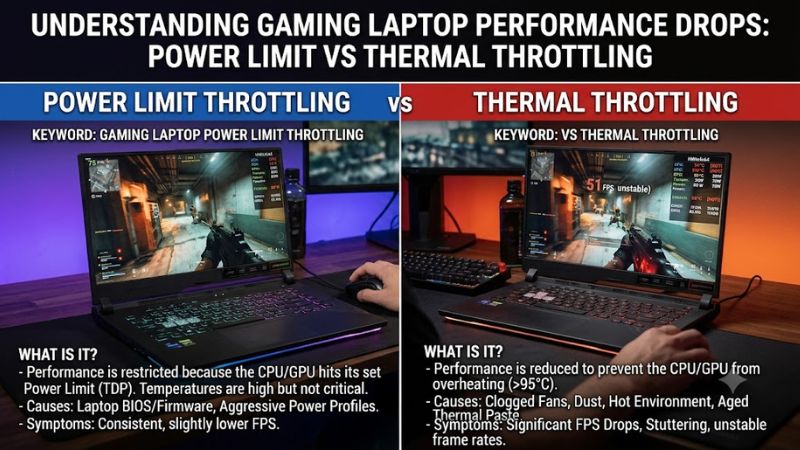
Power limit throttling occurs when a processor or graphics chip reaches an enforced power budget, while thermal throttling occurs when temperature reaches a control threshold. Both can reduce clock speeds, but they require different diagnoses. Laptop manufacturers also balance performance, fan noise, battery life, and cooling capacity through firmware and power-management software.
1. What Is Power Limit Throttling?
Power limit throttling happens when a CPU or GPU reaches a configured electrical power ceiling. For an Intel CPU, monitoring software may report Power Limit Exceeded or Power Limit Throttling when limits such as PL1 or PL2 restrict sustained or short-duration power consumption. These limits can be intentional parts of the laptop’s design rather than signs of a fault.
On a gaming laptop, the CPU and GPU may also share cooling capacity and a system-level power budget. A performance mode can allow higher power consumption, while a balanced or quiet mode may impose lower limits. If power consumption settles near an enforced ceiling while temperatures remain below the relevant thermal threshold, power limiting is a reasonable explanation.
2. What Is Thermal Throttling?
Thermal throttling occurs when a component approaches its configured temperature limit and reduces performance to control heat. An Intel CPU can lower its operating frequency and power when thermal protection activates. NVIDIA GPUs also reduce performance when they reach their applicable temperature limits. The exact thresholds depend on the component and system design.
A high temperature reading alone does not establish a fault. Some laptop processors are designed to operate close to their thermal limits during sustained demanding workloads. The more useful evidence is whether a thermal-limit indicator activates alongside falling clocks, changing power consumption, or reduced performance. Repeated thermal limiting accompanied by unusual fan behavior or deteriorating performance deserves closer investigation.
3. Why Laptop Design Changes the Diagnosis
Desktop-style assumptions do not always apply to gaming laptops. Their compact cooling assemblies, firmware controls, and shared CPU-GPU thermal budgets constrain how much power the components can sustain. Intel specifically advises laptop owners to consult their system manufacturer because laptop power and throttling behavior depends on the original equipment manufacturer’s design.
A laptop operating within its intended power limits may deliver less sustained performance than another laptop with a similar processor name. GPU configuration, graphics power allocation, cooling design, and selected performance mode all matter. Compare behavior against the exact laptop model and configuration instead of treating another model’s temperatures or wattage as a universal target.
4. Can Both Types of Throttling Happen Together?
Yes. Power and thermal limits can overlap, and the active constraint can change during a gaming session. A laptop may initially allow a brief high-power boost, then reduce power as temperatures rise. Shared cooling or platform-level power management can further change how resources are allocated between the CPU and GPU.
For that reason, a single screenshot rarely explains the whole performance pattern. A power-limit flag does not rule out a simultaneous thermal problem, and a high temperature does not prove that heat is the only restriction. Track temperatures, clocks, power draw, and limit indicators over the same period while reproducing the same workload.
How to Diagnose and Compare Both Types of Throttling
The most reliable way to distinguish these conditions is to correlate temperature, power draw, effective clock speed, and limit indicators during the same gaming session. HWiNFO can log sensor readings over time, making it easier to identify which restriction appears when performance drops. Sensor availability and label names vary by processor, GPU, and laptop firmware.
1. Read the Monitoring Data Correctly
Open HWiNFO in Sensors-only mode and locate the CPU package temperature, CPU package power, effective clocks, GPU temperature, GPU power, and available performance-limit indicators. Reset the minimum, maximum, and average values before starting a session so earlier activity does not distort the results.
Run a demanding game scene for several minutes, then check the readings around a performance drop. A power-limit indicator accompanied by power draw near a configured ceiling supports a power-limiting diagnosis. A thermal-throttling indicator coinciding with temperatures near the component’s thermal threshold supports a thermal diagnosis. Neither observation should be interpreted in isolation.
2. Compare the Symptoms Side by Side
Use this table as a diagnostic starting point rather than a universal rule. Laptop firmware can impose several restrictions simultaneously, and sensor names differ between Intel, AMD, and NVIDIA hardware.
| Diagnostic clue | Power limit throttling | Thermal throttling |
| Main trigger | Enforced power budget | Temperature control threshold |
| Temperature pattern | May remain below the thermal limit | Approaches the applicable thermal limit |
| Power draw | Often settles near a configured ceiling | May decrease as performance is reduced |
| Clock behavior | Boost clocks may be restricted | Clocks may fall to reduce heat generation |
| Monitoring evidence | Power-limit indicators or PL1/PL2 flags, when exposed | Thermal-throttling indicators, when exposed |
| First response | Check power mode, adapter, and OEM performance profile | Check airflow, fan operation, and cooling condition |
| Is it automatically a fault? | No; designed limits are normal | No; brief protective intervention can be normal |
Intel documents power-limit indicators separately from thermal protection, while NVIDIA explains that its GPUs can reduce performance when their specified temperature limits are reached. These behaviors support the diagnostic distinctions above, but the exact readings depend on the hardware and monitoring interface.
3. Identify Whether the CPU or GPU Is Responsible
A CPU power-limit flag does not necessarily explain a GPU performance drop. If the game is GPU-bound, GPU temperature, GPU power, utilization, and clock behavior may be more informative than CPU package readings. Conversely, a CPU-limited game can suffer from reduced CPU boost even when the graphics chip is operating normally.
Inspect CPU and GPU readings on the same timeline. If CPU power falls as GPU power rises, shared platform power management may be influencing resource allocation. If both components lose clocks as temperatures rise, cooling capacity or a shared thermal constraint may be involved. Do not assume that every CPU-GPU power trade-off indicates defective hardware.
4. Avoid Misreading a Limit Indicator
A monitoring tool showing a limit flag does not automatically mean the laptop is malfunctioning. Some indicators record a brief event that occurred earlier in the session, while others report a current condition. Check whether the flag is active now, whether it appears during the actual slowdown, and whether performance changes at the same time.
Also distinguish power-limit throttling from current-limit throttling. Intel’s Current/EDP Limit indicator can point to electrical current constraints rather than a conventional temperature problem. On a laptop, those limits may be controlled by the manufacturer, so changing a generic tuning setting may not address the actual restriction.
How to Respond to Each Type of Throttling
Once you have identified the likely restriction, start with reversible checks instead of raising power limits or changing voltage. The appropriate response depends on whether the laptop is following its normal operating profile, experiencing inadequate airflow, or showing abnormal behavior. Make one change at a time and repeat the same workload to determine whether it helps.
1. Check the Power Source and Performance Mode
Connect the laptop to its manufacturer-approved AC adapter and verify that the operating system and laptop control utility use the intended gaming profile. An underpowered, incompatible, or malfunctioning adapter can affect available performance on some models. Check the manufacturer’s specifications before assuming that any adapter with the correct connector is suitable.
In Windows 11, open Settings > System > Power & battery and select Best performance under Power mode if the option is available. Then check the laptop manufacturer’s utility for its own Quiet, Balanced, Performance, or equivalent mode. These controls may affect power allocation and fan behavior, but the names and effects vary by model.
2. Improve Airflow When Thermal Limits Are Active
Place the laptop on a firm, flat surface and keep its intake and exhaust vents unobstructed. Soft bedding, clothing, and some lap surfaces can block ventilation. If the fans are unusually quiet or fail to respond during a demanding game, inspect the manufacturer’s fan-control settings and follow its support guidance.
Dust accumulation, worn fans, or degraded thermal-interface materials can also contribute to cooling problems. External cleaning should follow the manufacturer’s instructions, with the laptop powered down and disconnected as directed. If temperatures remain near the thermal limit and thermal-throttling indicators repeatedly activate, arrange a qualified inspection instead of opening the cooling assembly without the necessary experience.
3. Retest With Consistent Conditions
After changing a power mode or improving airflow, repeat the same game scene with the same graphics settings and similar ambient conditions. Log temperatures, power draw, effective clocks, and relevant limit flags. A lower temperature without a change in performance may indicate that the original restriction was a power budget rather than heat.
If the laptop performs better only after switching to a higher performance profile, the original configuration may have been limiting power intentionally. If performance continues to deteriorate as the laptop heats up and thermal indicators activate, investigate cooling. Avoid comparing results from different games or substantially different workloads because CPU and GPU demands can vary widely.
4. Leave Advanced Power and Firmware Changes Until Last
Increasing CPU power limits, changing voltage, or modifying BIOS settings can raise temperatures, fan noise, power consumption, and instability. Some controls may be unavailable or locked by the manufacturer. A higher configured limit does not create additional cooling capacity or make a laptop’s power delivery suitable for unrestricted operation.
Use only manufacturer-supported controls and follow the specific model’s documentation. Avoid disabling Intel Dynamic Tuning Technology or related platform thermal-management features as a shortcut; Intel warns that disabling these systems can lead to overheating, reduced battery life, or instability. Restore any changed setting to its previous value if the system becomes unstable, and seek manufacturer support if abnormal throttling persists.
FAQ
Is power limit throttling worse than thermal throttling?
No, power limit throttling is not inherently worse than thermal throttling because each indicates a different operating constraint. A configured power limit may be normal, while repeated thermal throttling can justify a cooling investigation. Judge the situation by its frequency, impact on performance, and the laptop manufacturer’s intended operating behavior.
Can a gaming laptop throttle even when temperatures are low?
Yes, a gaming laptop can throttle while temperatures remain relatively low because configured power limits, current limits, or platform power-management policies can restrict performance. Check the corresponding monitoring indicators and power draw before treating the issue as a cooling fault.
Should I increase CPU or GPU power limits to improve FPS?
No, you should not increase power limits without confirming that the existing limit is the actual performance constraint and that the laptop supports the change. Raising a limit can increase heat and electrical demands without improving frame rates if the game is GPU-bound, CPU-bound for another reason, or limited by thermal capacity.
When should I get my gaming laptop repaired?
Seek manufacturer support or qualified repair if thermal-throttling events repeatedly coincide with severe performance loss, a fan fails to operate normally, temperatures rise abnormally, or the laptop shuts down unexpectedly. Occasional power-limit flags alone do not establish a hardware defect, but persistent abnormal behavior warrants investigation.
Final Thoughts
Understanding gaming laptop power limit throttling vs thermal throttling helps you distinguish normal power management from a potential cooling problem. Start by logging CPU and GPU behavior during a repeatable gaming session, then adjust only the relevant supported settings. If thermal limits repeatedly coincide with performance loss, investigate airflow and seek service when necessary.