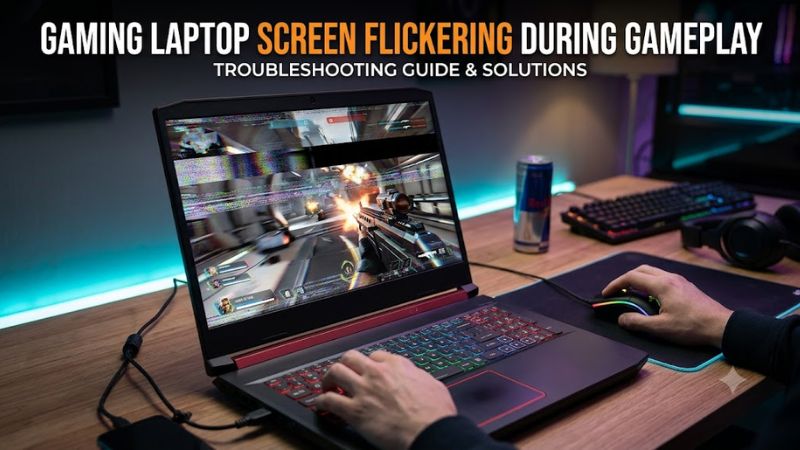
Gaming laptop screen flickering during gameplay can come from graphics driver conflicts, refresh-rate settings, variable refresh rate (VRR), game-specific rendering issues, or a failing display connection. The quickest approach is to identify when the flicker occurs, isolate the affected display, and change one setting at a time before considering hardware repair.
Why Gaming Laptop Screens Flicker During Gameplay
Gaming laptop screen flickering during gameplay does not automatically mean the GPU is failing. Start by checking whether the problem affects Windows outside the game, occurs only in one title, or appears when switching between fullscreen and desktop. These clues help distinguish software conflicts from display and connection problems.
1. Graphics driver conflicts
A graphics driver coordinates communication between Windows, the GPU, and the display. If flickering begins after a driver update, Windows update, or graphics software change, a compatibility problem may be responsible. Gaming laptops with integrated and dedicated graphics can be particularly sensitive to driver combinations.
Some laptops rely on manufacturer-customized drivers for their specific display, power management, and graphics-switching configuration. Before installing a generic driver, check the support page for your exact laptop model. If the issue started immediately after an update, rolling back to the previous driver may be more appropriate than installing another version.
2. Refresh rate, VRR, and display synchronization
A laptop display operating at a high refresh rate may behave differently when a game changes resolution, frame rate, or display mode. Variable refresh rate technologies, including NVIDIA G-SYNC and compatible implementations, can also produce flickering in certain game and frame-rate combinations.
Look for a pattern rather than assuming the refresh rate is too high. If the screen flickers mainly in dark scenes, during frame-rate fluctuations, or when entering fullscreen, temporarily disabling VRR or changing the display mode can help isolate the cause. Restore the original setting if the change makes no difference.
3. Game-specific rendering or hardware problems
If flickering occurs in just one game, its graphics API, rendering settings, overlays, or recent update may be involved. Switching between fullscreen and borderless windowed mode is a useful diagnostic step, as is temporarily disabling recording overlays or other applications that interact with the game’s graphics output.
If the entire screen flashes across multiple games and Windows applications, investigate the driver and display path first. Persistent flickering in the BIOS, visible artifacts before Windows loads, or flickering that changes when the laptop lid moves may indicate a display panel, cable, or other hardware fault that needs professional diagnosis.
What Doesn’t Help
Repeatedly reinstalling Windows, using registry-cleaning utilities, or buying a replacement GPU without diagnosis is unlikely to be a sensible first step. These actions can introduce new problems without identifying the cause. Likewise, a high GPU temperature should not be blamed unless monitoring or other evidence connects it to the display issue.
Start with reversible software and display checks. If the laptop shows flickering before Windows starts, develops colored lines, or repeatedly loses its internal display, avoid unnecessary stress tests and arrange hardware inspection instead.
How to Fix Gaming Laptop Screen Flickering: Step by Step
Work through these checks in order, beginning with free diagnostics and reversible settings. Change one variable at a time, then repeat the same game scene to compare results. This makes it easier to identify which change matters and avoids unnecessary driver removal, firmware updates, or hardware replacement.
| Step | Where | How to Verify | Cost |
| 1. Identify the source | Task Manager and an affected game | Check whether Windows flickers too | Free |
| 2. Reset or repair graphics drivers | Windows shortcut and Device Manager | Replay the same scene | Free |
| 3. Adjust display and game settings | Windows Display settings and game menu | Compare fullscreen, refresh rate, and VRR | Free |
| 4. Isolate external display or hardware faults | Compatible monitor, cable, and service diagnostics | Compare internal and external displays | Free initially; repair may cost extra |
Step 1: Determine whether Windows or the game is responsible
Press Ctrl + Shift + Esc to open Task Manager while the flickering is occurring. If Task Manager flickers along with the rest of the display, a graphics driver issue is more likely. If Task Manager remains stable while the game or another application flickers, investigate that application and its graphics settings first.
For a quick, reversible check, press Windows + Ctrl + Shift + B to reset the Windows graphics driver. The screen may briefly go black or flash, and a beep may sound. Return to the same game scene and check whether the issue returns. This shortcut is a diagnostic measure, not a permanent fix for an underlying fault.
Step 2: Update or roll back the graphics driver
Open Device Manager, expand Display adapters, right-click the relevant graphics adapter, and select Properties > Driver. If flickering began after a recent driver update, choose Roll Back Driver if available, restart, and retest. Otherwise, check for a compatible driver from your laptop manufacturer’s support page.
Gaming laptops may use both integrated and dedicated graphics, so check both adapters rather than assuming the NVIDIA or AMD GPU is the only component involved. Avoid deleting driver packages or using third-party cleanup tools as an initial step. If reinstalling becomes necessary, obtain the correct installer first and follow the laptop manufacturer’s instructions.
Step 3: Test refresh rate, VRR, and fullscreen mode
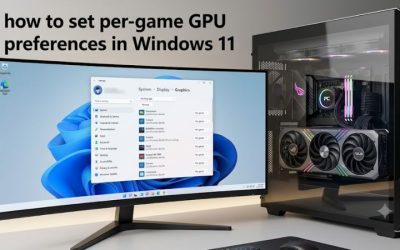
Open Settings > System > Display > Advanced display in Windows 11. Select the laptop’s built-in display and note its current refresh rate. If the flickering occurs during gameplay, temporarily select another supported refresh rate to compare behavior. Keep the original setting recorded so you can restore it if the problem persists.
Next, try borderless windowed mode instead of exclusive fullscreen, or the reverse if the game supports both. If the display uses G-SYNC or another VRR implementation, temporarily disable the relevant feature through the supported graphics settings. Change only one setting per test; otherwise, you will not know which adjustment affected the flicker. These are diagnostic options, not settings every gaming laptop needs to change.
Step 4: Compare the internal display with an external monitor
Connect a known-working external monitor using a compatible laptop output and cable. Test the same game, graphics mode, and approximate scene on both displays. If the external monitor remains stable while the laptop panel flickers, the internal panel, its connection, or its display-specific configuration becomes more suspect. This result is a clue rather than definitive proof of a faulty panel.
If both displays flicker, investigate shared graphics drivers, game settings, and the GPU output path before assuming the internal screen is defective. If flickering also appears before Windows loads, visible lines persist across applications, or moving the lid changes the symptoms, stop repeated software experiments and contact the laptop manufacturer or a qualified repair technician.
FAQ
Why does my gaming laptop screen flicker only in certain games?
A gaming laptop screen can flicker in specific games because of driver compatibility, fullscreen rendering, VRR behavior, overlays, or game-specific bugs. Test borderless mode, disable overlays temporarily, and check whether the issue began after a game or driver update. If only one game is affected, check its current patch notes and support guidance before changing system-wide settings.
Can overheating cause screen flickering during gameplay?
Overheating can contribute to system instability, but flickering alone does not establish that the GPU or CPU is overheating. Check temperatures and clock behavior with a reputable monitoring tool if you also notice performance drops, thermal warnings, or shutdowns. If temperatures appear normal and the flicker persists, investigate display drivers, synchronization settings, and the screen connection instead.
Should I reinstall Windows to fix a flickering laptop screen?
Reinstalling Windows should not be an early troubleshooting step because driver rollback, app isolation, and display-setting checks are less disruptive. Consider a broader operating-system repair only after identifying evidence of a persistent software problem and backing up important files. If flickering appears in the BIOS or is affected by lid movement, seek hardware diagnosis before reinstalling Windows.
When should I replace the laptop screen?
Consider screen replacement only after diagnosis indicates a faulty internal panel rather than a driver, cable, or graphics problem. Flickering that appears before Windows starts, persistent lines, or a display that changes when the lid moves warrants professional inspection. Ask the technician to check the panel and display connection first, particularly if the laptop remains under warranty.
Final Thoughts
Gaming laptop screen flickering during gameplay is best approached as a diagnostic problem, not an automatic sign of GPU failure. Start with Task Manager, check recent driver changes, and test refresh rate and VRR settings individually. If the problem persists across applications or appears before Windows loads, arrange a professional display inspection before spending money on replacement parts.