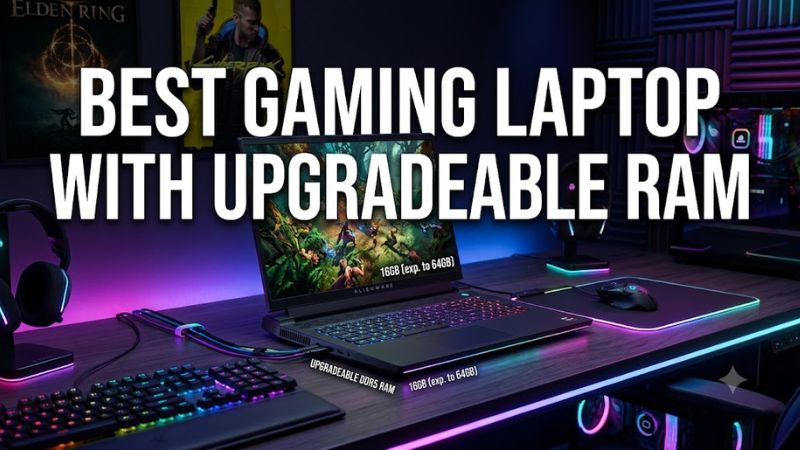
If you want the best gaming laptop with upgradeable RAM, prioritize models with accessible SO-DIMM slots, documented memory limits, and enough CPU and GPU performance for your games. This roundup focuses on upgrade-friendly gaming laptops, explaining compatibility, upgrade costs, and the trade-offs worth checking before you buy.
How to Choose a Gaming Laptop With Upgradeable RAM
The right laptop should let you expand memory without forcing an early replacement. Start by confirming that the exact configuration uses removable memory rather than soldered RAM, then check its supported capacity, memory generation, available slots, and access requirements. A laptop advertised with 32GB may still offer less upgrade flexibility than a 16GB model with two accessible slots.
1. Check the RAM slots, not just the advertised capacity
SO-DIMM slots hold removable laptop memory modules. A laptop with two slots can support upgrades, but the factory configuration determines whether you can add a module or must replace existing memory. For example, one 16GB module may leave room for expansion, while two 8GB modules occupy both slots.
Look for an official specification sheet or service manual for the exact model. The best gaming laptop with upgradeable RAM should have a clearly documented slot count and maximum supported capacity. Avoid assuming that every configuration in a product family has identical internal hardware.
2. Match DDR generation and supported speed
DDR4 and DDR5 SO-DIMMs are different standards and are not interchangeable. Even when a memory module physically fits, its generation, supported speed, capacity, and system compatibility must match the laptop. CPU specifications and firmware can also affect the memory speed that the system actually uses.
Check the laptop manufacturer’s compatibility documentation before ordering RAM. Do not select a module based solely on a retailer’s claim that it works with gaming laptops. A compatible kit is more important than chasing the highest advertised speed, especially when the laptop will primarily be used for gaming.
3. Balance RAM upgrades against CPU and GPU performance
More RAM helps when games, browsers, launchers, voice chat, and creative applications compete for memory. Moving from 16GB to 32GB can be worthwhile for demanding multitasking, large projects, and games that approach the existing memory limit. It does not automatically increase frame rates when the CPU or GPU is the actual bottleneck.
For a gaming laptop, evaluate the processor, discrete GPU, graphics memory, cooling system, and display alongside RAM capacity. A well-balanced system with 32GB and a capable GPU is generally a better long-term choice than a weaker laptop with an unnecessarily large memory configuration.
4. Consider the cost and difficulty of upgrading
An affordable laptop with accessible RAM slots may offer better long-term value than a premium machine with memory soldered to the motherboard. However, the total cost includes the laptop, compatible memory, any required tools, and potentially professional installation. Check the warranty terms and service instructions before opening the chassis.
Also consider how much memory you realistically need. For mainstream gaming, 16GB can still be adequate in many titles, while 32GB is a practical target for a new gaming system used for gaming and multitasking. Larger capacities make sense for specific workloads, provided the manufacturer supports them.
Top Gaming Laptops With Upgradeable RAM
These four laptop families stand out because manufacturer specifications document removable memory slots or supported memory configurations. The recommendations focus on upgrade flexibility and hardware balance rather than unsupported benchmark rankings. Exact GPU options, installed RAM, maximum capacity, and regional configurations vary, so verify the specific model before purchasing.
1. Lenovo Legion 5i Gen 10 — Best Overall
The Lenovo Legion 5i Gen 10 is a strong all-around candidate for buyers who want upgradeable memory without giving up a high-quality gaming display. Lenovo lists two SO-DIMM slots, DDR5 memory options, and configurations with Intel Core Ultra processors and NVIDIA GeForce RTX 50-series Laptop GPUs.
Its 15.1-inch OLED display option has a 2560 × 1600 resolution and a 165Hz refresh rate. These features make it appealing for gamers who value image quality alongside memory flexibility. However, the available processor, graphics card, and factory RAM configuration depend on the selected build.
The main limitation is configuration complexity: specifications and upgrade support should be checked against the exact machine rather than the Legion 5i name alone. Buyers seeking the best gaming laptop with upgradeable RAM should confirm the maximum supported capacity and whether the factory configuration leaves an empty slot.
Choose this model if you want a balanced gaming and productivity laptop with room to expand memory. Consider a different option if a particular configuration is unavailable, costs substantially more than comparable hardware, or does not provide the display and graphics performance you need.
2. ASUS TUF Gaming A16 (2025) — Best Value-Oriented Choice
The ASUS TUF Gaming A16 (2025) is worth considering if upgradeability matters as much as the initial purchase price. ASUS lists two DDR5 SO-DIMM slots and support for up to 64GB in its US specifications. Depending on the configuration, it can also include two M.2 PCIe storage slots.
Display options include a 16-inch, 1920 × 1200 panel at 144Hz and a 2560 × 1600 panel at 165Hz. That distinction matters because the higher-resolution option puts more demand on the GPU in demanding games. Check the display and graphics configuration together instead of assuming every A16 has identical specifications.
Its limitation is that the TUF line includes multiple hardware combinations, so the name alone does not establish the installed memory, available slots, or GPU. The best value depends on the price of the precise configuration and the cost of any planned memory upgrade.
Choose the A16 if you want a practical upgrade path and a larger display. Before buying, verify the exact US model number, installed memory arrangement, and official maximum capacity for that configuration.
3. Acer Predator Helios Neo 16 AI — Best for Demanding Gaming
The Acer Predator Helios Neo 16 AI is an option for buyers who want a higher-performance gaming platform and room for additional memory. Acer’s US specifications include configurations with NVIDIA GeForce RTX 5060, RTX 5070, RTX 5070 Ti, and RTX 5080 Laptop GPUs, depending on the model. Memory limits also vary across configurations.
Some listed versions support up to 64GB of DDR5, while others specify a lower maximum. This difference is particularly important when shopping for a laptop intended for gaming, streaming, video editing, or other memory-intensive work. Confirm the exact model’s service documentation and memory specifications before selecting an upgrade kit.
The key trade-off is cost and portability. Higher-performance configurations can be expensive and relatively bulky, while their graphics capabilities are not interchangeable across the product family. An advertised 64GB maximum on one version should never be applied automatically to another.
Choose this laptop if you need strong discrete graphics alongside upgradeable system memory. If your main goal is an inexpensive memory upgrade, compare its total purchase cost against less expensive gaming models first.
4. MSI Katana 15 HX B14W — Best for High Memory Capacity
The MSI Katana 15 HX B14W is a compelling option for users who expect to expand RAM substantially. MSI’s published specifications identify two memory slots, support for DDR5 memory up to 5600 MT/s, and a listed maximum of 96GB for the B14W family. Actual supported memory speed depends on the processor and memory combination.
The family also includes configurations with different NVIDIA GeForce RTX 50-series Laptop GPUs and different factory memory arrangements. That makes it important to distinguish the exact B14W variant from similarly named Katana models. Check the full model identifier and regional specification sheet before ordering parts.
Its primary compromise is that memory capacity alone does not determine gaming performance. The display, GPU configuration, cooling, storage capacity, and chassis features also affect the experience. Some configurations may need a full replacement of the installed modules to reach a desired capacity.
Choose the Katana 15 HX if a documented high memory ceiling is a priority for gaming and heavier multitasking. If you need only 32GB, compare its price and GPU configuration with the Legion and TUF alternatives before deciding.
Comparison Table
| Product | Best For | Key Spec | Compatibility | Watch Out For |
| Lenovo Legion 5i Gen 10 | Overall balance | Two SO-DIMM slots; DDR5 | Verify exact configuration and supported capacity | Display and GPU vary |
| ASUS TUF Gaming A16 (2025) | Value-oriented gaming | Two DDR5 SO-DIMM slots; up to 64GB listed | Match DDR5 kit to the precise model | Different display and RAM configurations |
| Acer Predator Helios Neo 16 AI | Demanding gaming | DDR5; up to 64GB on specified versions | Confirm model-specific maximum | Some versions have lower memory limits |
| MSI Katana 15 HX B14W | High memory capacity | Two slots; up to 96GB listed | Verify the B14W variant and module support | Higher capacity may require replacing both modules |
How to Upgrade RAM and Avoid Compatibility Mistakes
Selecting the right laptop is only the first step. A successful upgrade depends on matching the memory standard, understanding the existing configuration, and following the manufacturer’s service instructions. Before buying a kit, identify the exact laptop model and establish whether you can add a module or must replace the installed memory.
1. Check the installed memory configuration
In Windows, open Task Manager with Ctrl + Shift + Esc and select Performance, then Memory. Review the total capacity, memory speed, and reported slot usage. This provides a useful starting point, although firmware and Windows may not report every hardware detail accurately.
Next, consult the laptop’s official specifications or service manual. Determine whether the installed RAM uses one module or two, and whether any memory is soldered. This tells you whether an upgrade requires adding a module, replacing existing modules, or choosing another laptop.
2. Choose a compatible memory kit
For DDR5 gaming laptops, look for compatible DDR5 SO-DIMMs with the supported capacity and speed. Do not buy desktop DIMMs for a laptop that requires SO-DIMMs. Also avoid assuming that a higher-rated kit will operate at its advertised speed when the laptop’s processor or firmware supports a lower rate.
A matched pair is often a sensible choice when replacing both modules. Although mixed modules can work, the system may adjust memory operation to accommodate their capabilities. Check the manufacturer’s guidance before mixing capacities, speeds, or module specifications.
3. Install the modules safely
Follow the official service manual for chassis removal and memory access. Shut down Windows, disconnect the charger and peripherals, and follow the manufacturer’s battery-disconnection and electrostatic-discharge precautions. Never force a module into its slot or open the laptop while it is powered.
If opening the machine risks damage or affects warranty coverage, consider professional installation. After fitting the modules, close the chassis correctly and start the laptop. If it fails to boot, power it down and recheck the installation using the manufacturer’s troubleshooting instructions.
4. Verify the upgrade in Windows
After installation, return to Task Manager’s Memory panel and confirm that Windows recognizes the expected capacity. Check the reported speed and slot information, then launch your usual games and applications. A successful capacity reading is a useful first check, but it does not by itself establish memory stability.
If the laptop does not recognize the full capacity, consult its service manual and memory compatibility list. Reseat the modules only when safe and appropriate, and avoid changing BIOS settings without a clear reason. If errors persist, check module compatibility or request support from the laptop manufacturer.
FAQ
Is 16GB of upgradeable RAM enough for gaming?
Yes, 16GB can be enough for many games, but 32GB is a practical target for gaming alongside browsers, voice chat, streaming software, or demanding creative applications. The right capacity depends on your games and workload, not just the GPU.
Can I upgrade RAM on every gaming laptop?
No, not every gaming laptop has removable memory. Some models use soldered RAM, while others combine soldered memory with one or more SO-DIMM slots. Confirm the exact model’s specifications before buying if future upgrades are essential.
Does upgrading RAM increase FPS?
Sometimes, but not in every game. Additional memory can help when the original capacity is limiting performance or causing excessive memory pressure. If the GPU or CPU is the bottleneck, increasing RAM may produce little or no improvement in average frame rates.
Is 64GB better than 32GB for gaming?
Usually, 32GB is the more practical starting point for a new gaming laptop, while 64GB is useful for workloads with higher memory demands. Consider large creative projects, virtual machines, development tools, or heavy multitasking before paying extra for additional capacity.
Final Thoughts
The best gaming laptop with upgradeable RAM should combine documented SO-DIMM support with the graphics performance, display, and cooling you need. Start with the Lenovo Legion 5i Gen 10 for balance, compare the ASUS TUF Gaming A16 for value, and verify model-specific memory limits before committing to an upgrade.