Choosing the right storage capacity can make a significant difference to your gaming laptop experience. how much SSD storage do gaming laptops need depends on the number of games you keep installed, their file sizes, and whether you also record gameplay or store personal files. For most players, 1TB is a practical starting point, while 2TB offers more flexibility for larger libraries.
What Gaming Laptop SSD Storage Really Comes Down To
The right SSD capacity depends more on your gaming habits than on a universal hardware requirement. A laptop with 512GB can handle a small collection of games, but modern AAA installations, Windows, applications, and updates can consume available space quickly. Understanding these demands helps you choose between 512GB, 1TB, and 2TB without paying for capacity you may not use.
1. How Much Space Modern PC Games Require
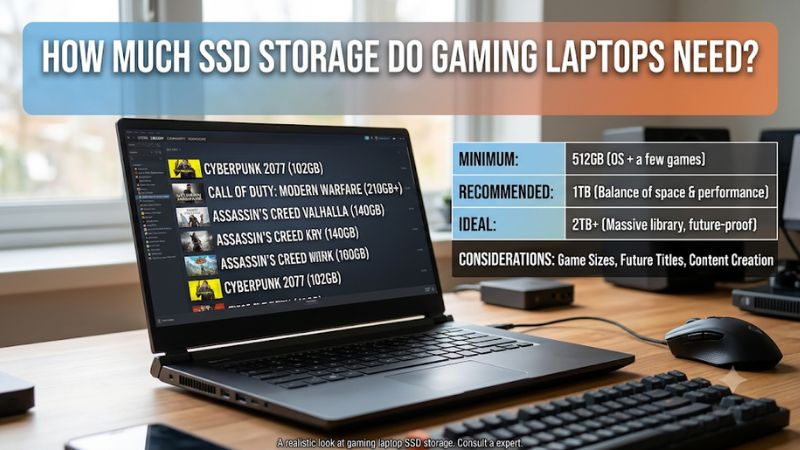
Game installation sizes vary considerably. Smaller independent games may occupy only a few gigabytes, while large open-world titles, competitive shooters, and games with extensive downloadable content can require substantially more. Some modern releases exceed 100GB, making storage planning important for players who regularly switch between several games.
Installation requirements are not always the same as the final space occupied by a game. Optional high-resolution texture packs, additional language files, expansions, and updates can increase the total. A game that initially appears manageable may become considerably larger after several major updates. Always check the publisher’s current storage requirement before installing.
2. Windows and Applications Also Need Storage
Your gaming laptop’s SSD does more than store games. Windows, drivers, security updates, launchers, communication applications, recording software, and personal files all occupy the same drive unless you use separate storage.
Windows 11 lists 64GB as its minimum storage-device requirement, but that figure is not a realistic target for a complete gaming laptop installation. Additional space is needed for applications, updates, temporary files, and everyday use. Microsoft also explains that Windows reserves storage to support system operations and updates.
A laptop advertised with a 1TB SSD will not provide the entire advertised capacity as available free space. Windows, installed software, recovery data, and the difference between decimal drive-capacity measurements and Windows’ binary reporting all affect the displayed amount.
3. Storage Capacity and Gaming Performance Are Different
A larger SSD does not automatically deliver higher gaming performance. Storage capacity determines how much information you can keep locally, while SSD technology and performance characteristics influence how quickly data can be accessed.
An NVMe SSD can provide faster game loading and file transfers than an older mechanical hard drive. However, upgrading from a reasonably fast NVMe SSD to a higher-capacity NVMe model does not automatically increase average FPS.
Game performance still depends primarily on the CPU, GPU, RAM, cooling, and game-specific optimization. Storage becomes particularly relevant when a game loads large assets or streams data during gameplay.
What Doesn’t Help
Buying the largest SSD available simply because it has more capacity is not necessarily a smart decision. Likewise, regularly deleting Windows files, clearing unrelated system folders, or installing storage-cleaning applications will not create meaningful gaming performance improvements.
Instead, choose enough capacity for your actual library and maintain reasonable free space for normal system operations.
How to Choose the Right SSD Capacity for a Gaming Laptop
Before purchasing a gaming laptop, estimate how many games you want installed simultaneously and how much additional data you expect to store. The following comparison provides practical starting points rather than mandatory hardware requirements. Your actual needs will depend on game sizes, installed applications, recording habits, and upgrade possibilities.
1. Is a 512GB SSD Enough for Gaming?
A 512GB SSD can work for budget-conscious gamers who primarily play a small selection of titles. It is particularly suitable for esports games, competitive multiplayer titles, and smaller independent releases that do not require enormous installations.
However, the available space becomes restrictive when you install several large AAA games alongside Windows and everyday applications. You may need to uninstall games more frequently or move less frequently played titles to external storage.
Choose 512GB when the laptop offers a good overall hardware configuration and you can upgrade its storage later. It is less attractive when the SSD is difficult to replace or the laptop has limited expansion options.
2. Is a 1TB SSD the Best Starting Point?
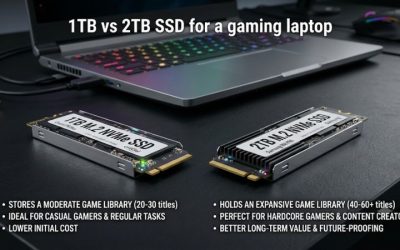
For most gaming laptop buyers, 1TB provides a sensible balance between capacity and cost. It offers more flexibility than 512GB without requiring the larger storage investment associated with 2TB configurations.
A 1TB drive can accommodate Windows, applications, and a moderate collection of games. It is particularly practical for players who rotate between several frequently played titles instead of keeping their entire game library installed.
Nevertheless, 1TB is not unlimited. Large game installations, recording files, downloadable content, and creative applications can gradually consume the available capacity. Players with extensive libraries may eventually prefer a second SSD or a larger replacement drive.
3. When Should You Choose a 2TB SSD?
A 2TB SSD is a better option for gamers who want several large games installed simultaneously without frequently managing their library. It also provides additional room for game recordings, mods, screenshots, video editing projects, and other personal files.
This capacity makes sense for players who use one laptop for gaming and content creation. Recording gameplay locally can generate substantial files, particularly when capturing long sessions at high resolutions and bitrates.
The main disadvantage is the higher purchase cost. If you primarily play two or three games and rarely store recordings, a 1TB configuration may offer better value. Consider 2TB when the additional space solves an actual storage problem rather than simply looking attractive on a specification sheet.
4. How to Calculate Your Actual Storage Requirements
Instead of guessing how many games fit on an SSD, calculate your expected storage consumption. Start with the games you regularly play and use their current installation requirements as a baseline.
A simple planning method is:
- Add the installation sizes of the games you want available simultaneously.
- Include Windows, drivers, launchers, and other applications.
- Account for recordings, mods, screenshots, and personal files.
- Leave additional room for updates, temporary installation files, and future downloads.
- Compare the resulting estimate with the usable capacity of the laptop’s SSD.
For example, someone who wants several large games installed alongside Windows and everyday software may find 1TB more comfortable than 512GB. A player who also records gameplay and maintains a large collection may benefit from 2TB.
| SSD Capacity | Suitable Gaming Habits | Main Advantage | Main Limitation |
| 512GB | Small game library, esports, casual gaming | Lower initial storage cost | Limited room for large games |
| 1TB | Regular gaming, several installed titles | Balanced capacity and flexibility | Can become restrictive with large libraries |
| 2TB | AAA gaming, large libraries, recordings | More room for games and personal files | Higher purchase cost |
| 4TB or more | Extensive libraries and content creation | Substantial local storage | Greater expense and compatibility considerations |
How to Manage and Upgrade Gaming Laptop SSD Storage
Buying enough storage initially is convenient, but upgrading later can also be practical. Many gaming laptops provide replaceable M.2 SSDs, and some include an additional M.2 slot. However, expansion capabilities vary by manufacturer, model, and configuration. Check the official specifications and service manual before purchasing additional storage.
1. Check Your Current SSD Capacity in Windows
You can check your available storage without installing additional software. In Windows 11, open Settings, select System, and then choose Storage.
This screen displays storage usage across categories such as installed applications, temporary files, system files, and other data. It helps identify whether games, applications, or personal files are consuming most of your available capacity.
You can also open File Explorer and select This PC to view the total capacity and remaining free space of your drives. This is a useful first step when deciding whether you need a larger SSD or simply better storage management.
2. Verify Your Laptop’s SSD Upgrade Compatibility
Before buying an internal SSD, identify the exact laptop model and its supported storage configuration. Do not assume that every gaming laptop supports every M.2 drive.
Important compatibility details include:
- Form factor: Check whether the laptop supports an M.2 2280, M.2 2230, or another physical drive size.
- Interface: Confirm whether the available slot supports PCIe NVMe, SATA, or a specific interface.
- PCIe generation: A newer PCIe SSD may operate at a lower supported generation, but physical and firmware compatibility must still be confirmed.
- Slot availability: Determine whether the laptop has an empty second M.2 slot or requires replacing its existing drive.
- Physical clearance: Check supported SSD thickness, single-sided or double-sided restrictions, and thermal-cover requirements.
Also check the manufacturer’s service instructions. Some laptops have storage configurations that vary between regional models, so the product family’s general specifications may not accurately describe your particular configuration.
3. Add a Second SSD or Replace the Existing Drive
If your laptop has an available compatible M.2 slot, installing a second SSD is often a convenient way to expand storage. You can keep Windows and existing applications on the original drive while using the additional SSD for games and larger files.
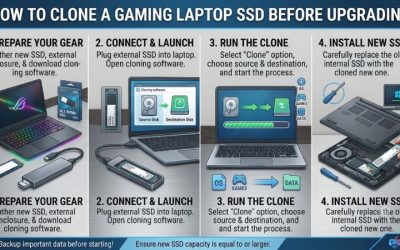
If there is no second slot, replacing the original SSD with a larger compatible drive may be necessary. Before doing so, back up important files and decide whether to reinstall Windows or clone the existing installation.
Replacing a system drive requires additional preparation. A failed migration can leave the laptop unable to boot, so create recovery media and verify that your backup is accessible before removing the original drive.
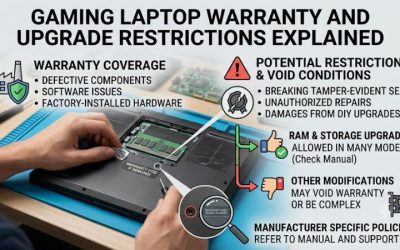
Follow the manufacturer’s disassembly instructions, disconnect power, and take appropriate precautions against electrostatic discharge. If the laptop is difficult to open or its warranty terms are unclear, consult the manufacturer or a qualified repair service.
4. Use External Storage for Less Frequently Played Games
An external SSD can provide additional capacity without opening the laptop. It is useful for storing game installers, backups, media files, and games that you do not need to access every day.
Connection speed matters. USB-C describes a connector type, not a guaranteed transfer speed. Check the actual USB specification supported by both the laptop and external drive.
You can also install and run some PC games from external SSDs, depending on the game launcher, connection, and performance requirements. However, an external drive is not always as convenient as internal storage, particularly when traveling or using the laptop away from its accessories.
For frequently played games, an internal NVMe SSD is generally the more convenient choice. External storage works better as additional capacity rather than a complete replacement for the laptop’s primary drive.
Frequently Asked Questions
Is a 512GB SSD enough for a gaming laptop?
Yes, a 512GB SSD is enough for a gaming laptop with a small, carefully managed game library. However, large AAA installations can consume a substantial portion of the available space. If you frequently install new releases, choose 1TB when your budget allows or verify that the laptop supports future SSD upgrades.
Does a 2TB SSD improve FPS compared with a 1TB SSD?
No, a 2TB SSD does not automatically improve FPS compared with a 1TB SSD. Capacity determines how much data you can store, while drive performance affects certain storage-related tasks, including loading games. Two SSDs with similar performance characteristics can deliver comparable gaming results despite having different capacities.
Can I upgrade my gaming laptop from 512GB to 1TB or 2TB?
Yes, many gaming laptops support SSD upgrades, but compatibility depends on the specific model. Check the M.2 form factor, NVMe or SATA support, PCIe generation, physical clearance, and available slots. Consult the manufacturer’s service manual before replacing or installing an additional drive.
Should I choose a larger SSD or an external hard drive?
Choose a larger internal SSD when you want convenient access to frequently played games and applications. An external hard drive is more appropriate for backups, archived recordings, and files that do not require fast access. An external SSD offers a useful middle ground when you need portable storage and faster transfers.
Final Thoughts
Deciding how much SSD storage do gaming laptops need comes down to your installed game library, everyday applications, and future storage plans. For most buyers, 1TB is a practical starting point, while 2TB suits larger libraries and recording workloads. Check upgrade compatibility before purchasing, especially when considering a 512GB configuration.
Related guides
More from Amazon
Programs that pair well with the guide above. Offers and eligibility are set by Amazon and may change.
Free shipping on eligible items, Prime Video and more. Eligible new members can start with a free trial.
Start a Prime free trialAd-free music streaming. Eligible new subscribers can start with a free trial.
Try Music Unlimited freeA Prime membership for ages 18-24 with a trial period. Eligibility is set by Amazon.
See Prime for Young AdultsAudiobooks and podcasts to listen to on the go. Eligible new members can start with a free trial.
Try Audible freeAs an Amazon Associate we earn from qualifying purchases.