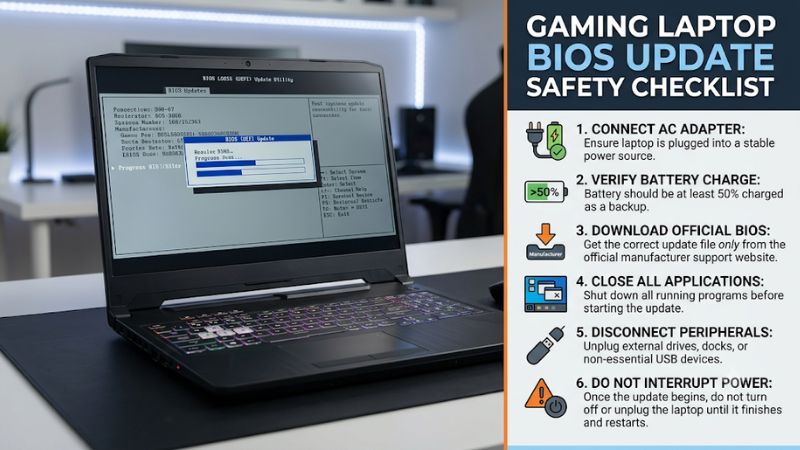
Updating laptop firmware can improve hardware compatibility, address security vulnerabilities, and resolve specific stability problems, but an interrupted or incorrect update can prevent a laptop from starting. This gaming laptop BIOS update safety checklist covers model verification, power, BitLocker, backups, installation precautions, and post-update checks.
What a Gaming Laptop BIOS Update Really Comes Down To
A safe BIOS update starts with three decisions: whether an update is actually necessary, whether the firmware matches the exact laptop configuration, and whether the system is prepared for the installation. These checks matter because gaming laptops often have model-specific firmware, customized power settings, and security features that affect startup.
1. Understand When a BIOS Update Is Necessary
A BIOS update replaces or modifies low-level motherboard firmware responsible for initializing hardware before Windows loads. Manufacturers may release updates to address security vulnerabilities, improve hardware compatibility, resolve firmware-related problems, or introduce specific functionality.
However, a newer version does not automatically mean better gaming performance. A BIOS update should not be treated as a routine FPS optimization. If a laptop runs reliably and the release notes do not address an issue relevant to its configuration, updating may offer little practical benefit.
Before proceeding, identify the purpose of the update:
- Security: The release addresses a documented firmware vulnerability.
- Compatibility: The update supports a particular hardware component or configuration.
- Stability: The manufacturer documents a relevant system or startup issue.
- Power management: The update addresses a specific firmware-related power behavior.
- Operating system support: The release addresses a documented Windows compatibility requirement.
Read the manufacturer’s release notes rather than relying on a generic description such as system improvements. The specific fixes determine whether the update is worthwhile.
2. Identify the Exact Laptop Model and BIOS Version
Gaming laptop product names are not always sufficient to identify compatible firmware. A manufacturer may sell several configurations under one family name, with different motherboard revisions, processors, graphics configurations, or regional variants.
Start by pressing Windows + R, entering msinfo32, and pressing Enter. In System Information, locate:
- System Manufacturer
- System Model
- BIOS Version/Date
- BaseBoard Manufacturer
- BaseBoard Product
Record the installed BIOS version before downloading anything. Compare it against the firmware listed on the manufacturer’s official support page for the exact laptop model.
For example, an ASUS ROG, MSI Raider, Lenovo Legion, or Dell Alienware laptop may have several closely named variants. Firmware intended for another model should never be assumed compatible simply because the product family looks similar.
The manufacturer’s instructions and release notes take priority over third-party firmware collections.
3. Understand the Risks Before Flashing Firmware
BIOS updates carry different risks from ordinary Windows application updates. An application installation can often be repaired by reinstalling the software. A failed firmware update can affect the motherboard’s ability to initialize hardware and start the operating system.
Important risks include:
- Power interruption: Losing power during firmware writing can corrupt the firmware.
- Incorrect firmware: An incompatible BIOS package can prevent normal startup.
- Encryption recovery: Firmware changes can trigger a BitLocker recovery prompt.
- Configuration changes: An update may reset customized BIOS settings.
- Compatibility changes: Some releases modify firmware behavior or restrict older versions.
Recovery options depend on the laptop manufacturer and model. Some machines provide BIOS recovery functionality, while others may require professional service if firmware recovery fails.
4. What Doesn’t Help
Several common habits create unnecessary risks without making a BIOS update safer.
First, do not download firmware from unofficial driver websites, forums, or file-sharing services simply because someone reports better gaming performance. These sources may distribute an incorrect or modified package.
Second, do not repeatedly install newer BIOS versions just to keep the laptop on the highest available number. Follow the manufacturer’s update recommendations, including any required intermediate versions.
Finally, avoid combining a BIOS update with CPU undervolting, GPU overclocking, Windows reinstallation, or driver cleanup. Keeping the update process isolated makes unexpected problems easier to diagnose.
How to Follow a Gaming Laptop BIOS Update Safety Checklist: Step by Step
Preparation is more important than rushing through the installation wizard. Before starting, verify the firmware package, protect important files, check encryption settings, and establish reliable power. The following table separates each important action from its location, expected benefit, and associated risk.
| Setting or Step | Where | Effect | Risk |
| Verify laptop identity | Windows System Information | Prevents incorrect firmware selection | Wrong model identification |
| Check firmware release | Official manufacturer support page | Confirms compatibility and update purpose | Incorrect download |
| Back up important files | External storage or cloud backup | Protects important data | Incomplete backup |
| Check BitLocker | Windows BitLocker settings | Reduces encryption recovery problems | Recovery-key prompt |
| Connect AC power | Laptop charging port | Maintains reliable power | Power interruption |
| Install official BIOS | Manufacturer utility or specified firmware method | Applies firmware changes | Failed or interrupted update |
1. Verify and Download the Correct BIOS Package
Open the official support website for your laptop manufacturer. Navigate to the product’s driver and firmware section, select the BIOS category, and locate the release applicable to your exact model.
Compare the available information:
- Laptop model and product identifier.
- Current installed BIOS version.
- Available BIOS version.
- Release date.
- Documented fixes and compatibility requirements.
- Installation instructions and any required intermediate updates.
For Lenovo laptops, review the BIOS update README. Lenovo specifically warns that firmware intended for another system model may prevent the system from working correctly.
Lenovo Support BA
For MSI notebooks, the official procedure directs users to the product support page, Drivers & Downloads, and BIOS section. The instructions also explain how to prepare the downloaded firmware files for the update method.
msi.com
Do not rename, modify, extract, or transfer firmware files unless the manufacturer’s instructions require it.
2. Back Up Files and Prepare BitLocker
Back up important documents, saved game data, configuration files, and other personal information before updating. Cloud synchronization or an external storage device can provide an additional recovery option.
Pay particular attention to BitLocker and Windows Device Encryption. A firmware update can change TPM-related measurements, causing Windows to request the BitLocker recovery key during startup.
On Windows 11, check encryption through:
Settings → Privacy & security → Device encryption.
On supported Windows editions, you can also open Control Panel → System and Security → BitLocker Drive Encryption.
Before proceeding:
- Confirm whether device encryption or BitLocker is enabled.
- Locate and securely save the recovery key.
- Verify that you can access the key independently of the laptop.
- Follow the manufacturer’s instructions about temporarily suspending protection.
- Resume protection after confirming the system starts normally.
For example, Dell explicitly advises suspending BitLocker before its BIOS update procedure. ASUS also warns that a recovery-key prompt may appear following a firmware update.
Dell US+1
Do not permanently disable encryption just to complete a firmware installation. If you cannot locate the recovery key, postpone the update until you have secured it.
3. Connect Reliable Power and Prepare the Laptop
Connect the original AC adapter or a manufacturer-approved power supply before starting. Keep it connected throughout the entire update, including automatic restarts.
Battery requirements vary between manufacturers and update methods. ASUS specifies a battery level of at least 20% for the documented EZ Flash procedure, while Dell provides its own battery and AC-power precautions. Follow the requirements for your particular laptop rather than applying one universal threshold.
ASUS Global+1
Also prepare the operating environment:
- Save open documents and close applications.
- Disconnect unnecessary USB storage devices and peripherals.
- Remove docking stations if the manufacturer’s instructions recommend doing so.
- Avoid updating during unstable electricity conditions.
- Return CPU undervolting and overclocking adjustments to manufacturer-recommended defaults when instructed.
- Do not begin if the laptop is experiencing unexplained shutdowns or unstable power.
A laptop that cannot maintain reliable power should not undergo a firmware update until the underlying issue is addressed.
4. Install the BIOS and Verify the Result
Use the installation method specified for your exact model. Depending on the manufacturer, this might involve a Windows-based installer, an in-BIOS firmware utility, or a dedicated update application.
Do not assume that every gaming laptop supports the same procedure.
For ASUS notebooks, supported models may use ASUS Firmware Update or EZ Flash through the BIOS utility. For other models, the manufacturer may provide a Windows executable or a dedicated update application.
ASUS Global+1
During installation:
- Start the update using the manufacturer’s instructions.
- Confirm the displayed firmware version and model when prompted.
- Allow the laptop to restart automatically.
- Do not press the power button or disconnect the charger.
- Do not close the laptop lid if the manufacturer instructs you to keep it open.
- Wait for the firmware process to finish and Windows to load.
The display may temporarily go black, fans may change speed, and the laptop may restart more than once. These behaviors can occur during normal firmware installation.
After Windows loads, reopen System Information using msinfo32. Check BIOS Version/Date and compare it with the intended release.
Also check that Windows starts normally, the keyboard and touchpad work, storage is detected, and the laptop recognizes its AC adapter.
If BitLocker protection was suspended, resume it after confirming the system is functioning normally.
FAQ
1. Is It Safe to Update BIOS on a Gaming Laptop?
Yes, a BIOS update can be performed safely when the firmware matches the exact laptop model and the manufacturer’s precautions are followed. However, firmware installation is not risk-free. Incorrect files, power interruptions, and encryption recovery problems can cause serious complications.
Use official firmware, back up important files, secure the BitLocker recovery key, and maintain AC power throughout installation. If the laptop is managed by an organization, check with its IT administrator before changing firmware.
2. Should I Update My Gaming Laptop BIOS for Better FPS?
No, you should not update BIOS solely because you expect higher gaming FPS. Firmware updates may address specific power-management, compatibility, or stability problems, but gaming performance improvements are not guaranteed.
Check the release notes for relevant changes. If your objective is better gaming performance, investigate GPU drivers, power profiles, thermal behavior, and game settings separately rather than assuming a BIOS update will improve frame rates.
3. Can a BIOS Update Delete My Games and Personal Files?
A normal BIOS update is not intended to erase your Windows installation, games, or personal files. However, firmware failures and encryption problems can complicate access to the operating system and stored data.
That is why backing up important files and securing your BitLocker recovery key are essential precautions. Do not treat the firmware update process as a substitute for a regular backup.
4. What Should I Do If My Gaming Laptop Won’t Boot After a BIOS Update?
First, avoid repeatedly forcing shutdowns or attempting random firmware installations. If the manufacturer provides a documented BIOS recovery procedure for your exact model, follow those instructions.
Check the manufacturer’s support documentation for recovery-key requirements, diagnostic indicators, and supported recovery methods. If the laptop remains unable to complete startup, contact the manufacturer’s service center. A failed firmware update may require specialized recovery or motherboard service.
Final Thoughts
A gaming laptop BIOS update safety checklist helps prevent avoidable firmware mistakes by making model verification, backups, encryption preparation, and stable power essential parts of the process. Update only when there is a relevant reason, follow the manufacturer’s exact procedure, and verify normal operation before returning to gaming.
Related guides
More from Amazon
Programs that pair well with the guide above. Offers and eligibility are set by Amazon and may change.
Free shipping on eligible items, Prime Video and more. Eligible new members can start with a free trial.
Start a Prime free trialAd-free music streaming. Eligible new subscribers can start with a free trial.
Try Music Unlimited freeA Prime membership for ages 18-24 with a trial period. Eligibility is set by Amazon.
See Prime for Young AdultsAudiobooks and podcasts to listen to on the go. Eligible new members can start with a free trial.
Try Audible freeAs an Amazon Associate we earn from qualifying purchases.