The best SSDs for a laptop upgrade are the ones that physically fit your machine first and run fast second: a 2.5-inch SATA drive for older laptops with a drive bay, or an M.2 NVMe drive for most newer ones. Of the ten listings below, six are 2.5-inch SATA drives (three PNY capacities, one KingSpec, two Samsung 870 EVO) and four are M.2 NVMe drives (WD Blue SN5100, KingSpec Gen4, Samsung 990 EVO Plus, Fanxiang S690Q). They are not interchangeable, so the first step is to open your laptop’s manual and find which slot you have. After that, capacity and price are the real decisions.
Our Top Picks
Top picks at a glance

Samsung SSD 990 EVO Plus 2TB, PCIe Gen 4x4 | 5x2 M.2 2280, Up to 7,250 MB/s | NVMe Internal Solid State Drive, Upgrade Storage for PC/Laptops, HMB Technology & Intelligent Turbowrite 2.0 (MZ-V9S2T0B/AM)


As an Amazon Associate we earn from qualifying purchases. Product prices and availability are accurate as of the date/time indicated.

PNY CS900 250GB 2.5" SATA III Internal SSD | Up to 535/500MB/s R/W - PC/Laptop/HDD Upgrade for Everyday Users, Creators, Gamers, and more - SSD7CS900-250-RB


As an Amazon Associate we earn from qualifying purchases. Product prices and availability are accurate as of the date/time indicated.
PNY CS900 500GB 2.5" SATA III Internal SSD | Up to 550/500MB/s R/W - PC/Laptop/HDD Upgrade for Everyday Users, Creators, Gamers, and more - SSD7CS900-500-RB


As an Amazon Associate we earn from qualifying purchases. Product prices and availability are accurate as of the date/time indicated.

KingSpec 1TB 2.5 SSD SATA III Internal - 550MB/s Read, 520MB/s Write with 3D NAND Flash, for Laptop & Desktop PC Upgrade


As an Amazon Associate we earn from qualifying purchases. Product prices and availability are accurate as of the date/time indicated.
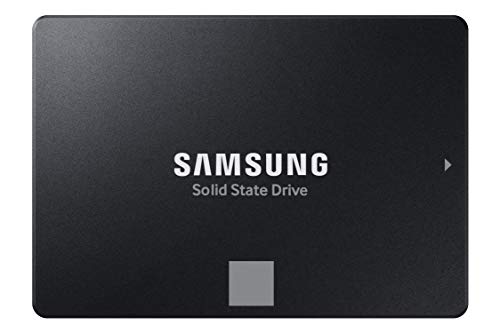
Samsung SSD 870 EVO SATA III 2.5” 1TB, Read Speeds Up to 560MB/s | SATA Internal Solid State Drive, Upgrade PC or Laptop Memory & Storage for IT Pros, Creators, Everyday Users (MZ-77E1T0B/AM)


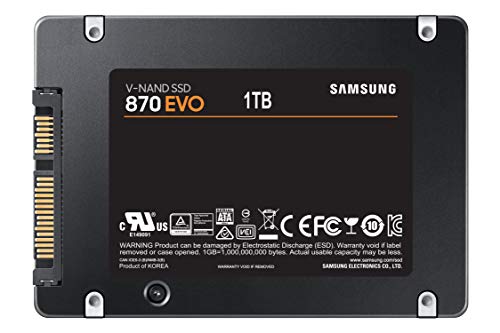


As an Amazon Associate we earn from qualifying purchases. Product prices and availability are accurate as of the date/time indicated.
PNY CS900 1TB 2.5" SATA III Internal SSD | Up to 535/515MB/s R/W - PC/Laptop/HDD Upgrade for Everyday Users, Creators, Gamers, and more - SSD7CS900-1TB-RB

As an Amazon Associate we earn from qualifying purchases. Product prices and availability are accurate as of the date/time indicated.

Fanxiang 1TB NVMe SSD PCIe Gen4 M.2 Internal Gaming SSD for PS5, Up to 4800 MB/s, 3D NAND SLC Cache Solid State Drive Upgrade Storage for PC/Laptops S690Q


As an Amazon Associate we earn from qualifying purchases. Product prices and availability are accurate as of the date/time indicated.

WD Blue SN5100 1TB NVMe SSD - M.2 2280, PCIe Gen 4.0, Internal Solid State Drive - Read Speeds Up to 7,100MB/s, Upgrade Storage for PC/Laptops - WDS100T5B0E


As an Amazon Associate we earn from qualifying purchases. Product prices and availability are accurate as of the date/time indicated.

Samsung SSD 870 EVO SATA III 2.5” 2TB, Read Speeds Up to 560MB/s | SATA Internal Solid State Drive, Upgrade PC or Laptop Memory & Storage for IT Pros, Creators, Everyday Users (MZ-77E2T0B/AM)


As an Amazon Associate we earn from qualifying purchases. Product prices and availability are accurate as of the date/time indicated.

KingSpec 1TB M.2 NVMe PCIe Gen4 SSD - Up to 7400MB/s Read, Championship Edition, 3D NAND Flash, Ideal for PS5, Gaming PC & Laptop Upgrade


As an Amazon Associate we earn from qualifying purchases. Product prices and availability are accurate as of the date/time indicated.
| Model | Key point from the title | Price tier | Best for |
|---|---|---|---|
| WD Blue SN5100 1TB | M.2 2280, PCIe Gen 4.0, up to 7,100MB/s read | Mid-range | Modern laptops with a free M.2 slot |
| KingSpec 1TB M.2 NVMe Gen4 | Up to 7400MB/s read, “Championship Edition” | Mid-range | Speed-minded upgrades |
| Samsung 990 EVO Plus 2TB | PCIe Gen 4×4 (listing also says 5×2), up to 7,250 MB/s, 2280 | Premium | Large library on one drive |
| Fanxiang S690Q 1TB | PCIe Gen4, up to 4800 MB/s, listed for PS5 too | Mid-range | Gen4 on a tighter plan |
| Samsung 870 EVO 1TB | 2.5-inch SATA III, up to 560MB/s read | Premium | Older laptops, brand-name SATA |
| Samsung 870 EVO 2TB | 2.5-inch SATA III, up to 560MB/s read | Premium | Maximum SATA capacity |
| PNY CS900 1TB | 2.5-inch SATA III, up to 535/515MB/s R/W | Budget | Everyday HDD replacement |
| PNY CS900 500GB | 2.5-inch SATA III, up to 550/500MB/s R/W | Budget | Modest-capacity upgrade |
| PNY CS900 250GB | 2.5-inch SATA III, up to 535/500MB/s R/W | Budget | Basic boot drive |
| KingSpec 1TB 2.5-inch SATA | 550MB/s read, 520MB/s write, 3D NAND | Budget | Low-cost 1TB SATA |
What is changing in this category
For years, the standard laptop upgrade was swapping a spinning hard drive for a 2.5-inch SATA SSD, and the performance jump was dramatic. That swap is still the right answer for older laptops, and SATA drives top out around 550 to 560MB/s because the interface itself caps them. The listings here reflect that ceiling.
Most laptops sold more recently use M.2 slots instead, and NVMe drives over PCIe offer far higher stated speeds. Gen4 drives in this set advertise reads between roughly 4,800 and 7,400MB/s. Those numbers are peak sequential reads from the seller; everyday loading and boot times improve less than the headline suggests, because most tasks are not pure sequential reads.
A third shift is marketing: console-oriented labels. Several M.2 listings mention PS5. That tells you the drive is designed around a console’s requirements, not that it is the best choice for a laptop. In a thin laptop, the console-style heatsink that some buyers add may not fit, and a drive without one may run hotter under sustained writes.
Finally, capacity per dollar keeps improving, so a 1TB upgrade is now routine and 2TB is realistic for people who store games or video. Check the form factor, check thermals and treat every speed figure as a seller claim.
How we picked these
We compared the ten listings using their published titles, manufacturer documentation where available, and buyer reviews as a source of recurring themes. We grouped them by form factor (M.2 NVMe versus 2.5-inch SATA), then ordered each group by stated interface, capacity and brand recognition. Nobody on the team used or measured these units. Anything a title does not state is marked “check the listing”, and price tiers are relative to this set only, so a large drive can look expensive while being fair per gigabyte.
The picks, one by one
WD Blue SN5100 1TB: a balanced Gen4 choice
The title lists a 1TB NVMe SSD in M.2 2280, PCIe Gen 4.0, read speeds up to 7,100MB/s, for PC and laptop upgrades. It is the cleanest-labeled M.2 listing in the set: form factor, interface, capacity and read speed are all stated. The product record shows a different brand name than the title, so confirm the seller and warranty details on the page.
It suits a laptop with a free or replaceable 2280 M.2 slot, such as a mainstream gaming or work machine that needs more room for games and projects. Read the laptop manual first: many thin laptops use shorter 2230 or 2242 drives, and a 2280 module will not fit them.
- Pros: Gen4 interface and a read speed in the top range for this set.
- Pros: mid-range price tier for 1TB.
- Cons: write speed is not stated.
- Cons: needs a 2280 slot; not suited to older SATA-only laptops.
Check the listing for write speeds, endurance rating, warranty length and whether a heatsink is included. Question to ask: does my laptop have a free 2280 slot with a clear screw standoff? If the slot is already occupied, you will be replacing the old drive, so plan the data move first.
KingSpec 1TB M.2 NVMe Gen4: the highest stated read speed
The title states 1TB, M.2 NVMe PCIe Gen4, up to 7400MB/s read, 3D NAND flash, “Championship Edition” and suitability for PS5, gaming PC and laptop upgrades. The 7400MB/s figure is the highest read speed named in the set. “Championship Edition” is a marketing label that tells you nothing about hardware.
It appeals to buyers who want the fastest-looking number at a mid-range price tier and who accept a less familiar brand. The title does not mention a controller, DRAM cache or endurance, which matter for sustained writes during large game installs or video projects. Buyer reviews are the better source for how this brand holds up in practice.
- Pros: very high stated read speed for a mid-range price tier.
- Pros: Gen4 interface with 1TB capacity.
- Cons: no write speed, endurance or cache details in the title.
- Cons: less established brand than the Samsung and WD options.
Check the listing for warranty, write speed and whether a heatsink is included. Question to ask: will my laptop’s cooling leave room for any added heatsink, and is the brand’s warranty process clear? A fast drive with an awkward warranty claim can be less appealing than a slightly slower drive with straightforward support.
Samsung 990 EVO Plus 2TB: the large-capacity NVMe
The title says 2TB, “PCIe Gen 4×4 | 5×2” M.2 2280, up to 7,250 MB/s, NVMe, HMB technology and Intelligent TurboWrite 2.0. The “Gen 4×4 | 5×2” wording is ambiguous in the title, so read the manufacturer page to see which interface modes the drive supports and which one your laptop will use. Do not assume a Gen5 speed in a laptop that only provides Gen4.
It suits someone who wants one big drive: a game library plus work files, or a creator laptop that holds large project folders. The 2TB capacity puts this in the premium price tier, but per gigabyte it is often less lopsided than the headline price suggests. HMB (host memory buffer) lets the drive use a small portion of system memory as a cache, so check the manual for any compatibility notes.
- Pros: 2TB capacity and a stated read speed near the top of the set.
- Pros: well-known brand with manufacturer documentation.
- Cons: highest M.2 price tier here.
- Cons: interface wording in the title is confusing.
Check the listing for endurance, warranty and heatsink options. Question to ask: do I need 2TB now, or would a 1TB drive and an external drive cost less? Also consider whether you would rather keep all your files in one place, which is the main argument for a single large drive.
Fanxiang S690Q 1TB: Gen4 with a lower stated ceiling
The title calls it a 1TB NVMe PCIe Gen4 M.2 gaming SSD for PS5, up to 4800 MB/s, 3D NAND with SLC cache, for PC and laptops. The 4800MB/s ceiling is well below the other Gen4 drives in this set, which hints at a different performance tier. The “for PS5” wording and the “SLC cache” mention are seller descriptions rather than proof of laptop suitability.
It suits a buyer who wants an NVMe upgrade at a mid-range price tier and does not care about the fastest sequential read. For general laptop use, loading programs and booting, the gap between 4,800 and 7,000MB/s is rarely noticeable; the more important question is how the drive behaves when its cache fills during a long copy.
- Pros: NVMe Gen4 with 1TB at a mid-range price tier.
- Pros: SLC cache named in the title.
- Cons: lower stated read speed than the other Gen4 picks.
- Cons: lesser-known brand; the PS5 label is not laptop-specific.
Check the listing for form factor details, write speed and warranty. Question to ask: is the price gap to the WD or KingSpec drive large enough to justify a slower stated speed? If the gap is only modest, the faster listing is probably the safer choice.
Samsung 870 EVO 1TB SATA: the dependable older-laptop upgrade
The title says 2.5-inch SATA III, 1TB, read speeds up to 560MB/s, for IT pros, creators and everyday users. This is the classic upgrade for a laptop with a 2.5-inch bay, the kind that currently has a hard drive. It sits at a premium price tier within this set for a SATA drive, and you are paying for the brand, not for extra speed.
It suits someone reviving an older laptop with a spinning drive. A typical scenario: a work laptop that takes minutes to boot, swapped for a SATA SSD so that startup and app launches become quicker. Because SATA is capped by its interface, any SATA drive in this set will feel similar in everyday use.
- Pros: well-known brand, clear interface and capacity.
- Pros: fits a 2.5-inch bay, the common older laptop drive size.
- Cons: premium price tier for a SATA drive.
- Cons: not useful in laptops that have only an M.2 slot.
Check the listing for drive thickness, because some very thin laptops take 7mm drives only. Question to ask: does my laptop have a 2.5-inch bay, and how tall is it? The old drive’s label or the service manual usually tells you the thickness.
Samsung 870 EVO 2TB SATA: maximum SATA capacity
Same line as the 1TB model with the same 560MB/s read claim, at 2TB. Its price puts it in the premium tier, higher than most NVMe options in this set. If your laptop has only a SATA bay, it is the biggest drive on offer here; if it has an M.2 slot, the 2TB NVMe listing deserves a look first.
It suits someone who stores large libraries on a laptop whose only upgrade path is 2.5-inch SATA, such as a video editor with older hardware. Because the speed is the same as the 1TB model, the case for this one is purely capacity.
- Pros: largest SATA capacity here, brand-name documentation.
- Pros: same simple compatibility as the 1TB model.
- Cons: expensive compared with an NVMe drive of similar size.
- Cons: SATA speed cap.
Check the listing for thickness and warranty. Question to ask: is it cheaper to buy two smaller drives or an external drive for archives? Compare the cost per terabyte across the whole set before deciding.
PNY CS900 1TB SATA: the budget bulk-storage pick
The title states a 2.5-inch SATA III internal SSD at 1TB, up to 535/515MB/s read and write, for upgrading laptops and HDDs. It is the most affordable 1TB drive in this set on a per-capacity basis. The stated read and write speeds are close to the SATA limit.
It suits a budget upgrade for a laptop that mainly handles documents, streaming and light games. As with most budget SATA drives, the title does not describe endurance or sustained-write behavior, so heavy video work may reveal limits.
- Pros: budget price tier at 1TB, SATA III 2.5-inch fit.
- Pros: both read and write speeds stated.
- Cons: no endurance details in the title.
- Cons: SATA speed ceiling.
Check the listing for warranty and drive thickness. Question to ask: is 1TB enough that I will not need to upgrade again soon? If your library is growing quickly, 2TB may save a second upgrade later.
PNY CS900 500GB SATA: the middle capacity
Stated as 2.5-inch SATA III at 500GB, up to 550/500MB/s read and write. It sits at a budget price tier, and it is a sensible fit for a laptop that stores mostly cloud files and a few installed programs.
Its limit is capacity. Operating system updates, a few applications and one or two modern games can fill 500GB quickly, which leaves little headroom. If your current drive is 256GB or 512GB and you regularly run low, the 1TB model costs more but is often the better long-term buy.
- Pros: low price, simple compatibility.
- Pros: stated speeds near the SATA limit.
- Cons: limited capacity for games and video.
- Cons: not a strong upgrade over a 512GB drive.
Check the listing for thickness and warranty. Question to ask: how much of my current drive is actually used? Check the free space in your operating system before deciding on any capacity.
PNY CS900 250GB SATA: a basic boot drive
The smallest drive here: 2.5-inch SATA III, 250GB, up to 535/500MB/s. The title still describes it as an upgrade for everyday users, creators and gamers, which is generous for 250GB. It is a boot drive for an old laptop that mostly browses and writes documents.
It suits the lowest budget, or a second drive for a specific job. For most buyers the price difference to the 500GB or 1TB model is small enough that the larger drive is the better choice. Treat this one as a fallback, not a recommendation.
- Pros: lowest price tier in the set.
- Pros: easy swap into a SATA bay.
- Cons: little room for modern software or games.
- Cons: small price saving compared with larger models.
Check the listing for warranty and thickness. Question to ask: will I outgrow 250GB within a year? For most people the honest answer is yes, which is why the larger PNY models make more sense.
KingSpec 1TB 2.5-inch SATA: low-cost 1TB with 3D NAND
The title says 1TB, 2.5-inch SATA III, 550MB/s read, 520MB/s write, 3D NAND flash, for laptop and desktop upgrades. It competes directly with the PNY 1TB at a budget price tier, and the stated speeds are similar. The deciding factors will be warranty, price on the day and buyer reviews.
It suits the same buyer as the PNY: someone replacing a hard drive on a budget. A little extra due diligence pays off with lesser-known brands, such as checking the warranty process and recent buyer feedback about early failures.
- Pros: budget price tier at 1TB, 3D NAND named.
- Pros: both speeds stated.
- Cons: lesser-known brand.
- Cons: nearly identical class to the PNY 1TB.
Check the listing for warranty length and drive thickness. Question to ask: if this drive failed, how easily could I get a replacement? Look at the warranty terms and seller return window on the listing.
Buying guide
Form factor: M.2 versus 2.5-inch
This is the make-or-break check. A 2.5-inch SATA drive needs a bay with a SATA connector; an M.2 drive needs an M.2 slot, and the slot must support NVMe, not only SATA M.2. Within M.2, length matters: 2280 means 22mm wide and 80mm long, and many ultrabooks use shorter modules. Look up your laptop model’s service manual or the manufacturer’s support page before ordering.
Interface and real-world speed
SATA tops out around 550MB/s. NVMe over PCIe Gen3 reaches a few thousand, and Gen4 can advertise 7,000MB/s or more. Your laptop may limit the interface, so a Gen4 drive in a Gen3 slot will run at Gen3 speeds. For boot times and app launches, even a SATA SSD is a large improvement over a hard drive.
Capacity and formatted size
Drives are sold in decimal units, so a 1TB drive shows about 931GiB in an operating system. Plan for roughly 10 to 15 percent free space for performance and updates. Buy more than you need today if your budget allows.
Endurance, cache and what titles leave out
Product titles list peak speeds and capacity, and they almost never list endurance, controller type or how large the fast cache is. Endurance ratings, usually expressed as total terabytes written, show how much data a drive is designed to take before wear becomes a concern. For a typical laptop owner, even modest ratings last for years, but a creator who writes hundreds of gigabytes a day should read the manufacturer’s data sheet. Cache behavior explains why some drives start a long copy fast and then slow down once the fast region fills, which is a common theme in buyer reviews of budget drives.
Heat and throttling
Fast NVMe drives can run warm during long writes and may slow themselves down to protect the hardware. Laptops have little room for heatsinks, so a console-style heatsink may not fit. Check the clearance before buying one, and follow the laptop maker’s instructions on any thermal pad requirements. If you are also opening the laptop to refresh cooling, our guide to upgrading thermal paste on a gaming laptop covers that task.
Cloning, installing and safety
Back up your data before any hardware change. Power off, unplug the charger and, where the manual says so, disconnect the internal battery before touching components. Ground yourself to avoid static discharge. Opening a laptop can affect the warranty, so check the maker’s policy. To move your system to the new drive, you can clone using manufacturer software and a USB enclosure, or do a clean install from a USB installer. If you are opening the laptop anyway, it is a good moment to look at our guide to upgrading RAM in a gaming laptop.
Enclosures, adapters and migration tools
If your laptop has only one slot, cloning needs a way to connect the new drive while the old one is still installed. A USB enclosure or adapter for the right form factor does that, and it can be reused afterward as a portable backup for the old drive. Pick an enclosure that matches the drive type, since SATA and NVMe enclosures are not interchangeable. After cloning, boot from the new drive once before wiping the old one, and keep the old drive untouched for a few days as a safety net.
Worked example with stated assumptions
Assume a laptop has a 512GB drive with 430GB used and you buy a 1TB SSD. A 1TB drive shows roughly 931GiB, so after cloning you would have about 500GB free. If the clone runs at about 400MB/s through a USB enclosure (an assumption, since enclosures vary), copying 430GB takes roughly 430 divided by 0.4, or about 1,075 seconds, so around 18 minutes plus verification time. If you wanted a second internal drive and thought about splitting storage across two disks, read our piece on dual-SSD RAID 0 on a gaming laptop before planning anything unusual. These figures are estimates.
| Spec concept | What to look for | Why it matters |
|---|---|---|
| Form factor | 2.5-inch SATA or M.2 2280 (or 2230/2242) | Decides whether the drive fits at all |
| Interface | SATA III or PCIe Gen3/Gen4 NVMe | Sets the speed ceiling |
| Capacity | Current use plus 50 percent growth | Avoids another upgrade soon |
| Write behavior | Cache type and sustained speed | Matters for large installs and video |
| Warranty | Length and process | Protects against early failure |
| Thickness and clearance | 7mm bay or heatsink room | Prevents a drive that will not fit |
Mistakes buyers make
The biggest mistake is ordering the wrong form factor, such as an M.2 drive for a laptop with only a SATA bay, or a 2280 module for a laptop that takes 2230. The second is chasing peak read speed: for most laptop work, the difference between a good Gen4 drive and a mid-range one is small compared with the jump from a hard drive.
Third, buyers forget that SATA M.2 and NVMe M.2 are different. Fourth, they skip the backup. Fifth, they ignore thermals and end up with a drive that slows under long writes in a cramped chassis. Sixth, they assume titles tell the whole story: many listings omit write speed, endurance and cache design, which is why warranty and buyer reviews matter.
Finally, avoid buying only on price per gigabyte. A cheaper drive with a shorter warranty may cost more in the long run if it fails, and a data recovery effort costs far more than the difference between two drives.
Verdict by use case
For a modern laptop with a 2280 slot, the WD Blue SN5100 is the clearest-labeled mainstream pick, the KingSpec Gen4 offers the highest stated read speed, and the Samsung 990 EVO Plus 2TB is the capacity play. The Fanxiang is a lower-ceiling Gen4 alternative. For an older laptop with a 2.5-inch bay, the Samsung 870 EVO is the brand-name option, and the PNY CS900 1TB and KingSpec 1TB SATA are the budget picks. The 500GB and 250GB PNY models are worth considering only for tight budgets or specific small jobs.
Frequently asked questions
How do I know if my laptop takes an M.2 or a 2.5-inch SSD?
Check your laptop’s service manual or the manufacturer’s support page for the exact model. Older laptops often have a 2.5-inch bay with a SATA connector, while newer ones usually have an M.2 slot, sometimes both. Also confirm the M.2 length (2280, 2242 or 2230) and whether the slot supports NVMe. Searching your model number plus the word “upgrade” often turns up the answer, and the label on your current drive shows its size and type.
Is NVMe much faster than SATA for everyday laptop use?
On paper, yes: NVMe drives in this set advertise 4,800 to 7,400MB/s reads versus about 560MB/s for SATA. In daily use, boot and app launch times improve less than the numbers suggest, because many tasks are not pure sequential reads. A SATA SSD is a big step up from a hard drive, and NVMe matters most for large file transfers, big installs and workloads that read and write constantly, so it is worth paying for only if your laptop supports it.
Will a PS5 SSD work in my laptop?
Possibly, as many console-oriented M.2 drives use the same 2280 NVMe standard as laptop drives. The main issues are fit and heat: a heatsink designed for a console may not clear the laptop’s bottom panel, and your slot must support NVMe. Check the listing, your laptop’s slot type and available clearance before buying. Do not rely on the console label to tell you the drive suits a laptop, since it describes the console it was designed around.
How much capacity should I buy for a laptop upgrade?
A practical approach is to take the space you use now, add at least half again for growth, and leave 10 to 15 percent free. If you use 430GB, a 1TB drive is a comfortable choice. Remember that a 1TB drive shows about 931GiB in the operating system, so the usable figure is smaller than the label. Games and video projects grow quickly, so rounding up is usually wise.
Should I clone my old drive or do a clean install?
Both work. Cloning copies your system, apps and files with manufacturer or third-party software, usually via a USB enclosure, so you pick up where you left off. A clean install on the new drive gives a fresh start and removes old clutter, but you must reinstall apps. Back up your data either way before you begin, and keep the old drive intact until you are sure the new one boots and holds all your files.
Do I need to worry about warranty when I open my laptop?
Policies vary. Some manufacturers allow storage upgrades without affecting coverage, while others treat opening the chassis as a warranty concern. Check the maker’s support documentation first and, if in doubt, ask their support team. Follow the manufacturer’s instructions, power the laptop off, unplug it, and ground yourself to avoid static before touching internal parts. If the instructions call for disconnecting the battery, do that first.