Photo editors and gamers shop for different things on the same spec sheet. A gamer wants a high refresh rate and a strong graphics card. A photo editor wants an accurate screen, plenty of memory for big RAW files, and a fast drive for catalogs. The decision behind this keyword is whether a gaming laptop can do double duty, and the answer depends on one component more than any other: the display. Many gaming laptops put speed ahead of color, so a model with a punchy 240Hz panel is not automatically a good place to judge skin tones or print colors.
This guide is for hobbyists and working editors who want a single machine for Lightroom and Photoshop sessions during the week and games at night. It is also for people editing on the road who want a GPU to accelerate filters and AI noise reduction. The six laptops here run from an entry-level graphics card to an RTX 5070, with two NIMO models that rely on integrated graphics. As of 2026, the gap between a bright, color-accurate display and a merely fast one is the biggest thing to check, so the sections below put screen and memory first and graphics second.
Our Top Picks
 HP Omen 16 Gaming AI Laptop 16" WQXGA32GB RAM | 1TB SSD10.59 x 14.07 x 1 inches5.4 poundsCheck on Amazon


Top 3 picks at a glance
Quick Picks
As an Amazon Associate we earn from qualifying purchases at no extra cost to you.




| Product | Best for | Key spec from the title |
|---|---|---|
| NIMO 15.6-inch Creator Laptop | Editing without a discrete GPU | Ryzen 7 8745HS, 32GB DDR5, 1TB SSD, Radeon 780M |
| GIGABYTE Gaming A16 | Balanced editing and gaming | RTX 5070, 1920×1200 165Hz, 32GB DDR5, 1TB SSD |
| HP Omen 16 | Color-conscious editors who also game | WQXGA 240Hz, 500 nits, 100% sRGB, RTX 5070 |
| ASUS TUF Gaming A16 | Mid-range hybrid use | Ryzen 7 7445HS, RTX 4050, 16″ WUXGA 144Hz IPS |
| Lenovo IdeaPad Gaming 3 | Entry-level budget | Ryzen 5 5600H, GTX 1650, 8GB RAM, 256GB |
| NIMO 15.6-inch Light Gaming Laptop | Casual gaming with light editing | Ryzen 7 8745HS, 16GB DDR5, 512GB SSD |
How to Choose
The Display Comes Before the GPU
For photo work, look for a stated color coverage figure. A panel listed at 100% sRGB is the minimum for web and social work, while wide-gamut coverage such as DCI-P3 matters more for print and professional grading. Brightness of at least 300 nits keeps edits readable in a lit room, and 500 nits is better. A 16:10 aspect ratio such as 1920×1200 gives more vertical room for editing panels than a 16:9 screen, and a higher resolution like WQXGA (2560×1600) shows more detail at the same size. Refresh rate is a gaming feature; 144Hz or higher is nice for play but does nothing for color accuracy. Ignore a laptop that advertises refresh rate loudly and says nothing about color. Also treat the words “creator” and “AI-ready” in a title as labels rather than proof: neither one tells you whether the panel can show a smooth gradient in a sky or a faithful skin tone. A listing that gives resolution, brightness, and gamut together is giving you the details an editor needs, and a listing that gives only a refresh rate is leaving the most important question unanswered.
Memory and Storage Handle Big Files
RAW files from modern cameras are large, and layered Photoshop documents can swell fast. Sixteen gigabytes of RAM is the working minimum, and 32GB removes slowdowns when you juggle Lightroom, Photoshop, and a browser at once. Eight gigabytes is a genuine bottleneck for editing, even if the processor is fine. For storage, a 1TB NVMe solid-state drive is a comfortable starting point; 256GB or 512GB fills quickly with a catalog and cache. Plan on an external drive for archives, and avoid relying on the internal drive for long-term photo storage.
Processor and Graphics: Where the Spend Pays Off
Editing software leans on the processor for exports and previews, and an H-series chip with eight or more cores keeps those fast. A discrete NVIDIA GPU such as an RTX 4050 or RTX 5070 helps with GPU-accelerated filters, AI masking, and noise reduction, plus gives you real gaming performance. Integrated graphics like the Radeon 780M can run Lightroom adequately and handle light games, but it will lag on heavy AI tools and modern titles. If you edit more than you game, pair a strong processor and 32GB of memory with a decent GPU rather than putting everything into graphics. Older cards such as the GTX 1650 are a step down for acceleration.
Cooling, Ports, and Budget Corners
Gaming laptops run hot, and sustained exports can throttle in thin bodies. Look for H-series or HX processors with dedicated cooling and an SD card reader or USB-C ports for fast ingest. A card reader is rare, so budget for a dongle. Budget models cut corners on the panel first: low color coverage, modest brightness, and a dim display that looks washed out next to a proper editing monitor. Also check the operating system listed; an old Windows 10 listing needs an upgrade path. If color accuracy is critical, plan to use an external calibrated monitor at your desk.
The 6 Best Options
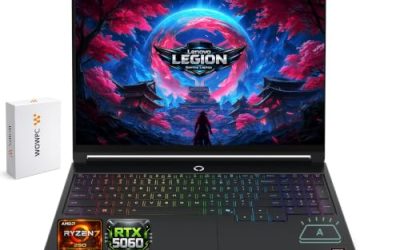
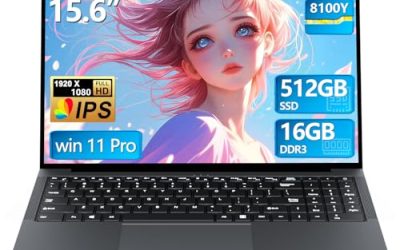
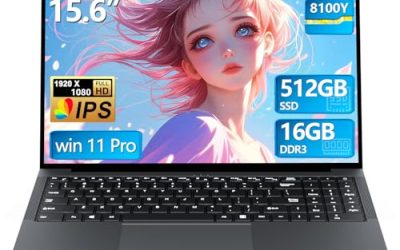
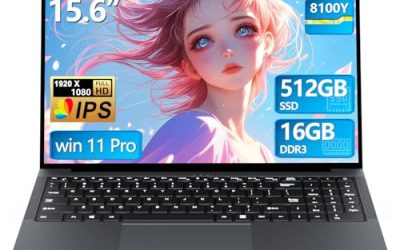
NIMO 15.6-inch Creator Laptop
Built around an AMD Ryzen 7 8745HS with eight cores, 32GB of DDR5, a 1TB SSD, and Radeon 780M graphics, this NIMO is pitched at video and photo editing with 100W fast USB-C power delivery. It suits editors who want strong CPU performance and ample memory without paying for a discrete graphics card.
- Strength: 32GB of DDR5 and a 1TB SSD for large catalogs.
- Strength: an eight-core processor accelerates exports and previews.
- Trade-off: integrated Radeon 780M graphics limit heavy GPU-based tools and demanding games.
Skip it if you want serious gaming performance, or if you need a listed color-coverage figure, since the title does not give one.
GIGABYTE Gaming A16
The A16 uses an Intel Core i7-13620H with an RTX 5070, a 16-inch 1920×1200 display at 165Hz, 32GB of DDR5, and a 1TB SSD. The 16:10 screen suits editing panels, and the RTX 5070 provides real GPU acceleration alongside strong gaming performance. It is the strongest all-around hybrid in the group on paper.
- Strength: RTX 5070 plus 32GB of RAM covers both editing and modern games.
- Strength: a 16:10 WUXGA screen gives extra vertical working room.
- Trade-off: the title gives no color-gamut figure, so accuracy for critical work is unconfirmed.
Skip it if you need verified wide-gamut color for print work.
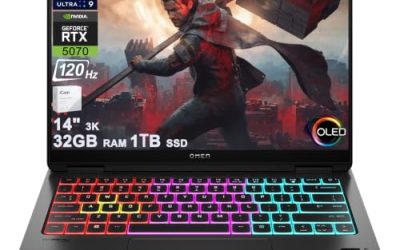
HP Omen 16
This Omen stands out for photo work because the title states a 16-inch WQXGA display at 240Hz with 500 nits and 100% sRGB. It pairs an AMD 10-core Ryzen AI 9 365 with an RTX 5070 with GDDR7, 32GB of RAM, and a 1TB SSD. For editors who also game, it is the clearest fit because color coverage and brightness are actually listed.
- Strength: a stated 100% sRGB, 500-nit WQXGA panel is rare among gaming laptops.
- Strength: RTX 5070 with 32GB of RAM handles heavy edits and games.
- Trade-off: 100% sRGB does not guarantee wide-gamut coverage for print work.
Skip it if you want a smaller, lighter machine or must have wide-gamut color.
ASUS TUF Gaming A16
The TUF A16 pairs a Ryzen 7 7445HS with six cores, an RTX 4050 (with up to 194 AI TOPS per the listing), 16GB of DDR5, a 1TB SSD, and a 16-inch WUXGA IPS display at 144Hz with an RGB backlit keyboard. It is a mid-range hybrid that gives you a discrete GPU and a taller 16:10 screen without moving to the top tier.
- Strength: an RTX 4050 provides GPU acceleration at a mid-range tier.
- Strength: a 1TB SSD and an IPS panel suit photo catalogs.
- Trade-off: 16GB of RAM is the floor, and heavy layered files may push it.
Skip it if you frequently edit large panoramas or layered files, which benefit from 32GB.
Lenovo IdeaPad Gaming 3
This older-generation model lists a Ryzen 5 5600H, a GTX 1650, 8GB of RAM, 256GB of storage, and a 15.6-inch FHD display, running Windows 10 Home. It is an entry-level choice for someone who needs a first machine to learn editing basics and play lighter games.
- Strength: a dedicated GTX 1650 gives more graphics help than integrated chips.
- Strength: a six-core Ryzen 5 H-series processor is adequate for basic edits.
- Trade-off: 8GB of RAM and 256GB of storage will limit real photo work quickly.
Skip it if you shoot RAW regularly or expect long-term software support from Windows 10.
NIMO 15.6-inch Light Gaming Laptop
Another Ryzen 7 8745HS model, this NIMO offers 16GB of DDR5, a 512GB SSD, Radeon 780M graphics, and 100W USB-C fast charging. It is a lighter-duty option for casual gamers who edit a few photos a week and want a strong processor in an affordable body.
- Strength: an eight-core, 16-thread processor handles exports quickly.
- Strength: 16GB of DDR5 meets the working minimum for editing.
- Trade-off: 512GB of storage and integrated graphics limit both catalog size and game quality.
Skip it if you want a discrete GPU or plan to keep a large photo library on the internal drive.
Which One Fits Your Situation
You Edit Seriously and Game Occasionally
Go with the HP Omen 16. Its listed WQXGA resolution, 500 nits, and 100% sRGB speak to the part of the spec sheet that editors care about most, and the RTX 5070 handles games when you are done.
You Game Heavily and Edit Casually
The GIGABYTE Gaming A16 gives you an RTX 5070, 165Hz, and 32GB of RAM. You can edit comfortably on it, though you may want an external monitor for color-critical work.
You Want a Discrete GPU Without Going to the Top Tier
Pick the ASUS TUF Gaming A16. The RTX 4050 and 1TB SSD cover most Lightroom and Photoshop workflows, and the IPS screen is better than the low-cost panels on entry-level machines. If you later find that 16GB feels tight with large layered files, that is the one spec to plan around when you decide whether to buy this model or step up to a 32GB configuration.
You Are Learning and Watching Your Budget
The NIMO 15.6-inch Creator Laptop gives you 32GB of RAM and a 1TB SSD, the two specs that matter most for photo files, and avoids paying for graphics you may not need yet.
Common Mistakes
- Choosing by refresh rate and ignoring color coverage and brightness on the display.
- Settling for 8GB of RAM and 256GB of storage because the graphics card looks good.
- Assuming 100% sRGB covers print-grade work; wide-gamut coverage is a different spec.
- Editing without calibrating the screen, which makes colors drift between devices.
- Skipping an external drive, then filling the internal SSD with the photo archive.
Related guides
- Gaming Laptop Battery Draining While Plugged In Fix
- How To Stop Laptop Thermal Throttling In Software
- Gaming Laptop For High School Students
Frequently Asked Questions
Is a Gaming Laptop Good for Photo Editing?
Often yes, because gaming laptops bring strong processors, plenty of RAM, and a discrete GPU. The weak spot is the display, so check for stated color coverage and brightness.
How Much RAM Do I Need for Lightroom and Photoshop?
Sixteen gigabytes is the working minimum, and 32GB is more comfortable for large RAW files and layered documents. Eight gigabytes tends to slow down with both programs open.
Do I Need a Dedicated Graphics Card for Photo Editing?
Not strictly, since integrated graphics can run editors adequately. A dedicated GPU helps with AI-based tools and noise reduction, and it is essential if you also want to play modern games.
Is 100% sRGB Good Enough?
For web, social, and most digital sharing, yes. For print work or professional grading, look for a wider gamut such as DCI-P3 and plan on a calibrated external monitor.