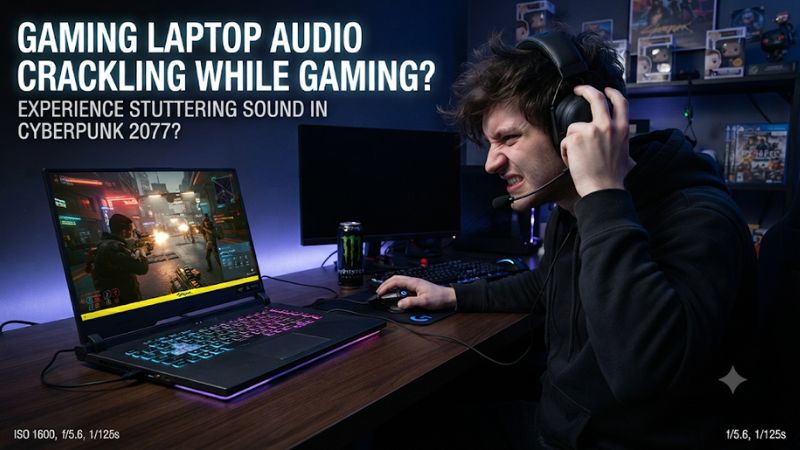
Gaming laptop audio crackling while gaming can result from outdated audio drivers, high CPU usage, incorrect sound settings, wireless interference, or audio enhancements. The right fix depends on when the distortion occurs. This guide explains how to isolate the cause and troubleshoot Windows audio without unnecessary hardware changes.
Why Gaming Laptop Audio Crackling While Gaming Happens
Audio distortion during gameplay usually points to a problem somewhere between the game, Windows audio engine, device driver, and playback hardware. Start by checking whether the crackling also happens outside games. If music and system sounds remain clear, investigate game-specific settings and system load before changing drivers or replacing components.
1. High CPU Usage and Background Processes
A demanding game can compete with background applications for CPU time. If audio processing is delayed, you may hear short pops, clicks, or interruptions while gameplay continues. This is more likely when the problem appears during intense scenes or when several applications run simultaneously.
Open Task Manager with Ctrl + Shift + Esc and check the Processes tab while the game is running. Look for unusually high CPU usage from browsers, recording software, launchers, or background tasks. Close unnecessary applications individually and replay the same game scene to see whether the sound improves.
2. Outdated or Incompatible Audio Drivers
Audio drivers allow Windows to communicate with the laptop’s internal sound hardware. An outdated, corrupted, or incompatible driver can produce distorted playback, particularly after a Windows update or a change to the laptop’s audio software.
Open Device Manager, expand Sound, video and game controllers, and identify the audio device. Check Windows Update for available driver updates, then consult your laptop manufacturer’s support page for the correct model-specific driver. Avoid installing random third-party driver packages.
3. Incorrect Audio Enhancements and Format Settings
Virtual surround, equalizers, spatial audio, and other sound-processing features can interfere with playback on some configurations. These features are not inherently problematic, but conflicting effects from Windows and manufacturer utilities can introduce distortion.
Windows also allows different default audio formats. A format that does not work correctly with a particular device or driver may produce poor playback. Temporarily disable enhancements and change the format only when necessary, testing after each adjustment rather than changing multiple settings together.
How to Fix Gaming Laptop Audio Crackling While Gaming: Step by Step
Work through these troubleshooting steps in order, starting with free diagnostic checks. Change one setting at a time and repeat the same gameplay scenario after each adjustment. This makes it easier to identify the actual cause and reverse a change that does not help.
Step 1. Identify Whether the Problem Comes From the Game
First, play music or a video outside the game using the same speakers or headphones. Then launch the game and listen for distortion. Repeat the comparison using another audio output if available.
If only one game produces crackling, check its audio output selection, volume mixer, and in-game sound settings. If every application produces distorted sound, investigate Windows, drivers, and the physical connection instead.
Step 2. Disable Audio Enhancements
In Windows 11, open Settings > System > Sound and select your current output device under Output. Find Audio enhancements and switch the option to Off. If spatial sound is enabled, temporarily turn it off as another diagnostic check.
Restart the game and listen again. If the sound improves, leave the conflicting enhancement disabled or re-enable features individually to identify the source. The trade-off is that virtual surround or manufacturer sound effects may no longer be available.
Step 3. Update or Roll Back the Audio Driver
Open Settings > Windows Update and select Check for updates. Review available optional driver updates where applicable. You can also open Device Manager, expand Sound, video and game controllers, right-click the audio device, and select Update driver.
If the problem began immediately after a driver update, open the device’s Properties > Driver tab and check whether Roll Back Driver is available. Use this option only when the timing supports a driver-related cause. Restart Windows and check playback again.
Step 4. Check Audio Format and Restart Audio Services
Return to Settings > System > Sound, select your output device, and open its Advanced settings. Under Default format, select another supported format and test playback. Record the original setting so you can restore it if the alternative makes no difference.
If crackling continues, press Windows + R, enter services.msc, and press Enter. Find Windows Audio and Windows Audio Endpoint Builder, then restart each service. Save your work first because restarting audio services can interrupt active playback.
Troubleshooting Comparison Table
| Step | Where | How to Verify | Cost |
|---|---|---|---|
| Check application audio | Game and Windows volume mixer | Compare game audio with music or video | Free |
| Disable enhancements | Settings > System > Sound | Replay the same scene | Free |
| Check background load | Task Manager | Compare CPU usage and audio quality | Free |
| Update audio driver | Windows Update or laptop support page | Restart and retest playback | Free |
| Change audio format | Output device > Advanced settings | Compare playback before and after | Free |
| Restart audio services | Run services.msc |
Test speakers and headphones again | Free |
| Inspect headphones or speakers | Physical audio connection | Compare another output device | Free |
What to Check If the Crackling Still Happens
If the previous steps do not resolve the problem, investigate whether the issue comes from a specific output device, wireless connection, or laptop hardware. Persistent distortion across multiple applications is a reason to expand the diagnosis rather than repeatedly changing Windows settings.
1. Test Wired and Bluetooth Headphones Separately
Connect a wired headset if you normally use Bluetooth headphones, or try another pair of headphones. If wired audio works normally but Bluetooth playback crackles, investigate wireless interference, battery level, and the selected Bluetooth audio device.
Keep Bluetooth headphones close to the laptop and temporarily disconnect other unnecessary wireless devices. Also check whether the problem occurs when the microphone is active, since some Bluetooth configurations switch between different audio modes when using headset microphones.
2. Check Whether the Game Is Overloading the Laptop
If distortion appears only during demanding gameplay, check whether CPU usage or background activity increases at the same time. Use Task Manager to identify resource-intensive applications and close unnecessary ones.
Also check the laptop’s temperature and power mode. Excessive heat can lead to performance throttling, although temperature alone does not establish the cause of audio crackling. Keep ventilation unobstructed and use the manufacturer’s recommended performance settings.
3. Inspect Audio Connections and Internal Hardware
For wired headphones, inspect the cable, plug, and laptop audio jack. A loose connection or damaged cable can cause intermittent crackling, especially when the connector moves. Test another headset before assuming the laptop’s audio port is defective.
If built-in speakers crackle even when no game is running, the problem may involve the speakers, internal connections, or audio circuitry. Persistent distortion across multiple outputs may also indicate a driver or motherboard-related issue. Consider professional inspection before attempting internal repairs.
4. What Doesn’t Help
Several commonly suggested fixes can waste time or introduce additional problems:
-
Installing multiple audio driver packages without checking the laptop model.
-
Running RAM cleaners or registry optimization scripts.
-
Disabling Windows security services or unrelated background features.
-
Increasing CPU or GPU overclocking to address sound distortion.
-
Reinstalling Windows before checking simpler audio settings.
-
Replacing speakers without comparing another output device.
Focus on identifying the condition that triggers the problem. A repeatable comparison between different games, applications, and audio devices provides more useful diagnostic information than applying several unrelated optimizations.
FAQ
1. Why Does My Gaming Laptop Audio Crackle Only During Games?
Gaming laptop audio crackling while gaming can occur when demanding applications compete for system resources, audio drivers malfunction, or game-specific sound settings conflict with Windows. If ordinary music playback remains clear, begin by checking CPU usage and the affected game’s audio configuration.
2. Can High CPU Usage Cause Audio Crackling?
Yes, high CPU usage can contribute to audio interruptions when the system cannot process audio tasks on time. Check Task Manager while reproducing the issue and identify resource-intensive applications. However, high CPU usage is not the only possible explanation, so also investigate drivers and audio settings.
3. Should I Reinstall My Audio Driver to Fix Crackling?
Reinstalling an audio driver can help when the existing installation is corrupted or incompatible. First try Windows Update or the laptop manufacturer’s official driver package. If the problem started after an update, consider rolling back the driver instead of immediately removing it.
4. When Should I Replace My Gaming Laptop Speakers?
Consider speaker replacement when distortion persists outside games, occurs with multiple applications, and remains limited to the built-in speakers after software and driver checks. Test external headphones first. If multiple outputs also crackle, have the laptop inspected before purchasing replacement speakers.
Final Thoughts
Gaming laptop audio crackling while gaming does not automatically mean your speakers are failing. Start with application comparisons, CPU usage, Windows enhancements, and audio drivers before considering hardware repairs. Change one setting at a time, document the results, and seek professional inspection if distortion persists across multiple audio devices.
Related guides
More from Amazon
Programs that pair well with the guide above. Offers and eligibility are set by Amazon and may change.
Free shipping on eligible items, Prime Video and more. Eligible new members can start with a free trial.
Start a Prime free trialAd-free music streaming. Eligible new subscribers can start with a free trial.
Try Music Unlimited freeA Prime membership for ages 18-24 with a trial period. Eligibility is set by Amazon.
See Prime for Young AdultsAudiobooks and podcasts to listen to on the go. Eligible new members can start with a free trial.
Try Audible freeAs an Amazon Associate we earn from qualifying purchases.