Shader compilation can interrupt gameplay with sudden frame-time spikes, even when your gaming laptop or desktop has plenty of GPU power. How to reduce shader compilation stutter starts with identifying when compilation happens, allowing shader preloading to finish, preserving driver caches, and distinguishing compilation problems from ordinary asset-streaming or CPU bottlenecks.
What Shader Compilation Stutter Really Comes Down To
Shader compilation stutter occurs when a game needs graphics code or a pipeline state that has not been prepared for the current rendering configuration. Instead of displaying the next frame immediately, the game must complete additional work. Understanding when this happens helps you choose effective solutions rather than repeatedly changing graphics settings.
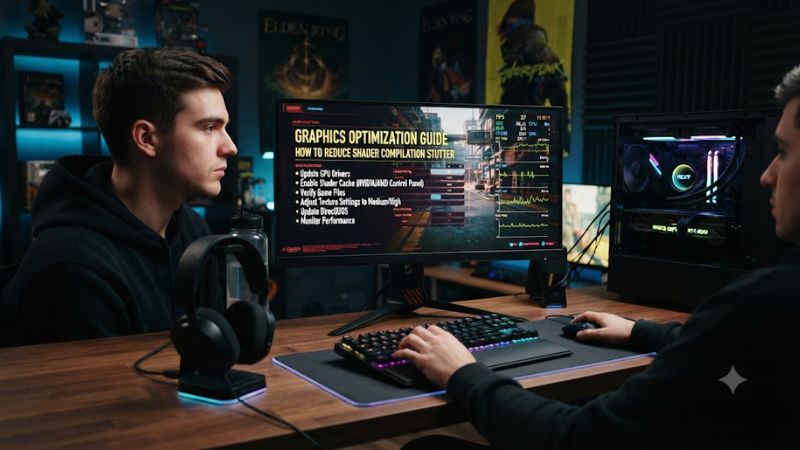
1. Understand Why Shader Compilation Causes Stuttering
Shaders are small programs responsible for rendering materials, lighting, shadows, and visual effects. Games may distribute shader code in an intermediate format, which the graphics driver or game engine processes for the target hardware and graphics API.
When compilation happens during gameplay, the CPU may need to perform additional work before the corresponding rendering operation can proceed. This can create a noticeable frame-time spike, particularly when a demanding effect appears for the first time.
DirectX 12 and Vulkan games can expose players to this behavior because their rendering pipelines may involve substantial runtime shader and pipeline-state preparation. However, the exact implementation depends on the game engine and developer.
2. Recognize the Difference Between Shader and Asset Stutter
Shader compilation stutter commonly appears when encountering a new character, weapon effect, material, lighting condition, or environment. If the same scene becomes smoother on another pass, that pattern supports a first-use compilation or caching explanation.
Asset-streaming stutter has a different potential cause. A game may need to load textures, geometry, audio, or other resources from storage as you enter a new area. CPU-intensive simulation, memory pressure, and background processes can also produce similar interruptions.
3. Understand How Shader Caches Work
A shader cache stores previously compiled graphics data so that the system can reuse it instead of repeating the same preparation work. Depending on the implementation, caching can involve the graphics driver, operating system, game engine, or distribution platform.
This is important when considering how to reduce shader compilation stutter without introducing additional problems. Keeping useful cached data available can reduce repeated compilation, although a cache cannot contain every possible shader or pipeline combination.
A game update, driver change, graphics API change, or rendering configuration change may require new compilation. Consequently, occasional first-session stuttering after an update does not automatically indicate defective hardware.
4. What Doesn’t Help
Deleting shader caches regularly is generally counterproductive. Removing compiled data forces the relevant software to rebuild it, potentially making the next gaming session less smooth while the cache fills again.
Other commonly suggested adjustments also lack a universal connection to shader compilation:
- Disabling Windows telemetry does not directly prevent shader compilation.
- RAM-cleaning utilities cannot replace game or driver shader caches.
- Registry boost scripts do not reliably change shader compilation behavior.
- Lowering every graphics setting does not necessarily prevent pipeline creation.
- Installing a faster GPU does not correct a game engine that prepares shaders too late.
Focus on the game’s preprocessing options and the graphics driver’s cache behavior before considering more invasive changes.
How to Reduce Shader Compilation Stutter: Step by Step
The most effective approach is to move shader preparation out of active gameplay wherever the game supports it. Start with built-in compilation screens, preserve existing cache files, and check graphics-driver settings. The following steps apply to Windows gaming PCs and laptops, although individual menu names and available options depend on the GPU and game.
| Setting or Step | Where | Effect | Risk |
| Complete shader preloading | Game startup or main menu | Moves supported compilation before gameplay | Longer initial loading |
| Preserve shader cache | Windows and GPU driver | Reuses previously compiled data | Uses disk space |
| Adjust NVIDIA cache size | NVIDIA Control Panel | Reduces cache eviction when the limit is restrictive | Consumes more storage |
| Verify game files and investigate recurring stutter | Steam or Epic Games Launcher | Identifies damaged or incomplete game files | May require downloads |
1. Let the Game Finish Shader Precompilation
Start by checking whether your game displays a shader compilation, shader optimization, or pipeline preparation screen. Some titles prepare graphics data before entering the main menu or joining a match, reducing the amount of compilation required during active gameplay.
Allow the process to finish before launching a demanding multiplayer session. Avoid closing the game, switching graphics APIs, or changing major rendering settings while preparation is underway. If the game has no visible compilation screen, do not assume that it is malfunctioning.
This is one of the simplest ways to reduce shader compilation stutter without changing Windows or driver configurations. However, precompilation coverage depends on the developer’s implementation, and some pipeline states may still be created when new content appears.
2. Keep the Graphics Driver Shader Cache Enabled
Shader caching allows compatible compiled graphics data to be reused across subsequent sessions. NVIDIA provides a dedicated Shader Cache Size setting in its Control Panel, while AMD Software includes a Reset Shader Cache function for removing stored data when troubleshooting requires it.
For NVIDIA GPUs, follow this path:
- Right-click the Windows desktop.
- Open NVIDIA Control Panel.
- Select Manage 3D Settings.
- Find Shader Cache Size under Global Settings.
- Avoid Disabled and choose an appropriate available size.
- Select Apply.
Available options depend on the installed driver. NVIDIA documents choices including 128 MB, 256 MB, 512 MB, 1 GB, 5 GB, 10 GB, 100 GB, and Unlimited. Choose a limit that accommodates your gaming library without unnecessarily consuming storage.
If you use an AMD Radeon GPU, open AMD Software: Adrenalin Edition and locate Reset Shader Cache under the Graphics settings. This is a cache-reset function, not an optimization that should be used regularly. Keep the existing cache unless there is a specific reason to rebuild it.
3. Reduce Background CPU Competition
Shader compilation can require CPU resources, so heavy background workloads may make an already demanding gaming session less responsive. This is particularly relevant to gaming laptops with limited cooling capacity or processors handling several applications simultaneously.
Before playing, close unnecessary CPU-intensive applications, including large file-compression jobs, video exports, and background downloads. On a laptop, connect the power adapter and use an appropriate manufacturer performance profile if thermal or power restrictions are affecting CPU performance.
Do not assume that setting Windows to its highest performance mode will remove shader compilation. It cannot replace missing shader data or correct late pipeline creation by the game engine. If CPU temperatures or clock speeds suggest thermal throttling, investigate cooling separately rather than applying aggressive voltage or overclocking changes.
4. Verify Game Files and Retest the Same Scene
If shader compilation appears repeatedly after every launch, check whether the game has damaged or incomplete installation files. This is especially useful when the problem begins immediately after a game update or an interrupted download.
For Steam:
- Open Library.
- Right-click the affected game.
- Select Properties.
- Open Installed Files.
- Choose Verify integrity of game files.
For Epic Games Launcher:
- Open Library.
- Find the affected game.
- Select the three-dot menu.
- Choose Manage.
- Select Verify if the option is available.
After verification, restart the game and allow any shader preparation to finish. Visit the same location or reproduce the same visual effect, then repeat the sequence. Compare frame-time behavior rather than relying exclusively on average FPS.
If the same hitch continues, record the game version, GPU driver version, graphics API, and exact location where it occurs. These details help distinguish a recurring game-engine problem from a cache issue or another performance bottleneck.
FAQ
1. Why Does Shader Compilation Stutter Happen Even on Powerful Gaming PCs?
Shader compilation stutter can happen on powerful PCs because GPU performance does not eliminate the time required to create new shaders or pipeline states. The CPU, graphics driver, and game engine all participate in preparing rendering work.
A powerful GPU may render frames quickly once the necessary data is available, but it cannot automatically prevent a game from requesting new pipeline states during gameplay. Better hardware can help with some workloads, but engine-level improvements and precompilation are often more relevant.
2. Does Clearing the Shader Cache Reduce Stuttering?
No, clearing the shader cache usually makes initial gameplay stuttering worse because previously compiled data must be generated again. Both NVIDIA and AMD provide cache-management functionality, but deleting cached data is not a routine performance optimization.
Consider resetting the cache only when troubleshooting a suspected cache problem, such as persistent graphics errors or unusual behavior following a driver change. Afterward, restart the game and allow compilation to complete before judging performance.
3. Can Updating GPU Drivers Fix Shader Compilation Stutter?
Sometimes, updating GPU drivers can address game-specific graphics problems, but it does not guarantee smoother shader compilation. A new driver may also invalidate previously stored shader data, temporarily increasing first-session stuttering.
Check the official NVIDIA, AMD, or Intel driver release notes for relevant game-specific fixes before updating. If you decide to install a new driver, allow affected games to rebuild their caches and compare performance afterward.
4. How Long Does Shader Compilation Stutter Usually Last?
Shader compilation stutter lasts until the required shaders or pipeline states have been prepared and become available for reuse. The duration varies with the game, CPU, graphics API, and amount of compilation required.
Some games complete most preparation during startup, while others perform additional work during gameplay. If identical scenes continue producing severe interruptions across multiple sessions, investigate asset streaming, CPU bottlenecks, memory pressure, and game-specific issues instead of assuming compilation is responsible.
Final Thoughts
Learning how to reduce shader compilation stutter is primarily about managing precompilation, preserving useful driver caches, and identifying the actual source of frame-time spikes. Start with your game’s preparation options, keep unnecessary cache resets to a minimum, and investigate persistent interruptions before changing hardware or advanced system settings.
Related guides
More from Amazon
Programs that pair well with the guide above. Offers and eligibility are set by Amazon and may change.
Free shipping on eligible items, Prime Video and more. Eligible new members can start with a free trial.
Start a Prime free trialAd-free music streaming. Eligible new subscribers can start with a free trial.
Try Music Unlimited freeA Prime membership for ages 18-24 with a trial period. Eligibility is set by Amazon.
See Prime for Young AdultsAudiobooks and podcasts to listen to on the go. Eligible new members can start with a free trial.
Try Audible freeAs an Amazon Associate we earn from qualifying purchases.