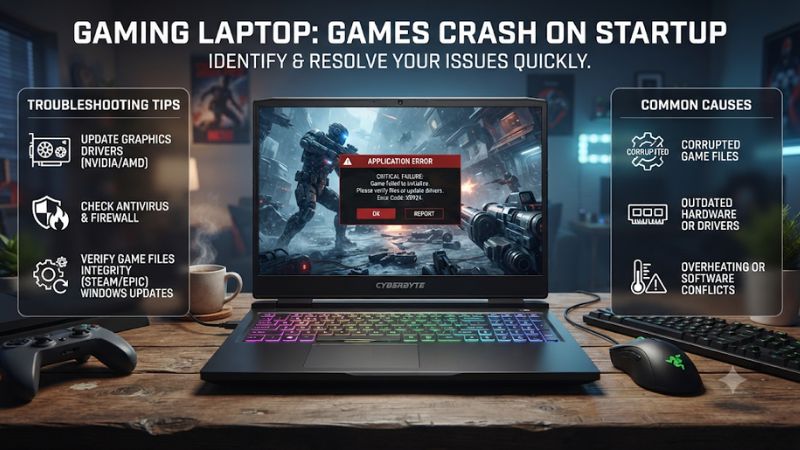
When gaming laptop games crash on startup, the cause may be corrupted game files, outdated graphics drivers, incompatible software, or Windows configuration problems. Instead of reinstalling everything, follow these diagnostic steps to identify why a game closes immediately and restore normal launching without unnecessary changes.
Why Gaming Laptop Games Crash on Startup
A game that closes immediately after clicking Play does not automatically indicate a failing GPU or insufficient laptop performance. The problem can originate in the game installation, graphics driver, Windows environment, or background applications. Start by identifying whether one game or several games experience the same behavior.
1. Corrupted or Missing Game Files
Damaged installation files are a common explanation for games that display a launching message before closing. An interrupted update, incomplete download, storage error, or unexpected shutdown can leave essential game files missing or inconsistent. Some games may also fail when their configuration files become damaged.
Check whether the problem affects one particular title or several games. If only one game crashes, verify its installation through the launcher before changing Windows settings. Steam and Epic Games Launcher both provide built-in file verification tools that can identify and repair installation problems.
2. Graphics Driver and GPU Compatibility Problems
A graphics driver controls communication between Windows, the GPU, and applications that use hardware acceleration. An outdated, corrupted, or incompatible driver can prevent a game from initializing its graphics environment correctly.
This issue deserves attention when several demanding games crash at startup, especially after a graphics driver update or Windows update. Laptop owners should also consider hybrid graphics configurations, where integrated and dedicated GPUs share responsibility for different applications. A game launching with an unsuitable GPU configuration may behave differently from one using the dedicated graphics processor.
3. Background Applications and Windows Conflicts
Gaming laptops frequently run additional software alongside games. Examples include screen recorders, performance overlays, RGB control utilities, monitoring applications, antivirus programs, and communication tools.
Some applications interact with game rendering, launch processes, or anti-cheat systems. Conflicts can prevent a title from opening or cause it to close immediately. Steam specifically recommends disabling nonessential software when troubleshooting launch failures.
4. What Doesn’t Help
Repeatedly clicking Play, deleting random Windows folders, or reinstalling every graphics component without identifying the problem rarely provides a useful diagnosis. These actions can introduce additional problems and make the original cause harder to identify.
Avoid downloading unofficial DLL files, registry-cleaning utilities, or supposed gaming optimization scripts. Do not disable Windows security features permanently to make a game launch. If antivirus software quarantines a legitimate game component, inspect its protection history and verify the file through the official launcher before considering a narrowly scoped exception.
How to Fix Gaming Laptop Games Crash on Startup: Step by Step
Follow the troubleshooting sequence below, starting with simple checks that do not modify important system settings. Each step helps isolate a different potential cause. After completing one change, launch the affected game again before proceeding so you can identify which action actually resolves the problem.
| Step | Where | How to Verify | Cost |
|---|---|---|---|
| Restart and check requirements | Windows and game specifications | Confirm the game reaches its main menu | Free |
| Verify game files | Steam or Epic Games Launcher | Complete file verification and relaunch | Free |
| Check GPU and Windows drivers | Device Manager and official driver software | Confirm the correct GPU and driver status | Free |
| Isolate background conflicts | Task Manager and System Configuration | Compare normal startup with clean boot | Free |
| Investigate hardware | Manufacturer diagnostics or repair service | Check temperatures, memory, storage, and stability | Varies |
Step 1: Restart Windows and Check Game Requirements
Start with a complete Windows restart rather than repeatedly closing and reopening the launcher. Restarting can clear temporary application states and allow pending system changes to finish. After restarting, open the launcher normally and attempt to start the affected game.
Next, compare your laptop specifications with the game’s official minimum requirements. Check the processor, dedicated or integrated GPU, available RAM, storage space, and supported Windows version. Minimum requirements and recommended requirements serve different purposes, so do not confuse the two when assessing compatibility.
If your laptop has NVIDIA Optimus or another hybrid graphics configuration, check which GPU the game uses. In Windows 11, open Settings > System > Display > Graphics, select the game, choose Options, and select High performance if appropriate. This setting requests the high-performance GPU but does not override every application-specific limitation.
Step 2: Verify the Game Installation
If the problem affects one title, repairing its installation is a sensible next step. For Steam games, open Library, right-click the affected title, select Properties, and navigate to Installed Files. Choose Verify integrity of game files and allow the process to finish.
Steam will compare local installation files against the expected game files and replace problematic content where necessary. Some configuration files may fail verification without indicating a serious installation problem, so follow Steam’s explanation rather than assuming every mismatch requires manual deletion.
For Epic Games, open Library, select the three-dot menu beside the game, choose Manage, and click Verify. Wait for the launcher to complete its inspection before attempting another launch. Epic states that this verification process repairs damaged or inconsistent game files without affecting saved data.
Step 3: Check Graphics Drivers and Windows Updates
Open Device Manager by right-clicking the Windows Start button and selecting Device Manager. Expand Display adapters to identify the graphics hardware installed in your laptop. Check whether the dedicated GPU appears correctly and whether Windows reports a device error.
For NVIDIA laptops, obtain the appropriate driver through NVIDIA’s official driver service or the laptop manufacturer’s support page. AMD and Intel laptop owners should similarly check the appropriate official driver source. Some laptop manufacturers provide customized graphics packages, so manufacturer guidance matters when dealing with hybrid graphics or model-specific features.
If the problem began immediately after a driver update, investigate whether the manufacturer provides an appropriate earlier driver. Avoid installing several graphics drivers consecutively without checking compatibility. For NVIDIA systems, a clean installation is an available option when ordinary installation troubleshooting does not resolve a driver problem. Close unnecessary applications before using that procedure and restart afterward.
Step 4: Isolate Background Applications
Close nonessential applications before launching the game. Pay particular attention to overlays, recording software, GPU tuning utilities, RGB controllers, and third-party monitoring programs. Disable one suspected application at a time so you can determine whether it contributes to the crash.
If the problem persists, consider a Windows clean boot. Press Windows + R, enter msconfig, and open System Configuration. Under Services, select Hide all Microsoft services before choosing Disable all. Open the Startup tab, select Open Task Manager, and temporarily disable enabled startup applications.
Restart Windows and try the game again. If it launches successfully, a background service or startup application may be responsible. Re-enable items gradually to isolate the conflict. Keep track of your changes and restore normal startup afterward through System Configuration and Task Manager. Microsoft documents this procedure for troubleshooting application conflicts on Windows 10 and Windows 11.
Step 5: Investigate Hardware if Software Checks Fail
If multiple games continue crashing after the previous steps, investigate the laptop’s hardware condition. Storage errors, unstable memory, overheating, and power-related problems can affect application startup even when Windows appears to function normally.
Open Windows Event Viewer by searching for Event Viewer in the Start menu. Navigate to Windows Logs > Application and inspect Error entries around the exact time the game closes. Look for the affected application name, faulting module, and exception information.
An application crash entry identifies a failure event, not necessarily the underlying cause. For example, a faulting graphics-related module may justify investigating the graphics driver, while repeated disk-related errors may warrant storage diagnostics. Avoid treating one error entry as sufficient evidence for replacing hardware.
If the laptop also experiences unexpected shutdowns, graphical artifacts, or crashes outside gaming, contact the manufacturer’s support service. Hardware replacement should follow appropriate diagnostics rather than guesswork.
FAQ
1. Why Do Games Crash Immediately After Clicking Play on a Gaming Laptop?
Games can crash immediately after clicking Play because of corrupted installation files, graphics driver problems, background software conflicts, or incompatible system configurations. Start by determining whether the problem affects one game or multiple titles. Then verify the affected installation and inspect recent Windows or driver changes.
2. Can an Outdated GPU Driver Cause Games to Crash on Startup?
Yes, an outdated or incompatible GPU driver can prevent a game from initializing correctly. Download the appropriate driver from NVIDIA, AMD, Intel, or your laptop manufacturer’s official support service. If the crashes started after an update, investigate driver compatibility and consider an appropriate rollback when supported.
3. Can Overheating Make a Gaming Laptop Game Crash on Startup?
Yes, overheating or unstable hardware can contribute to game crashes, although an immediate launch failure does not automatically indicate a temperature problem. Monitor CPU and GPU temperatures during normal operation and check whether the laptop also experiences shutdowns or performance instability. Persistent thermal problems warrant inspection of the cooling system.
4. When Should I Reinstall a Game or Take My Laptop for Repair?
Reinstall a game when file verification fails repeatedly or the installation remains damaged after other relevant checks. Consider professional repair when several games crash alongside system instability, storage errors, graphical artifacts, or unexpected shutdowns. Back up important files before reinstalling Windows or authorizing hardware repairs.
Final Thoughts
When gaming laptop games crash on startup, begin with game-file verification, driver compatibility, and background software checks before considering expensive hardware repairs. Change one setting at a time and record the results. If several games continue crashing, use Windows diagnostic logs to narrow down the underlying problem before seeking professional assistance.
Related guides
More from Amazon
Programs that pair well with the guide above. Offers and eligibility are set by Amazon and may change.
Free shipping on eligible items, Prime Video and more. Eligible new members can start with a free trial.
Start a Prime free trialAd-free music streaming. Eligible new subscribers can start with a free trial.
Try Music Unlimited freeA Prime membership for ages 18-24 with a trial period. Eligibility is set by Amazon.
See Prime for Young AdultsAudiobooks and podcasts to listen to on the go. Eligible new members can start with a free trial.
Try Audible freeAs an Amazon Associate we earn from qualifying purchases.