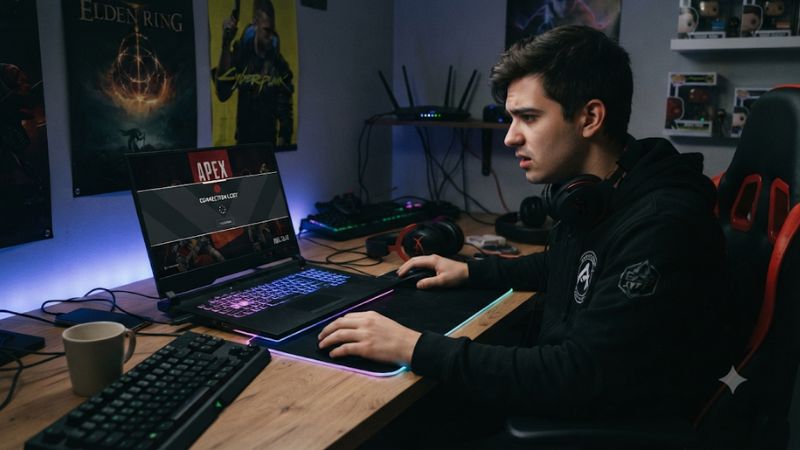
A gaming laptop keeps disconnecting from Wi-Fi problem can interrupt online matches, cause sudden lag, and disconnect downloads or voice chats. The cause may be Windows power management, an outdated wireless driver, router interference, or a faulty adapter. This guide explains how to identify the source and fix it without unnecessary hardware replacements.
1. Why a Gaming Laptop Keeps Disconnecting From Wi-Fi
Frequent wireless disconnections do not automatically mean your laptop’s Wi-Fi hardware is failing. The problem may originate from Windows, the wireless adapter, your router, or the internet connection itself. Start by checking whether other devices disconnect at the same time, then narrow down the cause before changing drivers or network settings.
1.1 Wireless Driver Problems
An outdated, corrupted, or incompatible wireless driver can cause intermittent disconnections. This may happen after a Windows update, driver installation, or manufacturer software update. The laptop might reconnect automatically after a few seconds, making the issue appear random during gaming sessions.
Open Device Manager by right-clicking the Start button and selecting Device Manager. Expand Network adapters and identify the wireless adapter. Open Properties and select the Driver tab to check its provider, version, and installation date. Record these details before making changes.
1.2 Windows Power Management Interruptions
Windows can manage wireless adapter power consumption to reduce battery usage. Depending on the laptop, adapter, and driver, aggressive power-saving behavior may contribute to unstable connectivity, particularly when switching between battery and AC power.
To investigate, open Device Manager, expand Network adapters, and open your Wi-Fi adapter’s Properties. If a Power Management tab is available, look for Allow the computer to turn off this device to save power. Its availability depends on the hardware and driver, so do not assume every laptop displays this option.
1.3 Router Interference and Weak Signal
Wireless interference can interrupt connections even when your laptop works normally elsewhere. Walls, nearby wireless networks, crowded channels, and physical distance can reduce signal quality. Gaming laptops may also experience different reception depending on antenna placement and the environment.
Test the connection near your router and compare it with the original gaming location. If the problem disappears nearby, signal strength or interference deserves attention. Also check whether phones, tablets, or another computer experience similar interruptions on the same network.
1.4 What Doesn’t Help
Changing graphics settings, lowering GPU power limits, reinstalling games, or clearing temporary game files will not directly repair a wireless connection. These actions target graphics performance or storage rather than the network adapter, router, or Windows networking components.
Avoid downloading random driver-updater applications or running registry-cleaning scripts. They can introduce unnecessary software changes without identifying the actual cause. A better approach is to record when disconnections happen, check another device, and change one network setting at a time.
2. How to Fix a Gaming Laptop That Keeps Disconnecting From Wi-Fi
Work through the following troubleshooting steps in order, starting with simple checks before changing Windows settings or reinstalling drivers. After each change, reconnect to your network and play an online game or monitor the connection for a while. This makes it easier to identify which adjustment actually addresses the problem.
2.1 Check the Network and Restart Your Router
First, determine whether the issue affects only your gaming laptop. Connect a smartphone or another computer to the same Wi-Fi network and check whether it also loses internet access. If multiple devices disconnect, investigate the router or internet service before changing laptop drivers.
If the laptop is the only affected device, restart Windows and your router. Disconnect the router’s power, wait approximately 30 seconds, reconnect it, and allow it to restart fully. Then reconnect the laptop and observe whether the connection remains stable during normal use and gaming.
2.2 Disable Wi-Fi Adapter Power Saving
If the wireless connection drops during gaming or after switching between battery and AC power, investigate the adapter’s power-management settings. On supported drivers, Windows may offer an option that allows the operating system to turn off the wireless device to save energy.
Follow these steps:
-
Right-click Start and open Device Manager.
-
Expand Network adapters.
-
Right-click your wireless adapter and select Properties.
-
Open Power Management, if available.
-
Uncheck Allow the computer to turn off this device to save power.
-
Select OK and restart the laptop.
If the disconnections continue, check your laptop’s power plan. On Windows 11, open Settings > System > Power & battery and review the available power mode options. Avoid assuming that every gaming laptop exposes identical wireless power controls.
2.3 Update or Roll Back the Wireless Driver
Driver updates can resolve compatibility problems, but installing an unsuitable driver can make connectivity worse. Identify the wireless adapter manufacturer first. Common laptop wireless hardware comes from Intel, Realtek, and MediaTek, although the actual configuration depends on the laptop model.
Open Device Manager > Network adapters > your Wi-Fi adapter > Properties > Driver. If the problem started immediately after a driver update, check whether Roll Back Driver is available. Otherwise, visit the laptop manufacturer’s official support page, search using the exact model number, and download the appropriate WLAN driver for your Windows version.
Install the manufacturer’s recommended driver and restart the computer. If you need to reinstall the adapter, download the replacement driver beforehand and keep it available offline. Do not remove the existing driver without a recovery option, especially if Wi-Fi is your only internet connection.
2.4 Reset Windows Network Settings
A damaged network configuration or conflicting networking software can cause persistent connection problems. If the earlier steps do not help, Windows provides a Network Reset option that reinstalls network adapters and restores networking components to their default settings.
On Windows 11, navigate to Settings > Network & internet > Advanced network settings > Network reset. Select Reset now and confirm. Windows will restart the laptop after completing the process.
Be aware that this action removes saved network adapter settings. You may need to reconnect to Wi-Fi, reinstall VPN software, or reconfigure virtual switches. Record any custom network settings beforehand. Use this option only after simpler troubleshooting has failed.
Troubleshooting Steps Compared
The following table summarizes the recommended order, where to make each change, and what to check afterward.
| Step | Where | How to Verify | Cost |
|---|---|---|---|
| Check other devices and restart router | Router and Windows | Other devices remain connected | Free |
| Adjust adapter power management | Device Manager | Connection stays active during gaming | Free |
| Update or roll back WLAN driver | Laptop manufacturer’s support page | Correct adapter and driver appear in Device Manager | Free |
| Reset network settings | Windows 11 Network Reset | Reconnect and check connection stability | Free |
3. Additional Ways to Diagnose Persistent Wi-Fi Problems
If the basic fixes have not solved the problem, investigate whether the disconnection happens between the laptop and router or between the router and internet provider. This distinction matters because changing Windows settings cannot repair an unstable ISP connection. Use the following checks to gather evidence before considering hardware repair.
3.1 Switch Between 2.4 GHz and 5 GHz Wi-Fi
If your router broadcasts both 2.4 GHz and 5 GHz networks, try connecting the laptop to the alternative band. The 2.4 GHz band generally provides better coverage through obstacles, while 5 GHz can offer higher available bandwidth over shorter distances. Actual performance depends on the router, adapter, interference, and environment.
Open Settings > Network & internet > Wi-Fi and select an available network. If both bands share one network name, consult your router documentation to determine whether separate network names can be configured. Test each connection in the same location and compare stability rather than assuming one frequency is always better.
3.2 Test the Connection With Command Prompt
Windows includes networking commands that help distinguish local wireless problems from internet connectivity failures. One useful test checks whether your laptop can communicate with its router. If the laptop remains connected to Wi-Fi but loses internet access, this check can provide valuable diagnostic information.
Open Command Prompt and enter:
ipconfigFind the Default Gateway address under your wireless adapter. Then run the following command, replacing the example address with your actual gateway:
ping 192.168.1.1If the gateway responds consistently, communication with the router is working during that test. If the gateway cannot be reached, investigate the wireless connection or router. A successful gateway ping does not establish that the ISP connection or game servers are functioning correctly.
3.3 Check Whether VPN or Security Software Is Interfering
VPN clients, proxy configurations, firewalls, and third-party network utilities can affect internet access. If the problem began after installing one of these applications, investigate it before reinstalling Windows or changing router firmware.
Open Settings > Network & internet > VPN and review active VPN connections. Temporarily disconnect a VPN and check whether normal connectivity returns. For security software, use its documented settings to investigate network filtering rather than disabling protection permanently. Restore the original configuration if the test makes no difference.
3.4 Identify When Hardware Repair Is Necessary
If a gaming laptop keeps disconnecting from Wi-Fi across multiple networks despite appropriate driver and Windows troubleshooting, the wireless adapter or its antenna connections may require inspection. A missing adapter, recurring Device Manager errors, or disconnections that persist after software recovery provide reasons to investigate hardware.
Before arranging a repair, check whether an external USB Wi-Fi adapter works reliably under the same conditions. This is a useful comparison, not definitive proof of an internal hardware failure. If the internal adapter repeatedly disappears or shows an error, contact the laptop manufacturer or a qualified technician rather than opening the laptop without the necessary experience.
4. Frequently Asked Questions
4.1 Why Does My Gaming Laptop Disconnect From Wi-Fi During Games?
A gaming laptop may disconnect during games because of wireless driver instability, power management, weak signal, or router interference. Online games can make interruptions more noticeable because they require a continuous network connection. Check whether other devices disconnect and whether the problem happens outside gaming before changing settings.
4.2 Can an Overheating Gaming Laptop Cause Wi-Fi Disconnections?
Yes, hardware-related problems associated with excessive heat can potentially affect wireless connectivity, although overheating is not a typical first explanation for Wi-Fi drops. Check whether disconnections coincide with unusually high temperatures, system instability, or other hardware symptoms. If they do, arrange a proper hardware inspection rather than assuming the wireless adapter is overheating.
4.3 Should I Replace My Wi-Fi Adapter If Disconnects Continue?
No, replacing the adapter should be a last resort after checking drivers, Windows configuration, router compatibility, and connectivity on other networks. If an external USB Wi-Fi adapter works consistently while the internal adapter repeatedly fails, professional inspection may help determine whether replacement is necessary.
4.4 Is Ethernet Better Than Wi-Fi for Gaming Laptops?
Yes, Ethernet is generally preferable for competitive online gaming because a wired connection avoids wireless interference and signal fluctuations. It can provide more consistent latency when the router and internet service are functioning properly. If your gaming laptop has no Ethernet port, a compatible USB-to-Ethernet adapter is another option.
5. Final Thoughts
When a gaming laptop keeps disconnecting from Wi-Fi, start by checking other devices, router stability, and wireless adapter power settings. Update or roll back drivers before attempting a network reset. If problems persist across multiple networks, investigate the internal adapter and antenna. Prioritize diagnosis before spending money on replacement hardware.
Related guides
More from Amazon
Programs that pair well with the guide above. Offers and eligibility are set by Amazon and may change.
Free shipping on eligible items, Prime Video and more. Eligible new members can start with a free trial.
Start a Prime free trialAd-free music streaming. Eligible new subscribers can start with a free trial.
Try Music Unlimited freeA Prime membership for ages 18-24 with a trial period. Eligibility is set by Amazon.
See Prime for Young AdultsAudiobooks and podcasts to listen to on the go. Eligible new members can start with a free trial.
Try Audible freeAs an Amazon Associate we earn from qualifying purchases.