If your gaming laptop stutters when charging, the problem may involve power management, thermal throttling, an incompatible adapter, or GPU behavior rather than the game itself. The key is to compare performance on battery and AC power, identify what changes, and apply targeted fixes without risking unnecessary BIOS or hardware changes.
Why Gaming Laptops Stutter When Charging
A gaming laptop can behave differently when connected to its power adapter because its CPU, GPU, cooling system, and charging controller may follow different power limits. If performance becomes worse instead of better, start by checking whether the charger is recognized correctly, temperatures increase, or a power profile changes unexpectedly.
1. Incorrect Charger Wattage or Power Delivery
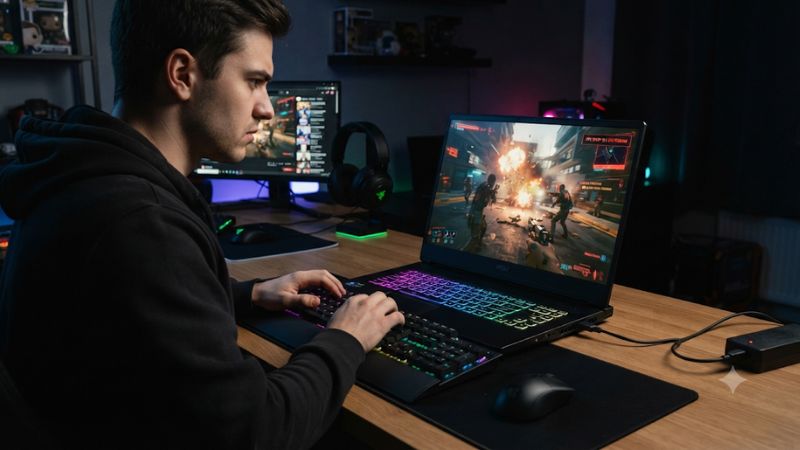
An incompatible or underpowered adapter can cause unstable performance during demanding games. Gaming laptops are designed around specific power requirements, and a USB-C charger that works for everyday tasks may not provide enough power for the CPU and dedicated GPU under sustained gaming loads.
Check the adapter’s output specifications against the requirements for your exact laptop model. Pay attention to its rated wattage, voltage, connector, and supported charging method. A physically compatible connector does not automatically mean the adapter is suitable for gaming.
2. Thermal Throttling Under AC Power
Connecting the charger can allow a laptop to use more aggressive CPU and GPU performance profiles. That can increase heat output, particularly when the fans are configured for quieter operation or the cooling system has accumulated dust.
When temperatures approach a component’s operating limits, the system may reduce clock speeds to control heat. This can produce inconsistent frame times, sudden FPS drops, and brief freezes. However, high temperatures alone do not establish the cause; monitor temperatures alongside CPU and GPU clock speeds.
3. Windows and Manufacturer Power Profiles
Windows and laptop manufacturer utilities can apply different performance policies depending on whether the adapter is connected. A laptop may switch between Silent, Balanced, Performance, or Turbo modes when its power source changes.
A poorly configured profile can create unexpected behavior, particularly when multiple utilities manage CPU performance, GPU power, and fan curves. Windows power settings and manufacturer control software should therefore be checked together rather than changed randomly.
4. What Doesn’t Help
Randomly changing BIOS settings, disabling CPU boost, or installing third-party optimization utilities is unlikely to identify the actual fault. These changes can introduce additional performance limitations or stability problems while making the original issue harder to diagnose.
Likewise, repeatedly reinstalling Windows or deleting temporary files is not a sensible first response. If stuttering consistently begins when AC power is connected, investigate the adapter, power profiles, temperatures, and GPU behavior before attempting major software changes.
How to Fix Gaming Laptop Stutters When Charging: Step by Step
Work through the following checks in order, starting with the simplest and least disruptive. Before changing anything, run the same game in the same location on battery and AC power, using identical graphics settings. Record the average FPS and note whether the problem involves brief freezes, uneven frame pacing, or sustained low performance.
| Step | Where | How to Verify | Cost |
|---|---|---|---|
| Check the power adapter | Adapter label and laptop manufacturer’s specifications | Confirm the required wattage and charging status | Free if original adapter |
| Adjust power profiles | Windows Settings and manufacturer utility | Compare frame pacing before and after | Free |
| Check GPU selection | Windows Graphics settings | Confirm the game uses the intended GPU | Free |
| Monitor temperatures and clocks | HWiNFO or manufacturer monitoring utility | Look for clock drops coinciding with stutters | Free |
| Repair or replace faulty hardware | Authorized service center | Request adapter, charging-port, and cooling diagnostics | Depends on repair |
Step 1. Check the Charger and Power Connection
Start by connecting the original power adapter directly to a suitable wall outlet. Avoid testing through an overloaded extension, questionable USB-C hub, or third-party charging accessory. Check whether the laptop consistently recognizes the adapter and whether its charging indicator changes unexpectedly.
Compare the adapter’s rated output with the requirements listed for your exact laptop model. If you use USB-C Power Delivery, verify that both the laptop port and charger support the required charging profile. If the adapter is underpowered or intermittently disconnects, stop demanding gaming sessions until the power issue is resolved.
Step 2. Configure Windows and Manufacturer Power Modes
In Windows 11, open Settings > System > Power & battery > Power mode and select Best performance for the plugged-in gaming session, if available. Microsoft describes this mode as prioritizing performance over energy efficiency. Expect higher power consumption and potentially more heat, so compare results rather than assuming it will solve every stutter.
Next, open your manufacturer’s gaming utility and inspect its operating mode. Depending on the model, this may be Armoury Crate, Lenovo Vantage, OMEN Gaming Hub, MSI Center, or PredatorSense. Select the manufacturer’s recommended gaming performance profile and check whether fan behavior changes. Restore the previous profile if the new setting increases instability.
Step 3. Make Sure the Game Uses the Correct GPU
Some gaming laptops combine integrated graphics with a dedicated NVIDIA or AMD GPU. Windows may assign individual applications a graphics preference, so verify that the game uses the intended high-performance processor rather than assuming that connecting the charger automatically selects it.
Open Settings > System > Display > Graphics. Select the game, choose Options, and select High performance if your laptop offers multiple GPU choices. Save the setting and restart the game. If performance becomes worse, return to Let Windows decide and compare again. Some manufacturer graphics modes may also require a restart or sign-out.
Step 4. Check Temperatures, Drivers, and Hardware Stability
Use HWiNFO or your manufacturer’s monitoring utility to observe CPU temperature, GPU temperature, clock speeds, and power behavior while reproducing the problem. Look for clock reductions that occur at the same time as frame-time spikes. Compare the readings between battery and AC operation rather than relying on one temperature reading.
If the problem started after a driver update, check the laptop manufacturer’s recommended graphics drivers first. NVIDIA and AMD drivers should match your GPU and operating system. Avoid using generic driver-cleaning utilities as an initial fix. If the adapter, temperatures, and software settings appear normal but stuttering continues, have the charging circuitry, battery, cooling system, and power connections inspected.
FAQ
1. Why Does My Gaming Laptop Run Better on Battery Than When Charging?
A gaming laptop can run worse on AC power when its performance profile, charger recognition, thermal behavior, or charging controller is not working as expected. Connecting the adapter can also trigger higher CPU and GPU power limits, increasing heat production. Compare temperatures, clock speeds, and power profiles before deciding which component is responsible.
2. Can an Underpowered Charger Cause Gaming Stuttering?
Yes, an underpowered or incompatible charger can restrict laptop performance during demanding workloads. The CPU may reduce its clock speed, charging may slow down, or the system may struggle to receive sufficient power. Use the adapter specified for your model and check its wattage rather than choosing a replacement based only on connector compatibility.
3. Should I Use Best Performance Mode While Gaming?
Best performance mode is a reasonable option when gaming with the correct AC adapter, but it is not a universal stuttering fix. It prioritizes performance and can increase power consumption and heat. If temperatures become excessive or frame pacing gets worse, compare Balanced mode and your manufacturer’s alternative performance profiles.
4. When Should I Take My Gaming Laptop for Repair?
Seek professional service if stuttering persists with the correct adapter and appropriate settings, particularly when accompanied by charging interruptions, unexpected shutdowns, unusual electrical smells, or excessive heat. A technician can inspect the charging port, adapter, battery, motherboard power circuitry, and cooling system without requiring unnecessary component replacements.
Final Thoughts
If your gaming laptop stutters when charging, investigate the adapter, power profiles, GPU selection, and temperatures before replacing hardware. Change one setting at a time and compare the same game under consistent conditions. If the problem persists, arrange a professional power-delivery and cooling inspection rather than experimenting with BIOS settings.
Related guides
More from Amazon
Programs that pair well with the guide above. Offers and eligibility are set by Amazon and may change.
Free shipping on eligible items, Prime Video and more. Eligible new members can start with a free trial.
Start a Prime free trialAd-free music streaming. Eligible new subscribers can start with a free trial.
Try Music Unlimited freeA Prime membership for ages 18-24 with a trial period. Eligibility is set by Amazon.
See Prime for Young AdultsAudiobooks and podcasts to listen to on the go. Eligible new members can start with a free trial.
Try Audible freeAs an Amazon Associate we earn from qualifying purchases.