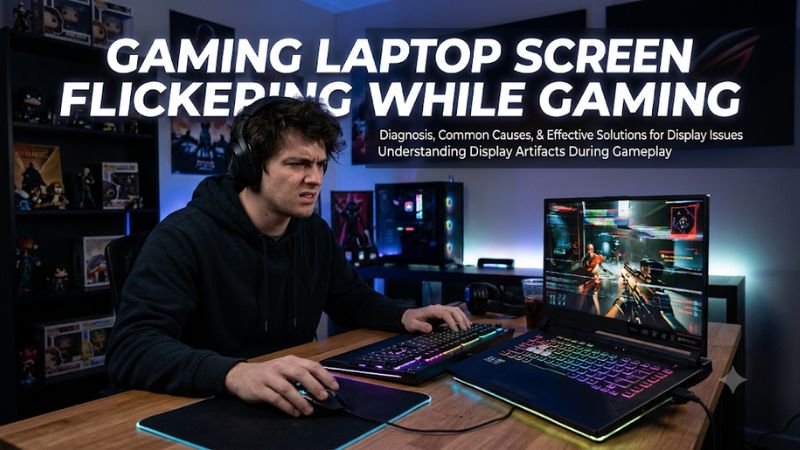
Gaming laptop screen flickering while gaming can result from graphics driver conflicts, Variable Refresh Rate (VRR) behavior, incorrect refresh-rate settings, overheating, or display hardware problems. The right fix depends on when the flickering occurs, whether it affects one game or every application, and whether the built-in display or an external monitor is involved.
Why Gaming Laptop Screens Flicker During Games
Gaming-related screen flickering does not automatically mean the laptop GPU or display panel is failing. Software conflicts, graphics switching, synchronization settings, and unstable display connections can produce similar symptoms. Start by identifying whether the problem happens in one game, across multiple applications, or even outside Windows.
1. Graphics Driver Conflicts and Updates
Graphics drivers manage communication between the operating system, GPU, and display. Gaming laptops frequently use both integrated graphics and a dedicated NVIDIA GeForce or AMD Radeon GPU. Problems can appear when these graphics processors switch operating modes or when a driver update introduces an incompatibility.
If flickering started immediately after installing a graphics driver, Windows update, or manufacturer utility, investigate that change first. Check Device Manager under Display adapters to identify the installed graphics hardware and review the driver installation date.
Microsoft recommends checking whether Task Manager flickers along with the rest of the screen. If it does, a display driver is a likely cause. If Task Manager remains stable while other windows flicker, an incompatible application is another possibility.
2. Variable Refresh Rate and G-SYNC Conflicts
Variable Refresh Rate adjusts the display’s refresh rate to match the GPU’s frame output. Technologies such as NVIDIA G-SYNC and AMD FreeSync use this approach to reduce tearing and improve perceived smoothness.
However, certain combinations of games, display modes, and graphics configurations can produce visible brightness fluctuations or intermittent flickering. MSI has documented this behavior on some of its gaming notebooks using MSHybrid mode, particularly when VRR remains active in games that do not properly support it.
The symptom may become more noticeable when frame rates fluctuate significantly or when switching between menus and gameplay. If flickering occurs only in particular games, temporarily disabling VRR is a useful diagnostic step rather than immediately reinstalling every graphics driver.
3. Incorrect Refresh Rate or Display Configuration
Gaming laptops commonly offer multiple refresh-rate options. Depending on the panel, available configurations may include standard and high-refresh-rate modes.
Selecting an incompatible display configuration, using an unstable external connection, or changing resolution can contribute to visual instability. The problem may also appear after switching between fullscreen, borderless windowed, and windowed modes.
Check Settings > System > Display > Advanced display in Windows 11. Select the built-in laptop display and review its current refresh rate. If the flickering began after changing this setting, temporarily return to another supported refresh rate and compare the results.
4. Display Hardware, Heat, and Power Problems
Not every flickering problem originates in software. A damaged display cable, loose internal connection, failing panel, or GPU-related hardware fault can produce intermittent visual artifacts.
The pattern matters. Flickering that changes when the laptop lid moves may indicate a display cable or hinge-area connection problem. Lines, color distortions, or flickering visible before Windows loads deserve particular attention.
Heat and power conditions also deserve investigation when the issue appears only during demanding games. Monitor temperatures and power behavior using the laptop manufacturer’s diagnostic software or an appropriate monitoring utility. However, do not assume that high temperatures are responsible without checking the display and driver behavior separately.
What Doesn’t Help
Several commonly suggested fixes can waste time or introduce additional problems:
-
Randomly reinstalling Windows without identifying the cause.
-
Increasing GPU power limits to address display instability.
-
Applying unofficial BIOS modifications.
-
Using registry cleaners or automatic driver-update utilities from unknown publishers.
-
Disabling Windows security features or background services without evidence.
-
Assuming that reducing graphics quality will fix every type of flickering.
A lower graphics preset may help investigate a game-specific rendering problem, but it does not repair a defective display panel or unstable connection.
How to Fix Gaming Laptop Screen Flickering: Step by Step
The safest troubleshooting approach starts with observation and reversible software changes. Do not immediately replace hardware or install firmware updates. First determine whether the issue follows a particular game, graphics driver, display configuration, or physical screen. The following steps progress from free diagnostic checks to more involved interventions.
Diagnostic and Repair Checklist
| Step | Where | How to Verify | Cost |
|---|---|---|---|
| Check Task Manager | Windows desktop | Compare its behavior with other windows | Free |
| Reset graphics driver | Windows keyboard shortcut | Recheck the display during gameplay | Free |
| Adjust refresh rate | Advanced display settings | Compare supported refresh-rate modes | Free |
| Disable VRR temporarily | Windows Graphics settings | Compare the same game before and after | Free |
| Update or roll back drivers | Device Manager or laptop manufacturer’s support software | Restart and repeat the original scenario | Free |
| Inspect external display connections | HDMI, DisplayPort, or USB-C connection | Compare another cable or display | Depends |
| Request hardware inspection | Manufacturer service center | Check panel, cable, and GPU diagnostics | Varies |
1. Determine Whether the Problem Comes From Windows or the Game
Before changing settings, establish where the flickering occurs.
Open a game that regularly produces the issue and observe whether the entire screen flashes, only the game window changes brightness, or horizontal lines appear. If possible, capture a short recording using a phone or another device. Some display faults may not appear correctly in software screen recordings.
Next, press Ctrl + Shift + Esc to open Task Manager. Observe whether its interface also flickers when the desktop or another application is affected.
Use these observations to narrow the possibilities:
-
Task Manager flickers too: investigate the graphics driver or display pipeline.
-
Task Manager stays stable: investigate the game, overlays, or incompatible applications.
-
Only one game flickers: compare its graphics and display settings with another game.
-
The problem appears before Windows starts: investigate hardware or firmware-level display behavior.
This diagnostic distinction follows Microsoft’s Windows display troubleshooting guidance and can prevent unnecessary driver changes.
2. Reset or Adjust the Graphics Driver
A temporary graphics driver reset can help when the display becomes unstable without requiring a full system restart.
Press Windows + Ctrl + Shift + B. Windows attempts to reset the graphics driver, and the display may briefly go black or produce an audible notification. Wait for the desktop to return, then reopen the affected game.
If the problem started after a driver update, consider rolling back to the previous version:
-
Right-click Start and open Device Manager.
-
Expand Display adapters.
-
Right-click the relevant graphics adapter.
-
Select Properties and open the Driver tab.
-
Choose Roll Back Driver if the option is available.
-
Restart Windows and check the same game again.
If rollback is unavailable, obtain a compatible driver from the laptop manufacturer’s support page. Gaming notebooks can have manufacturer-specific graphics configurations, so the OEM-provided driver is a sensible starting point.
Avoid uninstalling every display driver simultaneously. Integrated and dedicated graphics may both be required for the laptop’s internal display to operate correctly.
3. Adjust Refresh Rate and Disable VRR Temporarily
If the flickering appears during gameplay but disappears on the desktop, display synchronization deserves attention.
First, check the refresh rate:
-
Open Settings.
-
Select System > Display.
-
Choose Advanced display.
-
Select the built-in laptop display.
-
Review the available refresh-rate options.
-
Temporarily select another supported rate.
Launch the same game and compare its behavior. If the flickering disappears, the previous display configuration may be contributing to the problem.
Next, investigate Variable Refresh Rate. In Windows 11, navigate to Settings > System > Display > Graphics > Change default graphics settings. If the Variable Refresh Rate option is available, temporarily turn it off.
For NVIDIA laptops, also inspect the NVIDIA Control Panel’s G-SYNC configuration when supported. AMD users can check the Display section of AMD Software for FreeSync controls.
Change one synchronization setting at a time. If disabling VRR improves stability, test whether the game remains comfortable to play. You may notice additional screen tearing because the display no longer dynamically synchronizes its refresh rate with game output.
To reverse the diagnostic change, restore the original VRR and refresh-rate settings.
4. Update the Game, Graphics Software, and Relevant Drivers
If the problem affects only one title, check for a game update before changing the entire laptop configuration. A game-specific rendering issue may not require a Windows or GPU driver replacement.
For broader problems, inspect the installed graphics driver versions and compare them with the versions recommended by the laptop manufacturer.
Use this sequence:
-
Check the laptop manufacturer’s support utility for compatible graphics updates.
-
Review NVIDIA or AMD driver releases if the manufacturer recommends a newer version.
-
Install relevant Windows updates.
-
Update the affected game through its official launcher.
-
Restart the laptop and repeat the original diagnostic scenario.
If flickering started immediately after a recent driver installation, rollback may be more appropriate than installing another version without investigation.
Avoid installing optional firmware updates solely because the display flickers. BIOS updates carry additional risks, including interrupted installation and potential boot problems. Consider them only when the manufacturer documents a relevant issue for the exact laptop model.
5. Check External Displays and Physical Connections
If you use an external gaming monitor, disconnect it and repeat the game on the laptop’s built-in display. Then reconnect the monitor using a direct, compatible connection.
A faulty cable, adapter, docking station, or monitor input can cause flickering that appears to originate from the laptop.
Try these comparisons:
-
Built-in display versus external monitor.
-
HDMI versus a supported direct USB-C or DisplayPort connection.
-
Original cable versus another compatible cable.
-
Current resolution versus a lower supported resolution.
-
Current refresh rate versus another supported refresh rate.
If the external monitor works correctly but the built-in panel continues flickering, investigate the laptop’s internal display path. If both displays flicker, graphics drivers or GPU-related behavior become more relevant possibilities.
Do not open the laptop to reseat internal display cables unless you have the required repair experience and understand the warranty implications.
FAQ
Why Does My Gaming Laptop Screen Flicker Only During Games?
Gaming laptop screens may flicker only during games because demanding graphics workloads activate different GPU modes, refresh-rate synchronization, and display configurations. Check VRR, G-SYNC, FreeSync, and fullscreen settings first. If only one game is affected, investigate its updates and graphics configuration before changing system-wide settings.
Can an Outdated GPU Driver Cause Screen Flickering?
Yes, an outdated or incompatible GPU driver can cause screen flickering. Graphics drivers control communication between Windows, the integrated GPU, dedicated GPU, and display. Update through the laptop manufacturer’s support software when possible. If flickering began after an update, consider rolling back to the previous compatible version.
Does Disabling G-SYNC or FreeSync Fix Laptop Screen Flickering?
Disabling G-SYNC or FreeSync can help when flickering is associated with variable refresh-rate behavior. However, it is a diagnostic measure rather than a universal repair. Compare the same game with synchronization enabled and disabled, then restore the original configuration if the change provides no improvement.
When Should I Replace My Gaming Laptop Screen?
Consider professional hardware inspection when flickering persists across applications, appears before Windows loads, or is accompanied by persistent lines, discoloration, or physical display damage. A technician should distinguish a faulty panel from a damaged display cable or GPU problem before recommending replacement.
Final Thoughts
Gaming laptop screen flickering while gaming requires a systematic diagnosis rather than immediate hardware replacement. Start with Task Manager, graphics drivers, refresh-rate settings, and VRR before investigating physical connections. If flickering persists outside Windows or changes with lid movement, arrange a professional display inspection using your laptop’s exact model information.
Related guides
More from Amazon
Programs that pair well with the guide above. Offers and eligibility are set by Amazon and may change.
Free shipping on eligible items, Prime Video and more. Eligible new members can start with a free trial.
Start a Prime free trialAd-free music streaming. Eligible new subscribers can start with a free trial.
Try Music Unlimited freeA Prime membership for ages 18-24 with a trial period. Eligibility is set by Amazon.
See Prime for Young AdultsAudiobooks and podcasts to listen to on the go. Eligible new members can start with a free trial.
Try Audible freeAs an Amazon Associate we earn from qualifying purchases.