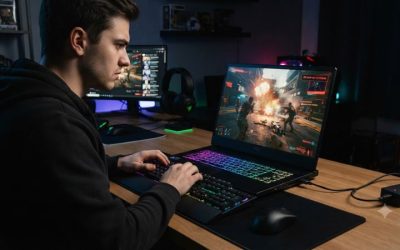
A gaming laptop black screen but still running can indicate a display problem, graphics driver failure, Windows freeze, or hardware issue rather than a complete power failure. Fans may continue spinning, keyboard lights may stay on, and game audio may remain audible. The right troubleshooting sequence helps identify the cause without unnecessary resets or repairs.
Why a Gaming Laptop Has a Black Screen but Still Runs
When a gaming laptop stays powered on but displays nothing, the first priority is determining whether Windows is still operating or the display system has stopped responding. Power lights, fan activity, keyboard responses, and external monitor output provide useful clues. Avoid immediately assuming that the GPU or motherboard has failed.
1. Graphics Driver Crashes or Display Output Problems
A graphics driver crash is one possible explanation for a black display while the laptop continues running. Gaming laptops commonly use integrated graphics and a dedicated NVIDIA GeForce or AMD Radeon GPU. Switching between graphics processors, changing display modes, or recovering from a demanding workload can expose driver-related problems.
If Windows is still responsive, try pressing Windows + Ctrl + Shift + B. This keyboard shortcut resets the graphics driver in Windows. You may hear a beep or notice the screen flicker if the reset succeeds. It is a useful first check, although it cannot repair a defective display panel or failed GPU.
2. Internal Display, Backlight, or Connection Failure
The laptop may be functioning normally while its internal display cannot produce a visible image. Possible causes include a failed LCD or OLED panel, backlight problems on applicable LCD models, a damaged display cable, or an internal display connection that has become loose.
An external monitor provides an important diagnostic distinction. If a connected monitor displays Windows normally while the built-in screen remains black, the problem is more likely associated with the internal display assembly or its display configuration. However, a working external monitor does not automatically prove that the laptop panel itself is defective.
3. Windows Startup or System Freeze
A Windows startup problem can leave the laptop powered on without reaching the desktop. You might hear notification sounds, keyboard activity, or other signs that the system has not completely shut down.
This can happen after a Windows update, graphics driver installation, interrupted startup, or system crash. A black screen with a visible cursor may indicate that Windows has loaded but the desktop shell is not responding. A black screen before the manufacturer logo appears suggests a different problem involving startup hardware, firmware, or the display system.
What Doesn’t Help
Several common reactions can make troubleshooting less effective:
-
Repeatedly pressing the power button without checking whether an update is running.
-
Installing multiple graphics drivers before determining whether Windows is accessible.
-
Increasing GPU overclocking or changing voltage settings to address a display failure.
-
Running registry cleaners or RAM optimization utilities.
-
Opening the laptop and disconnecting internal components without the correct service instructions.
A black screen is a symptom, not a diagnosis. Identify whether the laptop is booting, whether Windows responds, and whether an external display works before making consequential changes.
How to Fix a Gaming Laptop Black Screen: Step by Step
Start with reversible checks that do not require opening the laptop or reinstalling Windows. The sequence below moves from keyboard shortcuts and display checks to Windows recovery and hardware diagnosis. If the laptop may be installing a Windows or BIOS update, allow the process to finish rather than interrupting it.
1. Check Whether the Laptop Is Actually Responsive
Before changing settings, check the power indicator, keyboard backlighting, fan behavior, and Caps Lock response. Press Caps Lock once and see whether its indicator changes. Listen for Windows notification sounds or game audio if the system was already running.
These observations help distinguish a responsive computer with a display problem from a system that has frozen during startup. However, fan movement and keyboard illumination alone do not establish that Windows has successfully booted. Record what happens before attempting a restart.
2. Reset the Graphics Driver and Check Display Mode
Press Windows + Ctrl + Shift + B once and wait briefly for a response. Windows may produce a short beep or screen flicker when the graphics driver reset works. If the display returns, save important work and investigate recent GPU driver or graphics configuration changes.
If the screen remains black, try Windows + P to open the projection controls. Press P again and then Enter to cycle through available display modes. This can help when Windows is sending video to an unavailable external display instead of the built-in panel.
3. Test an External Monitor or Television
Connect the gaming laptop to a working monitor or television using a supported HDMI or DisplayPort connection. Turn on the external display, select the correct input, and allow the laptop time to detect it. Some models may require a display-switching function key.
Interpret the result carefully:
-
External display works: Windows and at least one graphics output path are functioning. Investigate the internal panel, display cable, backlight where applicable, and display configuration.
-
Both displays remain black: Consider a Windows startup failure, GPU issue, firmware problem, or broader hardware fault.
-
External display works only after Windows loads: The laptop may have a pre-boot display or output-selection limitation.
Disconnect the external monitor after recording the result. Avoid assuming that a single failed external connection confirms GPU failure.
4. Restart Windows or Use Recovery Mode
If Windows responds to Ctrl + Alt + Delete, try opening Task Manager. If Task Manager appears, select Run new task, enter explorer.exe, and press Enter. This can restore the desktop when Windows Explorer has stopped responding.
If the system is completely frozen, a forced shutdown may be necessary. First, make sure a Windows or BIOS update is not in progress. Hold the power button until the laptop switches off, then wait briefly and restart. If the black screen returns, use Windows Recovery Environment to investigate startup problems or enter Safe Mode.
Diagnostic and Repair Table
| Step | Where | How to Verify | Cost |
|---|---|---|---|
| Check keyboard and power response | Laptop keyboard | Caps Lock and power indicators respond | Free |
| Reset graphics driver | Windows keyboard shortcut | Beep, flicker, or restored image | Free |
| Change display mode | Windows + P | Internal screen displays an image | Free |
| Connect external monitor | HDMI or DisplayPort | External monitor displays Windows | Free |
| Restart Explorer | Task Manager | Windows desktop returns | Free |
| Enter Safe Mode | Windows Recovery Environment | Windows starts with basic drivers | Free |
| Update or roll back GPU driver | Device Manager or manufacturer software | Display works after restart | Free |
| Inspect display hardware | Authorized repair service | Technician identifies panel or connection fault | Varies |
5. Update or Roll Back the Graphics Driver
If the external monitor works or Safe Mode is accessible, investigate the graphics driver. Open Device Manager, expand Display adapters, right-click the relevant GPU, and select Properties. Under the Driver tab, check whether Roll Back Driver is available.
If the problem began immediately after a driver update, rolling back to the previous version may be appropriate. Otherwise, obtain the correct graphics driver for the exact laptop model from its manufacturer or the relevant GPU vendor. Some gaming laptops require manufacturer-provided graphics packages for their hybrid graphics configuration.
6. Use Safe Mode to Isolate Software Problems
Safe Mode starts Windows with a limited set of drivers and services. It can help determine whether a recently installed graphics driver, startup application, or other software component is contributing to the black screen.
If Windows Recovery Environment is accessible, navigate to Troubleshoot > Advanced options > Startup Settings > Restart. Select the Safe Mode option from the Startup Settings menu. If the display works in Safe Mode but fails during normal startup, investigate recent software and driver changes.
Do not repeatedly interrupt startup while firmware or Windows updates may be running. If recovery is inaccessible, consult the laptop manufacturer’s model-specific recovery instructions rather than repeatedly forcing shutdowns.
7. Check for Hardware Problems Before Opening the Laptop
If neither the internal display nor an external monitor produces an image, hardware diagnostics may be necessary. Look for manufacturer-specific startup indicators, including blinking Caps Lock lights, diagnostic LEDs, or beep patterns. Their meanings vary by laptop model.
Some gaming laptops provide built-in LCD or component diagnostics. Use the manufacturer’s official documentation to identify the appropriate procedure. If the laptop recently suffered a drop, liquid exposure, unusual heat, or electrical damage, stop experimenting with repeated restarts and arrange professional inspection.
Do not attempt to reseat RAM, disconnect the display cable, or remove the cooling assembly unless the laptop’s service documentation supports the procedure and you have the necessary experience. Internal repairs can damage connectors and may affect warranty coverage.
FAQ
Why Does My Gaming Laptop Have a Black Screen but the Fans Are Still Running?
A gaming laptop can continue receiving power while its display, graphics driver, Windows startup process, or internal hardware is malfunctioning. Fan activity confirms that some components receive power, but it does not prove that Windows has booted successfully.
Can a Graphics Driver Cause a Black Screen?
Yes, a graphics driver problem can prevent Windows from displaying an image correctly. Press Windows + Ctrl + Shift + B to request a graphics driver reset. If the issue started after a driver update, investigate whether rolling back to the previous version is appropriate.
Will Force Restarting Fix a Gaming Laptop Black Screen?
A forced restart can resolve a temporary system freeze, but it does not repair physical display or GPU damage. Avoid forcing shutdown during Windows or BIOS updates because interrupting firmware operations can cause additional problems.
When Should I Take My Gaming Laptop for Repair?
Seek professional repair if the internal and external displays remain black, diagnostic indicators report hardware errors, or the problem persists after basic software troubleshooting. Physical damage, liquid exposure, burning smells, and unusual electrical noises also warrant immediate professional attention.
Final Thoughts
A gaming laptop black screen but still running does not automatically mean the GPU or motherboard has failed. Start by checking system responsiveness, resetting the graphics driver, and connecting an external monitor. If those checks reveal a hardware problem, arrange model-specific diagnostics before attempting internal repairs.
Related guides
More from Amazon
Programs that pair well with the guide above. Offers and eligibility are set by Amazon and may change.
Free shipping on eligible items, Prime Video and more. Eligible new members can start with a free trial.
Start a Prime free trialAd-free music streaming. Eligible new subscribers can start with a free trial.
Try Music Unlimited freeA Prime membership for ages 18-24 with a trial period. Eligibility is set by Amazon.
See Prime for Young AdultsAudiobooks and podcasts to listen to on the go. Eligible new members can start with a free trial.
Try Audible freeAs an Amazon Associate we earn from qualifying purchases.