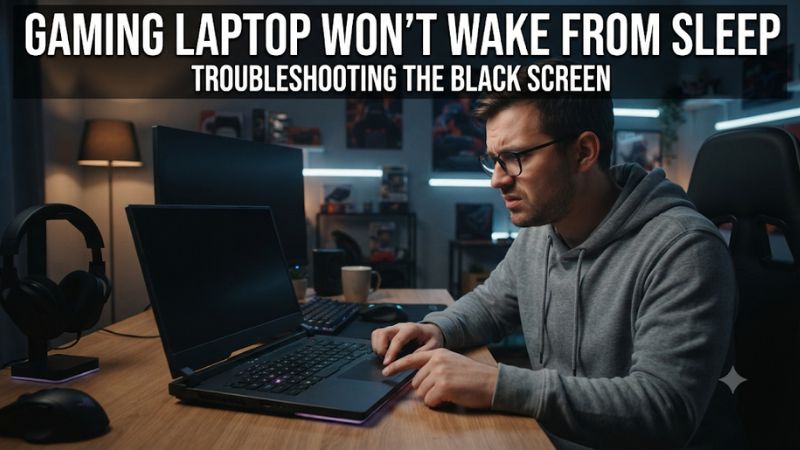
A gaming laptop won’t wake from sleep problem can look like a dead display, an unresponsive keyboard, or a system that stays powered on without returning to Windows. The cause may be a depleted battery, an incorrect wake setting, or a driver issue. Start with safe checks before changing system settings.
Why a Gaming Laptop Won’t Wake From Sleep
When a gaming laptop refuses to resume, the first task is to determine whether Windows is still running, the display has failed to return, or the laptop has entered hibernation. These situations can look similar but require different fixes. Check the charging indicator, power light, keyboard response, and external display behavior before forcing a shutdown.
1. The Laptop Has Entered Hibernation Instead
Sleep and hibernation are different power states. Sleep keeps the current session in memory and uses a small amount of power, while hibernation saves the session to storage and powers down more completely. Some laptops automatically transition from sleep to hibernation after remaining inactive for an extended period.
This explains why pressing a keyboard key may not work even when the laptop is functioning normally. Connect the original charger, check the battery indicator, and press the power button once. Give Windows time to resume before trying anything more disruptive. ASUS specifically identifies automatic hibernation as a possible explanation for failed keyboard wake-ups.
ASUS USA+1
2. A Graphics Driver or Display Resume Problem
A black screen does not necessarily mean the entire laptop has stopped responding. Windows may resume while the internal display remains blank because the graphics driver or display connection fails to recover correctly. This possibility is particularly relevant when the keyboard backlight, fans, or power indicators suggest that the machine is still active.
If the laptop responds to keyboard shortcuts or produces sounds, investigate the display before assuming a complete system failure. Disconnect external monitors and docks, then try the internal screen again. A graphics driver issue becomes more plausible if the problem began after a driver update or repeatedly occurs when waking from sleep.
3. Incorrect Power Settings or Device Drivers
Windows relies on firmware, chipset drivers, graphics drivers, and supported input devices to manage power transitions. A problem in one of these components can interrupt the process of returning from sleep. Outdated or corrupted drivers and incorrect BIOS or Windows power settings are among the causes identified in Dell’s troubleshooting guidance.
A keyboard that cannot wake the laptop may also have its wake permission disabled. External USB devices, wireless receivers, and connected peripherals can complicate diagnosis. Disconnecting nonessential accessories and checking Device Manager are sensible early steps before considering firmware changes or hardware repairs.
Dell US+2
What Doesn’t Help
Randomly pressing keyboard combinations, repeatedly closing and opening the lid, or installing third-party driver-updater utilities does not identify the underlying fault. These actions can waste time and make troubleshooting less predictable.
Avoid immediately resetting Windows, deleting system files, changing registry entries, or flashing the BIOS. A forced shutdown can discard unsaved work, while an interrupted firmware update can cause more serious problems. Start with power checks, isolate connected devices, and make one controlled change at a time.
How to Fix a Gaming Laptop That Won’t Wake From Sleep: Step by Step
Work through these fixes in order, starting with the least disruptive checks. The goal is to establish whether the problem comes from battery depletion, display recovery, Windows power management, or a driver. Test sleep and wake behavior after each change so you can identify which adjustment actually makes a difference.
| Step | Where | How to Verify | Cost |
|---|---|---|---|
| 1. Check power and peripherals | Laptop, charger, USB ports | Charging indicator and normal wake response | Free |
| 2. Reset the graphics driver | Windows keyboard shortcut | Screen flickers or returns | Free |
| 3. Enable keyboard wake permission | Device Manager | Keyboard wakes the laptop | Free |
| 4. Update or roll back drivers | Windows Update and manufacturer support | Sleep and wake work repeatedly | Free |
1. Check the Power Supply and Disconnect Accessories
First, connect the laptop to its original AC adapter and confirm that the charging indicator responds. Press the power button once and wait. If the laptop has been inactive for a long time, it may have entered hibernation rather than remaining in ordinary sleep.
If the laptop remains unresponsive, disconnect USB drives, external keyboards, mice, docking stations, and external monitors. Leave only the charger connected and try waking it again. This helps isolate peripheral-related problems without changing Windows settings or removing installed software.
If nothing responds, a forced shutdown may be necessary. Hold the power button until the laptop switches off, following the manufacturer’s instructions for your model. Be aware that unsaved work in memory may be lost. Wait briefly, then power the laptop back on normally. ASUS recommends a 15-second hold for its general troubleshooting procedure, but follow model-specific instructions where they differ.
ASUS USA+1
2. Reset the Graphics Driver When the Screen Is Black
If the power indicator and keyboard suggest that the laptop is running but the display remains black, try the Windows graphics-driver reset shortcut:
Windows + Ctrl + Shift + B
Press the combination once and wait for a response. Windows may produce a beep or briefly flicker the display when the graphics driver resets. This shortcut is a useful first check because it does not require opening the laptop or reinstalling the GPU driver.
If the screen remains blank, press Windows + P, then press P again and Enter to cycle through available display modes. Disconnect external monitors and docks before repeating the check. If the display returns, investigate the graphics driver and display configuration rather than immediately replacing the screen.
Microsoft documents both shortcuts in its Windows blank-screen troubleshooting guidance. If the issue started immediately after a graphics driver update, open Device Manager, expand Display adapters, right-click the relevant GPU, and inspect Properties > Driver. Use Roll Back Driver if the option is available and the timing supports that diagnosis.
Microsoft Support+1
3. Enable Keyboard Wake Permission in Device Manager
A gaming laptop won’t wake from sleep when its intended wake device is not configured to resume the system. If the power button works but the keyboard does not, check whether Windows allows the keyboard to wake the laptop.
Follow these steps:
-
Right-click Start and open Device Manager.
-
Expand Keyboards.
-
Right-click the relevant HID Keyboard Device or keyboard entry.
-
Select Properties and open Power Management, if available.
-
Enable Allow this device to wake the computer.
-
Select OK and restart the laptop if necessary.
The exact device name and available tabs depend on the laptop and its drivers. If the Power Management tab is missing, do not assume the keyboard is defective. Some devices and power configurations do not expose this option. ASUS and HP both document keyboard wake permissions as a possible troubleshooting adjustment.
ASUS USA+1
You can also inspect wake-capable devices using an elevated Command Prompt. Run:
powercfg /devicequery wake_armedThis lists devices currently configured to wake the system. To inspect the available wake-capable devices, run:
powercfg /devicequery wake_programmableThese commands are diagnostic, not automatic repair commands. If the keyboard is absent, check the laptop manufacturer’s documentation before attempting to change device permissions. Microsoft documents these Power Configuration options and their functions.
Microsoft Learn
4. Update or Roll Back Drivers and Windows
If the problem started after a Windows update, graphics driver installation, or chipset driver change, investigate that recent change first. Open Settings > Windows Update and check for available updates. Also check the optional driver updates section, but do not install every available driver indiscriminately.
For gaming laptops, obtain chipset, graphics, and firmware packages from the laptop manufacturer’s official support page for the exact model. NVIDIA, AMD, and Intel graphics packages may also be relevant, depending on the GPU configuration. Follow the manufacturer’s installation instructions and avoid mixing incompatible driver packages.
If the issue appeared immediately after an update, Device Manager > Display adapters > Properties > Driver > Roll Back Driver may be more appropriate than installing another version. Create a restore point before significant driver changes when System Protection is available. Restart the machine and repeat the same sleep-and-wake test to check whether the problem has changed.
BIOS updates should be a later step, not the first response. Only use a firmware package intended for the exact laptop model, connect the AC adapter, maintain adequate battery charge, and follow the manufacturer’s instructions without interrupting installation. Dell identifies BIOS, chipset, graphics drivers, and Windows power configuration among possible causes of failed resume behavior.
Dell US+1
FAQ
1. Why Does My Gaming Laptop Have a Black Screen After Sleep?
A black screen after sleep can result from a graphics driver failing to resume, an incorrect display output, or Windows becoming unresponsive. Try Windows + Ctrl + Shift + B first, then disconnect external displays and check whether the laptop responds to other keyboard shortcuts.
If the power light stays on but the display remains blank, avoid assuming that the GPU has failed. Check whether the problem occurs after every sleep cycle or only after a recent Windows or graphics driver update. Repeated failures may justify manufacturer diagnostics.
2. Can a Gaming Laptop Automatically Switch From Sleep to Hibernate?
Yes, some gaming laptops automatically transition from sleep to hibernation after a configured period. This can make keyboard-based wake attempts appear ineffective because hibernation requires a different resume process.
Connect the charger and press the power button once. To inspect the available sleep states, open Command Prompt as administrator and run powercfg /availablesleepstates. The output identifies which power states Windows reports as available on your hardware.
ASUS USA+1
3. Will Updating the GPU Driver Fix Sleep and Wake Problems?
Updating or rolling back a GPU driver can resolve sleep-related display problems when the graphics driver is responsible. However, it will not necessarily fix battery, firmware, chipset, or keyboard wake issues.
If the problem appeared after a driver update, consider rolling back to the previous version. Otherwise, obtain a compatible driver from the laptop manufacturer’s support page or the GPU manufacturer’s official website. Change one driver at a time and check whether the behavior improves.
4. When Should I Take My Gaming Laptop for Professional Repair?
Seek professional service when the laptop repeatedly fails to power on, shows abnormal charging behavior, overheats, or continues experiencing wake failures after software and driver troubleshooting.
Stop using the laptop if you notice battery swelling, burning smells, or unusual electrical behavior. Do not open or manipulate a swollen battery. If the issue persists after manufacturer-recommended diagnostics, provide the technician with the laptop model, Windows version, recent updates, and a description of the symptoms.
Final Thoughts
A gaming laptop won’t wake from sleep issue does not automatically mean the GPU, motherboard, or display needs replacement. Start with the charger, peripherals, and graphics reset, then check keyboard permissions and drivers. If failures continue, use manufacturer diagnostics before considering firmware changes or hardware repair.
Related guides
More from Amazon
Programs that pair well with the guide above. Offers and eligibility are set by Amazon and may change.
Free shipping on eligible items, Prime Video and more. Eligible new members can start with a free trial.
Start a Prime free trialAd-free music streaming. Eligible new subscribers can start with a free trial.
Try Music Unlimited freeA Prime membership for ages 18-24 with a trial period. Eligibility is set by Amazon.
See Prime for Young AdultsAudiobooks and podcasts to listen to on the go. Eligible new members can start with a free trial.
Try Audible freeAs an Amazon Associate we earn from qualifying purchases.